Run and control an Android emulator in a VS Code tab. No separate emulator window, no alt-tabbing — the device screen streams live next to your code, and you can click, type, rotate, and simulate calls, battery, or GPS without leaving the editor.
Features
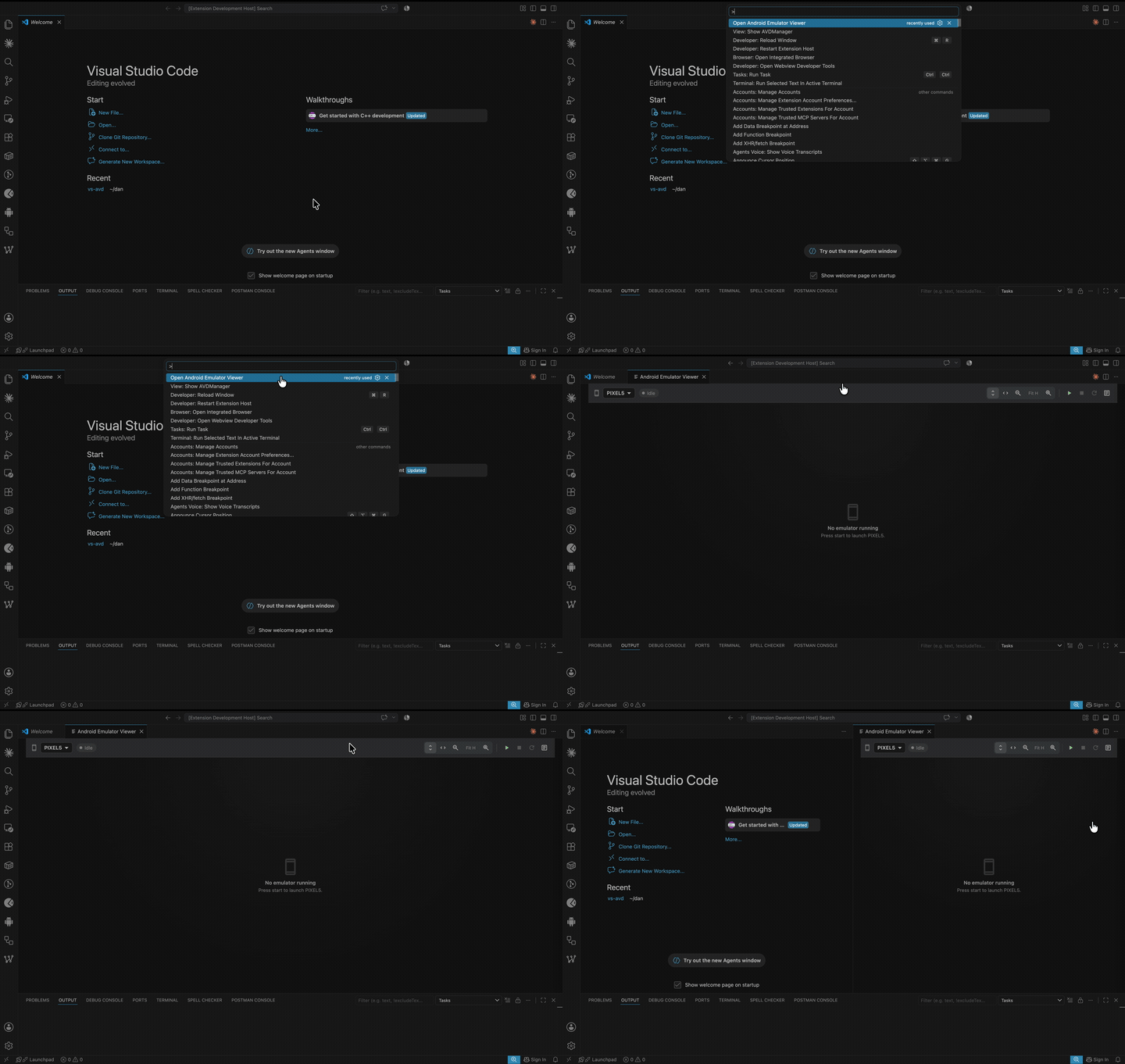
Live device screen
Streams at ~30fps as H.264 video — smooth enough to scroll lists and watch animations, not a sequence of screenshots. The emulator runs headless, so no extra window appears.
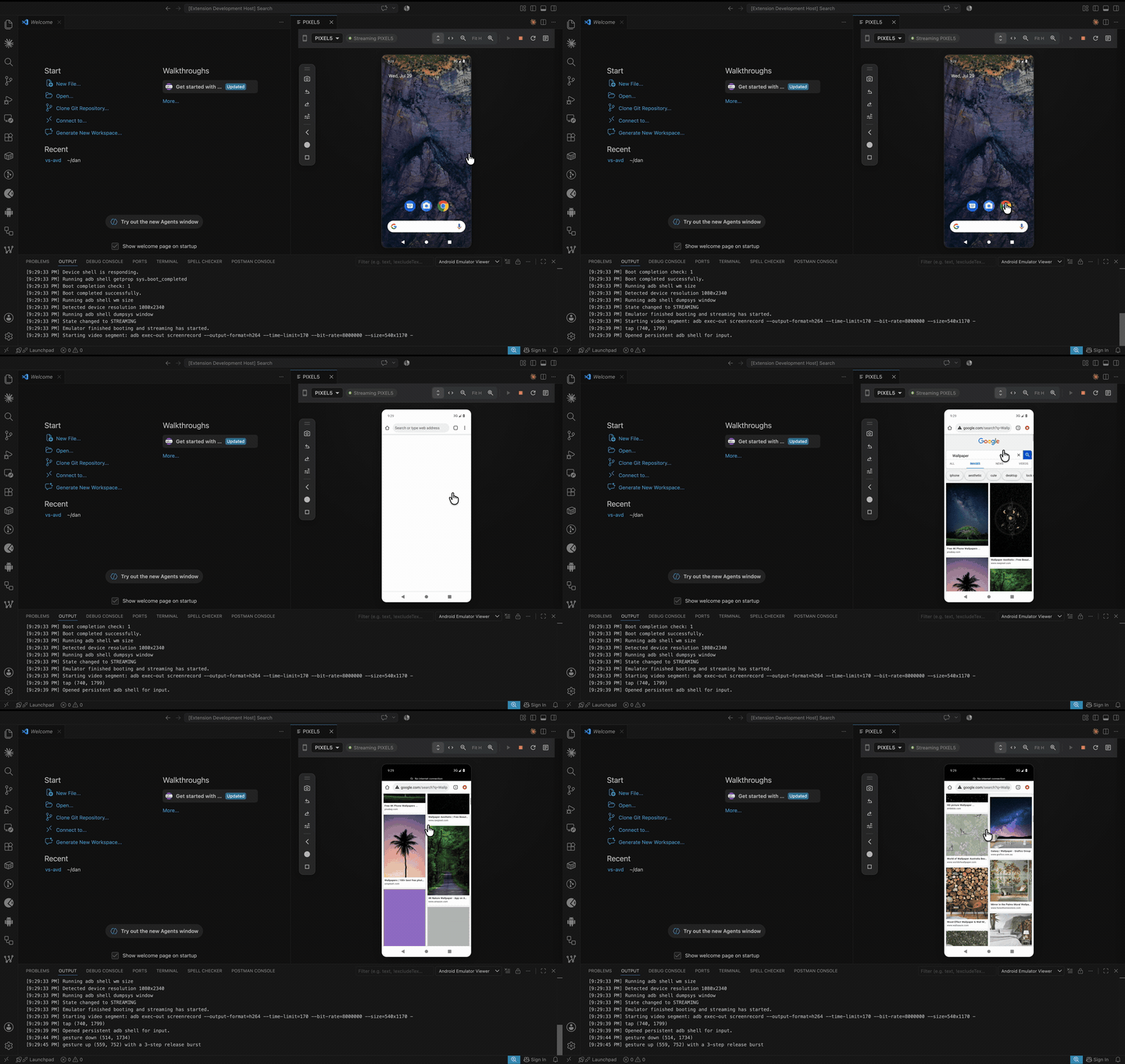
Start any AVD with real boot progress
Pick a device from the dropdown and press start. Progress shows actual milestones — launching, connecting over adb, waiting for the shell, booting Android — rather than an indefinite spinner, with an elapsed clock on slower cold boots.
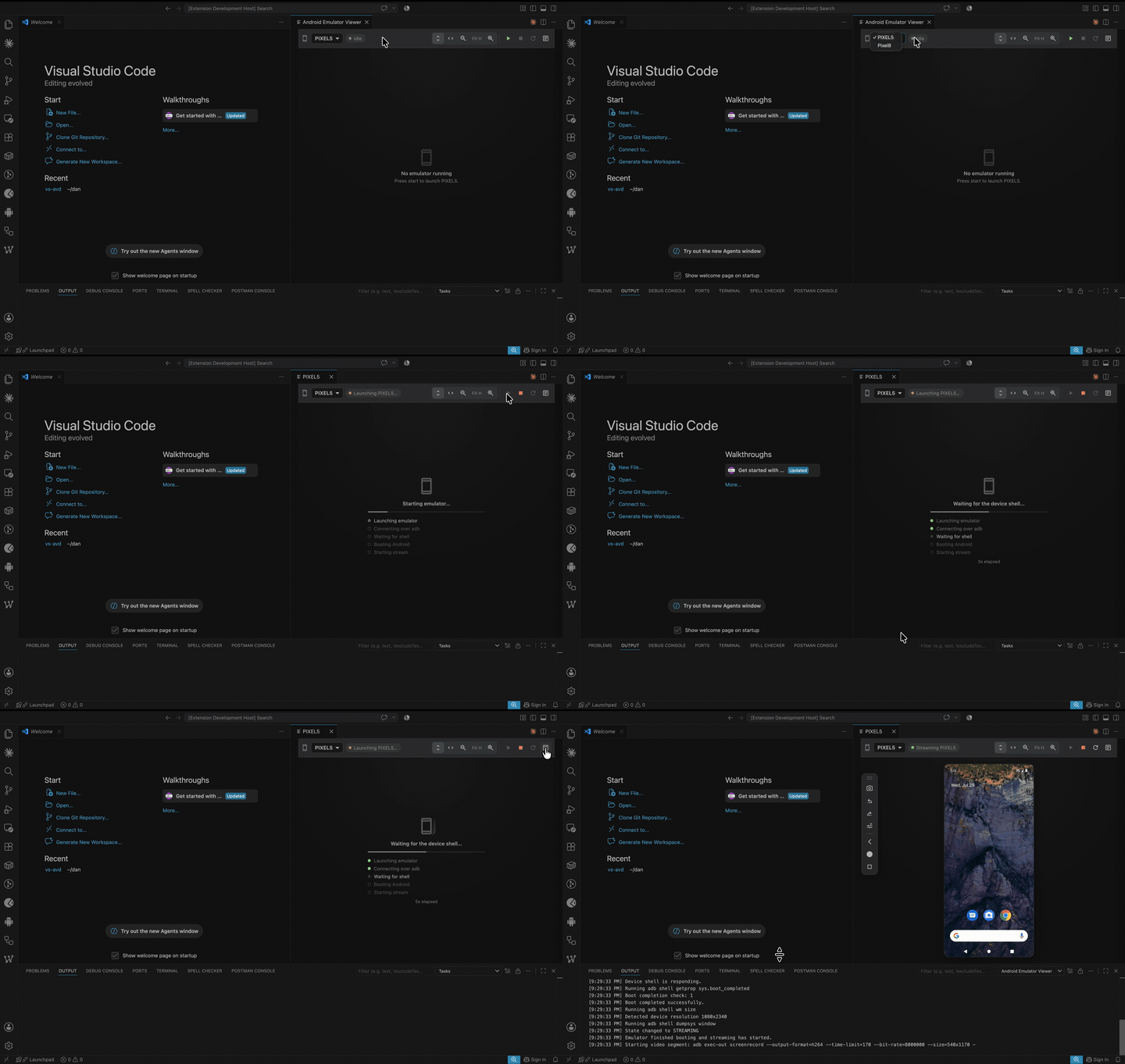
Click and type directly
Click to tap, drag to swipe, scroll with the wheel. Click once to focus the screen, then type with your real keyboard — including Enter, Backspace, arrows, and Ctrl/Alt/Shift shortcuts.
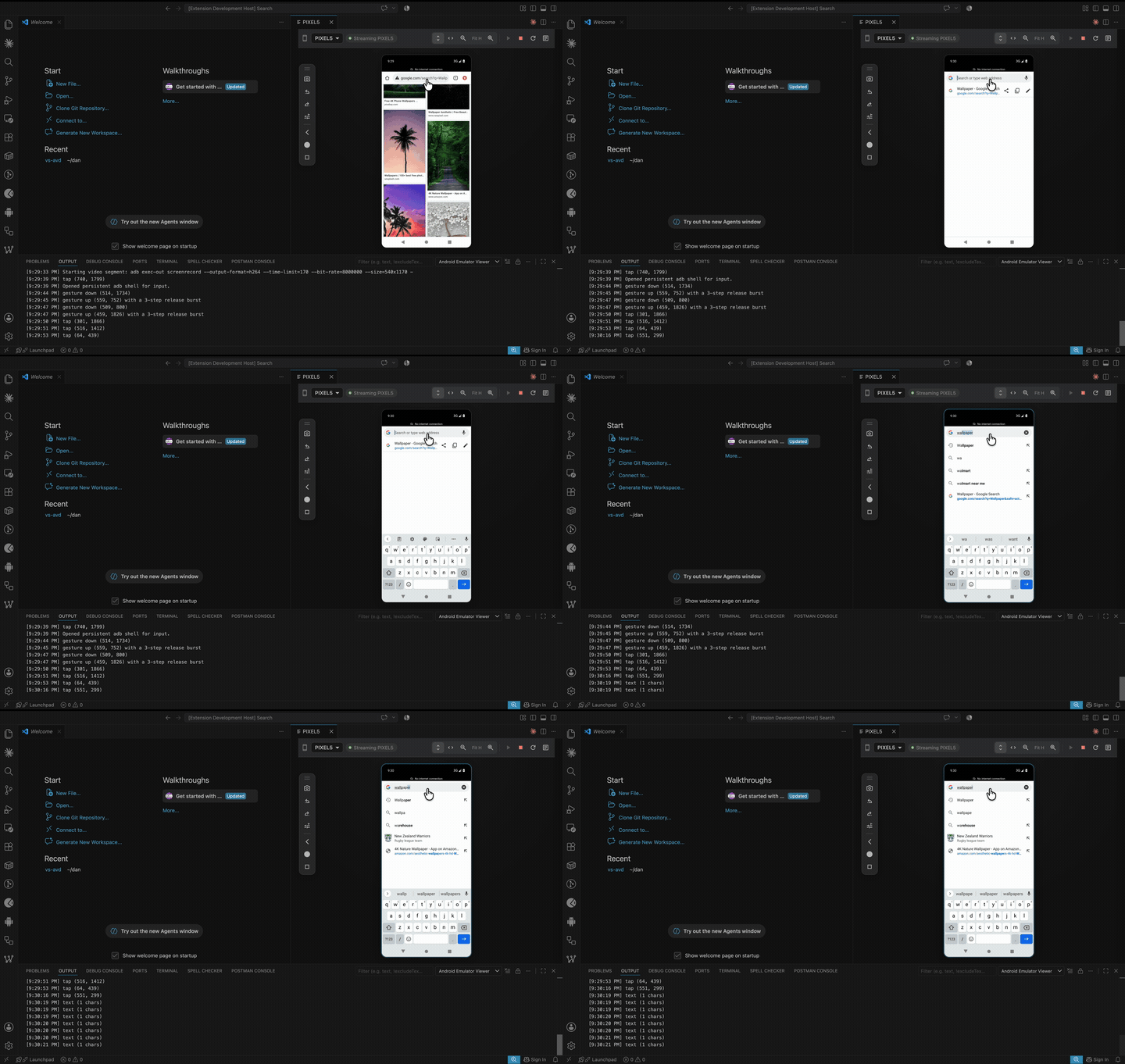
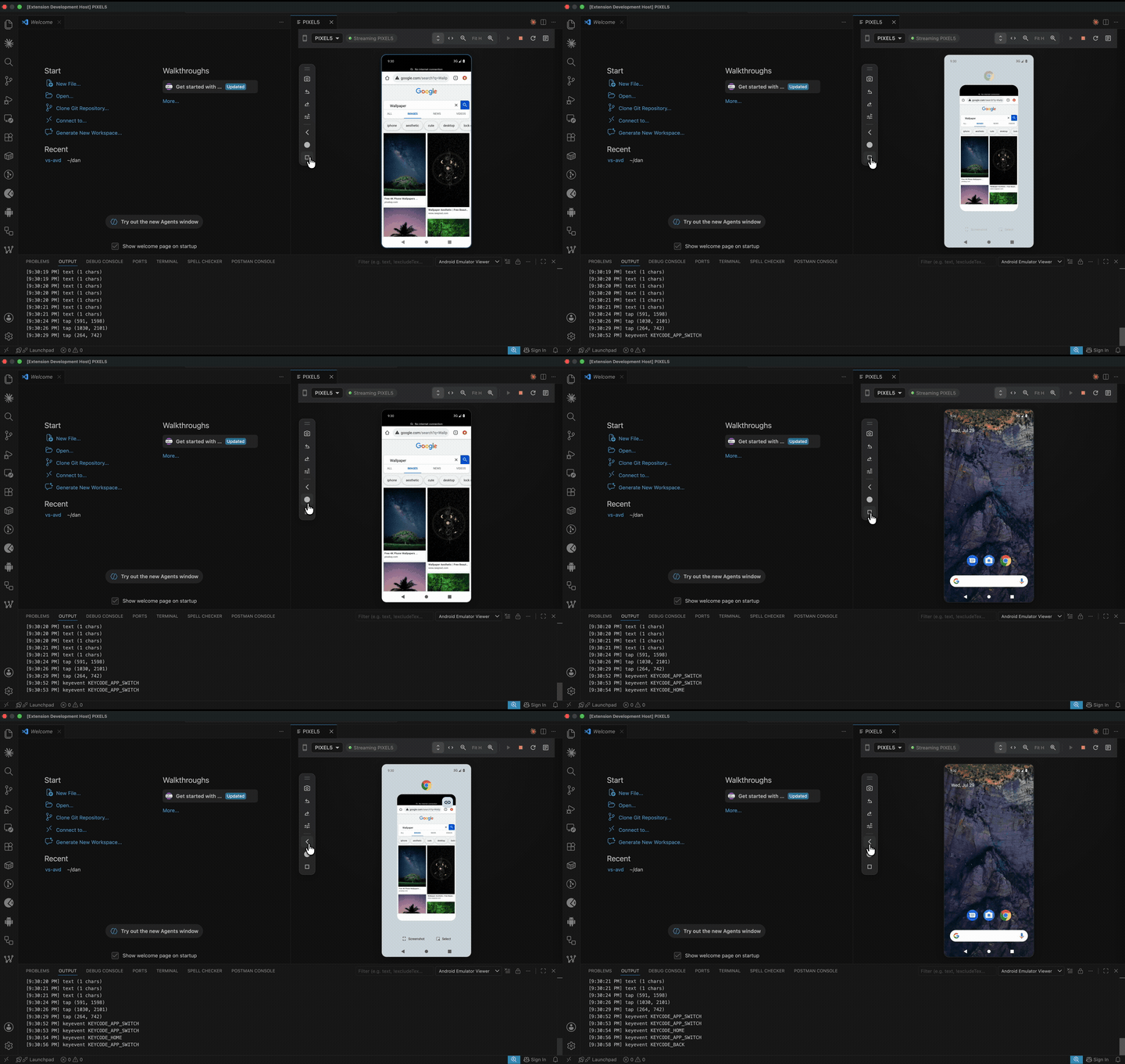
Hardware buttons
Back, Home, and Recent apps.
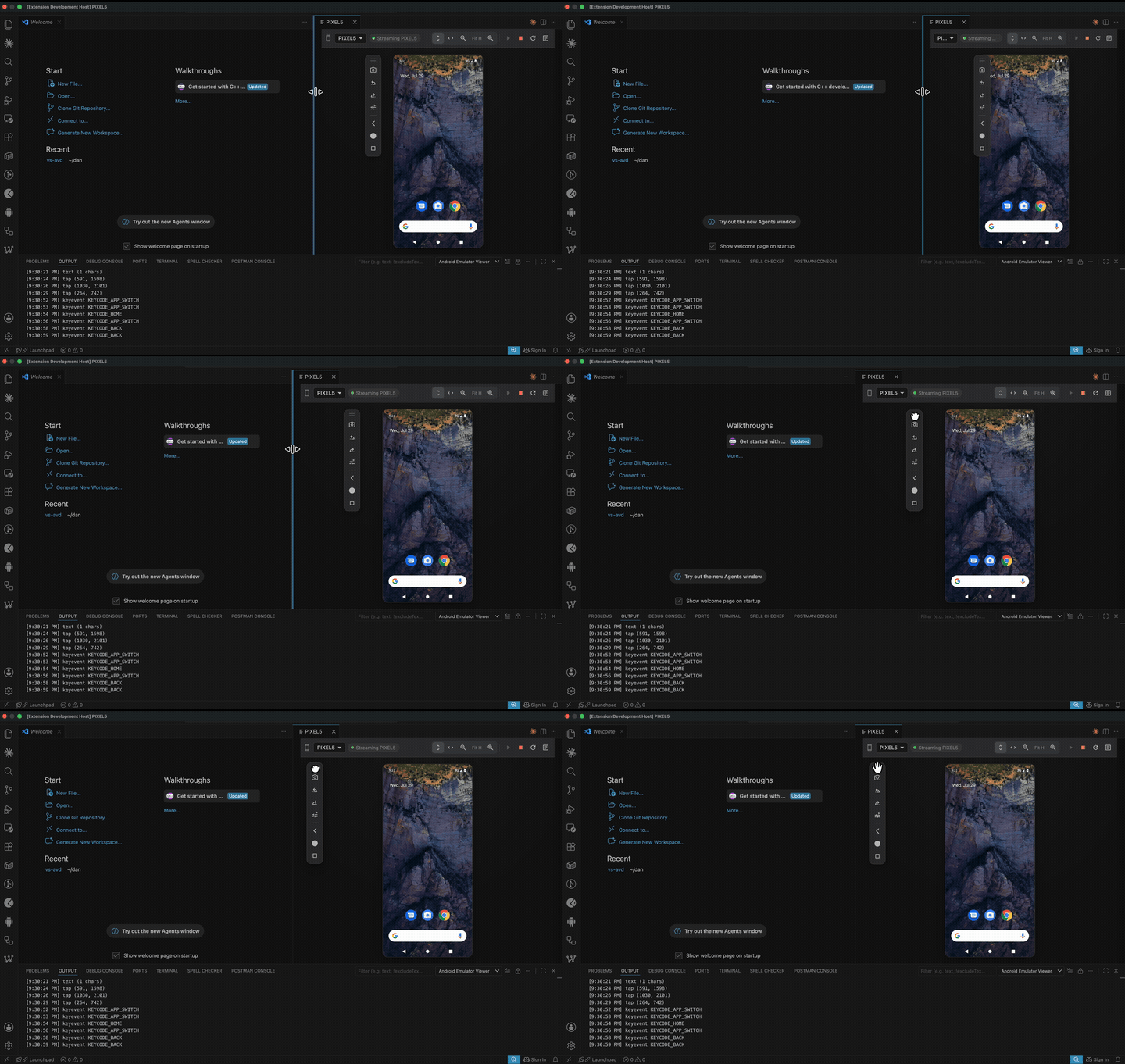
The toolbar floats over the screen and can be dragged out of the way by its grip.
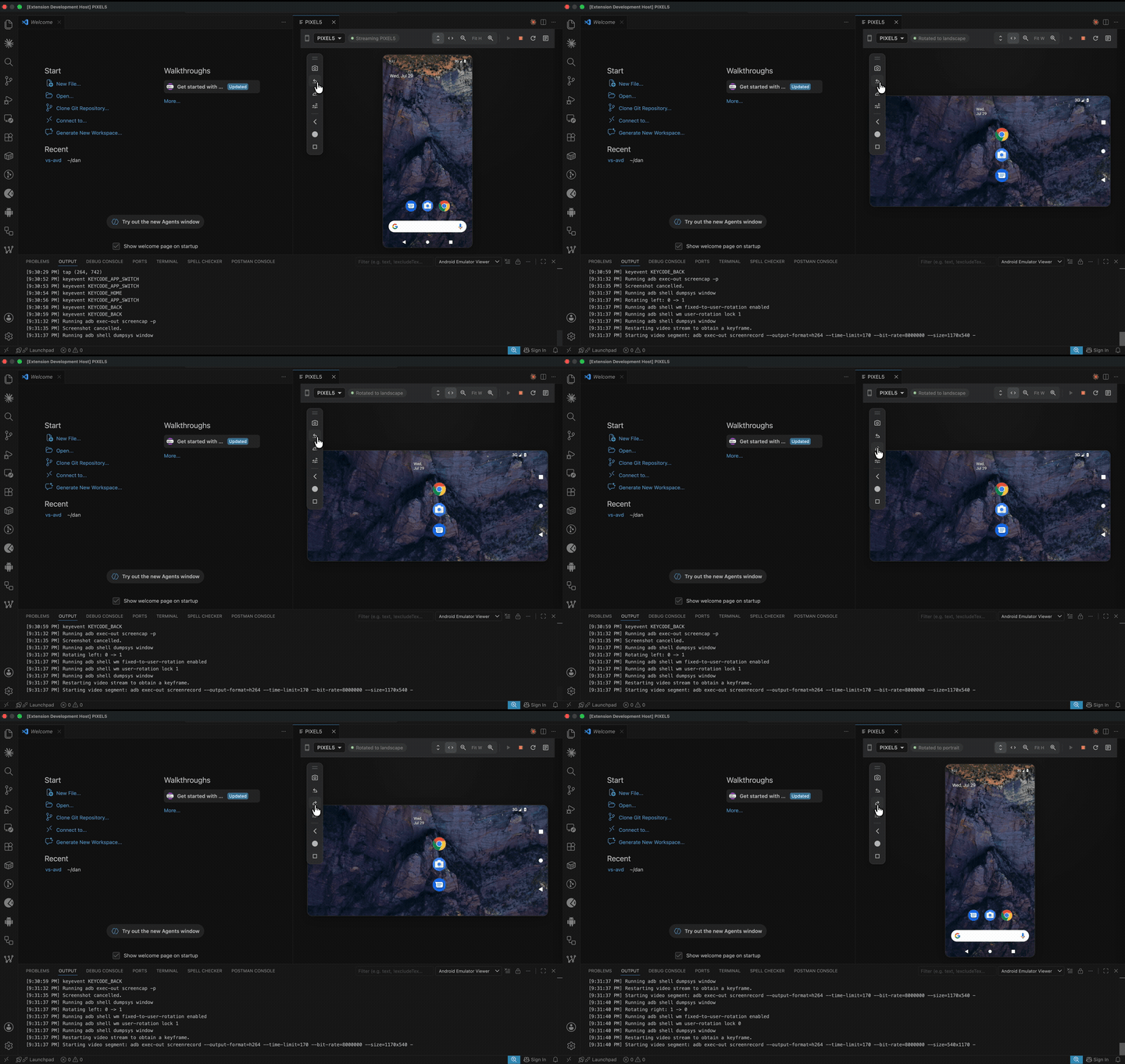
Rotate
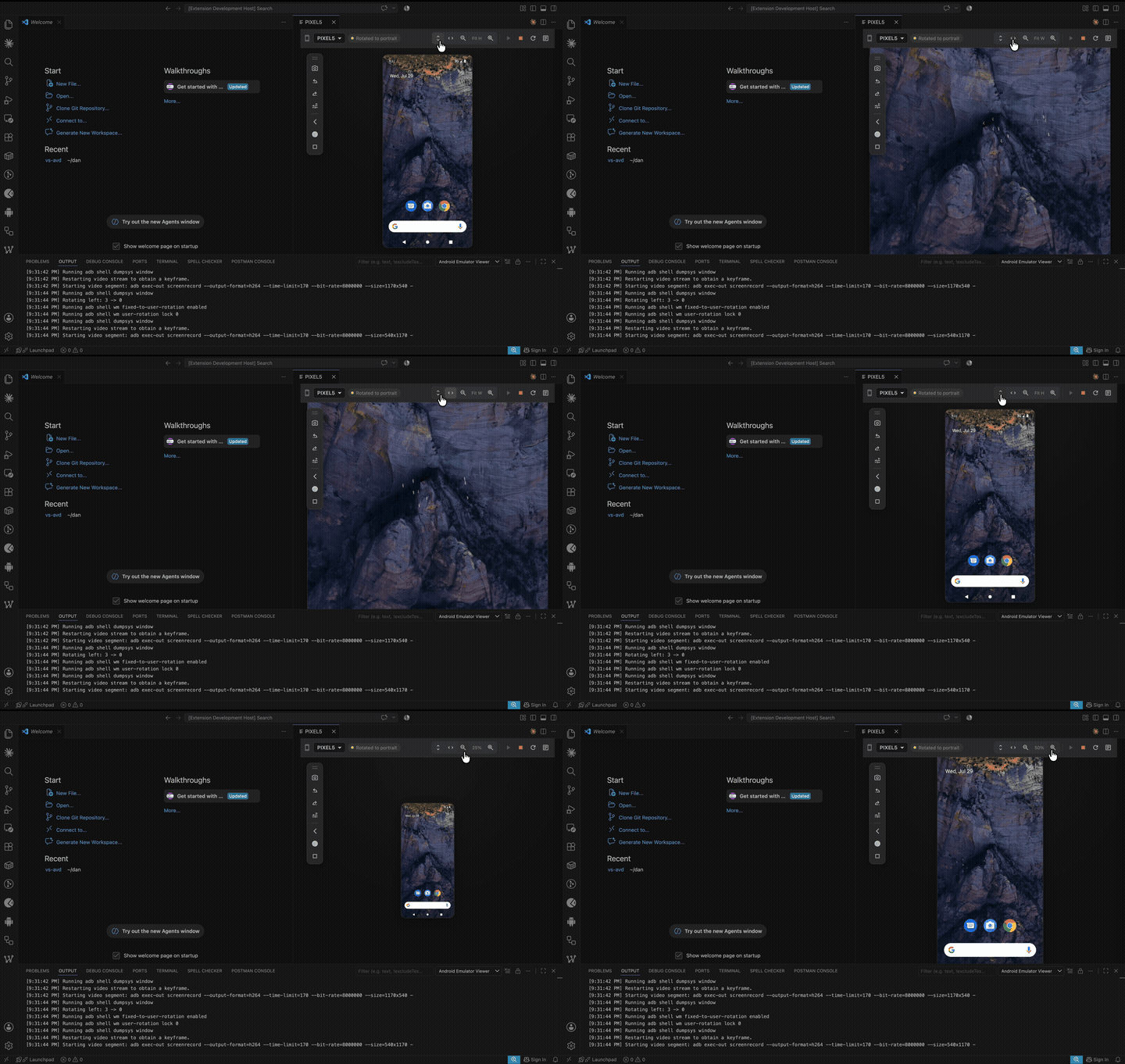
Rotate left or right. Works even on apps that pin their own orientation, and both the video and your touch coordinates follow the rotation correctly.
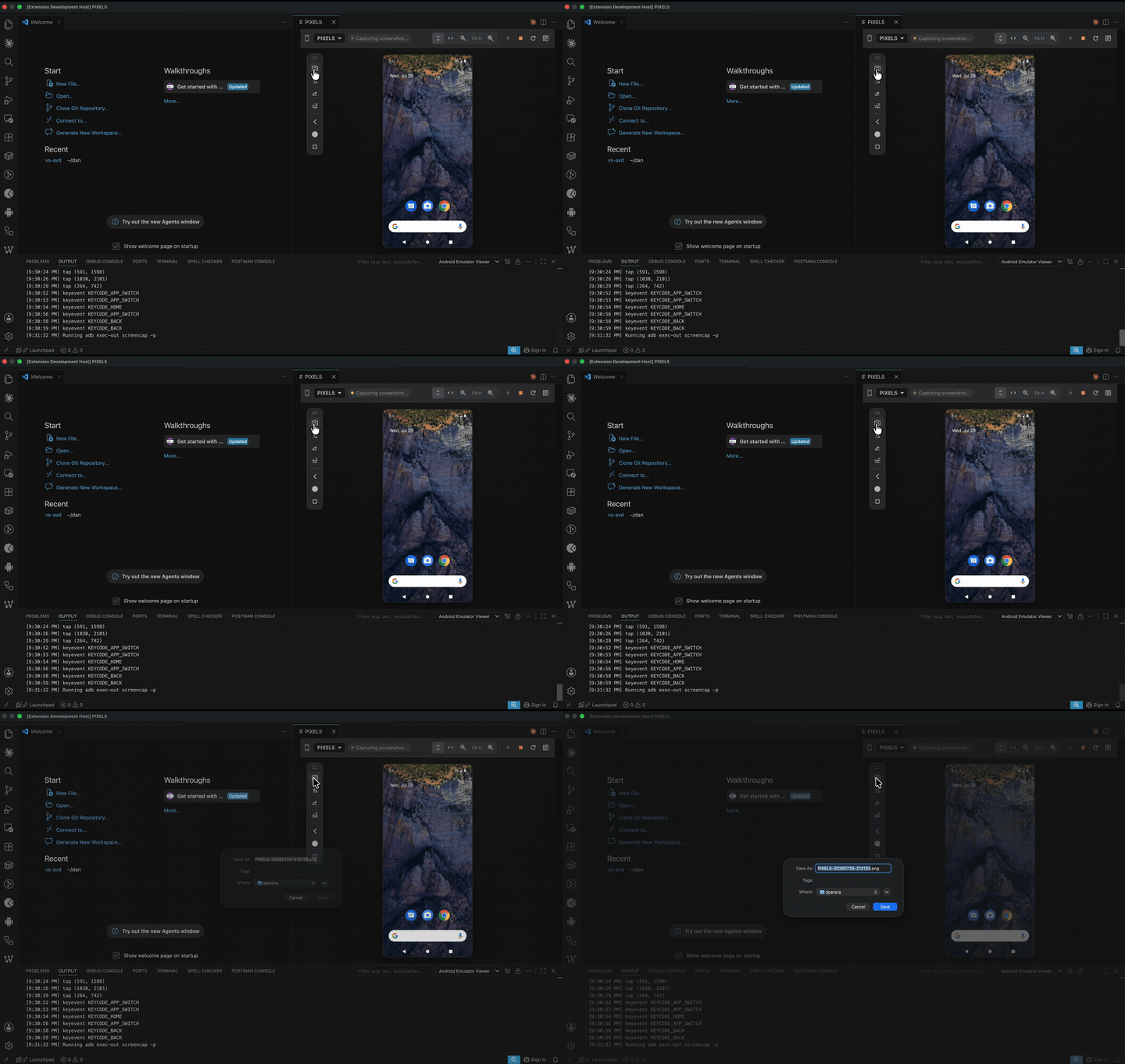
Screenshots
Grab a full-resolution PNG of the current screen with one click.
Fit and zoom
Fit to height, fit to width, or zoom from 25% to 300%. Fit modes re-apply when you resize the panel.
Extended controls
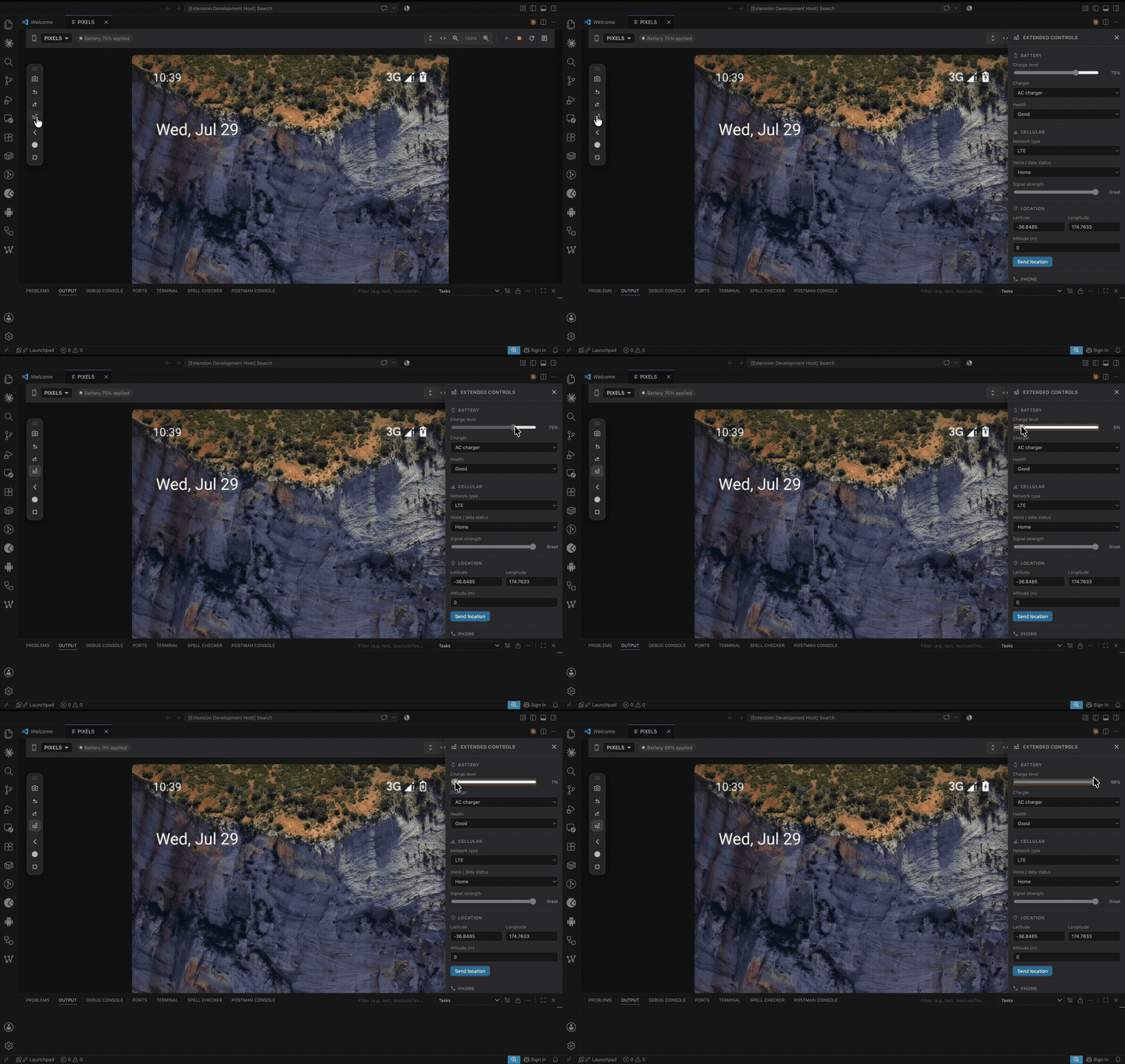
A side panel for simulating device conditions, so you can test the paths that are painful to reach on real hardware:
| What you can simulate | |
|---|---|
| Battery | Charge level 0–100%, AC / USB / no charger, and health states (good, overheated, dead, overvoltage, failure) |
| Cellular | Network type (LTE, GSM, GPRS, EDGE, UMTS, HSDPA, HSCSD, or unthrottled), voice/data status (home, roaming, searching, denied, unregistered), and signal strength |
| Location | Send any latitude, longitude, and altitude to the device |
| Phone | Place an incoming call from any number, end it, or deliver an SMS |
| Fingerprint | Touch the sensor as one of three enrolled fingers |
Requirements
- Android Studio or the Android SDK, with
emulatorandadbon yourPATH. - At least one AVD. Create one in Android Studio's Device Manager. You can check it's
visible by running
emulator -list-avds. - A recent VS Code build. Without WebCodecs support in the webview the panel falls back to still frames and tells you so in the status chip.
This extension drives the emulator and adb already installed on your machine — it does not
bundle or download either.
Getting started
- Install the extension.
- Open the Command Palette (Cmd/Ctrl+Shift+P).
- Run Open Android Emulator Viewer.
- Pick an AVD from the dropdown and press ▶.
First boot takes 10–30 seconds depending on the device image. Later starts that resume from a snapshot are much faster.
Tips
- Click the screen once before typing — the keyboard goes to the device only while the screen has focus, shown by a focus ring.
- Press Logs in the toolbar to open the Android Emulator Viewer output channel if a start fails; adb and emulator output goes there.
- Drag the floating toolbar by its grip if it covers something you need to tap.
Known limitations
- No multi-touch — pinch-to-zoom and two-finger gestures aren't supported.
- Fast flicks are approximated. Drag is sent as a series of swipes, so a very fast gesture won't track your cursor exactly.
- A wedged emulator can outlive the panel. Closing the panel stops the emulator process,
but an unresponsive one may need
adb emu killor Activity Monitor.
Credits
- Extension icon: Android icons created by Magnific - Flaticon
- Toolbar glyphs: Google Material Symbols, Apache 2.0.
See NOTICE for full asset licensing.
License
MIT — see LICENSE. Bundled assets are licensed separately, see NOTICE.
Implementation notes, benchmarks, and design rationale live in CONTRIBUTING.md.