One task. One branch. One workspace. One AI agent.
Jupiter turns an issue, bug, card, or ad hoc idea into an isolated Git worktree with the right task context already attached. You can work on several tasks in parallel, ask Codex or Copilot for help, review the exact changes, and finish with a pull or merge request—without repeatedly switching one checkout between branches.
Any folder → Workspace Task → task-aware AI. Add Git, worktrees, task sources, and PR/MR delivery when you need them.
Install Jupiter Workspaces from Visual Studio Marketplace
Jupiter is a VS Code workflow for developers who want AI assistance without losing control of task boundaries, Git state, or credentials.
Why use Jupiter?
| Without Jupiter | With Jupiter |
|---|---|
| One checkout is constantly switched, stashed, and repaired | Every task gets its own branch, worktree, and VS Code workspace |
| An AI agent starts with a pasted summary and the wrong working directory | The agent receives the task, repository, branch, and required worktree context |
| Issue tracker, Git, CI, and review live in separate tabs | The task view keeps source status, changed files, actions, and PR/MR state together |
| Parallel work risks edits or commits landing on the wrong branch | Jupiter verifies and preserves the task-to-worktree boundary |
| Provider tokens are copied into scripts or agent prompts | Credentials remain owned by the extension in VS Code SecretStorage |
Start your first task
- Install Jupiter Workspaces and open any project folder in VS Code. It does not need to be a Git repository.
- Run Jupiter: Setup Wizard from the Command Palette.
- Confirm the workspace folder and AI provider. Git-only questions appear only for a Git repository or managed clone.
- Choose Configure integrations later, then open Workspace Task to work directly in the current folder.
- Choose Create Agent to start Codex, Claude, or Copilot with the generated workspace context.
- If the folder uses Git, enable isolated task worktrees, task-source integrations, commits, and pull or merge requests whenever the project needs them.
That is the core workflow. Git itself, GitHub/GitLab hosting, Jira, Trello, Sentry, Datadog, Crashlytics, Telegram, Actions, releases, and QAA are optional layers you can add later when the project needs them.
Works without Git
Workspace Task and Global Agent work in an ordinary folder with no .git directory, branch, remote, or hosting account. Jupiter keeps the agent cwd and workspace context explicit without inventing Git metadata. Git-only controls stay out of the way until the configured folder is a Git repository.
When Git is available, Jupiter additionally enables isolated worktrees, branch safety checks, change review, commit and push, GitHub or GitLab task sources, and PR/MR delivery.
What Jupiter connects
| Area | Supported workflow |
|---|---|
| Task sources | GitHub Issues, GitLab Issues, Jira Cloud, Trello cards, Sentry bugs, and local custom tasks |
| Repository hosting | GitHub, GitLab.com, and self-managed GitLab |
| AI agents | Anthropic Claude Code IDE/CLI, OpenAI Codex IDE/CLI, and VS Code Chat / GitHub Copilot |
| Delivery | Commit and push, GitHub pull requests, GitLab merge requests, and Jira review links |
| Automation | GitHub Actions for task or release branches |
| Project context | Managed local MCP access to current tasks, Git state, Jira/Confluence, Sentry, Trello knowledge, and approved actions |
| Remote collaboration | Optional Telegram forum topics connected to durable Codex sessions |
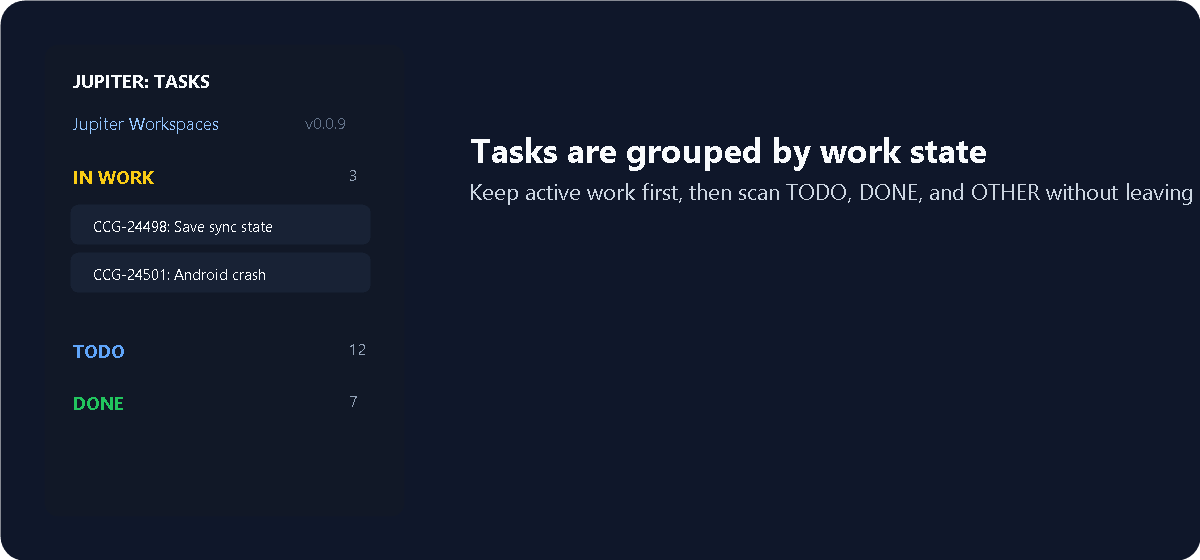
A workspace that stays about one task
Starting a task creates or reuses:
- A predictable task branch.
- A dedicated Git worktree.
- A VS Code workspace for that worktree.
- A saved Jupiter session with source and delivery state.
- Generated task context for the selected AI agent.
The context includes the task description and comments, branch, base branch, repository, worktree path, current status, and source-specific details. Sentry tasks can include representative stack samples; Trello cards can include lists, checklists, comments, and attachments. Jupiter also writes task-specific instructions that tell the agent where it is allowed to work and what it must verify before changing files or Git state.

Need a long-lived project conversation instead? Open Global Agent creates a reusable Codex thread in the current workspace. Need direct implementation without an issue, branch, or Git repository? Open Workspace Task keeps that workflow explicit.
Finish work without leaving the task
From Task Details and Task Files you can:
- Inspect committed, uncommitted, untracked, and conflicted files.
- Open editable diffs and review the task branch against its base.
- Generate and edit a concise commit message.
- Commit and push the task branch.
- Rebase or upbase while preserving the task worktree boundary.
- Run a selected GitHub Actions workflow and track its status.
- Create a GitHub pull request or GitLab merge request.
- Link the review request back to Jira when the task came from Jira.
- Remove a finished task from the active list without silently deleting its branch or worktree.

Optional integrations
Jira Cloud
Configure a Jira base URL, email, API token, and JQL to add Jira tasks to the same worktree and agent flow. Jupiter can show available transitions and link the resulting PR or MR back to the Jira task.
Trello tasks and knowledge
Run Jupiter: Configure Trello, enter a Power-Up API key and read-only token, then select:
- Task boards whose open cards should appear in Jupiter.
- Optional task lists, or every open list on those boards.
- Knowledge boards that agents may search through Jupiter MCP.
Agents can search the selected boards and read full card context. The Trello API key and token remain in VS Code SecretStorage and are never returned through MCP.
Sentry bugs
Run Jupiter: Configure Sentry with a read-only token, select an organization, and optionally filter projects or event tags. Sentry issues become normal Jupiter tasks with event counts and a bounded sample of useful stack traces for the agent.
Managed Jupiter MCP
After setup, Jupiter can register a local Codex MCP server named jupiter. The MCP process receives a short-lived local bridge credential—not your GitHub, GitLab, Jira, Trello, or Sentry tokens. Read tools expose current project context; repository and external-system mutations require approval in Jupiter.
Use MCP Status, Connect Codex MCP, and Disconnect Codex MCP to inspect or control the connection.
Telegram session bridge
Connect one or more Telegram supergroup forums to Jupiter and continue allowed Codex sessions from durable task topics. The bridge supports project-scoped roles, approvals, stop, recovery, history import, and task status commands. It runs on your machine, so that machine must remain powered on and online.
See the Telegram Bridge guide for setup, security boundaries, roles, background services, and recovery.
QAA
For a successfully deployed task SHA, Jupiter can prepare a human-readable test strategy for approval, generate source-grounded Quality Assistant routes, run them, minimize candidates, and expose only reproduction-backed bug cards. Plans, run state, and approved contract memory stay under .jupiter/qaa/.
Local-first project state and credential safety
- Non-secret project state is stored in
.jupiter/state.jsonand excluded locally through.git/info/excludewhen possible. - GitHub access uses the VS Code account selected for this Jupiter project.
- GitLab PATs and Jira, Trello, Sentry, and Telegram secrets use VS Code SecretStorage.
- Generated workspaces point back to the same project state, while unrelated repositories remain isolated.
- Jupiter adds no hosted Jupiter cloud service. Git providers, task providers, and the selected AI service still receive the data required by their own features.
- Destructive or external actions remain explicit; Jupiter does not silently publish a branch, create a PR/MR, or change a source task merely because a worktree exists.
Minimal usage telemetry
Marketplace builds can use the standard VS Code telemetry pipeline to measure where onboarding and core operations begin. Jupiter records command.*.started only for commands reached through user-facing buttons, webviews, notifications, tree actions, chat actions, the status bar, or the Command Palette; VS Code stores these events under the fully qualified wonderland.jupiter-io/command.*.started namespace. Automatic extension activation, internal command chaining, and commands without a user entry point are excluded. The setup wizard emits separate ordered setup.* progress events, stored as wonderland.jupiter-io/setup.*, that can be assembled into a funnel in Application Insights.
Most events contain only the event name. Task-start actions can add a whitelisted taskSource value (github, gitlab, jira, local, sentry, or trello), and Agent open/create actions can add a whitelisted agentProvider value (claude, claudeCli, codex, codexCli, or copilotChat). Jupiter never sends repository, task, branch, file, model, account, message, duration, error, or stack-trace content.
The standard VS Code telemetry envelope can include the extension and VS Code versions, operating system, architecture, and pseudonymous VS Code machine and session identifiers. Collection follows the global VS Code telemetry level and can also be disabled with jupiter.telemetry.enabled. Builds without an Application Insights connection string send nothing. The complete event inventory is in telemetry.json, and ready-to-run Application Insights queries are in docs/telemetry-analytics.md.
The first Jupiter Setup screen and the Workspace Dashboard show the effective telemetry state: enabled by the current VS Code privacy choice, disabled globally, disabled specifically for Jupiter, or unavailable in the current build. From either surface, users can open the central telemetry settings or inspect the complete telemetry.json event list. Opening those controls does not count as entering the setup funnel.
Requirements
- VS Code 1.120 or newer.
- Git available in
PATHonly when using branches, worktrees, commits, or PR/MR delivery. - Any writable project folder for Workspace Task and Global Agent; a local Git repository or remote URL is optional.
- OpenAI Codex extension/CLI for the default agent flow, Anthropic Claude Code extension/CLI for Claude task agents, or GitHub Copilot Chat for the IDE-only alternative.
- Provider credentials only for the optional GitHub/GitLab, Jira, Trello, Sentry, Datadog, Crashlytics, or Telegram integrations you enable.
Jupiter preserves detected SSH or HTTPS remotes. Configure a source checkout, worktree root, base branch, remote URL, or SSH key in the Setup Wizard or Workspace Dashboard when automatic detection is not enough.
Essential commands
- Setup Wizard — configure the workspace folder and AI defaults; Git-only steps appear only when Git is available, and every external service can be deferred.
- Configure GitHub or GitLab — run the independent hosting, account, and PR/MR defaults wizard when those features are needed.
- Show Workspace Dashboard — inspect the core project state and connect or reconfigure optional integrations.
- Refresh Tasks — reload every configured task source and active session.
- Start Task / Create Custom Task — open isolated work.
- Open Workspace Task — work directly in the current folder with explicit agent context; Git is optional.
- Create Agent / Open Agent — create or reopen the task-aware AI session.
- Open Global Agent — create or reopen the project-wide Codex session.
- Show Task Files — inspect task branch and working-tree changes.
- Commit & Push Task — commit selected changes and push the task branch.
- Create Pull / Merge Request — publish the review request for the configured host.
- Run Diagnostics — verify provider access, Git, remotes, paths, and project configuration.
Provider-specific configuration and refresh commands are available in the Command Palette by searching for Jupiter.
Troubleshooting
Run Jupiter: Run Diagnostics first. It reports the configured repository and base branch, selected provider account, optional Jira access, Git availability, remote URL, source path, worktree root, and Telegram state without printing stored secrets.
Common checks:
- GitHub: use Select GitHub Account and confirm that account can access the configured repository.
- GitLab: use Select GitLab Account and confirm the complete project path, PAT
apiscope, membership, and token expiration. - Worktrees: confirm local Git authentication, the base branch, and write access to the configured worktree root.
- AI: install the selected Codex or Copilot provider and reopen the task agent after setup.
- MCP: use MCP Status; after installing a new extension build, run Developer: Reload Window before evaluating the active Extension Host.
Current boundaries
- GitHub Actions are supported for GitHub repositories. GitLab pipelines are not exposed as Jupiter task Actions yet.
- Telegram requires a user-created supergroup with Topics enabled and an online local Jupiter host; Jupiter does not install a public webhook or cloud relay.
- IDE-created Codex turns are mirrored through periodic history reads; Telegram-created turns use the bridge's live event stream.
- Jira transition automation and some multi-repository workflows continue to evolve.
Feedback
If Jupiter removes checkout juggling from your day—or if one part of the workflow still feels harder than it should—open an issue in the Jupiter repository. Include the first relevant Jupiter diagnostic or log message, but never include provider tokens or other secrets.