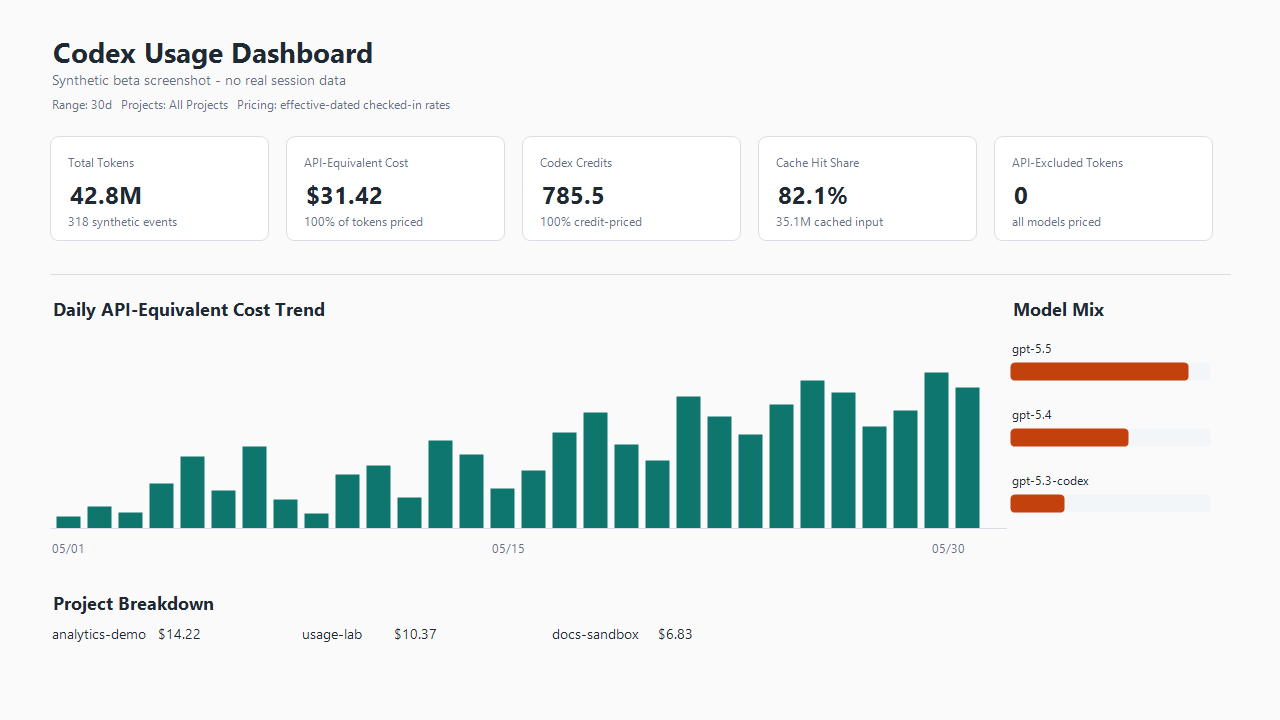
Stable Windows x64 and macOS Apple Silicon VS Code extension for local-first Codex usage reporting: view project activity, token usage, Codex credits, and API-equivalent cost estimates from local Codex session JSONL logs. Project Breakdown separates each project into user-visible root tasks and structured subagents, presents both roles in shared comparison columns, then stacks each role by model.
Features
- Two focused views keep date-filtered Usage separate from current Task Storage. Projects and theme apply to both; the date range applies only to Usage.
- Task Storage shows current local JSONL usage by user-visible root task tree, diagnoses repeated compacted-history and inline-media amplification on demand, and prepares guarded rollovers through a new verified backup.
- Project Breakdown separates each project into user-visible root tasks and structured subagents, presents both roles in shared comparison columns, then stacks each role by model.
- Model Mix uses shared model colors across the report. Model Details remains exact while crowded charts group models after the largest seven into visual-only
Other. - Shows total tokens, API-equivalent USD, Codex credits, cache hit share, and daily/hourly views.
- Uses bundled effective-dated pricing tables. No live pricing fetch is performed.
- Adds optional cross-computer Task Transfer through a user-provided folder; token reporting works without it.
- Opens a local dashboard from Codex session JSONL logs.
- Auto-discovers the default active and archived Codex session directories.
- Supports quick range switching: today, yesterday, 7d, 30d, month, all.
- Supports multi-project filtering from detected project keys.
- Supports auto/day/night dashboard theme switching.
- Detects high-confidence project transitions and can split dashboard usage after verified local repository changes.
Quick Start
- Open the VS Code Command Palette and run Codex Usage: Open Dashboard.
- Use Usage to review tokens, models, estimated API-equivalent cost, Codex credits, and root-task versus subagent activity. Change the date range or project filter from the dashboard toolbar.
- Use Task Storage to see which current task trees occupy disk space. The date range does not affect this view.
- Choose Analyze on a large task tree when you want to understand its growth, Back Up when you want a verified archive, or Prepare Rollover after analysis when you want to continue in a fresh root task.
Everything above runs locally. Task Transfer is a separate optional workflow and is not required for usage or storage reporting.
Supported Platforms
The stable Marketplace release supports Windows x64 and macOS Apple Silicon. Each package is self-contained, with no separate runtime or source checkout required. Intel macOS and Windows ARM64 are not supported targets. Linux is not supported in this release.
Commands
| Command | What it does |
|---|---|
Codex Usage: Open Dashboard |
Opens the local Usage and Task Storage views. |
Codex Usage: Refresh Dashboard |
Refreshes changed local Codex data and the current report. |
Codex Usage: Select Range |
Changes the Usage date range; it does not filter Task Storage. |
Codex Usage: Select Projects |
Filters both views to selected projects. |
Codex Usage: Select Theme |
Chooses auto, day, or night report styling. |
Codex Usage: Review Project Transitions |
Shows evidence for detected repository switches inside tasks. |
Codex Usage: Task Transfer |
Opens the Import, Export, status, and transfer-folder menu. |
Codex Usage: Choose Transfer Folder |
Selects the user-managed folder used between computers. |
Codex Usage: Export Tasks |
Copies selected active tasks from one project into the transfer folder. |
Codex Usage: Import Tasks |
Copies selected tasks from the transfer folder into one local project checkout and asks Codex to register them. |
Codex Usage: Review Transfer Status |
Compares local and transferred task state without copying files. |
Codex Usage: Open Transfer Folder |
Opens the currently selected transfer folder. |
Codex Usage: Analyze Task Storage |
Scans one task tree for history amplification and inline-media evidence. |
Codex Usage: Back Up Task |
Creates and verifies one compressed task-tree archive. |
Codex Usage: Prepare Task Rollover |
Backs up an eligible analyzed tree and prepares continuity material for a fresh root task. |
Codex Usage: Open Settings |
Opens the extension settings. |
Settings
codexUsage.range: dashboard range, default30d.codexUsage.theme:auto,day, ornight. Auto follows your active VS Code theme.codexUsage.projectTransitions.autoDetect: automatically split usage after high-confidence local repository transitions.
Project filtering is managed with Codex Usage: Select Projects and is stored as extension UI state, not as a user setting.
The selected Usage or Task Storage view is remembered only for the current extension session. Switching views does not regenerate the report.
Task Transfer remembers only the transfer-folder path as extension UI state. Task selections and project mappings are never saved.
Task Transfer
Task Transfer deliberately moves selected active Codex tasks between computers through a folder managed by OneDrive, Dropbox, iCloud Drive, Syncthing, a network drive, or another filesystem provider. It is optional: token reporting works without Task Transfer, and the extension never transfers tasks in the background.
Codex's built-in handoff can fail on a very large task. Task Transfer preserves the task as a full JSONL without summarizing or repackaging its context, so the same long-running task can continue on another computer.
Transfer Tasks Between Computers
- On the source computer, run Codex Usage: Task Transfer, choose Choose Transfer Folder, and select a folder managed by your filesystem provider.
- Choose Export Tasks, select one project, then select the active tasks from that project. No tasks are selected by default.
- Wait until your filesystem provider, such as OneDrive, Dropbox, iCloud Drive, or Syncthing, has finished copying the transfer folder.
- On the destination computer, make sure the corresponding project checkout already exists. If you use only the Codex IDE extension, open that checkout in VS Code.
- On the destination computer, if you use Codex Desktop, add that checkout as an existing local project and fully quit Desktop. Then choose the same transfer folder and run Import Tasks.
- Select the transferred project and tasks. Accept the automatic project match or choose a validated local folder for the project when prompted.
- After a successful Desktop assignment, start Codex Desktop. In a VS Code-only workflow, reload VS Code so the imported tasks appear.
Use Review Transfer Status at any time to compare selected local and transferred tasks without copying anything. Use Open Transfer Folder to inspect the user-managed folder itself.
The Codex desktop app is not required. An IDE-only workflow uses open VS Code workspace folders as destination candidates. When Desktop state exists, Import requires Desktop to be closed and the destination to match exactly one existing local Desktop project. Git-backed projects are matched and validated by normalized Git origin; a chosen checkout with the wrong origin is rejected. For a non-Git project, the extension shows the source and destination and asks for confirmation because the mapping cannot be verified automatically. Task Transfer does not clone repositories, so the destination checkout must already exist. The required checkout is your own project folder, not the Codex Usage source repository.
Each Import or Export handles one Codex project. First choose one project, then choose one or more eligible tasks from that project. No tasks are selected by default. Search on the task screen is limited to the chosen project. Use Back to discard the current task choices and choose a different project. Repeat the operation to transfer tasks from another project. The transfer folder can retain tasks from many projects across separate operations. Review Transfer Status remains cross-project and does not copy files. Neither task selections nor project mappings are saved. Imported tasks remain in the transfer folder, and changing or forgetting the remembered folder does not delete any task files.
The extension checks the complete selected batch before copying anything. Conflicts, malformed folder structures, changed source files, unsafe mappings, a running or indeterminate Desktop process, a missing or ambiguous Desktop project, conflicting assignments, and tasks that need the opposite direction block the whole operation. Existing local tasks keep their current checkout path. Task Transfer does not copy Codex auth, settings, caches, logs, archived tasks, or SQLite databases.
After certified task files are copied during Import, Codex Usage asks an installed official Codex runtime to register the selected tasks through targeted app-server task-read requests. Registration sends targeted reads only: it does not invoke a model, send a prompt, or start a turn. Codex Usage never writes Codex SQLite or task JSONLs. When Desktop state exists, it then atomically adds only the successfully registered task-to-project assignments, removes those tasks from projectless registries, preserves a sibling state backup, and verifies the result while Desktop remains closed. It does not change project definitions, sidebar ordering, workspace hints, or rollout state. If registration or assignment fails, the certified imported files remain safe in place, and re-running even an unchanged Import retries both stages. Start Desktop after a successful assignment; reload VS Code in an IDE-only workflow.
On supported Windows x64 and macOS Apple Silicon installations, official runtime discovery checks the official Codex VS Code extension, the native Codex desktop app, and PATH; the desktop app is not required when another official runtime is available. The packaged Codex Usage VSIX is limited to Windows x64 and macOS Apple Silicon.
The current transfer-folder layout is:
<transfer-folder>/
  sync-index.json
  tasks/
    <portable-task-filename>.jsonl
Valid version-2 folders migrate automatically to this version-3 layout before Import, Export, or Review. The Task Transfer menu lets you choose, change, open, or forget the folder. Only that folder path is remembered.
Archive/Delete Accounting
Archived Codex tasks are included in usage totals. Deleted or otherwise missing tasks are retained in historical totals after the local cache has parsed them once. The dashboard header shows archived and retained missing file counts when applicable.
Project Transitions
Automatic project transition detection uses read-only evidence from local Codex session JSONL files and, when present, project paths and timestamps from the local Codex database. The extension does not upload this data, make network calls for transition detection, mutate SQLite, or include SQLite databases in Task Transfer.
The dashboard transition table shows source, target, effective timestamp, and confidence. Use Codex Usage: Review Project Transitions for detailed evidence and Task IDs.
Install
Install Codex Usage Dashboard from the Visual Studio Marketplace. You can also open the VS Code Extensions view, search for Codex Usage Dashboard, and choose Install.
After installation, open the Command Palette and run Codex Usage: Open Dashboard. No source clone or separate command-line setup is needed.
First Run And Cache
The first report can take longer while Codex Usage builds a local cache from your existing task history. Later refreshes reuse that cache, skip unchanged task files, and process only newly appended data when safety checks pass. If a task file was replaced, shortened, or changed unexpectedly, Codex Usage performs a safe full read instead.
The cache stays under VS Code extension storage and is used only on this computer. Deleting it is safe, but the next report must rebuild it. The dashboard toolbar displays Loaded in X.X seconds for the report currently shown.
For troubleshooting, the Codex Usage Output channel reports which files were refreshed, whether an incremental read or safe fallback was used, and how many source bytes were read.
Task Storage
The dashboard's separate Task Storage view reports the current local JSONL corpus without following the Usage date range. It groups physical files into user-visible root task trees, separates root-task bytes from nested structured-descendant bytes, includes active and archived files, and follows the selected project filter. The report shows the largest trees as horizontal bars and lists every tree with logical bytes, file counts, storage state, share, analysis coverage, and diagnostic flags. Transparent badges mark root size at 1 GiB and total tree size at 10 GiB.
Codex guardian approval logs remain visible as structured descendants of their explicit owning task. Their bytes and verified backups stay with that tree, while recorded codex-auto-review tokens remain under Subagents in Usage; the extension neither hides them nor presents them as user-created roots.

Task trees can become large when compacted history or inline media is repeated across later rows and structured descendants. Visible task count, turn count, and subagent count do not explain that growth by themselves. Choose Analyze on one task tree to measure repeated compacted-history rows, inline-media markers, large descendants, and active-root history risk. The selected-tree scan uses at most four local read-only workers; it neither invokes a model nor scans unrelated trees.
Analyze One Task Tree
- Open Task Storage and optionally use the project filter to narrow the table.
- Choose Analyze on the task row, or run Codex Usage: Analyze Task Storage and choose one project and one task tree.
- Wait for the selected-tree scan to finish and the dashboard row to refresh.
- Review total size together with History amplification, Inline media, descendant concentration, and active-root history risk. A
not analyzedorpartialresult means the evidence is incomplete, not that the risk is absent.
A positive History amplification label requires complete analysis, at least 1 GiB of compacted rows, and compacted history representing at least 50% of the tree. Inline media additionally requires media markers inside that amplified history. not analyzed or partial remains visibly unknown rather than becoming a false negative. Marker counts are diagnostic clues, not decoded media size or reclaimable-space estimates.
Codex documentation describes side chats as ephemeral forks. In the observed local format, the side-chat turn is stored in the parent root JSONL without a separate task, file, or durable discriminator. Its bytes and token usage remain under Root task, and the report says so instead of inventing a heuristic third role. A future split requires reliable upstream metadata and will not retroactively guess older records.
Back Up One Task Tree
- Open Task Storage and optionally filter to the project you care about.
- Choose Back Up on the task row. You can instead run Codex Usage: Back Up Task and choose one project and one task tree.
- Choose Maximum for the smallest, slower archive or Balanced for a faster, larger archive.
- Review the sensitive-data warning, choose where to save the new
.codex-task-backupfile, and start the backup. - Wait for copying and verification to finish. Trust the archive only after Codex Usage reports it as recovery-ready or integrity-verified salvage.
- If the result is salvage rather than recovery-ready, open the Codex Usage Output channel and review every warning before relying on it.
Each backup covers exactly one task tree. It preserves every physical JSONL currently present under that root, including structured descendants such as guardian approval logs, active and archived copies, duplicates, and side-chat content already embedded in the root JSONL.
The .codex-task-backup format is a streaming PAX tar compressed as exactly one zstd frame with a strict format-v1 manifest. It includes canonical metadata, per-file SHA-256 values, bounded selected session-index entries, and a final whole-archive SHA-256. Maximum uses zstd 19 for smaller, slower archives; Balanced uses zstd 9 for faster, larger archives.
Source identity is checked before, during, and after the copy, and the complete selected tree is inventoried again before publication. The archive is written to a sibling partial file, fully reread and verified, then atomically published. Existing backups remain in place unless verified replacement succeeds. Cancellation or failure leaves no reported final archive; a forced process termination can leave an unreported hidden sibling partial, which is never treated as the requested backup. Transient metadata reads are retried, and any still-unresolved corpus file prevents a recovery-ready claim because its parent tree cannot be proven. Missing roots, relationship cycles, or metadata diagnostics therefore produce a warning-bearing salvage archive that may be integrity-verified but is not recovery-ready.
Backups can contain prompts and source code. They are compressed but not encrypted, stay local, and use neither telemetry nor the network. Store them somewhere appropriate for sensitive source material. The current extension can create and verify these archives, but it cannot restore them. Backup also does not delete Codex tasks or free storage.
Prepare Rollover
Use rollover when you want to stop extending a bloated task and continue its work in a fresh root task.
- In Task Storage, choose Analyze on the old task and wait for the refreshed row. Rollover is offered only when analysis is complete, the tree is large or history-amplified, and it is recovery-ready.
- Choose Prepare Rollover, select Maximum or Balanced compression, and choose a new backup filename. Rollover never replaces an existing archive.
- Wait for the new backup to be created and verified. Codex Usage then copies a text-only starter prompt to the clipboard and opens the Codex Usage Output channel with a checklist.
- Create a fresh root task in the same Codex project and paste the starter prompt.
- Confirm that the new task has enough context to continue the work and that the backup file is safely stored.
- Only then archive or delete the old task inside Codex if you want to reclaim its local storage.
Codex Usage does not create, archive, restore, or delete Codex tasks. Preparing rollover establishes a verified recovery point and continuity material, but it does not reduce disk usage by itself. Storage is reclaimed only after you complete the final Codex-owned lifecycle step yourself.
Privacy
The extension reads local Codex session JSONL files and writes local HTML reports and disposable SQLite caches under VS Code extension storage. When requested, it also writes Task Transfer files and verified backups to folders the user selects. Automatic project transition detection can read local Codex project paths and timestamps as read-only evidence. The extension does not upload session logs, include telemetry, fetch live pricing, or include or mutate SQLite databases in Task Transfer.
Codex session logs can include project paths, repository URLs, branch names, model names, timestamps, and usage counts. See the privacy policy for details.
Pricing And Fast Mode Notes
API-equivalent USD and Codex credit estimates are calculated from bundled effective-dated pricing tables. The extension does not fetch live pricing, does not know your subscription price, and does not convert Codex credits to dollars. If a newly released Codex model appears before its rates are available in the extension, the dashboard keeps its tokens visible and marks cost/credits as partial rather than guessing from another model.
GPT-5.6 Sol, Terra, and Luna use official API rates for usage recorded from June 26, 2026 onward. Their Codex credit estimates start July 9, 2026 and remain flat across context length. Reasoning effort such as ultra remains separate metadata and does not change the per-token model rate.
The original Terra and Luna API rates apply through July 30, 2026. Reduced Terra and Luna API rates apply from July 31, 2026; earlier usage keeps the original effective-dated rates. The original Sol API rate applies through August 21, 2026. Promotional Sol API rates apply from August 22, 2026; earlier usage keeps the original effective-dated rates. OpenAI states that the promotional pricing is available at least through November 21, 2026. All three models' Codex credit rates are unchanged.
The official gpt-5.6 model alias is priced as GPT-5.6 Sol. Other variants such as gpt-5.6-pro, gpt-5.6-mini, and wrapper names remain visible but unpriced unless they exactly match a checked-in model id or explicit alias.
API-equivalent USD figures are estimates, not actual API or Codex billing. For GPT-5.6, standard cache-write rates per 1M tokens are: Sol $5, Terra $2.50, Luna $0.25; cache read (cached input) and ordinary input remain distinct categories. Exactly 272,000 input tokens is short-context pricing. More than 272,000 input tokens, including 272,001, prices the full retained request event at long-context API rates. Long-context rates per 1M tokens are: Sol ordinary input $8, cache read (cached input) $0.80, cache write $10, output $30; Terra ordinary input $4, cache read (cached input) $0.40, cache write $5, output $18; Luna ordinary input $0.40, cache read (cached input) $0.04, cache write $0.50, output $1.80. Codex credits do not use long-context or API cache-write categories; cache writes use the ordinary input credit rate.
The parser reads cumulative token records but reports only retained positive deltas. Pricing is therefore applied per retained request event, and cumulative session totals cannot trigger long-context pricing.
For GPT-5.6 and later API models, local Codex logs expose cache_write_input_tokens. API-equivalent USD prices those explicit cache writes at 1.25 times the ordinary input rate, including the long-context multiplier when applicable; remaining ordinary input uses the standard input rate. Codex credits have no separate cache-write category, so cache writes use the published ordinary input credit rate. Historical records whose task files no longer exist cannot gain token fields introduced by a later extension version; reports disclose that limitation.
Codex fast mode is counted through the token usage that Codex records. At the moment, Codex session JSONL files do not expose a durable per-turn fast-mode marker or exact charged-credit field, so the dashboard cannot label GPT-5.5 fast-mode turns separately from regular GPT-5.5 turns.
Troubleshooting
Imported files exist but tasks are not visible
- Confirm an official Codex runtime is installed on the destination computer.
- For Codex Desktop, confirm the destination checkout is already an existing local Desktop project, then fully quit Desktop.
- Check the Codex Usage output for a post-import registration or Desktop assignment failure.
- Run Import Tasks again for the same project and task subset. An unchanged Import still retries registration and repairs a missing project assignment.
- Start Codex Desktop after success, or reload VS Code in a VS Code-only workflow. If an older imported task is no longer available in the transfer folder, preserve its local files and do not edit Codex JSONL, SQLite, or Desktop state by hand.
- If no usage appears, confirm Codex session files exist under
CODEX_HOME/sessions,CODEX_HOME/archived_sessions,%USERPROFILE%\.codex\sessions,%USERPROFILE%\.codex\archived_sessions,~/.codex/sessions, or~/.codex/archived_sessions. - If project filtering shows no choices, switch the range to
alland runCodex Usage: Select Projectsagain. - If a project split looks surprising, run
Codex Usage: Review Project Transitionsto inspect the evidence, or disablecodexUsage.projectTransitions.autoDetect. - If the dashboard theme is not what you expect, run
Codex Usage: Select Themeand chooseauto,day, ornight. - If the dashboard says no sessions were found, check the detected sessions path and file permissions.
- If pricing looks stale, check the report header for the bundled pricing table date.