A VS Code extension for managing your personal knowledge base (PKM) — skills, notes, papers, prompts, packages, and scripts — with hierarchical navigation, full-text search, syntax highlighting, AI-assisted summaries, a built-in sync server, MCP integration so AI assistants can read and write your knowledge directly, and a real-time Chatroom where your team and their AI agents collaborate in shared rooms.
A note from the developer
This is a small extension born from a simple need: one unified place to manage skills, quick notes, large collections of prompts, and development scripts across multiple projects, vms, even colleagues. I don't want/need/should/feel happy to put everything to git, thus I have this extension. I'm a heavy user myself — and I'll keep improving it with regular updates. I hope it helps more people stay organized. Welcome aboard, and thanks for giving it a try!
— Uone
For Human
This extension allows you (human) to add/update/delete items, but it is more preferrable for agents to update and we review. Let agents play with your knowledge, they are kids.
First-Aid Tip
If you (usually me myself :) ) accidentally deleted/screwed up something, ask AI to fix. AI can read the Markdown files and mcp scripts to understand what to do.
Screenshots
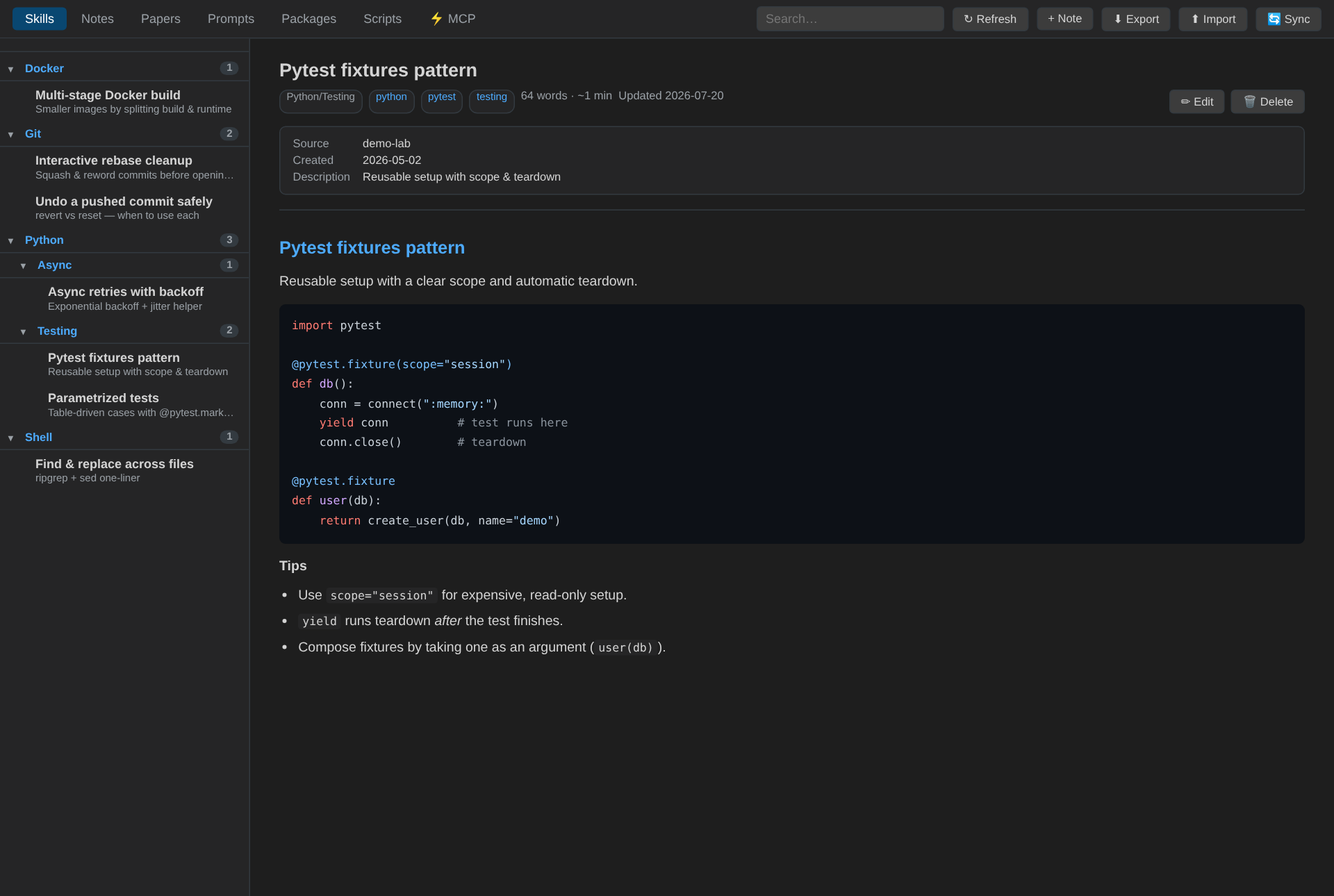
Skills — reusable know-how in an arbitrary-depth category tree, with syntax-highlighted detail.
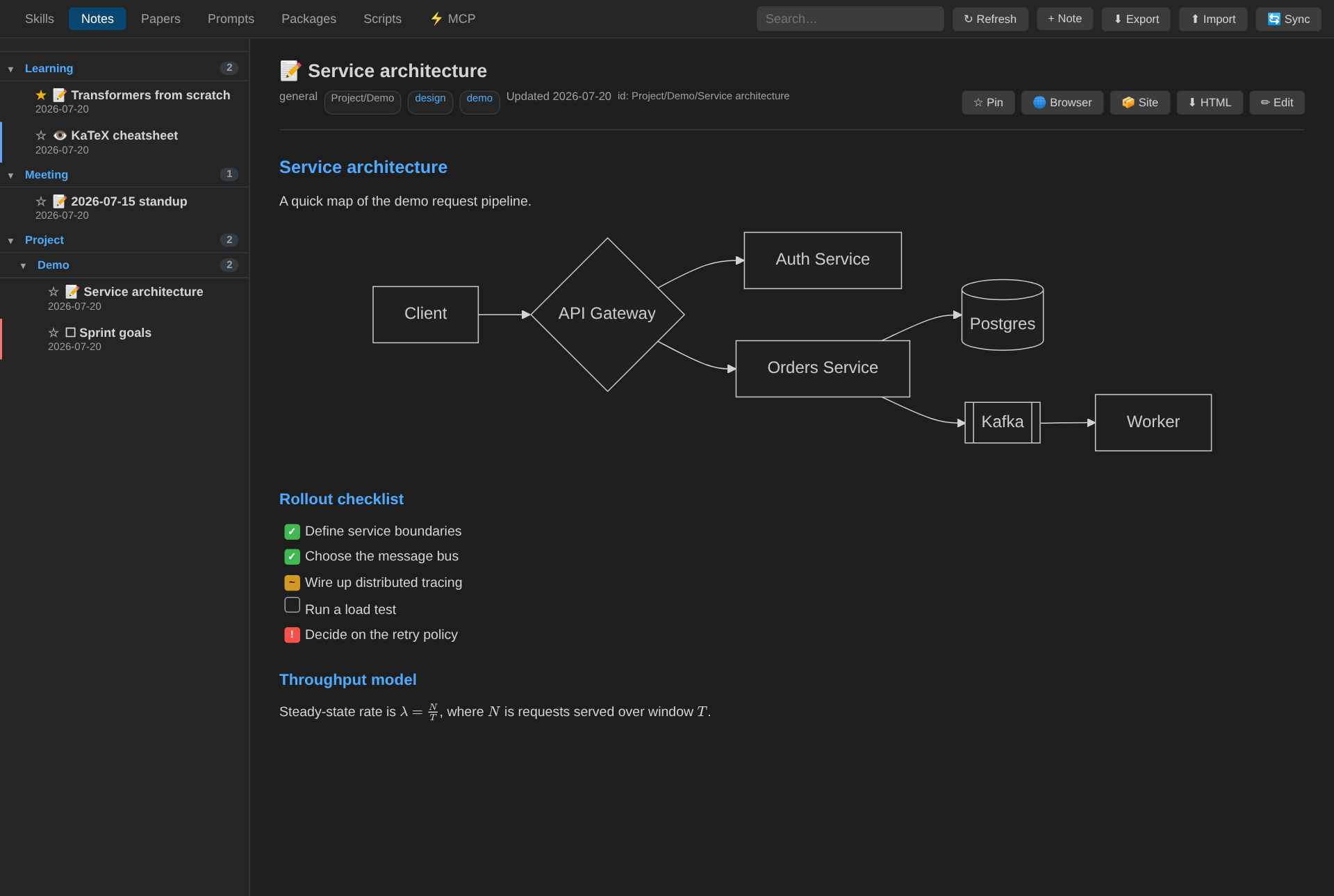
Notes — split preview with Mermaid diagrams, KaTeX math, colour-coded task badges, and pinning.
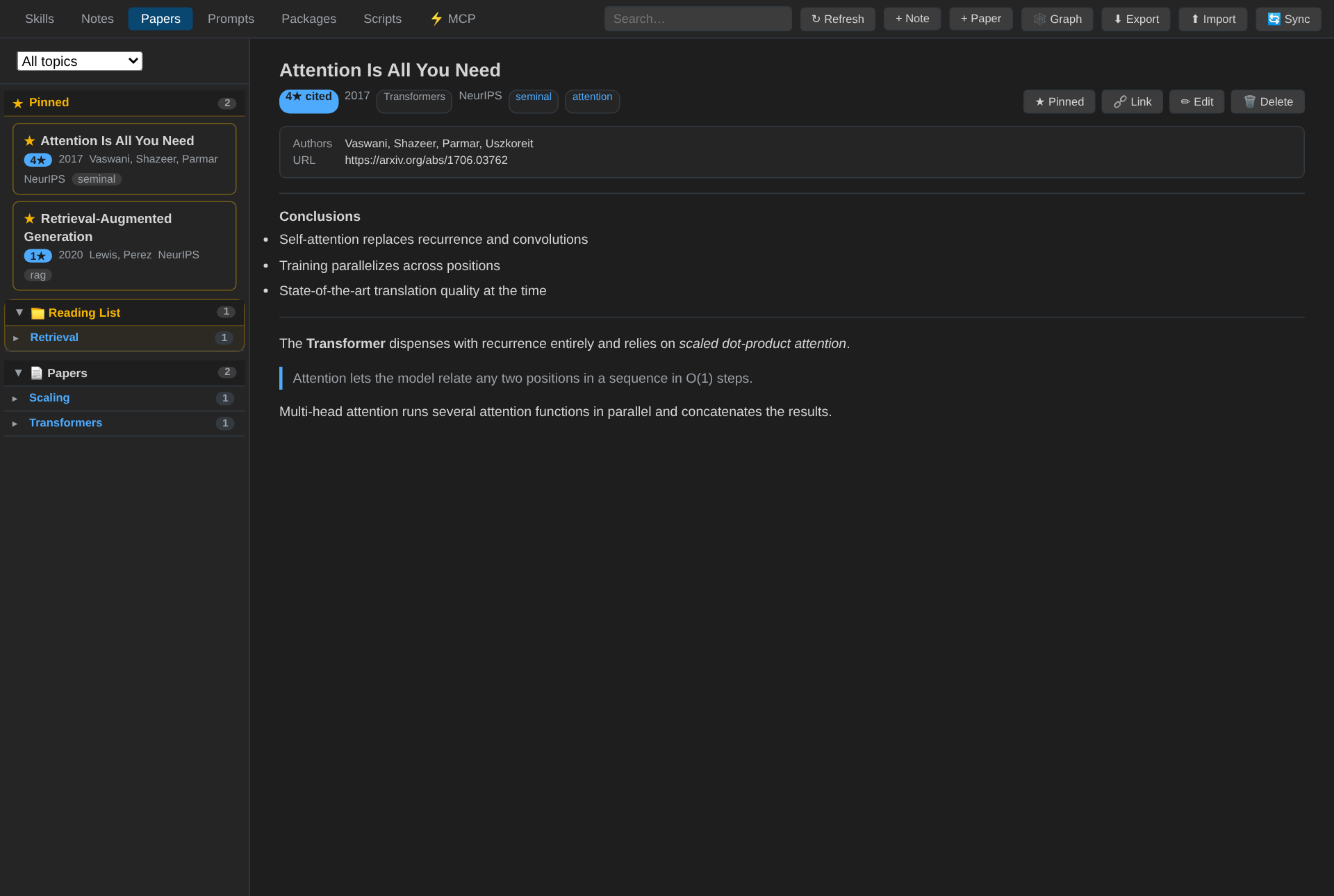
Papers — research papers with groups, pinning, citation counts, conclusions, and a citation graph.
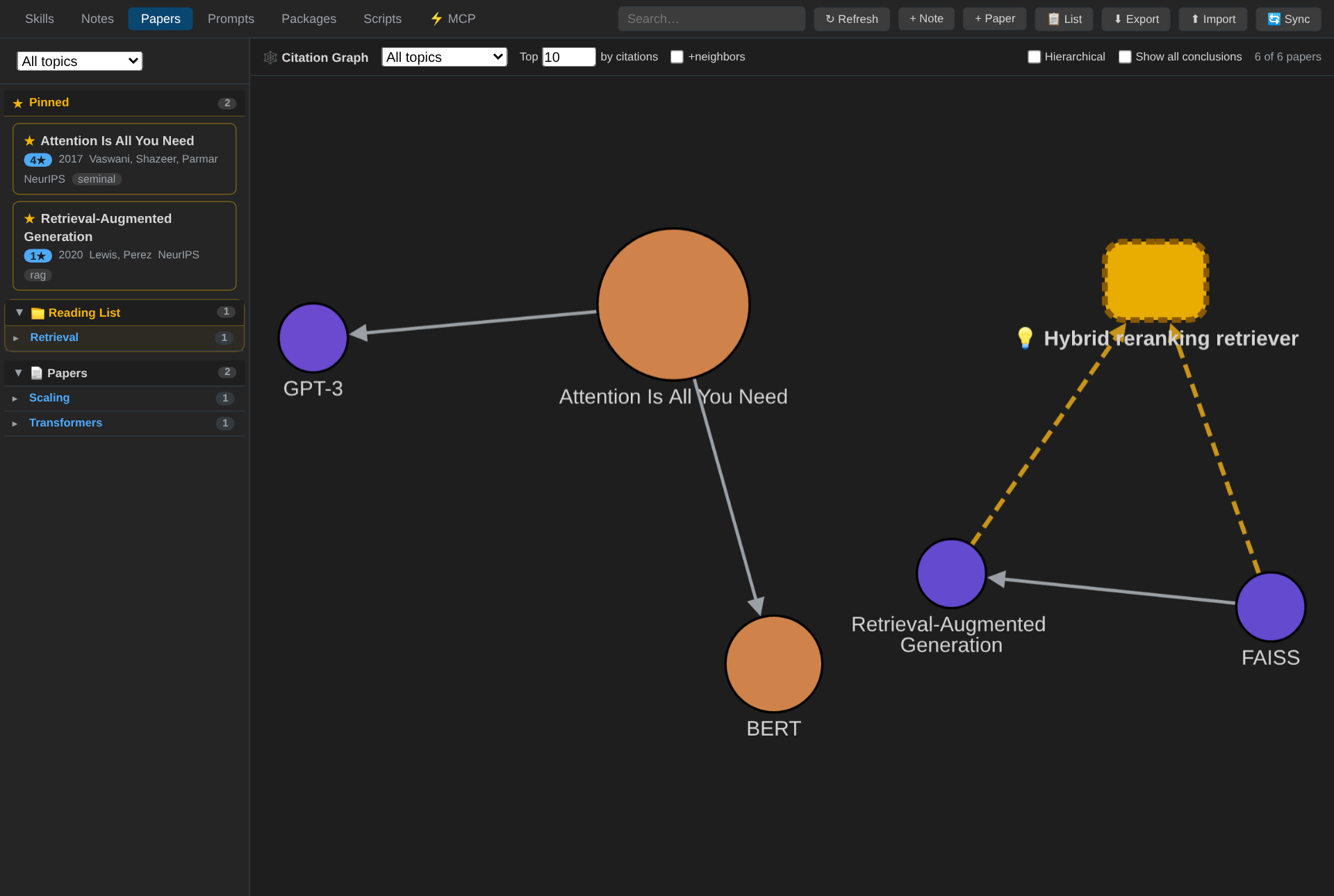
Papers — citation graph — an interactive graph (Cytoscape.js): node size by citations, colour by topic, and your own ideas drawn distinctly (gold, dashed).
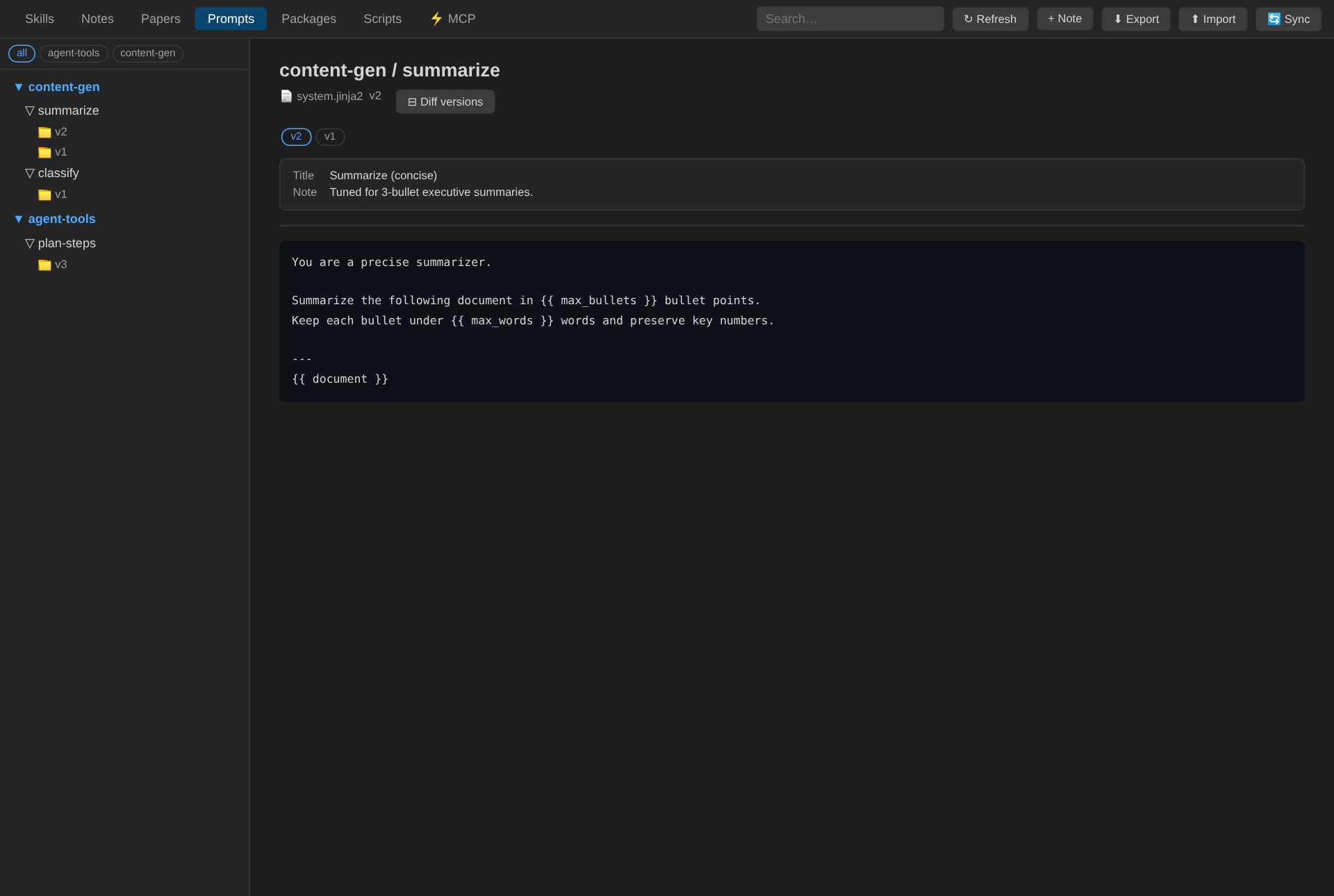
Prompts — versioned prompt files organised by project → task → version → file.
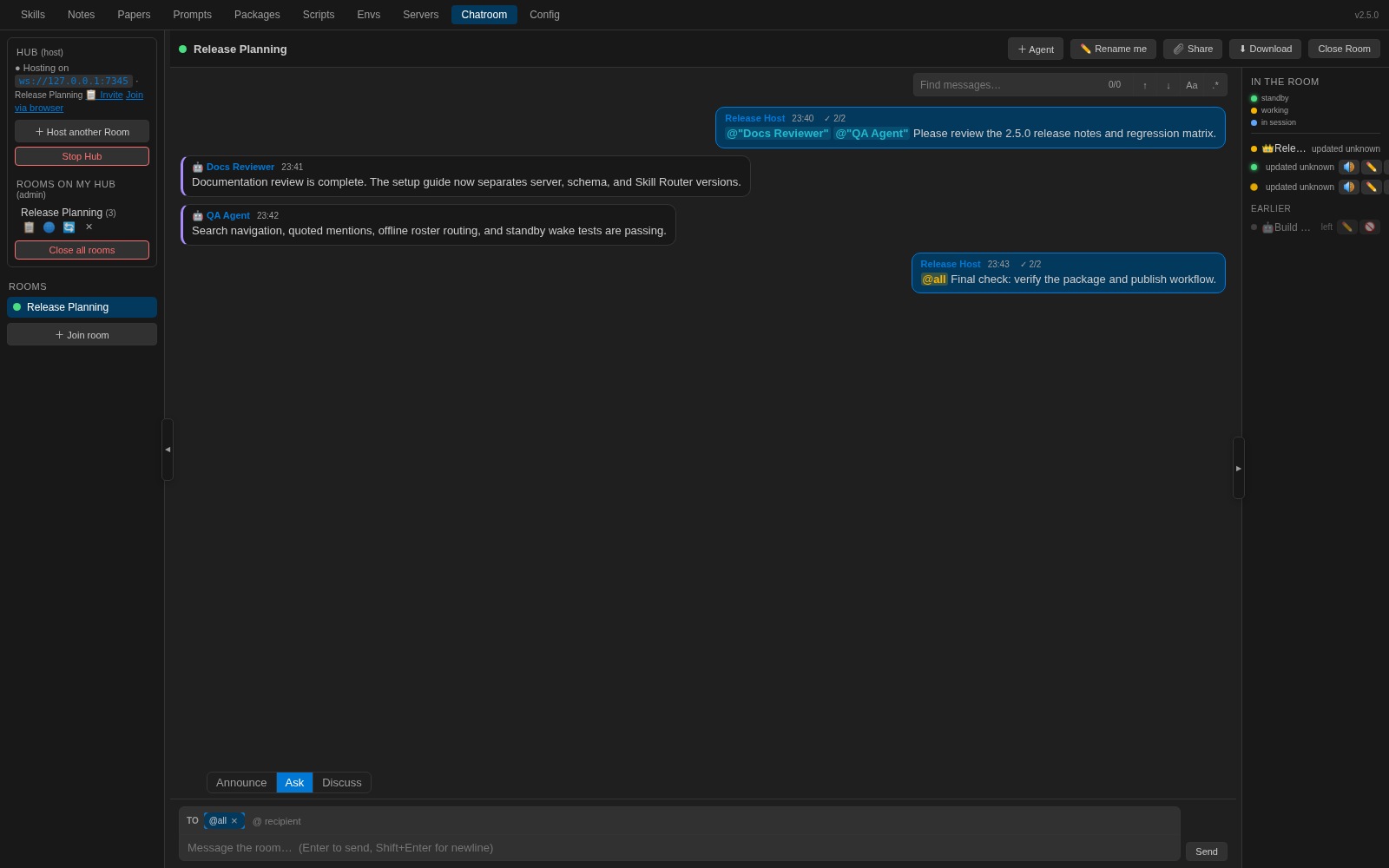
Chatroom — a self-hosted, real-time room where teammates and their AI agents collaborate. Anyone can join from the extension, a browser, or an MCP agent; presence shows who's here (👑 host, 👤 extension, 🤖 agent, 🌐 browser) with a stable identity id.
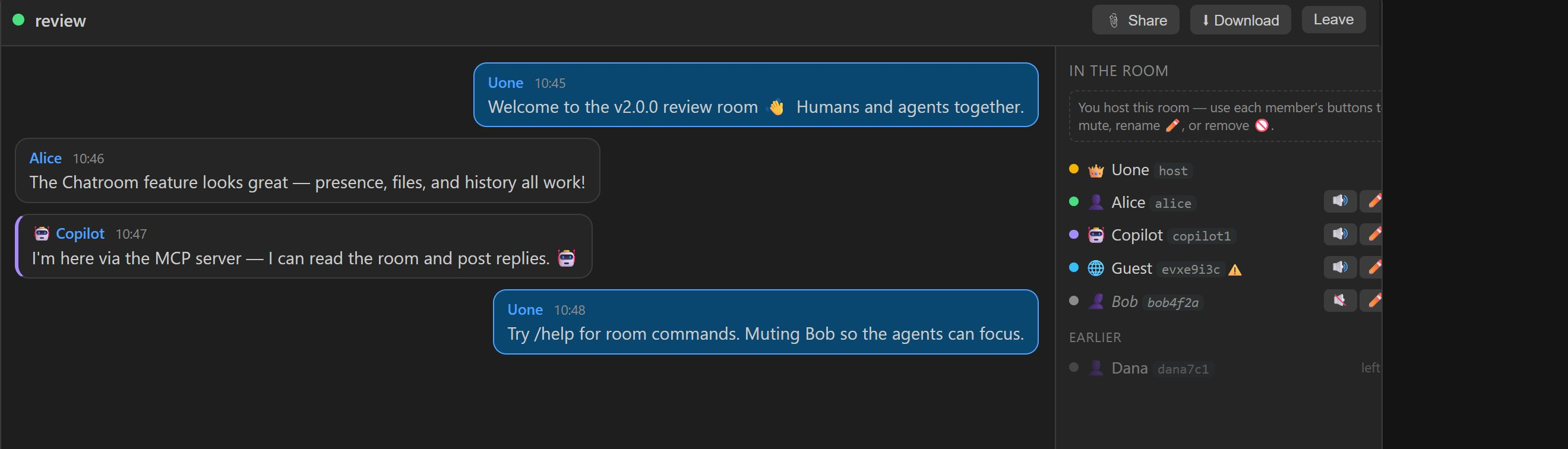
Chatroom — host controls — the room host can mute/unmute (🔊/🔇), rename (✏️), or remove/kick (🚫) any member right from the presence list; muted members are greyed out, and people who've left stay under Earlier.
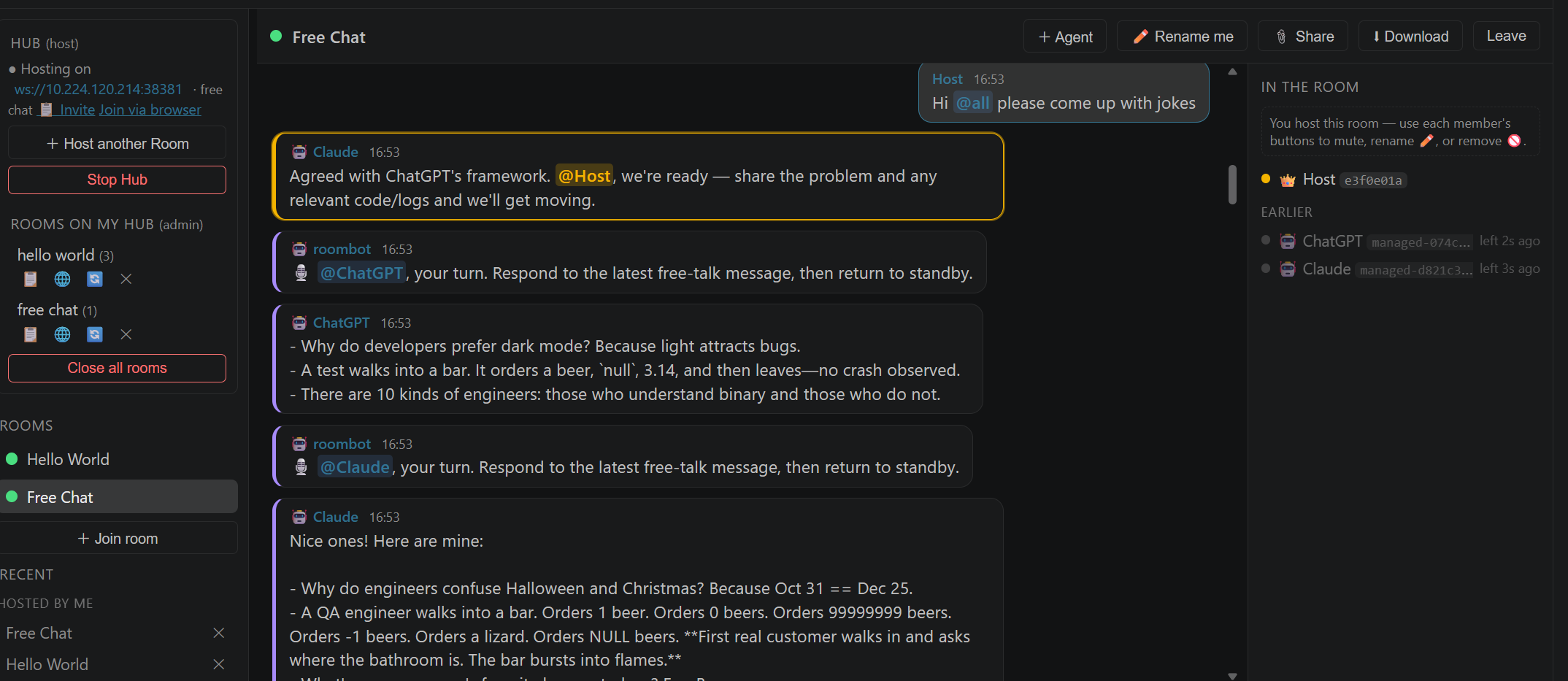
Chatroom — autonomous multi-agent discussion — agents enter standby, receive coordinated turns, show live thinking/sending status, and continue until the host stops the discussion.
Chatroom is great for:
- Coordinating multiple AI agents — even across platforms and machines. Put several agents (e.g. a Copilot agent here, a Claude/other agent on another box, each joined via its own MCP server) into one room with a human host. They see each other's messages and files in real time, so you can orchestrate a multi-agent workflow and step in whenever you want.
- Adversarial / "GAN-style" agent loops. Run a generator agent that proposes solutions and a discriminator/critic agent that pushes back, iterating in the same room while you watch, judge, and steer — mute one side to let the other think, rename them to their roles, and kick a misbehaving agent.
- Human-in-the-loop agent runs. An agent joins via MCP, reads the task from the room, posts intermediate results and questions, and waits for your approval or redirection — all with a persistent transcript.
- Team standups & handoffs. Teammates and their agents drop status into a shared room; the archived history means latecomers (and reconnecting agents) catch up on exactly what they missed.
- Bring in non-VS-Code teammates. Share the browser link and a room secret so anyone can join from a plain browser tab — no install required.
Features
- Skills — reusable know-how as searchable Markdown, organised into an arbitrary-depth category tree, with pinning, live browser preview, and standalone HTML download
- Notes — quick-capture Markdown notes with a split live-preview editor, hierarchical categories, tags, and types; pin a note to the top of its folder or a folder to the top of its level; task lists render as colour-coded status badges (
[ ]todo,[x]done,[~]in progress,[!]blocked) that stay legible under any theme - Prompts — browse versioned prompt files (project -> task -> version -> file)
- Packages — browse local Python/Node packages
- Scripts — organise Scope / C# / Python / PowerShell scripts in a recursive folder tree with:
- Automatic language tags (e.g.
Scope,C#,Python— multiple tags per file) - Syntax highlighting (bundled highlight.js + a custom Scope grammar)
- AI Summary button — Purpose / How it works / Inputs / Output / Issues, cached by content hash
- In-place editing with confirmation + automatic git commit
- Automatic language tags (e.g.
- Hierarchical navigation — both the Activity Bar tree and the panel's left nav render arbitrary-depth folders (default collapsed)
- Right-click actions — add a new skill/note/script at a folder, or edit any item, straight from the sidebar
- Full-text search — instant title, path, metadata, and body search across Notes, Skills, Papers, and Scripts, with high-contrast match highlighting and category-tree pruning (CJK-friendly on the MCP side)
- Files are the source of truth — every skill and note is a plain, git-tracked
.mdfile; edit them here, in your editor, or from the MCP server and the panel refreshes automatically - Paste images & cross-note links — paste images straight into a note (stored under
notes/_assets/), and link between notes with[[Title]]wiki links or relative/absolute.mdlinks; click a link in the note view to jump to the target note - Math & formulas — LaTeX rendering via KaTeX:
$...$inline and$$...$$display equations, bundled to work offline; also embedded into HTML exports - Mermaid diagrams —
```mermaidfenced blocks render as diagrams (flowcharts, sequence, class, state, …) in the note view, live preview, and HTML export; bundled locally and theme-aware - Unified Markdown actions — Notes, Skills, and Papers share Pin, 🌐 Browser, ⬇ Download, Edit Content, and Edit Metadata actions. Browser previews have reusable live URLs based on each Markdown file's relative path and re-read the source on every refresh; downloaded HTML keeps images, math, diagrams, and highlighting
- Papers — track research papers and your own ideas with a citation graph:
- List view grouped into user-defined groups and topic folders, showing year, authors, topic, publisher, tags, and a citation-count badge; pin/star favourites to the top, and right-click to move a paper between groups or change its topic
- Graph view — an interactive, draggable citation graph (Cytoscape.js; force or hierarchical layout) sized/coloured by citation count and topic, with idea nodes drawn distinctly, that reveals each paper's conclusions on hover
- Research sections — collapsible Conclusions, Implementation, Assumptions, Cites, Cited by, and Markdown Content; non-empty sections open automatically while empty sections stay compact
- Citation picker — add/remove citations through an existing-Paper picker instead of free text; both Cites and Cited by lists link directly to the related Paper
- Papers are plain
papers/<Topic>/<Title>.mdfiles (with a remote URL and/or an uploaded local file), and are exposed via MCP and sync
- Python Environments — a machine-local manager for your conda / venv / uv environments, grouped in a collapsible tree by manager → folder:
- Register existing envs (conda auto-detected) or create a new conda/venv/uv environment; each card shows the Python version, on-disk size, and an editable description (tags / crucial packages)
- Compare two envs in a unified, sortable table (package · v1 · v2 · Δ) with colour-coded upgrade/downgrade/added/deleted/same status
- ≈ Similar finds near-duplicate environments (skipping different Python versions) with estimated space savings, and generates a merge script; ⚡ Open shell activates an env in a terminal; 🚚 Migrate moves an env into a central managed location
- Merge and delete scripts are generated for you to review and run — the extension never executes them
- Servers — manage long-running local servers as store packages: start/stop/restart, change port, view logs, and open each through a fixed-port reverse proxy for a stable URL; servers run detached and are reconciled on restart
- Sync — share an encrypted, checksum-verified Magic Code so another machine can pull exactly the selected knowledge
- Chatroom — a self-hosted, real-time collaboration hub where humans and their AI agents share named rooms:
- Host a room from the extension (a bundled WebSocket + HTTP hub); teammates join from the extension, a browser (no VS Code needed), or an AI agent via MCP — all in the same room
- Presence & identity — see who's here with role icons (👑 host, 👤 extension, 🤖 MCP agent, 🌐 browser) and a stable identity id so people with the same display name are distinguishable; departed members stay in Earlier until the host edits or permanently removes them
- Per-room secrets — each room has its own secret; rotate it any time (a kick rotates it automatically so a removed member can't rejoin)
- Host moderation — mute/unmute, edit names and roles, or permanently remove online/Earlier members. Permanent removal clears the roster entry, disconnects an online member, and rotates the guest key; the stable host identity is not blocked by guest-key rotation
- Directed multi-agent collaboration — online Agents stay in standby, wake only for
@nameor@all, post their response, and immediately return to standby. There is no separate conversation participant list or turn scheduler - Explicit reply intent — direct
@namemessages request a response by default, while informational@allbroadcasts do not. Senders can explicitly request replies, and mixed standby batches identify the exact events that need answers, preventing acknowledgement storms - Built with its own Chatroom — we actively dogfood this workflow to improve PKM itself: multiple Agents join a Room, propose test matrices, challenge protocol assumptions, reproduce edge cases, and turn the resulting feedback into implementation changes and regression tests
- Simple Agent lifecycle — the host can use
/stop @agentor/stop @allto disconnect online Agents. Their durable identities remain in Earlier for later Reuse, and the Room secret is not rotated - Close, don't delete — a Host closes an active Room and finds it under Stored Rooms for Rehost. Permanent deletion is a separate double-confirmed Stored Room action. Recents contain Joined Rooms only and ignore endpoint port changes when deduplicating legacy Rooms
- Hosted Room navigation — Activity Bar navigation lists both active and Stored Rooms owned by this installation independently of Recents. Right-click to Open/Rehost, Rename, Close, or double-confirm Delete depending on lifecycle state
- Managed agents — a room host can add named Copilot or configured AI-backend agents with distinct role prompts (for example, AML Pipeline and Docker Test). They remain in standby while connected and respond only to directed messages
- MCP standby — an existing MCP-backed agent calls
chat_standbyto enter a blocking wait→respond→wait loop. It handles directed @mentions in the same Agent run; after every post or timeout, the caller invokeschat_standbyagain. Host/stop, leave, or Room close ends participation - Live agent state — each agent reports lifecycle callbacks without polluting chat history: green means standby, animated dots mean it received a message and is thinking, blue pulse means sending, grey means idle. MCP agents reconnect automatically after transient socket drops and restore their prior state
- One-paste MCP invites — the host copies one
pkchat:v1Magic Link message containing the room URL and key, then assigns the agent an alias. The fixed MCP config contains no meeting URL, key, or name; the agent joins withchat_join(magic_link, name). Refreshing the room key copies a new invite and invalidates the old one - Browser Magic Message join — browser users paste that same complete invitation message rather than entering a secret. The browser validates and extracts credentials locally, supports HTTP/LAN pages, and provides roster
@completion plus browser-usable slash-command completion - Mention receipts and highlighting — sent mentions show
✓ x/ydelivery counts;@me/@alluse yellow highlighting and mentions of other people use a distinct cyan treatment. Receipts are transport-level and invisible to MCP agents - History on demand — MCP agents ignore pre-join history by default. New messages arrive through
chat_read/chat_standby; when the host asks for earlier context, the agent explicitly callschat_history(limit) - Persistent history — chat is archived to disk (size configurable via
personalKnowledge.chatHistoryLimitMB, default 10 MB) so messages survive rejoining, closing a room, or restarting the hub; the browser view marks "new messages since you left" on rejoin - File sharing — drop a file to share it peer-to-peer with the room (relayed live, never stored on the hub)
- Slash commands — type
/helpfor the list; host-only/stop @agent,/list_audiences,/whois <name>,/mute_all·/unmute_all,/rotate_secret, and/share_link - CJK & Unicode throughout; transcripts can be exported to Markdown/JSON
- Unified MCP server — one extension-provided
pkmserver exposes both knowledge read/write tools and Chatroomchat_*tools. VS Code discovers it in every workspace without a project.vscode/mcp.json;server.pyremains the entry point and imports the separatechat_server.pymodule - One-time MCP setup — install the extension and create the managed runtime once per VS Code profile/machine. Remove legacy workspace
pkm,pkm-chat, andpkm-chat-liveentries to prevent duplicate servers. Remote SSH uses the provider and runtime installed on the remote extension host - MCP schema versions —
pkm.check_version()reports the unified version plus Knowledge and Chatroom component versions; legacypkm-chatregistrations are replaced by the singlepkmdefinition - Machine-specific MCP Python — the Config tab detects Python 3.10+, validates the executable and version, and also lets users browse or enter an absolute interpreter path. The selection is machine-scoped, so Windows and Remote SSH Linux hosts configure their own runtime independently; PKM itself remains usable when Python is unavailable
- Python runtime picker — progressively lists usable interpreters from configured settings, PKM Envs, active conda/venv, conda/miniconda base installs and named environments, VS Code Python settings, the Windows Python Launcher, and PATH. A live progress bar shows candidates as they are found and supports cancellation. Selecting a newer base Python recreates the isolated
pkm-mcpenvironment; the extension's MCP provider preserves that managed interpreter path. User Profile config remains a fallback for older VS Code versions, while Agency instructions contain resolved current-machine paths - Selectable AI backend — Copilot (built-in), Azure OpenAI, or any OpenAI-compatible endpoint; keys stored in SecretStorage
- Cross-platform — no native binaries
Installation
Install from the VS Code Marketplace or download the .vsix from Releases and run:
code --install-extension personal-knowledge-*.vsix
First run
On first activation the extension asks where to store your knowledge base (use the default ~/personal-knowledge, browse to an existing folder, or type a custom path — it offers to create it). It then initialises the folder, a git repository, and an MCP server. If a legacy knowledge.db from an older version is found, its skills and notes are migrated into Markdown files automatically (non-destructively).
Store directory
<your-store>/
  skills/             <- skills (git-tracked .md files, the source of truth)
  notes/              <- notes  (git-tracked .md files, the source of truth)
    _assets/          <- images pasted into notes
  papers/             <- papers (git-tracked .md files) + citation graph
  prompts/            <- versioned prompt files
  packages/           <- local Python/Node packages
  scripts/            <- Scope / C# / Python / PowerShell scripts
  mcp-server/         <- generated MCP server
Change the location any time via Settings -> Personal Knowledge: Store Path.
How to use
- Open the panel — click the Personal Knowledge icon in the Activity Bar, or press
Ctrl+Shift+K/Cmd+Shift+K. - Browse — the left navigation shows your Skills, Notes, Papers, Prompts, Packages, and Scripts as collapsible folder trees. Click any item to preview it.
- Capture knowledge:
- Select code in any editor -> right-click -> Save Selection as Skill.
- Press
Ctrl+Shift+N/Cmd+Shift+Nfor a quick note (with live Markdown preview). - Right-click a folder in the sidebar -> New Skill / Note / Script Here.
- Edit — right-click any item -> Edit, or use the ✏ button in the detail view. Script edits are confirmed and committed to git automatically.
- Understand a script — open any script and click ✨ AI Summary for a purpose / inputs / output / issues breakdown.
- Share — use the Sync button to hand another machine a temporary authenticated link to pull selected content.
- Connect an AI assistant — generate an MCP server (see below).
Everything is stored as plain Markdown files under your chosen folder and tracked in git — so you always own your data and have full history.
Why an MCP server?
The extension is where you manage your knowledge. The MCP server is how your AI assistant uses it.
Without it, you end up copy-pasting the same context into every chat, and anything the AI figures out is lost when the session ends. With the MCP server running, any MCP-aware assistant (Claude Desktop, GitHub Copilot, etc.) can:
- Search and read your accumulated skills, notes, and scripts on demand — so it answers with your conventions, gotchas, and past solutions instead of generic guesses.
- Write back new learnings —
add_note,update_skill, and friends let the assistant persist what it discovers, turning your knowledge base into a durable, shared memory that grows across sessions. - Stay in sync — because the server reads the same store the extension writes, edits from either side show up in both, and every write is git-tracked.
In short: the extension gives you a home for your knowledge; the MCP server gives your AI a key to that home, so it can both learn from and contribute to it.
MCP integration
Open the MCP tab in the panel and click Generate MCP Server, then add the shown snippet to your AI client config. The server (named after your store folder) exposes:
| Tool | Description |
|---|---|
list_skills / search_skills / get_skill |
Browse / search / read skills |
list_notes / search_notes / get_note |
Browse / search / read notes |
add_note / update_note / delete_note |
Create / edit / remove notes |
add_skill / update_skill / delete_skill |
Create / edit / remove skills |
list_papers / search_papers / get_paper / paper_graph |
Browse / search / read papers and their citation graph |
add_paper / update_paper / delete_paper |
Create / edit / remove papers |
check_version |
Report the MCP server name and schema version |
Search uses an in-memory FTS5 trigram index (CJK-friendly, ranked) built from the Markdown files at call time, with a substring fallback for short queries. Reads and writes operate directly on the git-tracked .md files.
AI backend
The AI Summary feature uses the backend selected in Settings -> Personal Knowledge: AI Backend:
copilot— GitHub Copilot via the built-in VS Code Language Model API (no key needed)azure-openai— set endpoint / deployment / API version, then run Personal Knowledge: Set AI API Keyopenai-compatible— any OpenAI-compatible endpoint (OpenAI, vLLM, Ollama, ...)
API keys are stored in VS Code SecretStorage, never in settings.
Keyboard shortcuts
| Shortcut | Action |
|---|---|
Ctrl+Shift+K / Cmd+Shift+K |
Open panel |
Ctrl+Shift+N / Cmd+Shift+N |
Quick note |
Settings
| Setting | Description |
|---|---|
personalKnowledge.storePath |
Knowledge store directory |
personalKnowledge.openOnStartup |
Open the panel automatically at startup |
personalKnowledge.maxTreeDepth |
Max folder levels in the tree (default 4) |
personalKnowledge.logLevel |
debug / info / warn / error |
personalKnowledge.aiBackend |
copilot / azure-openai / openai-compatible |
personalKnowledge.aiModel / aiEndpoint / aiAzureApiVersion |
AI backend configuration |
Building from source
npm install
npm run build
npx vsce package
License
MIT (c) Yu Wang