
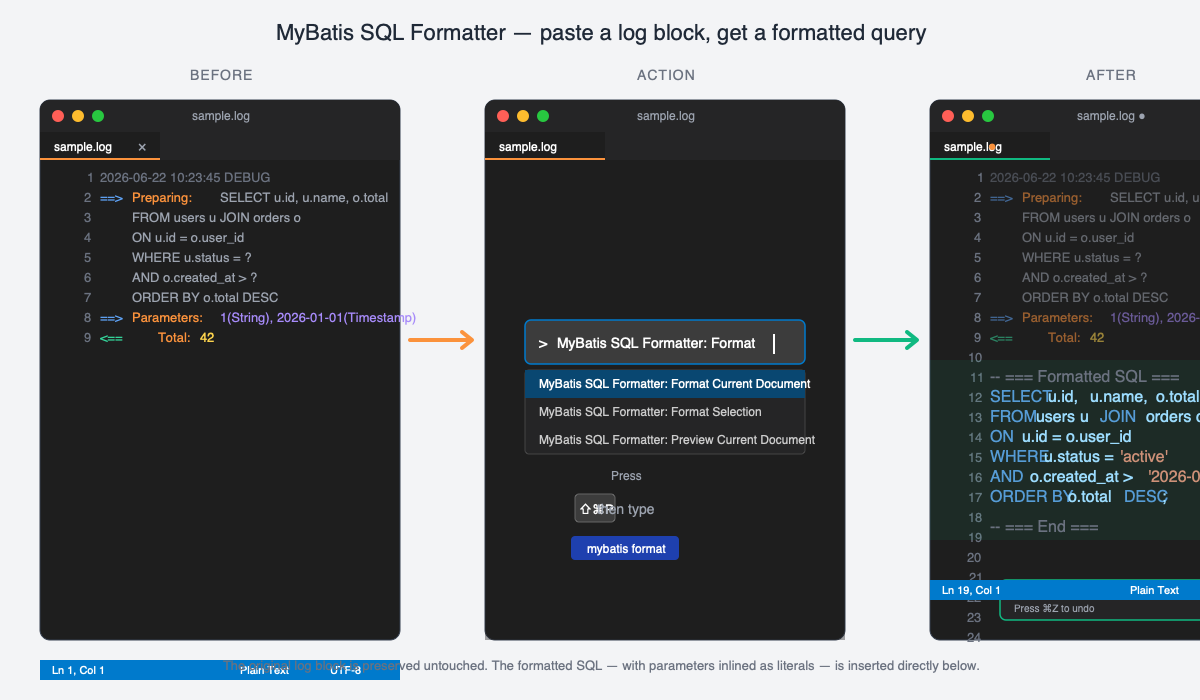
Format and inline MyBatis SQL log blocks in place. Recognises the standard
MyBatis JDBC log markers (==> Preparing:, ==> Parameters:,
<== Columns:, <== Row:, <== Total:) and inserts the formatted
SQL with parameters inlined as literals directly below each block.
Demo
Usage
- Open a file containing MyBatis SQL log output.
- Press Shift+Alt+F (Format Document) /
Cmd+K Cmd+M (Format Selection) /
Shift+Alt+P (Preview),
or open the command palette and run one of:
- MyBatis Log Formatter: Format Current Document — formats all blocks in the file
- MyBatis Log Formatter: Format Selection — formats the selected text
- MyBatis Log Formatter: Preview Current Document — opens a preview Webview
- Formatted SQL is inserted directly below each detected block, with
?parameters replaced by literals.
The original log block is preserved untouched. To undo, press Cmd+Z.
Configuration
| Setting | Default | Description |
|---|---|---|
mybatisLogFormatter.autoFormat |
true |
Insert directly, or show Webview preview first |
mybatisLogFormatter.indentSize |
4 |
Indent size |
mybatisLogFormatter.keywordCase |
upper |
Keyword case |
mybatisLogFormatter.paramMode |
inline |
inline (literal) or placeholder (? + comments) |
mybatisLogFormatter.stringQuote |
single |
Quote character for string literals |
Parameter representation
mybatisLogFormatter.paramMode chooses how parameter values appear in the formatted output.
inline(default) —?placeholders are replaced with literal values:WHERE status = 'active' AND created_at > '2026-01-01'placeholder—?are kept and a comment block lists the values:-- param[1] = 'active' (String) -- param[2] = '2026-01-01' (Timestamp) WHERE status = ? AND created_at > ?
Development
npm install
npm run build
npm run test:unit   # mocha TDD suite (no VSCode required)
npm run check       # tsc on both src/ and test/
npm run package     # produce the .vsix
To try the extension in the Extension Development Host, open this folder in VSCode and press F5.
Sample input
A real-world MyBatis log block is in test-fixtures/sample.log. Open it, run the format command, and the formatted SQL appears below the block.