Review the history of your LabVIEW VIs without leaving Visual Studio Code. VI
History Suite lets you pick two saved versions of a .vi, .ctl, or .vit
file from Git, confirms your comparison runtime is ready, and generates a
visual LabVIEW comparison report you can read and share.
Requirements
- Visual Studio Code 1.101 or newer.
- A trusted Git repository containing the tracked
.vi,.ctl, or.vitfile you want to review, with at least two saved versions to compare. - A LabVIEW comparison runtime, either:
- Host — LabVIEW 2025 or newer installed on your machine with the LabVIEW CLI (Windows uses this by default), or
- Docker — an NI LabVIEW container image that you select.
The extension only reads your runtime — it never installs LabVIEW, Docker, or any other tool for you.
Install
Install from the VS Code Extensions view, or run:
code --install-extension svelderrainruiz.vi-history-suite
Set up your comparison runtime
Run VI History: Set Up Comparison Runtime from the Command Palette, then in a terminal run:
vihs
vihs --validate
vihs lets you choose where comparisons run and confirms the runtime is ready:
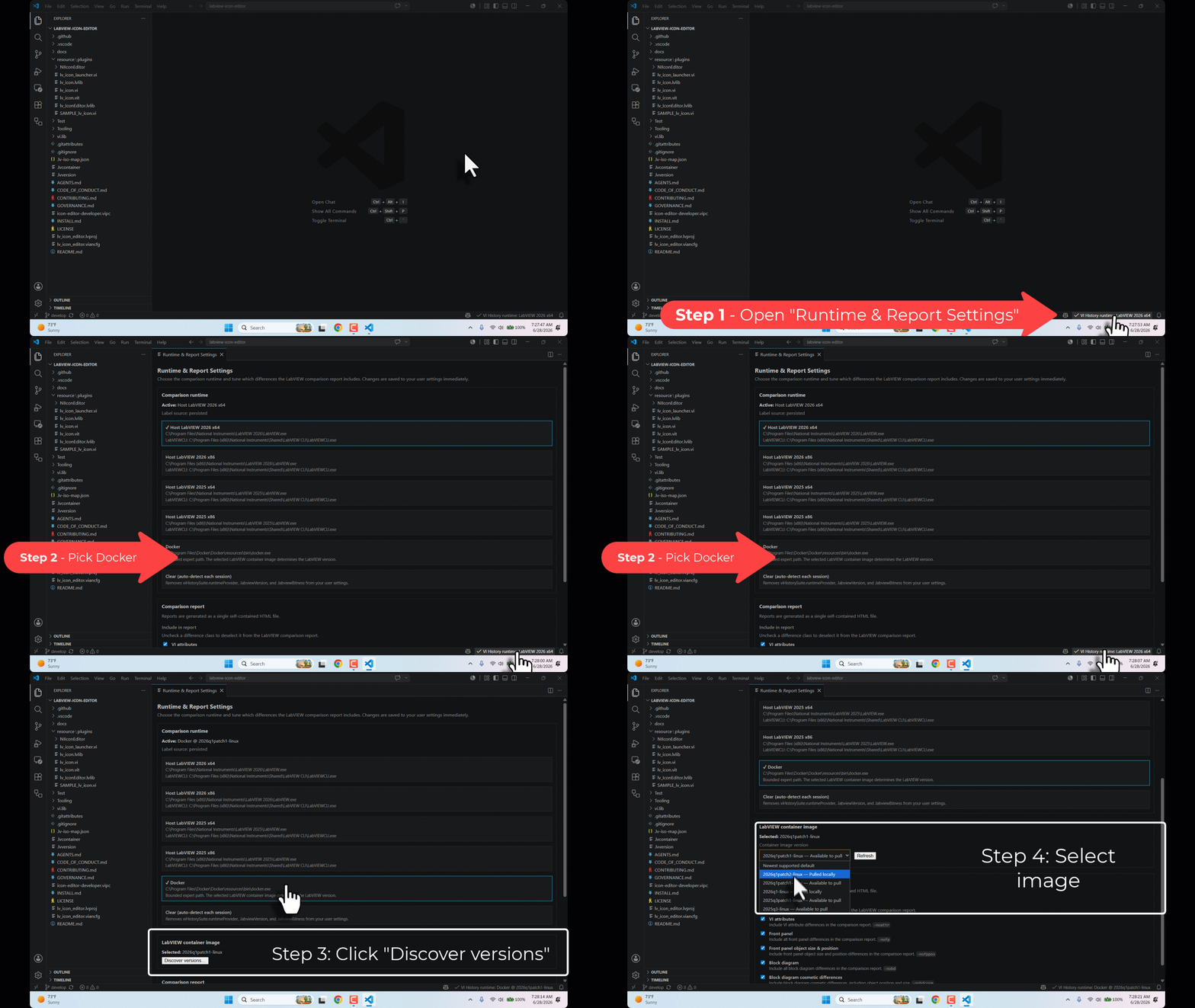
- Host uses the LabVIEW already installed on your machine (the default on Windows). Most people use this.
- Docker uses an NI LabVIEW container image instead — choose this if you prefer an isolated runtime.
You can change the provider any time with VI History: Runtime & Report Settings.
Compare two revisions
- Open a trusted Git repository that contains the
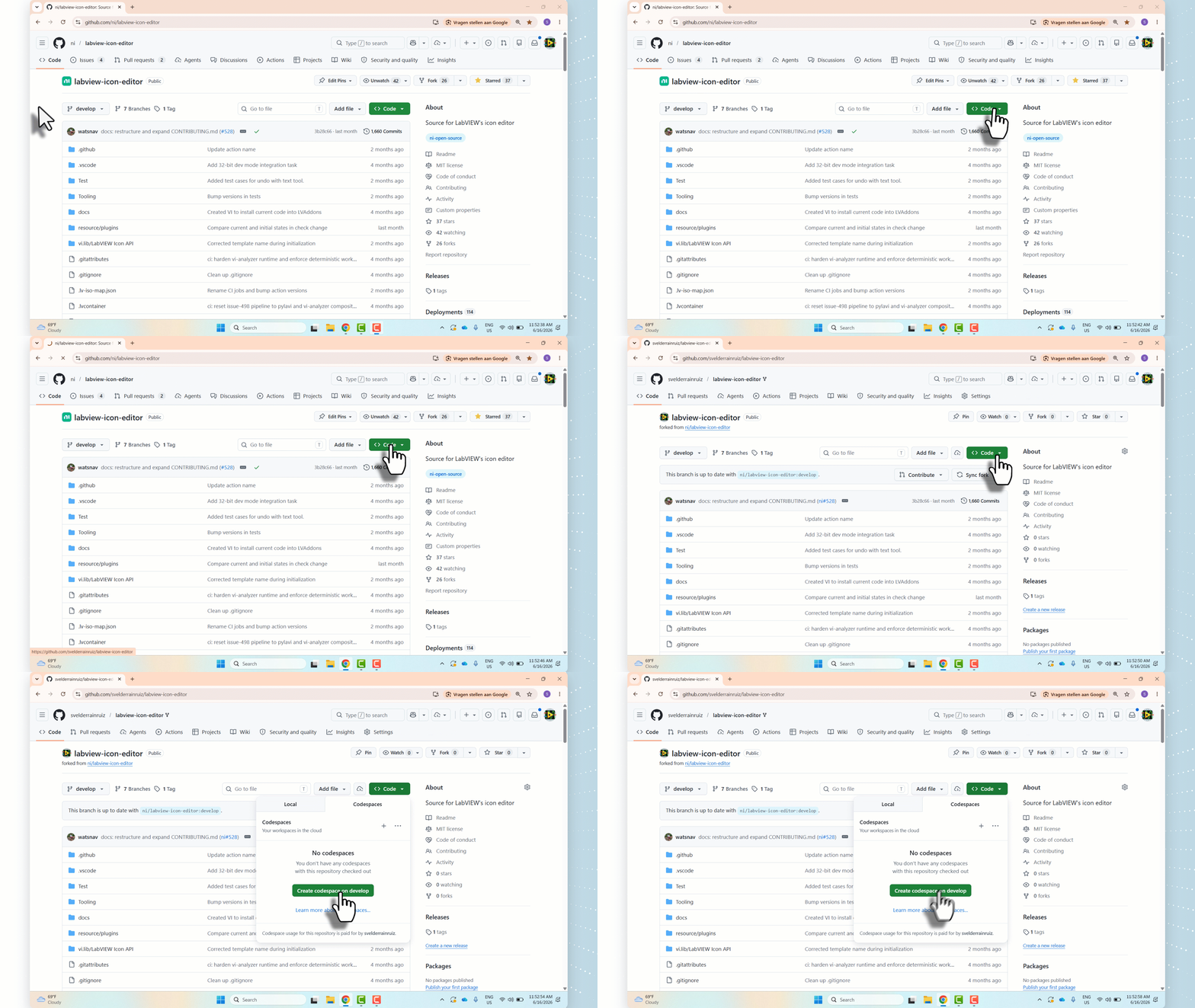
.vi,.ctl, or.vitfile you want to review. - Right-click that file and choose Review VI History (or use the editor title action). VI History looks at just that file instead of scanning every VI in the repository.
- Select exactly two saved versions using the checkboxes.
- Review the compare preflight.
- Choose Compare.
Read and export the report
The report opens as a single self-contained page showing the differences between the two versions, with the difference images embedded inline. Use Export Comparison Report (HTML) to save a copy you can share.
Preview a VI
Turn on VI Preview (the viHistorySuite.preview.enabled setting, on the
Docker runtime) to render a VI as a read-only picture of its front panel and
block diagram when you open it. The extension caches the rest of the workspace
in the background so later previews open instantly. Set
viHistorySuite.preview.blockDiagramInteractive to view the block diagram as an
interactive, pannable and zoomable diagram — step through each
Case/Event/Sequence structure's cases in place with the ◀ n/N ▶ selector or
the arrow keys — instead of a static picture.
Runtime safety checks
Before each comparison, VI History checks both selected versions and your runtime, then shows a clear status instead of failing partway through. When the runtime cannot safely produce a correct report, the comparison is blocked up front with guidance. Checks include:
- A running LabVIEW whose bitness (32- or 64-bit) does not match your selection — LabVIEW cannot start a second copy at a different bitness.
- A running LabVIEW whose year does not match your selection, so a comparison never attaches to the wrong LabVIEW on a machine with several installed.
- A selected Docker image your Docker engine cannot run, with a one-click Pick Image Version fix.
- VI Server (TCP) turned off in the selected LabVIEW, which would stop the LabVIEW CLI from connecting.
Each block offers a next step (such as Pick Runtime Provider or Pick Image Version) so you can fix the runtime without leaving the panel.
See what changed in Source Control
When a VI has uncommitted changes, VI History marks it with a small badge in the Source Control and Explorer views. Before you compare, the badge hints that you can run Compare for a summary; after you compare the VI against its latest committed version, hovering the badge shows a short "what changed" summary — the same narrative as the full report — without reopening the report.
The summary reflects the change against the latest committed revision and clears once you revert or commit the change. The decoration is shown only in trusted workspaces.
Use with Copilot agent mode
VI History Suite also exposes its comparison and history analysis to AI agents through a built-in Model Context Protocol (MCP) server. When the extension is installed, Copilot agent mode discovers the server automatically — there is nothing to configure.
Ask agent mode to work with your VIs in plain language, for example:
- "Summarize what changed in this VI comparison report."
- "Compare the last two revisions of
Main.viand tell me what changed." - "Index the LabVIEW VIs in this repository, ranked by recent activity."
The server provides tools for comparison summaries and the full semantic model, on-demand comparison and history across Git revisions, a repository VI index, a pull-request VI review, preview-cache generation, and the published VI-diff schemas plus a document validator. The tools that run comparisons need a comparison runtime (the same host LabVIEW or Docker image you set up above) and may take a few minutes; the rest use Git only.
For the full tool catalog, inputs, and the open VI-diff schemas, see docs/mcp-server.md. Agent mode requires VS Code 1.101 or later.
Advanced: the MCP server normally runs the dev-tools build bundled with the
extension. You can pin an independently released dev-tools version with the
viHistorySuite.devTools.version setting and the Install Pinned Dev-Tools
Version command, without waiting for a Marketplace update — see
docs/devtools-release.md.
Help and feedback
- Trouble getting started? See TROUBLESHOOTING.md and FIRST-RUN.md.
- Questions or support: SUPPORT.md.
- Reporting a security issue: SECURITY.md.
- First-time feedback (install surface, VS Code version, first action, and any stale link): the onboarding tracker.
Contribute
VI History Suite is open source under BSD0 / 0BSD, and contributions are
welcome. See CONTRIBUTING.md to set up the source and
docs/development.md for the development loop.
Source: https://github.com/LabVIEW-Community-CI-CD/vi-history-suite (Marketplace
ID svelderrainruiz.vi-history-suite).