Keep your terminal where your code is — as an editor tab, not a distant panel.
Why?
The default VS Code terminal lives at the bottom of the screen. Every time you need it, you shift your eyes down, resize the panel, or toggle it open and closed. It breaks your flow.
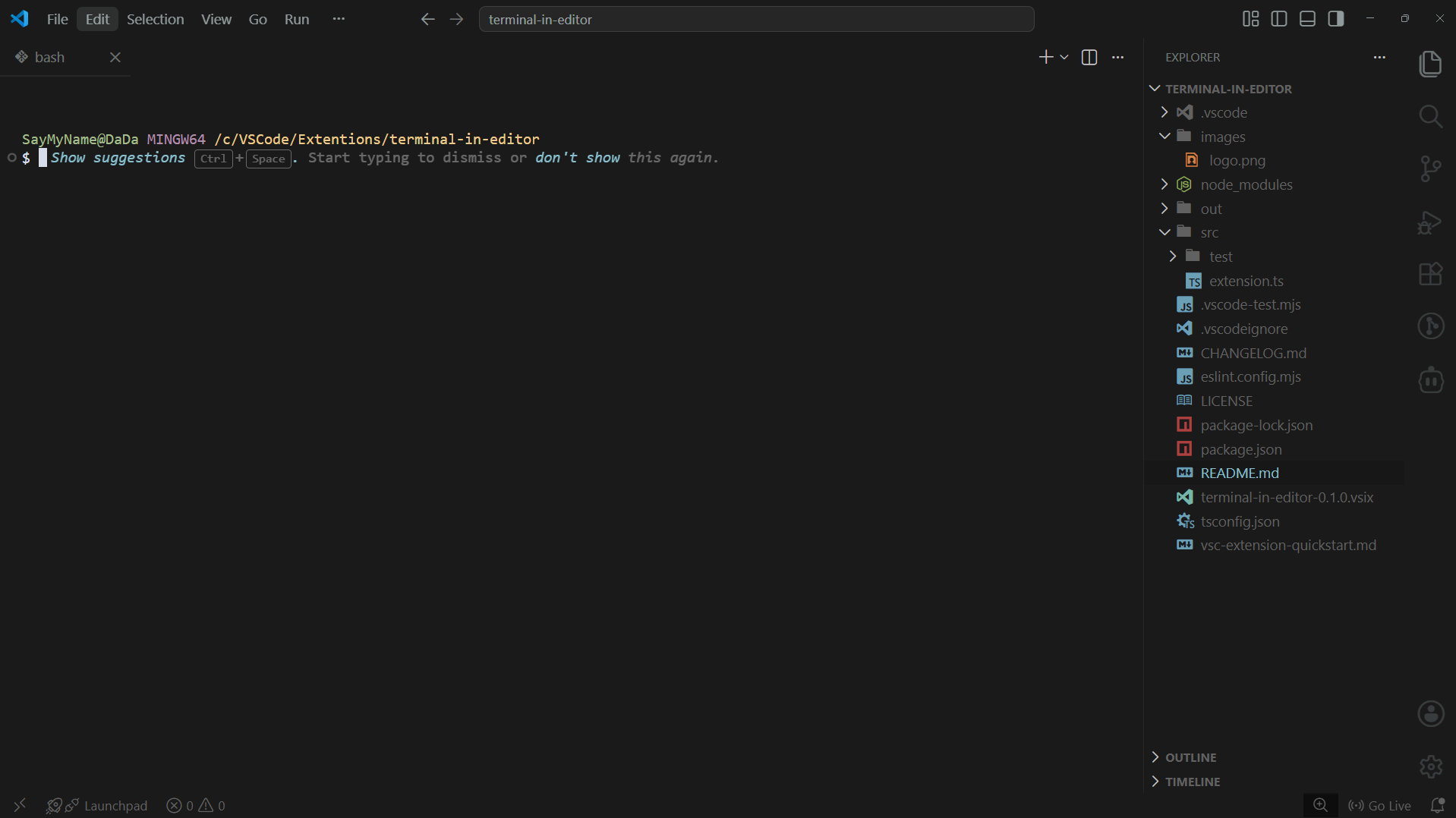
Terminal in Editor moves your terminal into the editor area so you can place it side by side with your code, keep it in a tab group, or switch to it like any other file — without leaving the editor.
Features
- One shortcut to toggle —
Ctrl+Shift+'moves your terminal to the editor. Press it again to send it back to the panel. - Works with any shell — Git Bash, PowerShell, Command Prompt, zsh, or anything configured in VS Code.
- Smart terminal reuse — uses your existing terminal instead of creating a new one. Creates a new one only if none exists.
- Pick which terminal to move — when multiple terminals are open, a quick-pick lets you choose exactly which one to bring into the editor.
- Status bar indicator — shows a live count of how many terminals are currently in the editor area.
- Auto-move new terminals — optional setting to automatically move every new terminal into the editor so the panel is never used.
- Configurable close behavior — decide what
Ctrl+Wdoes: ask, kill immediately, or move back to panel. - No lost terminals — every terminal moved to the editor is tracked and can always be recovered.
Demo
Usage
Move terminal to editor
Press Ctrl+Shift+' from anywhere in the editor or terminal panel.
- Existing panel terminal → moves into the editor as a tab
- No terminal open → creates a new one directly in the editor
Move terminal back to panel
Press Ctrl+Shift+' again while focused inside the editor terminal tab.
Close an editor terminal
Press Ctrl+W — behavior is controlled by the terminalInEditor.confirmOnClose setting.
Keyboard Shortcuts
| Shortcut | Context | Action |
|---|---|---|
Ctrl+Shift+' |
Editor or panel terminal | Move terminal to editor |
Ctrl+Shift+' |
Editor terminal tab | Move terminal back to panel |
Ctrl+W |
Editor terminal tab | Close (behavior depends on setting) |
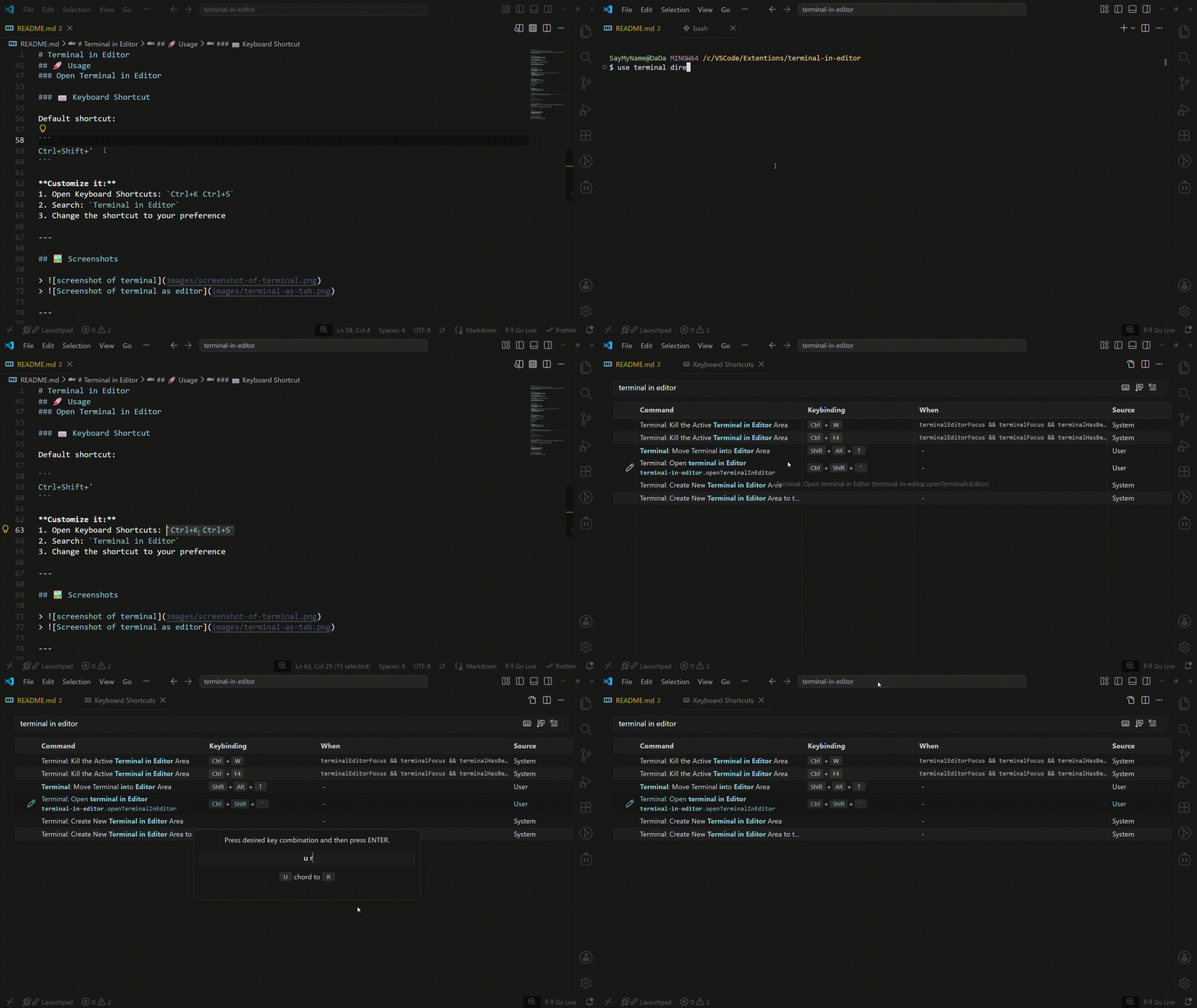
To customize shortcuts: Ctrl+K Ctrl+S → search Terminal in Editor.
Settings
Open settings with Ctrl+, and search Terminal in Editor.
terminalInEditor.confirmOnClose
Controls what happens when you press Ctrl+W on an editor terminal.
| Value | Behavior |
|---|---|
ask (default) |
Shows a prompt — confirm to kill, Escape to cancel |
kill |
Kills the terminal immediately, no prompt |
moveToPanel |
Moves the terminal back to the panel instead of killing |
terminalInEditor.focusTerminal
| Value | Behavior |
|---|---|
true (default) |
Terminal receives focus after moving to editor |
false |
Focus stays in the editor after moving |
terminalInEditor.autoMoveNewTerminals
| Value | Behavior |
|---|---|
false (default) |
New terminals open in the panel as normal |
true |
Every new terminal is automatically moved into the editor area |
Installation
From the Marketplace
- Open VS Code
- Press
Ctrl+Shift+X - Search Terminal in Editor
- Click Install
Manual install
- Download the
.vsixfrom Terminal in Editor - Press
Ctrl+Shift+P→ Extensions: Install from VSIX - Select the downloaded file
Feedback & Contributions
Found a bug or want a feature? Open an issue on GitHub.
Pull requests are welcome. For larger changes, open an issue first to discuss what you'd like to change.
Made by Sups