Scroll down for English introduction
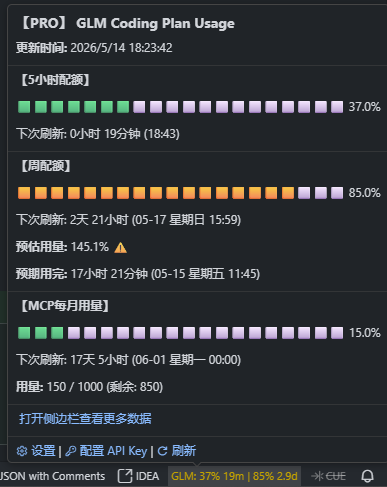
状态栏中实时监控 GLM Coding Plan 的配额使用情况。支持 bigmodel.cn 和 Z.ai 平台。
功能特性
- 状态栏监控:实时显示 5 小时/周配额百分比,颜色预警(🟥≥90% / 🟨70-89% / 🟩<70%),预估充裕时始终显示绿色
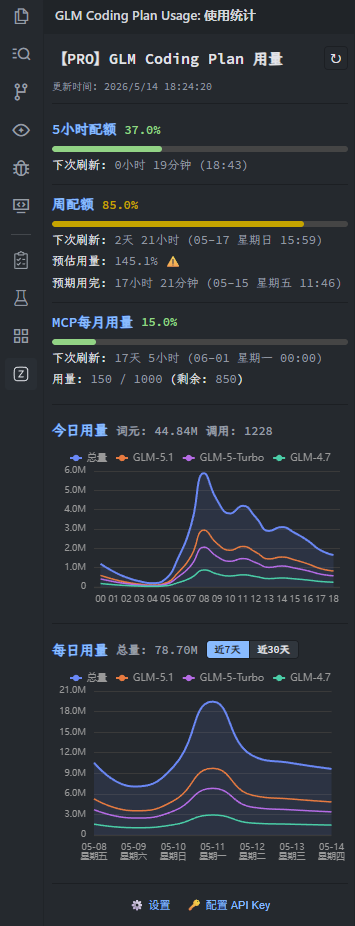
- 侧边栏面板:活动栏专属面板,展示完整用量统计、配额信息和趋势图表
- 多模型统计:按模型分类展示今日用量和 30 天使用趋势
- 状态栏点击:直接打开侧栏查看配额与用量详情
- MCP 用量:每月 MCP 工具调用配额监控,含进度条与用量预估(用量为0时不显示)
- 使用预估:基于当前消耗速率预测配额使用情况(使用量 ≥ 50% 时显示)
- 今日统计:Token 用量、调用次数、峰值数据
- 趋势图表:Unicode 柱状图展示每小时使用趋势
- 配额预警:使用率 ≥ 90% 自动通知
- 高峰期标记:周一至周五 14:00–18:00(UTC+8)高峰期时,状态栏用量文本尾部显示闪电图标
- 词元单位切换:用量数字可在 K/M 与 万/亿 之间切换(侧边栏 "..." 菜单)
- 自动刷新 · 多平台(智谱/Z.ai)· 中英双语 · API Key 加密存储
界面预览
状态栏
侧边栏面板
配置
在设置中配置(Ctrl+,):
| 设置项 | 说明 | 默认值 |
|---|---|---|
glmPlanUsage.baseUrl |
API 地址,下拉选择 | https://open.bigmodel.cn/api/anthropic |
glmPlanUsage.autoRefresh |
启动时自动刷新 | true |
glmPlanUsage.refreshInterval |
自动刷新间隔(秒),0 为禁用 |
300 |
glmPlanUsage.enableRetry |
请求失败时自动重试(最多3次) | true |
安全存储说明
设置 API Key
推荐使用命令方式设置(加密存储,绝不写入文件):
- 打开命令面板(
Ctrl+Shift+P) - 输入
GLM Plan Usage: 设置 API Key - 在弹出的输入框中粘贴你的 API Key(输入框已启用密码模式,安全输入)
- 按 Enter 确认保存
⚡ 安全性说明:此命令使用 VS Code SecretStorage API,API Key 将通过操作系统密钥管理器加密存储,绝不会写入任何配置文件或 Git 仓库。
支持的 API 地址
| 平台 | 地址 |
|---|---|
| ZHIPU(智谱) | https://open.bigmodel.cn/api/anthropic |
| ZHIPU 开发环境 | https://dev.bigmodel.cn/api/anthropic |
| Z.ai | https://api.z.ai/api/anthropic |
获取 API Key
- ZHIPU 平台:登录 open.bigmodel.cn,在 API Keys 页面获取
- Z.ai 平台:登录 z.ai,在账户设置中获取
Introduction
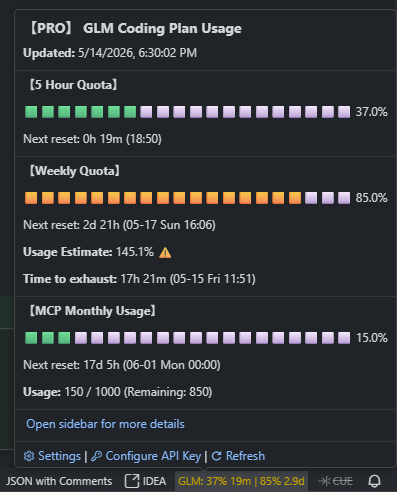
Real-time monitoring of GLM Coding Plan quota usage in the status bar. Supports bigmodel.cn and Z.ai platforms.
Features
- Status Bar: Real-time 5h/weekly quota %, color-coded alerts (🟥≥90% / 🟡70-89% / 🟢<70%), always green when usage estimate is sufficient
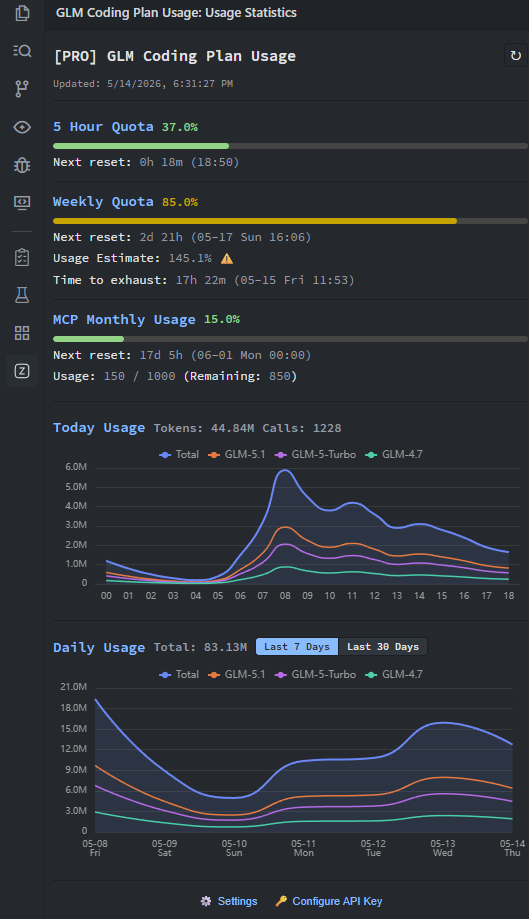
- Sidebar Panel: Dedicated activity bar panel with full usage stats, quota details, and trend charts
- Multi-Model Stats: Per-model daily usage and 30-day usage trend display
- Status Bar Click: Open the sidebar directly for quota & usage details
- MCP Usage: Monthly MCP tool call quota monitoring with progress bar & usage estimate (hidden when usage is 0)
- Usage Estimate: Predict quota usage based on current consumption rate (shown when usage ≥ 50%)
- Today Stats: Token usage, call count, peak data
- Trend Chart: Unicode bar chart for hourly usage trends
- Quota Warning: Auto notification at ≥90%
- Peak Hours Indicator: During peak hours (Mon–Fri 14:00–18:00 UTC+8), a lightning bolt icon appears at the end of the status bar usage text
- Token Unit Toggle: Switch usage numbers between K/M and Chinese units (万/亿) via the sidebar "..." menu
- Auto Refresh · Multi-Platform (ZHIPU/Z.ai) · i18n (EN/中文) · Encrypted API Key Storage
UI Preview
Status Bar
Sidebar Panel
Configuration
Configure in settings (Ctrl+,):
| Setting | Description | Default |
|---|---|---|
glmPlanUsage.baseUrl |
API URL, select from dropdown | https://open.bigmodel.cn/api/anthropic |
glmPlanUsage.autoRefresh |
Auto refresh on startup | true |
glmPlanUsage.refreshInterval |
Auto refresh interval (seconds), 0 to disable |
300 |
glmPlanUsage.enableRetry |
Automatically retry on request failure (up to 3 retries) | true |
Secure Storage
Set API Key
Use the command to set your API Key (encrypted storage, never written to files):
- Open command palette (
Ctrl+Shift+P) - Type
GLM Plan Usage: Set API Key - Paste your API Key in the input dialog (password mode enabled for secure input)
- Press Enter to save
⚡ Security Note: This command uses VS Code SecretStorage API. Your API Key will be encrypted by the OS keychain manager and never written to any config file or Git repository.
Supported API URLs
| Platform | URL |
|---|---|
| ZHIPU | https://open.bigmodel.cn/api/anthropic |
| ZHIPU Dev | https://dev.bigmodel.cn/api/anthropic |
| Z.ai | https://api.z.ai/api/anthropic |
Get API Key
- ZHIPU Platform: Login to open.bigmodel.cn, get it from the API Keys page
- Z.ai Platform: Login to z.ai, get it from account settings