Cell numbering, naming, navigation, and custom run order — for Jupyter notebooks.
🔢 Numbered headers 🏷️ Nameable cells ▶️ Custom run order
🧭 Cell navigator 🎨 Color tags 📊 Execution status
Big notebooks turn into a scroll-hunt fast. NotebookAwesome gives every cell a number and an optional name right in its header, a sidebar navigator to jump anywhere in one click, color tags to group your work, and custom run sequences so you can execute just the cells you want, in the order you want.
Works in VS Code, Cursor, Windsurf, and every VS Code-compatible editor. Free and open source.



✨ Features
🔢 Numbered headers
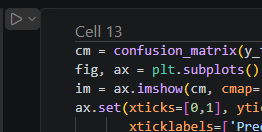
A header above each cell shows its number, updated automatically as you add, remove, or reorder cells. No more "wait, which cell was that?"
🏷️ Nameable cells
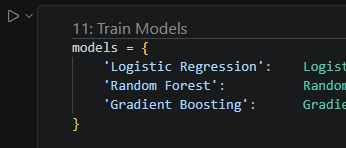
Give any cell a real name — 9: Train Test Split, 4: Load Data — shown in the header and throughout the navigator. Double-click a row to rename inline. Names are saved inside the .ipynb, so they travel with your notebook.
▶️ Custom run order
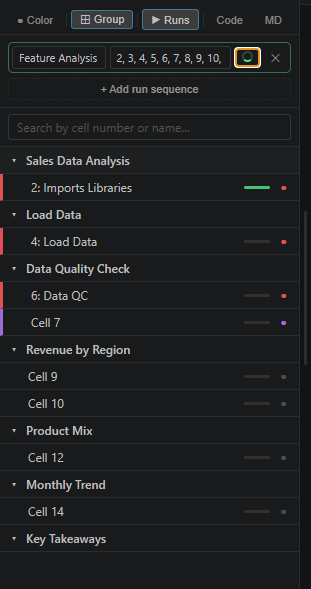
Run only the cells you want, in the order you list them. Define named sequences like 1, 2-5, 8 and run exactly those cells, in the order you list them, with one click. Perfect for a quick smoke test, re-running just your model pipeline, or skipping the slow setup cells.
- Ranges supported (
2-5) and any custom order (8, 3, 1). - Each sequence is bound to its cells (not brittle line numbers) — reorder your notebook and the sequence still runs the right cells.
- Live progress spinner while running; a green box when it succeeds, red if a cell fails (it stops there).
- Stored in the
.ipynb, so your sequences travel with the file.
🧭 Cell navigator
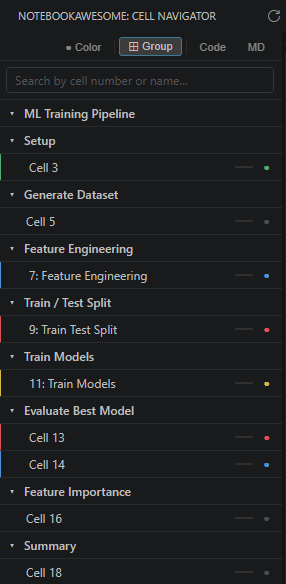
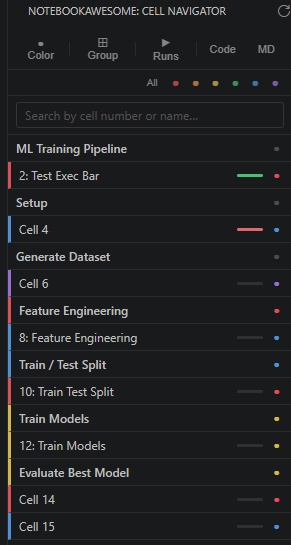
The sidebar lists every cell with its number and name. Click any row to jump straight to it. Search by number or name, filter to just Code or Markdown, and collapse sections under Markdown headings for a clean outline of huge notebooks.
🎨 Color tags
Tag cells with colors from a customizable palette, then filter the navigator to a single color to focus on just those cells — great for marking TODOs, review spots, or pipeline stages.
📊 Execution status
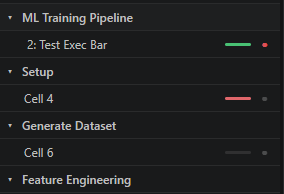
Each code cell shows a run indicator in the navigator: a left-to-right green sweep while running, solid green on success, red on failure — so you can watch a Run All march down your notebook.
⌨️ Jump anywhere — Ctrl+Alt+G
A quick-pick of every cell, filterable by number, name, or first line of code. Keyboard-navigable; press Enter to jump.
💾 Everything travels with the file
Names, colors, and run sequences are stored in the notebook's own metadata (notebook.metadata.notebookawesome) — no sidecar files, no cloud sync. Copy the .ipynb to another machine with the extension and it's all there.
🔌 Works everywhere VS Code does
Built on the standard extension API only — no Microsoft-proprietary calls — so it runs identically in VS Code, Cursor, Windsurf, VSCodium, and other forks.
🚀 Install
VS Code / Cursor / Windsurf: open Extensions (Ctrl+Shift+X), search NotebookAwesome, click Install.
Or quick-open (Ctrl+P) and run ext install royayon.notebookawesome.
Open VSX (Cursor, Windsurf, VSCodium): open-vsx.org/extension/royayon/notebookawesome
Manual: grab the latest .vsix from Releases and run code --install-extension notebookawesome-*.vsix.
🕹️ Quick start
| Do this | How |
|---|---|
| Open the navigator | Click the notebook icon in the Activity Bar |
| Jump to a cell | Click its row in the navigator |
| Rename a cell | Double-click its row, or Ctrl+Shift+P → NotebookAwesome: Rename Cell |
| Color a cell | Click the ● dot on its row, pick a color |
| Filter by color | Click ● Color in the toolbar, pick a swatch |
| Show only Code / Markdown | Click Code or MD in the toolbar |
| Build a run sequence | Click ▶ Runs → + Add run sequence, type 1, 2-5, 8, name it, hit ▶ |
| Jump-to-cell palette | Ctrl+Alt+G |
⚙️ Configuration
Customize the color palette in settings.json:
"notebookawesome.colorPalette": [
  { "name": "Red",    "color": "#e05252" },
  { "name": "Green",  "color": "#4caf6e" },
  { "name": "Blue",   "color": "#4a90d9" },
  { "name": "Yellow", "color": "#d4b83c" }
]
💾 How your data is stored
Names, colors, and run sequences live in the .ipynb's own metadata — the same file you already version-control:
"metadata": {
  "notebookawesome": {
    "cells":     { "<content-hash>": { "name": "Feature Engineering", "color": "Green" } },
    "sequences": [ { "name": "Smoke test", "cells": ["<hash>", "<hash>", "<hash>"] } ]
  }
}
Keys are content hashes of each cell, so renaming or reordering cells never loses their metadata.
🤝 Contributing
Issues and PRs welcome!
- Fork and branch.
npm install, thennpm run watchto compile on change.- Press
F5to launch the Extension Development Host and open any.ipynb. - Open a PR.
📄 License
GPL-3.0-or-later © royayon