Code reviews powered by AI, without leaving your editor.



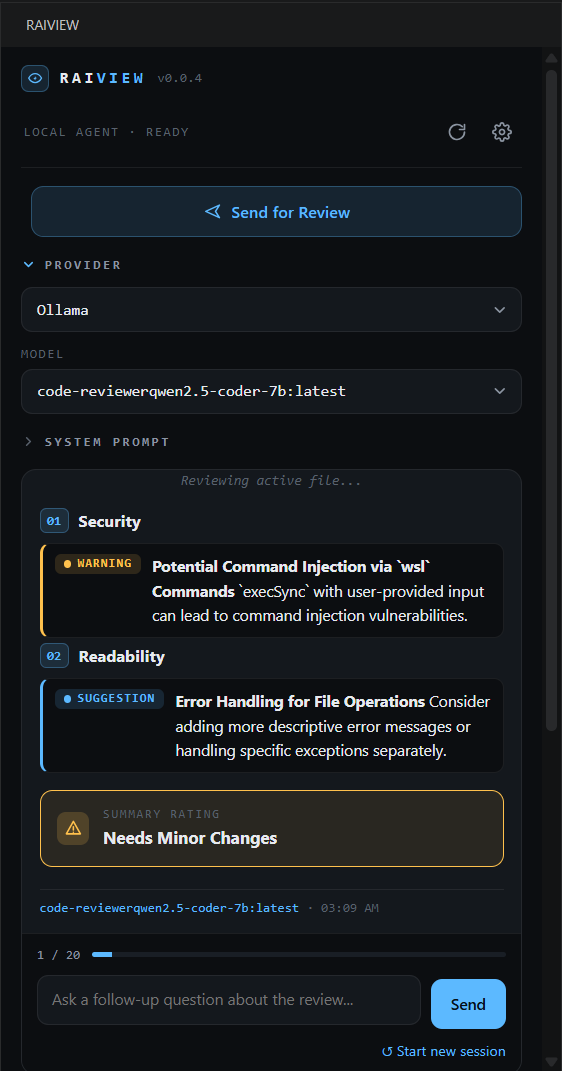
Structured, actionable findings — right in your sidebar
Raiview is a VS Code extension that brings AI-powered code review into your sidebar. Point it at your git changes or the file you're working on, and get structured findings grouped by category — Critical issues, Warnings, and Suggestions — with a summary verdict. Ask follow-up questions, switch models mid-conversation, and revisit past reviews at any time.
Works with Ollama (local or remote), OpenAI, and Anthropic Claude.
✨ Highlights
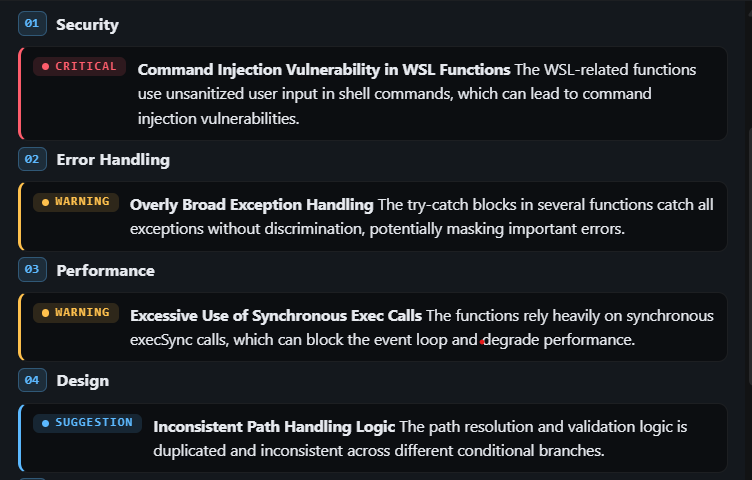
Structured, categorized findings
Findings are grouped by category — Correctness, Performance, Design, and more — with color-coded severity chips and a summary verdict. No more walls of text to parse.
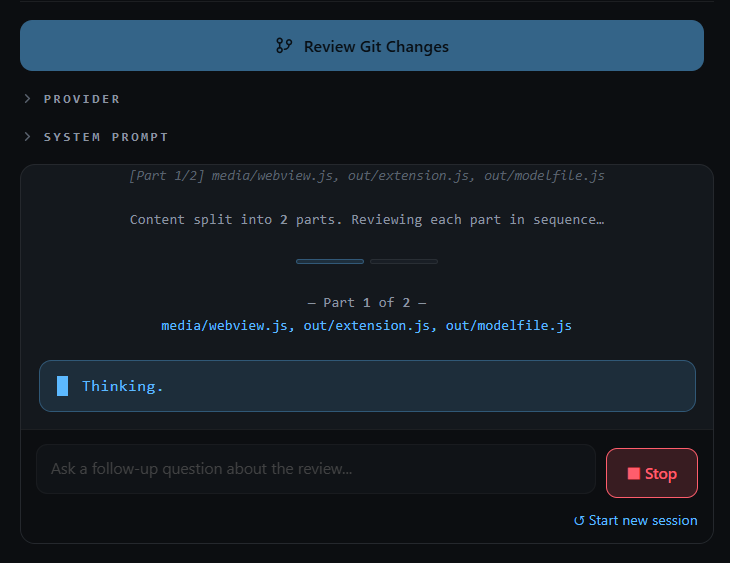
One-click git diff review
Click Review Git Changes to review everything staged and unstaged. Large diffs are split by file and reviewed in sequence — a progress bar tracks each part.
Multi-turn conversation
After any review, ask follow-up questions directly in the panel. An exchange counter keeps track of your session budget (up to 20 exchanges).

Active file review
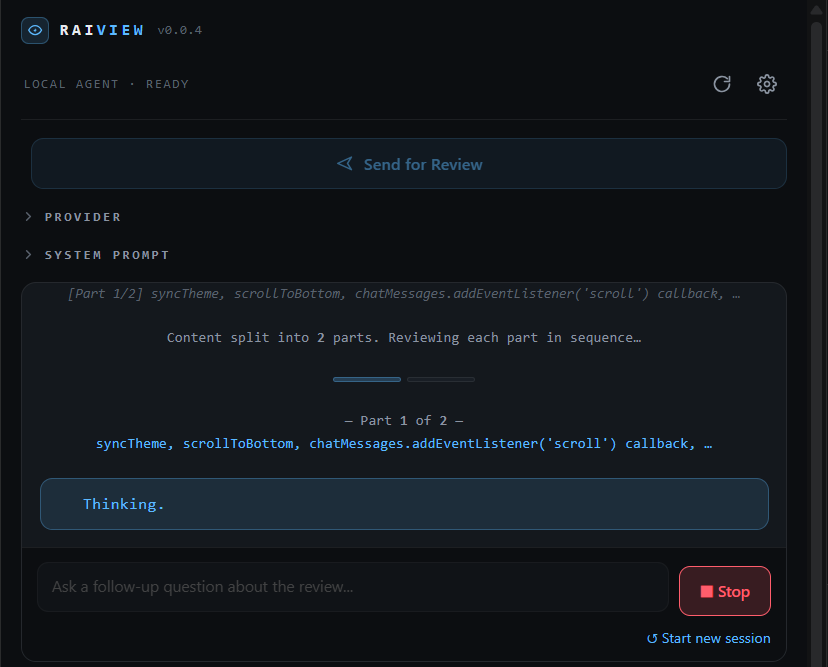
Review the file open in your editor. Large files are split at function and method boundaries so each chunk gets proper attention, then findings are merged into a combined summary.
Persistent session history
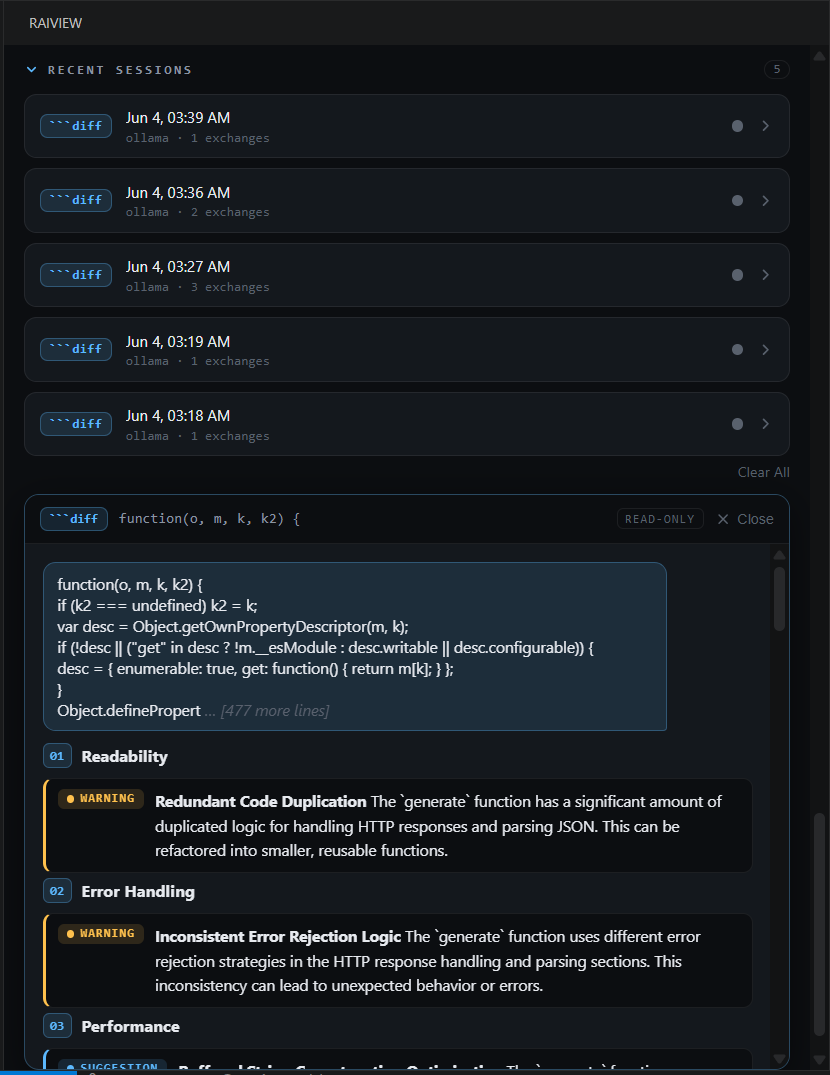
Your last 5 review sessions are saved automatically. Click any session card to open a read-only transcript and revisit the findings.
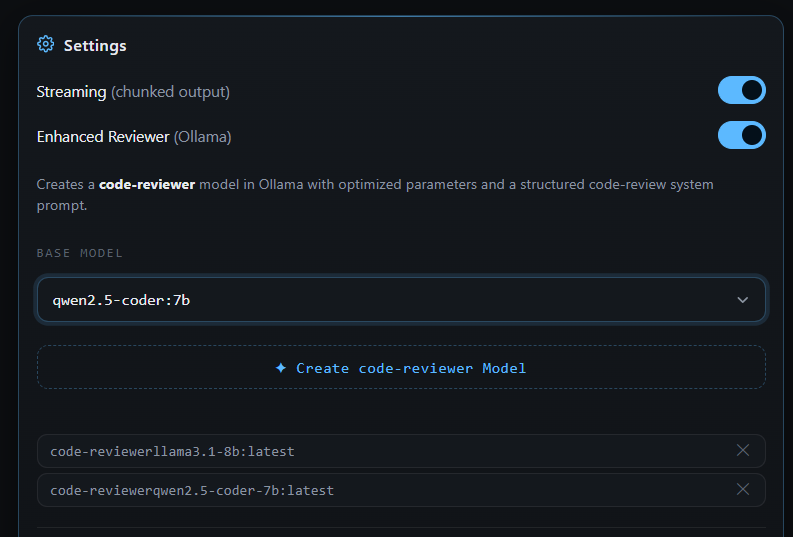
Enhanced Reviewer (Ollama)
Create a purpose-built code-reviewer model from any base model — optimized with a structured system prompt and tuned generation parameters for code review specifically.
🔌 Provider Support
Raiview works with three LLM backends. You can switch provider or model at any point in a session without losing your conversation history.
| Ollama | OpenAI | Anthropic Claude | |
|---|---|---|---|
| API key | Optional | Required | Required |
| Runs locally | ✅ Yes | ❌ | ❌ |
| Remote/cloud | ✅ Supported | ✅ | ✅ |
| Any model | ✅ Any Ollama model | GPT-4o and family | Claude 3.x / 4.x |
| Enhanced Reviewer | ✅ | — | — |
📦 Installation
From the VS Code Marketplace (coming soon)
Search for "Raiview" in the Extensions panel, or install from Marketplace.
Manual install (.vsix)
- Download the latest
.vsixfrom Releases - Open VS Code → Extensions (
Ctrl+Shift+X) →···menu → Install from VSIX… - Select the downloaded file and reload when prompted
🚀 Quick Start
Step 1 — Open the panel
Click the Raiview icon in the Activity Bar (left sidebar). The Raiview panel opens on the side.
Step 2 — Choose a provider and model
Expand the Provider section and select your LLM provider. The model list populates automatically. Pick a model from the dropdown.
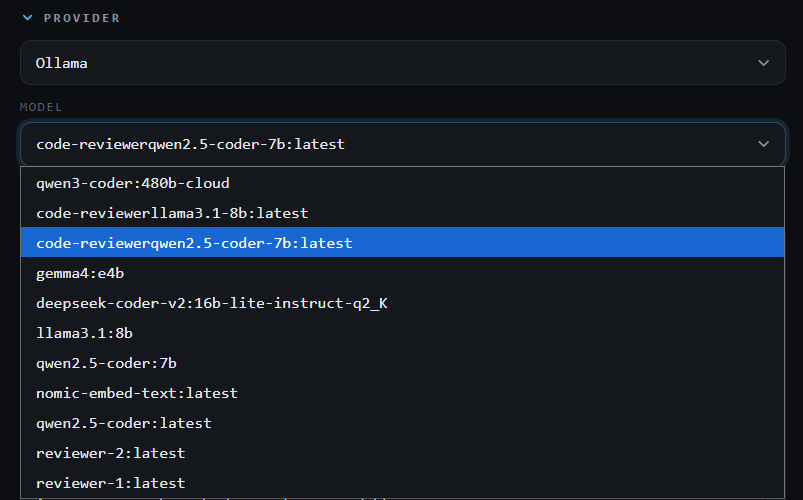
Select your provider and model before starting a review
Step 3 — Add your API key (if required)
Click the gear icon (⚙) in the topbar to open Settings. Under API Keys, select your provider, paste your key, and click Save Key. Required for OpenAI and Claude; optional for remote Ollama instances. The key is stored in VS Code's encrypted secrets store — never on disk in plain text.
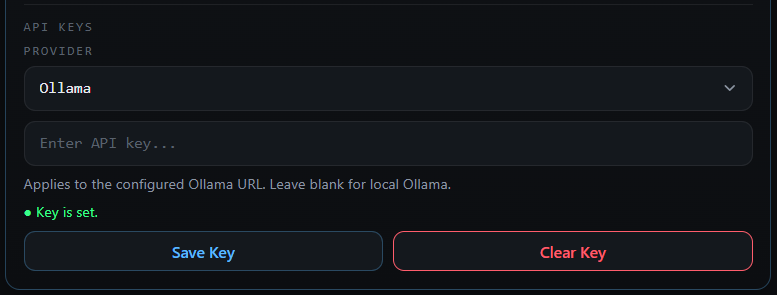
Keys are stored securely — you only need to enter them once
Step 4 — Run your first review
Make some changes in your repo (or open a file), then click:
- Review Git Changes — reviews all staged and unstaged changes in your current repository
- Send for Review — reviews the file open in the active editor

Findings appear as the model generates. When the review completes, the full structured output is shown:
Findings are grouped by category with color-coded severity
Step 5 — Ask follow-up questions
When the review finishes, a text input appears at the bottom of the panel. Type any question about the findings and press Send or Enter.
📖 Feature Guide
Git Diff Review
Click Review Git Changes to review all staged and unstaged changes in your repository at once.
If the diff is large, Raiview splits it by file and reviews each part in sequence. A progress bar shows which part is currently being reviewed and which are complete.
Large diffs are split by file — each part reviewed individually, then merged into a combined summary
You can stop a review at any time using the Stop button that appears during generation.
File Review
Click Send for Review to review the file currently open in your editor. Raiview tries to split the file at function and method boundaries using VS Code's symbol provider. If that's not available, it falls back to line-based chunking.
Each chunk produces up to 5 findings. After all chunks are reviewed, findings are de-duplicated and merged into a combined summary.
Function-level splitting means the model focuses on a manageable chunk of code at a time
Understanding Findings
Every review produces findings organized by category. Each finding has:
- A severity chip —
Critical,Warning, orSuggestion— color-coded for quick scanning - The category (e.g. Correctness, Performance, Security, Readability)
- A description of the specific issue
At the bottom, a Summary Rating gives an overall verdict:
- ✅ Looks Good — no significant issues found
- ⚠ Needs Minor Changes — some improvements recommended
- 🔴 Needs Major Revision — critical issues that should be addressed before merging
Findings are grouped by category — scroll down to see the summary rating
Conversations & Follow-ups
After a review completes, a text input appears at the bottom of the panel. You can ask anything — request a code fix, ask why something is flagged, or explore a specific finding in depth.
The exchange counter (e.g. 3 / 20) shows how many turns remain in your session. At 16 exchanges you'll see a warning; at 20 the session ends and you can start a new one.
Keep the conversation going — ask for fixes, explanations, or deeper analysis
Click ↺ Start new session at any time to clear the conversation and begin fresh.
Switching Provider or Model Mid-Session
You can change your provider or model at any point — even while a session is active. Open the Provider section, make your selection, and the next message will use the new provider and model. Your conversation history is preserved.
Switching provider or model mid-session doesn't reset the conversation
Session History
Raiview saves your last 5 review sessions automatically. The Recent Sessions section at the bottom of the panel lists them by date, provider, and number of exchanges. A colored dot indicates the overall rating from that session.
Click any session card to open a read-only transcript of the full review.
Past sessions are always accessible — click any card to view the full transcript
Enhanced Reviewer (Ollama only)
The Enhanced Reviewer creates a dedicated Ollama model tuned specifically for code review — not a general-purpose chat model. It uses a structured system prompt that directs the model to find issues across 8 categories, be concise, and respond in a parseable format.
To set it up:
- Open Settings (gear icon) and enable Enhanced Reviewer
- Select a base model from the dropdown (e.g.
qwen2.5-coder:7b) - Click ✦ Create code-reviewer Model
Raiview streams the build progress. Once complete, the new model (code-reviewer-<base>:latest) appears in your model list.
Build a code-review-optimized model from any base Ollama model
GPU Memory Management (Ollama)
When you finish a session, the Ollama model stays loaded in GPU/RAM by default — ready for the next review without a reload delay. If you want to free that memory immediately:
- Click the trash icon in the topbar (visible before a session starts) to unload manually
- Or enable Auto-unload model in Settings to have Raiview unload automatically whenever you start a new session

The Free Memory button appears in the topbar when no session is active
⚙️ Configuration
All settings are available in VS Code Settings under raiview.*, or through the Settings panel inside Raiview itself.
| Setting | Type | Default | When to change |
|---|---|---|---|
defaultProvider |
string | "ollama" |
Set your preferred provider so it's selected on startup |
ollamaUrl |
string | "http://localhost:11434" |
Change if Ollama is running on a different host or port |
defaultSystemPrompt |
string | "" |
Add a standing instruction to every review (e.g. "Focus on security") |
streamingMode |
string | "chunked" |
Switch to complete if you prefer to see the full response at once |
enhancedReviewer |
boolean | false |
Enable to use the optimized code-reviewer Modelfile with Ollama |
autoUnloadModel |
boolean | false |
Enable to free GPU/RAM automatically when starting a new session |
maxContentChars |
number | 10000 |
Increase for larger diffs/files if your model supports a bigger context window |
ollamaContextWindow |
number | 8192 |
Set before creating the Enhanced Reviewer model — delete and recreate the model after changing |
ollamaNumPredict |
number | 2000 |
Increase for more detailed reviews; decrease to speed up responses |
excludeExtensions |
string[] | [] |
Add extensions like ".lock", ".map", ".vsix" to skip them in git diff reviews |
ollamaModels |
string[] | [] |
Pin specific model names when using Ollama cloud (prevents fetching the full public catalog) |
🔧 Provider Setup
Ollama
- Install Ollama and start it
- Pull a model:
ollama pull qwen2.5-coder:7b - Open Raiview → Provider → select Ollama — models are fetched automatically
- For a remote Ollama instance, update
raiview.ollamaUrlin settings (or Settings panel → Ollama → URL)
Using Ollama with an API key? Enter it under Settings → API Keys → Provider: Ollama.
OpenAI
- Get an API key from platform.openai.com
- Open Raiview → ⚙ Settings → API Keys → Provider: OpenAI
- Enter your key and click Save Key
- Select OpenAI in the Provider dropdown — GPT-4o and related models appear automatically
Anthropic Claude
- Get an API key from console.anthropic.com
- Open Raiview → ⚙ Settings → API Keys → Provider: Claude
- Enter your key and click Save Key
- Select Anthropic Claude in the Provider dropdown — available Claude models appear automatically
🛠 Development
npm run compile   # TypeScript → CommonJS (./out/)
npm run watch     # Continuous compilation
npm run package   # Build .vsix package (requires vsce)
Press F5 in VS Code to launch an Extension Development Host with the extension loaded.
See docs/workflows.md for state machine diagrams and message flow references, and CLAUDE.md for codebase architecture notes.
License
MIT — see LICENSE for details.