Your AI coding agent forgets everything every session. Loom is the memory it doesn't have.
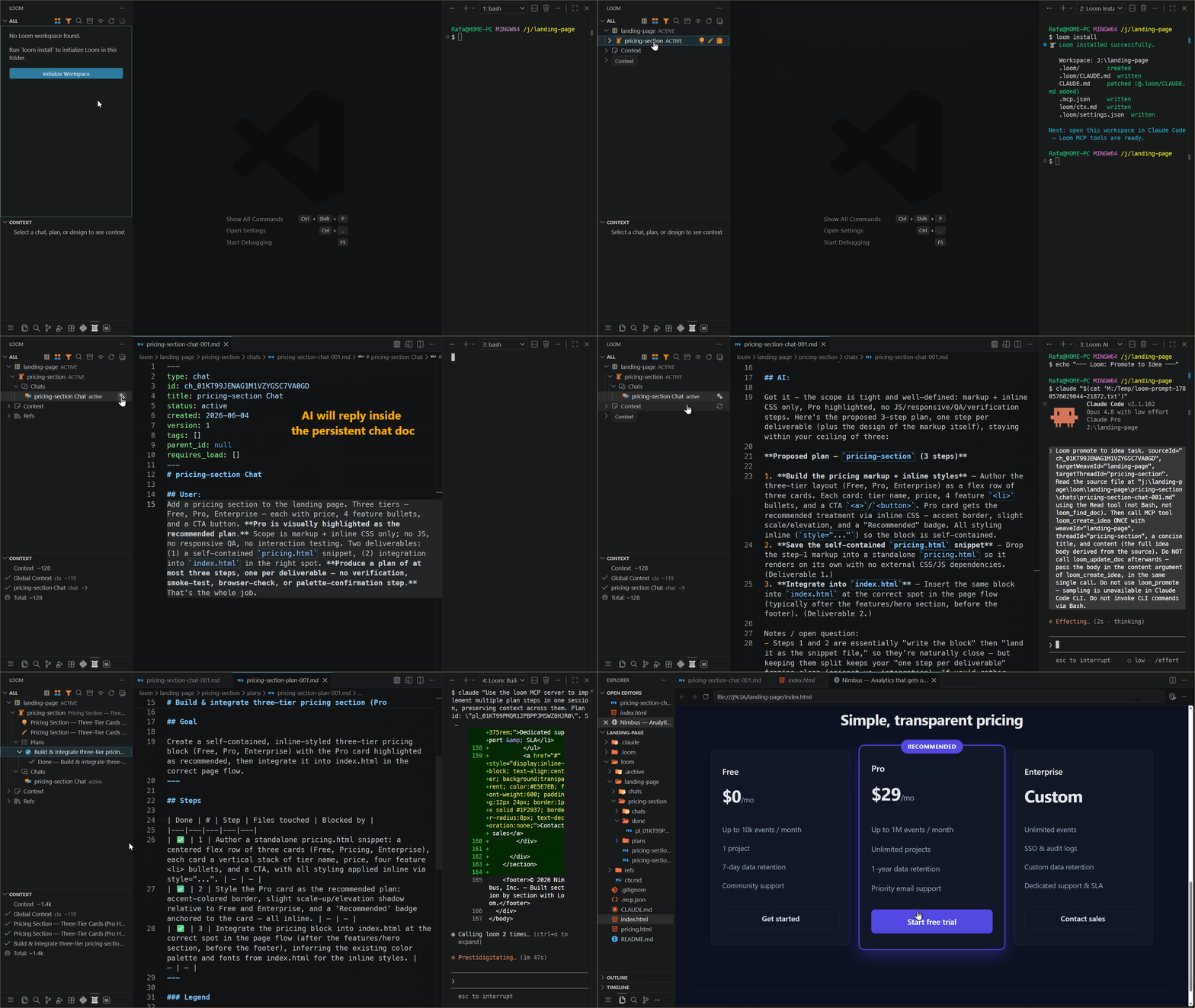
Loom turns your project into a document-driven loop between you and your AI — chat → idea → design → req → plan → implement → done. Every stage is a Markdown doc the AI reads, writes, and tracks across sessions, so it never starts empty and never loses the thread.
🔗 Get Loom: Marketplace · Open VSX · CLI on npm · GitHub
📚 Guides: Which way is for you? · Core concepts · Extension guide · CLI / Claude Code
Install — one click, no CLI
- Install this extension from the Marketplace (search
Loom AI, publisherreslava). - Open a folder and click Initialize Loom in the Loom panel.
That's it. The Loom engine is bundled inside the extension and runs on VS Code's own runtime —
no npm install, no global command, no Node to set up. Initializing creates .loom/ (config + the
CLAUDE.md AI session contract), loom/ (your doc workspace), and .mcp.json (so an AI agent can
drive Loom too). Update the extension and your session rules refresh themselves — nothing to re-run.
📚 New here? → install to your first idea in five minutes.
The loop
- Chat — open a chat doc, think out loud with the AI (AI Reply).
- Idea — Create Idea, or Promote a chat straight into one.
- Design — Generate Design defines how to build it.
- Plan — Generate Plan breaks it into concrete, reviewable steps.
- Implement — Do Step: the AI implements the next step, records a done-note, marks it ✅.
Each stage is a Markdown document in the Loom panel. Nothing disappears between sessions.
The Loom panel
The Loom Activity Bar icon opens two views: Threads and Context.
 |
 |
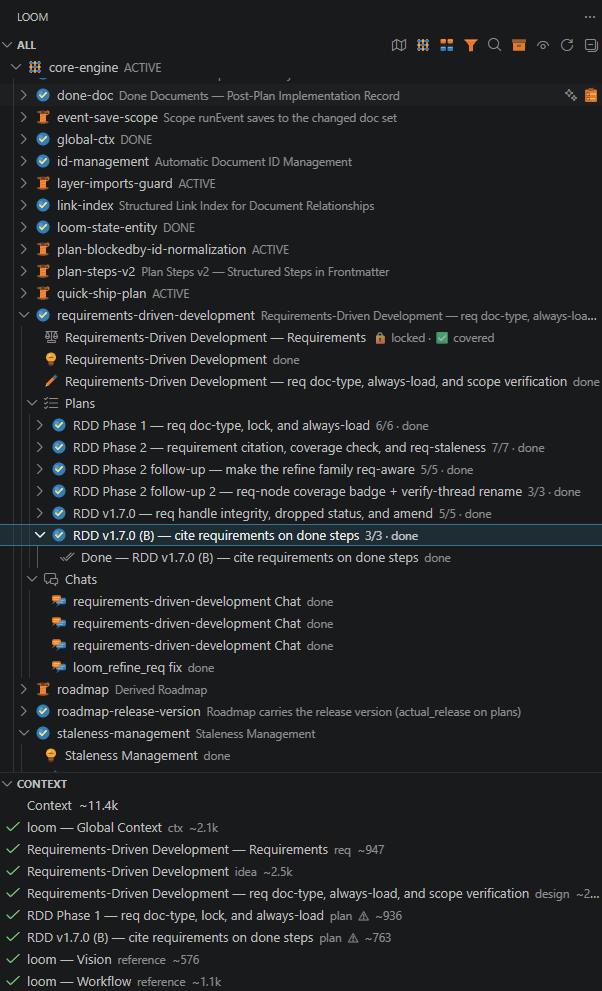
Threads + Context — every weave → thread → doc, each node carrying its derived state: locked reqs, plan step counts (3/3 · done), staleness ⚠. The Context panel shows the exact docs — and their token cost — the AI will receive, before you launch. |
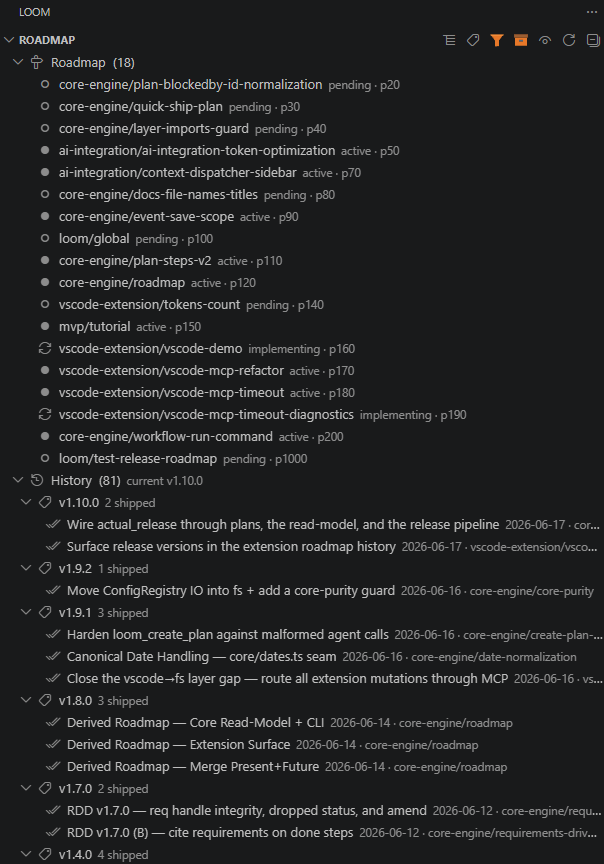
Roadmap — a Show Roadmap toggle re-lays the tree into the derived cross-weave roadmap: present + future in dependency-then-priority order, over a history of shipped versions. Drag-to-reorder writes soft priority. All computed from the documents. |
Click either image to view full size.
Reports — synthesize a project overview, architecture, decisions, or release notes from the
doc graph, right from the panel; saved under loom/reports/.
The buttons
AI actions run the agent:
| Button | What it does |
|---|---|
| Generate Design / Plan (AI) | Turn an idea into a design, or a design into numbered, reviewable steps |
| Do Step(s) | AI implements the next pending step; marks it ✅ and writes a done-note |
| AI Reply | Continue a chat with full thread context loaded |
| Refine Idea / Design / Plan | Re-run generation on a stale doc after its parent changed |
| Generate Report | Synthesize a report from the doc graph (overview, decisions, release notes, …) |
Create / promote (Create Idea / Design / Plan / Chat, Promote, Add References…) and manage (Start / Close Plan, Set Status, Rename / Archive / Delete, Validate) actions appear inline on each node and in its right-click menu — no AI required.
AI setup — pick one path (only one is required)
- Claude Code CLI (default). If
claudeis on your PATH, buttons open a persistent Loom AI terminal and run the agent — it reads your Loom docs, calls the right MCP tools, and writes the result back. No API key, works with a Claude Pro subscription.npm install -g @anthropic-ai/claude-code # the recommended path — free with Claude Pro - API key (fallback). No CLI? Set
reslava-loom.ai.apiKey(and.provider) in VS Code settings and the extension calls the provider directly.
Settings
| Setting | Default | Description |
|---|---|---|
reslava-loom.user.name |
User |
Your display name in chat headers |
reslava-loom.ai.provider |
anthropic |
Provider for the API-key path (anthropic / deepseek / openai) |
reslava-loom.ai.apiKey |
— | API key (fallback — not needed with Claude Code CLI) |
reslava-loom.ai.model |
— | Model override (blank = provider default) |
reslava-loom.telemetry.enabled |
false |
Opt in to anonymous, content-free usage telemetry (off by default; also the kill switch) |
Requirements
- VS Code 1.85+ — self-contained (bundled server; no separate CLI or Node install)
- For AI actions: Claude Code (recommended — no API key) or an API key in settings
Also runs headless
Prefer the terminal, or driving Loom from Cursor / Continue / CI? The same engine ships as a CLI +
MCP server → @reslava/loom on npm.
Telemetry & feedback
Loom can send anonymous, content-free usage telemetry so we can see whether the loop is used and where people stall — off by default, one-click status-bar toggle, first enable shows exactly what's sent (never content, titles, paths, or PII; events go to PostHog EU). A Feedback button in the status bar opens a prefilled GitHub issue you edit before sending — opt-in, nothing automatic. → full detail in the User Guide.
License
MIT