User-owned snippet shortcuts for VS Code and Cursor, triggered by the ! prefix in any language.
Instead of memorizing fixed snippet packs, you build your own library: every snippet is created, edited, and stored by you, and shows up whenever you type ! in an editor.
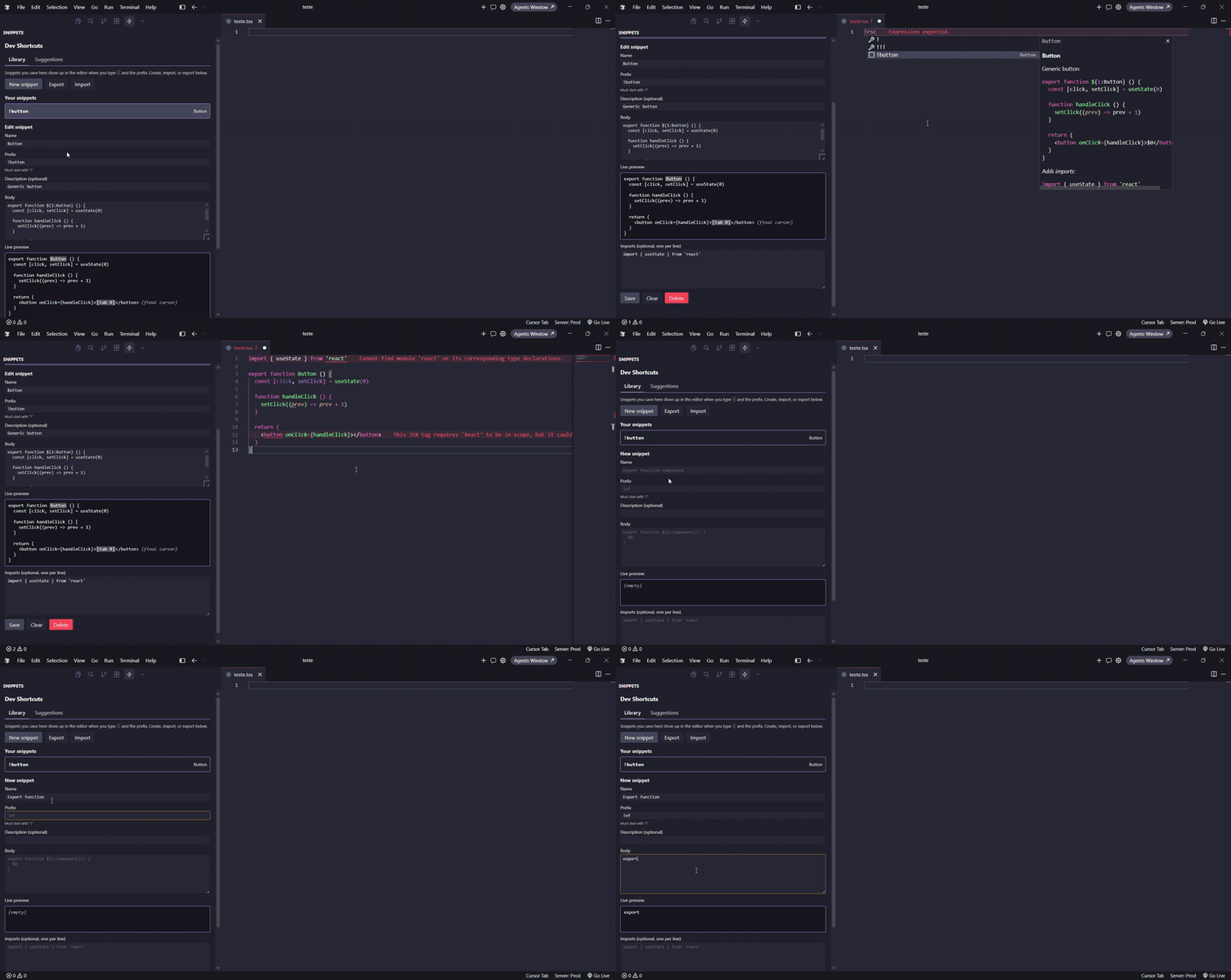
Features
!-prefix completion in any language. Type!, see your snippets, keep typing to filter, pressEnterorSpaceto insert.- VS Code snippet syntax (
$1,${1:placeholder},$0, ...) inside snippet bodies. - Auto imports: declare import lines per snippet; missing ones are inserted at the top of the file (best-effort dedup for JS/TS/Python).
- Activity Bar manager: dedicated sidebar with a webview for creating, editing, and deleting snippets without touching
settings.json. - Import / Export JSON: back up or share your library; duplicate prefixes can be skipped, overwritten, or renamed on import.
- Suggestions gallery (opt-in): React and generic templates you add to your library — never auto-loaded into completion.
- Live preview: tab stops and placeholders highlighted while editing a snippet body.
- Default keybindings: quick access to insert, repeat last snippet, and open the manager (rebindable in Keyboard Shortcuts).
- Smarter import dedup: JS/TS named imports, plus Go, Rust, Java/Kotlin, and C#
usinglines. - Local-only: snippets are stored in the extension's global storage; no telemetry, no network calls.
Quick start
- Install the extension (VS Code Marketplace or Open VSX).
- Open the Dev Shortcuts view from the Activity Bar.
- Click New snippet, fill in:
- Name: human-readable label, e.g.
Export function component. - Prefix: must start with
!, e.g.!ef. - Body: VS Code snippet syntax, multi-line allowed.
- Imports (optional): one line per missing import.
- Name: human-readable label, e.g.
- Save. In any editor, type the prefix (e.g.
!ef) and accept the suggestion.
Nothing is pre-installed. Use the Suggestions tab for opt-in templates or create snippets from scratch in Library.
Reference
Trigger (! in the editor)
Start every Dev Shortcuts prefix with !. IntelliSense lists your snippets; keep typing to filter (e.g. !ef). You can also use Insert snippet... (Ctrl+Alt+S / Cmd+Alt+S) or type the prefix directly in the file.
Snippet body syntax
Use $1, ${1:placeholder}, and $0 for tab stops — same as VS Code user snippets. The manager Live preview highlights placeholders while you edit the body. Press Tab in the body field to insert two spaces.
Optional imports
Add import lines in the Imports field (one per line). They are inserted at the top of the file when you use the snippet, without duplicating existing imports (best-effort for JS/TS, Python, Go, Rust, Java/Kotlin, C#).
Activity Bar manager
| Tab | Purpose |
|---|---|
| Library | Your snippets: create, edit, delete, import, export. Saved snippets appear in completion when you type ! and the prefix. |
| Suggestions | Opt-in catalog (React, Generic). Add to library copies a template into your store; nothing is installed until you choose. Templates never auto-activate in completion. |
Back up your library
- Export snippets... — saves JSON (
schemaVersion: 1) to a file you choose. - Import snippets... — loads JSON; on duplicate prefixes choose Skip, Overwrite, or Rename.
Storage location
Snippets live in the extension global storage folder (not settings.json):
| Editor | Folder (typical) |
|---|---|
| VS Code (Windows) | %APPDATA%\Code\User\globalStorage\rafaelvieira1720.dev-shortcuts\ |
| Cursor (Windows) | %APPDATA%\Cursor\User\globalStorage\rafaelvieira1720.dev-shortcuts\ |
| VS Code (macOS) | ~/Library/Application Support/Code/User/globalStorage/rafaelvieira1720.dev-shortcuts/ |
| Cursor (macOS) | ~/Library/Application Support/Cursor/User/globalStorage/rafaelvieira1720.dev-shortcuts/ |
Main file: snippets.json. Extension UI state may use state.vscdb in the same folder; deleting only state.vscdb does not remove your snippets.
Commands
| Command | What it does |
|---|---|
Dev Shortcuts: Manage snippets |
Opens the Activity Bar manager |
Dev Shortcuts: Insert snippet... |
Quick pick to insert a snippet without typing ! |
Dev Shortcuts: Export snippets... |
Saves your library to a JSON file |
Dev Shortcuts: Import snippets... |
Loads snippets from JSON, with duplicate handling |
Dev Shortcuts: Add suggested snippet... |
Quick pick from the opt-in suggestion catalog |
Dev Shortcuts: Insert last used snippet |
Re-inserts the most recently used snippet |
Keyboard shortcuts (default)
| Shortcut (Windows/Linux) | macOS | Action |
|---|---|---|
Ctrl+Alt+S |
Cmd+Alt+S |
Insert snippet... |
Ctrl+Alt+Shift+S |
Cmd+Alt+Shift+S |
Insert last used snippet |
Ctrl+Alt+M |
Cmd+Alt+M |
Open snippet manager |
Rebind under Preferences → Keyboard Shortcuts (search for "Dev Shortcuts").
Snippet JSON format
{
  "schemaVersion": 1,
  "snippets": [
    {
      "id": "uuid-v4",
      "name": "Export function component",
      "prefix": "!ef",
      "body": [
        "export function ${1:Component}() {",
        "  $0",
        "}"
      ],
      "imports": [
        "import { useState } from 'react'"
      ]
    }
  ]
}
id, createdAt, and updatedAt are generated when missing. Top-level arrays (no envelope) are also accepted on import.
Prefix rules
- Must start with
!. - Letters, digits,
_, and-are allowed after!. - Must be unique within your library. Conflicts are blocked at save time.
Coexistence with VS Code native snippets
VS Code's built-in .code-snippets files also support !-style prefixes. If you have the same prefix in both Dev Shortcuts and a native snippet file, both will show up in IntelliSense. To avoid the duplicate, remove the snippet from the native .code-snippets file.
Requirements
- VS Code
>= 1.100.0or any compatible editor (Cursor included).
Development
npm install
npm run compile
npm run lint
# Press F5 in VS Code to launch the Extension Development Host
Before each release, run through docs/manual-test-checklist.md in the Extension Development Host.
Suggestions catalog
Open the Suggestions tab in the Activity Bar manager. Categories: React and Generic. Click Add to library to copy a template into your personal store (prefixes remain editable). Same catalog is available via Dev Shortcuts: Add suggested snippet....