
Navigate Rails db/structure.sql and db/schema.rb visually — search tables, trace foreign keys, inspect PostgreSQL enums and views, compare columns, and jump to ActiveRecord models. Built for Ruby on Rails developers using VS Code and Cursor.
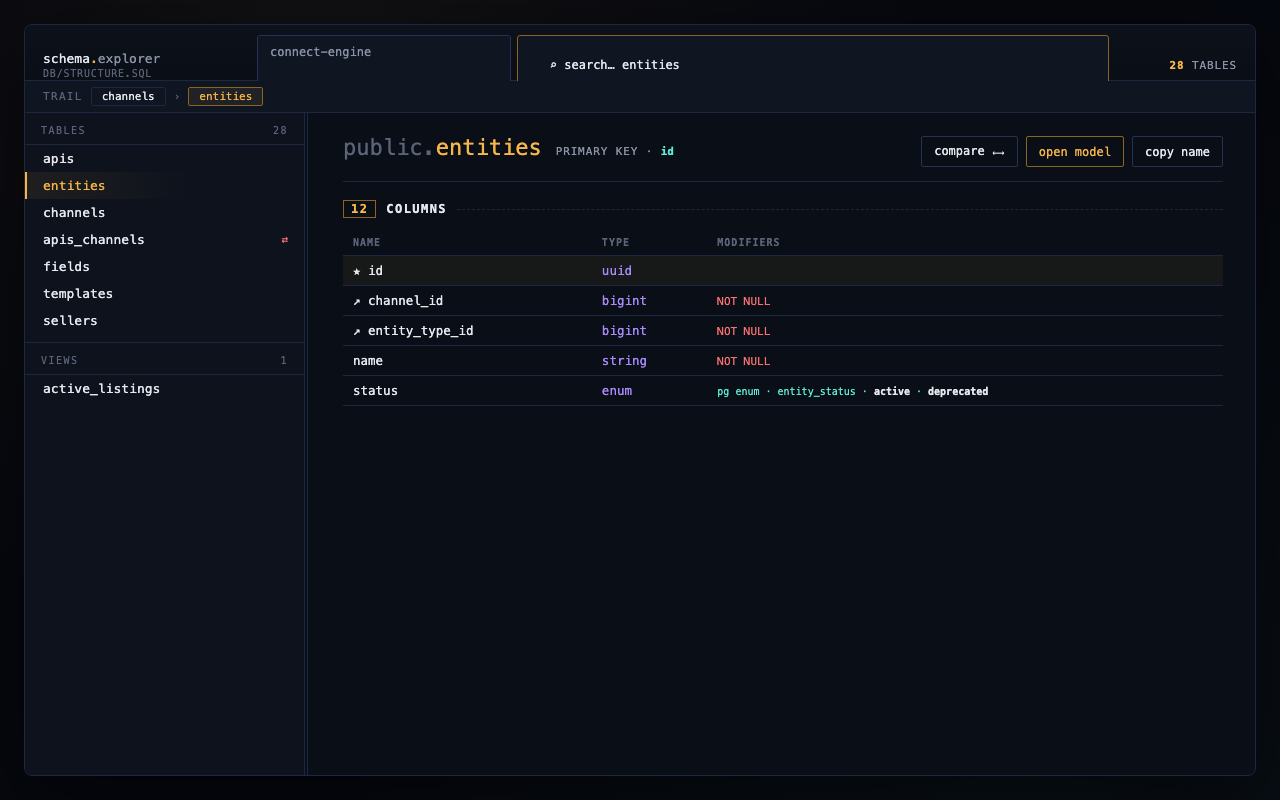
Turn a 2,000-line PostgreSQL dump or Rails schema file into a searchable UI — tables, columns, foreign keys, constraints, PostgreSQL enums, views, join tables, and one-click jumps to app/models.
Works in VS Code and Cursor. This extension is Rails-only (not Prisma, MySQL dumps, or generic SQL).
Why use it
| Problem | How this helps |
|---|---|
Scrolling structure.sql to find a column |
Instant search across tables and columns |
| Tracing FK relationships by hand | Click incoming/outgoing FK links to navigate |
| Spotting join / pivot tables | Join tables show a ⇄ badge in the sidebar |
| Jumping between schema and models | Open model from a table, or open explorer from a model file |
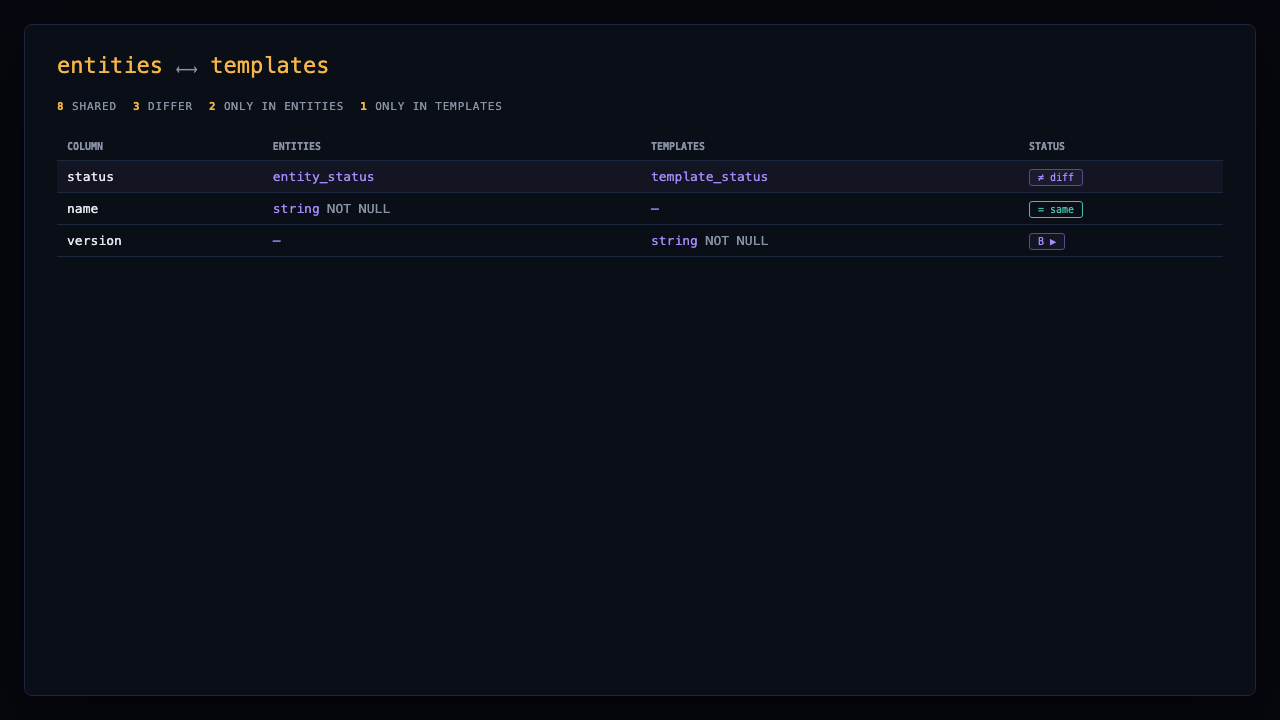
| Comparing two tables during a PR | Built-in Compare mode with column-by-column diff |
| Stale schema after migrations | Banner with dump command, open file, run in terminal, refresh |
Requirements
- VS Code 1.85+ or Cursor
- A Rails project with
db/structure.sqlordb/schema.rbin the workspace
Install
From VS Code Marketplace
- Open Extensions (
Cmd+Shift+X/Ctrl+Shift+X) - Search Rails Schema Navigator
- Click Install
- Open a Rails repo that contains a schema file
Or from the command line:
code --install-extension prashantbangar03.rails-schema-navigator
From VSIX (offline)
If you have a VSIX file:
code --install-extension /path/to/rails-schema-navigator.VSIX
Reload the window after installing.
Quick start
- Open a Rails app in VS Code / Cursor
- Press
Cmd+Alt+S(macOS) orCtrl+Alt+S(Windows/Linux)
— or runRails Schema Navigator: Openfrom the Command Palette - Click a table in the sidebar to inspect columns, constraints, and FKs
From the editor
- Open
db/structure.sqlordb/schema.rb→ click the database icon in the editor title bar - Open any
app/models/*.rbfile (not concerns) → Open from Model jumps to that table
Features
Schema sources
db/structure.sql— PostgreSQL dump (tables, views, PG enums, domains, indexes, constraints)db/schema.rb— Rails schema DSL includingcreate_enum/t.enum
Sidebar
- Tables — click to open detail view; join tables show ⇄
- Views — PostgreSQL views (from
structure.sql) - Search — filter tables and columns; press
/to focus search
Search prefixes:
| Prefix | Filters |
|---|---|
t: |
Tables only |
c: or col: |
Columns only |
v: |
Views only |
Table detail
Collapsible sections per table (state saved per table):
- Columns — type, NOT NULL, DEFAULT, UNIQUE, index chips, enum values
- Table constraints — indexes, unique, partial indexes, CHECK, exclude
- Incoming / outgoing FKs — click to navigate to related tables
- Many-to-many — join tables linking two entities
Header actions
- Compare — side-by-side column comparison with another table
- Open model — opens
app/models/...when a model exists (including join/pivot models) - Copy name — copies the table name
Rails integration
- Scans
app/modelsfor Rails enums and shows them on columns - Open model from table header
- Open explorer from model from the model editor title bar
- Join table detection (strict joins and named pivots like
apis_channels)
Multi-project workspaces
When several Rails apps are in one workspace:
- Header project picker (30% width) + table search (70%)
Rails Schema Navigator: Switch Projectfrom Command Palette- Optionally follow the active editor (see Settings)
Stale schema banner
If the schema file is older than recent migrations:
- Copy
rails db:structure:dump(or equivalent) command - Open schema file
- Run dump in terminal
- Refresh explorer
Keyboard shortcuts
| Action | Command | macOS | Win/Linux |
|---|---|---|---|
| Open navigator | Rails Schema Navigator: Open |
Cmd+Alt+S |
Ctrl+Alt+S |
| Find table | Rails Schema Navigator: Find Table |
Ctrl+Shift+J |
Ctrl+Shift+J |
| Refresh | Rails Schema Navigator: Refresh |
Cmd+Shift+R * |
Ctrl+Shift+R * |
| Switch project | Rails Schema Navigator: Switch Project |
— | — |
* When the explorer panel is focused.
Settings
| Setting | Default | Description |
|---|---|---|
schemaExplorer.followEditor |
true |
Active schema project follows the editor; disable to pin a project |
schemaExplorer.showStatusBar |
true |
Show active schema project in the status bar |
Open Settings and search for schemaExplorer.
Limitations
| Topic | Details |
|---|---|
| Rails only | Reads db/structure.sql or db/schema.rb — not Prisma, Sequelize, or generic SQL files |
| PostgreSQL (full) | Enums, domains, views, and partial indexes are parsed from structure.sql PostgreSQL dumps |
schema.rb only |
Tables and Rails create_enum / t.enum work; PG views and custom types from dumps are not available |
| MySQL / SQLite | Partial support via schema.rb; PostgreSQL-specific features do not apply |
| Remote / virtual workspaces | Requires local schema files on disk (see virtualWorkspaces in package.json) |
| Very large schemas | Parsing runs in-process; extremely large dumps may take a moment on first open |
Privacy
This extension:
- Reads schema and model files locally from your workspace
- Does not send data to external servers
- Does not include telemetry or analytics
- Stores UI preferences (sidebar width, collapsed sections) in webview localStorage only
Keyboard shortcut notes
Default shortcuts may conflict with other extensions or custom keybindings:
| Shortcut | Possible conflict |
|---|---|
Cmd+Alt+S / Ctrl+Alt+S |
Other “save” or navigation bindings |
Ctrl+Shift+J |
Join lines / panel toggles in some setups |
Cmd+Shift+R / Ctrl+Shift+R |
Only active when the explorer panel is focused |
Rebind under Keyboard Shortcuts → search Rails Schema Navigator.
License
MIT License