Develop locally with Azure App Service / Azure Functions / Azure Container Apps authentication — without Azure.
EasyAuth Emulator is a local authentication gateway that emulates Easy Auth behavior (multi-provider login, Easy Auth-compatible request headers, /.auth/* endpoints). This extension integrates it directly into your VS Code debug workflow: the emulator starts when you start debugging, and stops when you stop.
Why?
Azure App Service, Azure Functions, and Azure Container Apps' built-in authentication feature (commonly known as Easy Auth) is powerful — but it only works inside Azure. This makes local development and testing difficult for applications that depend on Easy Auth headers and endpoints.
EasyAuth Emulator bridges that gap by running a compatible authentication gateway on your development machine, so you can develop and test as if Easy Auth were active.
How it works
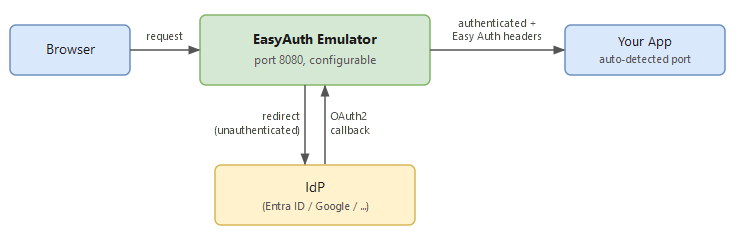
The extension auto-detects your app's listening port from launch.json, framework config files (.env, launchSettings.json, application.properties, …), or debug output — so no manual wiring is needed in most projects.
Features
- Multi-IDP authentication — Microsoft Entra ID, Google, GitHub, Apple, Facebook, and any OIDC-compatible provider
- Easy Auth-compatible headers — injects
X-MS-CLIENT-PRINCIPAL,X-MS-CLIENT-PRINCIPAL-ID, and related headers into every authenticated request - Azure service compatibility — Azure App Service, Azure Functions, Azure Container Apps, and Azure Static Web Apps (partial)
- Auto-start / auto-stop — emulator lifecycle is tied to your debug session
- Smart port detection — reads
launch.json, framework configs, and debug stdout; prompts you only as a last resort - Secure credential storage — client secrets are stored client-side via VS Code's SecretStorage (the OS keychain in desktop VS Code), never in settings files
- Custom OIDC providers — add any OIDC-compatible provider via
easyauth.customIdps - Status bar indicator — click to interact with the emulator based on its current state (start, stop, or open logs)
- Private browser launch — set
easyauth.privateBrowser.commandto get a button that opens the gateway URL in a private/incognito window (in remote sessions the button copies the URL to the clipboard instead)
Requirements
| Requirement | Details |
|---|---|
| VS Code | 1.93 or later |
| Platform | Windows x64, macOS (Apple Silicon), Linux x64, Linux arm64 |
If the pre-built
.vsixfor your platform is not yet available, you can build from source: runpython scripts/package.py --vsixfrom the repo root, then install the generated.vsixvia Extensions: Install from VSIX.Windows arm64 — Not supported. oauth2-proxy does not distribute Windows ARM binaries.
VS Code for Web (vscode.dev) — Standalone vscode.dev (without a remote connection) is not supported: running the emulator binary requires native OS access. When the browser client is connected to a remote (e.g. vscode.dev + Remote - Tunnels), the extension runs on the remote host and works normally.
Restricted Mode / virtual workspaces — Not supported. The extension stays disabled in Restricted Mode (untrusted workspace) and in virtual workspaces (e.g. GitHub Repositories). Trust the workspace to use it.
No additional runtime installation is needed — the emulator binary is bundled inside the extension.
Getting Started
1. Configure your identity provider
Open your workspace settings (Ctrl+, → search easyauth) and fill in the Client ID and Issuer URL for your IdP. See Supported Identity Providers for the required settings per provider.
2. Store the client secret
Run EasyAuth Emulator: Set Client Secret from the Command Palette (Ctrl+Shift+P) and enter the client secret for the IdP you configured in step 1. The secret is stored on the client via VS Code's SecretStorage API — the OS keychain in desktop VS Code (Windows Credential Manager on Windows), or the browser's storage in web clients (vscode.dev) — never in settings files or on a remote host. Each client keeps its own store, so you are asked to enter secrets again when switching clients (e.g. desktop VS Code ⇔ vscode.dev).
3. Register the callback URL
Add the following redirect URI in your identity provider's app registration:
http://localhost:8080/oauth2/callback
If you changed easyauth.site.port, use that port instead. If you also access the gateway through another origin (e.g. a forwarded tunnel domain), register that origin's /oauth2/callback as well — one entry per origin.
GitHub and Facebook have additional setup requirements. See GitHub Provider Notes and Facebook Provider Notes in the configuration reference.
Usage
Press F5 to start debugging. The emulator starts automatically after your app.
Once running, click the EasyAuth: <port>:<upstream> status bar item to open the gateway in your browser. To navigate manually, use http://localhost:8080/ (or the port set in easyauth.site.port).
Status Bar
The status bar item in the bottom-left corner shows the emulator state at a glance. Clicking it performs a context-sensitive action:
| Display | Meaning | Click action |
|---|---|---|
$(warning) EasyAuth: no config |
Not configured (no IdP set up) | Open Settings |
$(lock) EasyAuth: secret missing (yellow background) |
Client ID configured, client secret not stored | Prompt to enter client secret |
$(warning) EasyAuth: Entra issuer missing (yellow background) |
Entra client ID and secret set, OIDC Issuer URL missing | Open easyauth.entra.oidcIssuerUrl in workspace settings |
$(sync~spin) EasyAuth: starting... |
Emulator is starting | Open output |
$(shield) EasyAuth: 8080:3000 |
Running — gateway port and upstream port | Open in browser |
$(shield) EasyAuth: stopped |
Stopped | Start emulator |
$(error) EasyAuth: error (red background) |
Failed to start | 1st click: open output / 2nd click: start emulator |
Explorer View
An EasyAuth Emulator view appears in the Explorer panel. It shows the same state as the status bar, and the view title bar offers actions matching the current state:
| State | Buttons shown |
|---|---|
| Not configured | Open Settings |
| Client secret not set | Set Client Secret |
| Stopped / error | Start |
| Starting / running | Restart, Stop |
| Starting / running / error | Open Output |
| Running | Open in Browser, Open in Private Browser (when configured; in remote sessions, Copy URL for Private Browser) |
Commands
All commands are available from the Command Palette (Ctrl+Shift+P):
| Command | Description |
|---|---|
EasyAuth Emulator: Start |
Start the emulator manually |
EasyAuth Emulator: Stop |
Stop the emulator |
EasyAuth Emulator: Restart |
Restart the emulator (picks up config changes) |
EasyAuth Emulator: Open Output |
Open the log output channel |
EasyAuth Emulator: Open in Browser |
Open the gateway URL in the browser |
EasyAuth Emulator: Open in Private Browser |
Open the gateway URL in a private/incognito window (shown when easyauth.privateBrowser.command is set). In remote sessions the URL is copied to the clipboard instead — a browser cannot be launched on your local PC from the remote host |
EasyAuth Emulator: Copy URL for Private Browser |
Copy the gateway URL to the clipboard (shown instead of "Open in Private Browser" in remote sessions) |
EasyAuth Emulator: Set Client Secret |
Store a client secret in VS Code's SecretStorage (client-side) |
EasyAuth Emulator: Clear Client Secret |
Remove a stored client secret |
Supported Identity Providers
Built-in
| Provider | Required settings |
|---|---|
| Microsoft Entra ID | easyauth.entra.clientId, easyauth.entra.oidcIssuerUrl |
easyauth.google.clientId |
|
| GitHub | easyauth.github.clientId |
| Apple | easyauth.apple.clientId |
easyauth.facebook.clientId |
At least one clientId must be set for the emulator to start. All IdPs with a clientId configured are enabled automatically.
Custom OIDC Providers
Add any OIDC-compatible provider via easyauth.customIdps:
// .vscode/settings.json
{
  "easyauth.customIdps": [
    {
      "name": "my-provider",
      "displayName": "My Provider",
      "clientId": "your-client-id",
      "oidcIssuerUrl": "https://your-provider.example.com"
    }
  ]
}
After adding a custom provider, store its client secret with EasyAuth Emulator: Set Client Secret.
Available fields per entry:
| Field | Required | Description |
|---|---|---|
name |
✓ | IDP identifier used in IDP_LIST (lowercase alphanumeric and hyphens) |
clientId |
✓ | OAuth2 / OIDC client ID |
oidcIssuerUrl |
✓ | OIDC issuer URL (e.g. https://your-provider.example.com) |
displayName |
Label shown on the IdP selection screen | |
scopes |
Space-separated OAuth2 scopes. Default: openid profile email |
|
authUserIdClaim |
JWT claim used as user ID. Default: sub |
|
authProvider |
Value set in X-MS-CLIENT-PRINCIPAL-IDP header |
|
prompt |
OIDC prompt parameter (login, consent, etc.) |
|
codeChallengeMethod |
PKCE code challenge method: S256 or plain |
|
logoutEndpoint |
Override the IdP logout URL | |
skipClaimsFromProfileUrl |
true to skip fetching claims from the userinfo endpoint |
|
extraArgs |
Space-separated extra options passed to oauth2-proxy (e.g. "--allowed-group=my-group --oidc-extra-audience=myapp") |
|
icon |
Icon shown on the IdP selection page. Specify a Simple Icons slug (e.g. "auth0") or an image URL. Has no effect when IDP_SELECT_ICONS is generic or text. |
Configuration Reference
For the full parameter reference including all options, see docs/configuration-reference.md.
.vscode/easyauth.toml (optional)
The extension always passes --config .vscode/easyauth.toml to the emulator on startup.
- If the file exists: It is loaded as the base configuration. Use this to set advanced options (parameters available in
config.tomlformat) not exposed in the VS Code settings UI. Values from VS Code settings (settings.json) override it via environment variables. - If the file does not exist: Auto-discovery of
config.tomlin the project root is suppressed (prevents accidentally loading a standaloneconfig.tomlfrom your workspace).
Extension behavior
| Setting | Default | Description |
|---|---|---|
easyauth.autoStart |
true |
Start emulator when a debug session begins |
easyauth.autoStop |
true |
Stop emulator when the debug session ends |
easyauth.upstreamPort |
null |
Fix the upstream port; null = auto-detect |
easyauth.portScanMax |
5 |
Ports to scan during auto-detection |
easyauth.portScanBase |
null |
Base port for scanning; null = use first hint found |
easyauth.verbose |
false |
Log all resolved configuration values on startup |
easyauth.privateBrowser.command |
"" |
Command that launches a private/incognito browser window; the site URL is appended as the last argument (e.g. msedge --inprivate, chrome --incognito, firefox --private-window). Empty hides the button. Not used in remote sessions (the button copies the URL to the clipboard instead) |
Gateway
| Setting | Default | Description |
|---|---|---|
easyauth.site.url |
http://localhost |
Usually no change needed. Set an https:// value only if a TLS-terminating front end (reverse proxy) does not send X-Forwarded-Proto |
easyauth.site.port |
8080 |
Listen port of the EasyAuth gateway (also the public port when accessed directly) |
easyauth.tls.certFile |
"" |
Path to the TLS certificate file (PEM). Set with tls.keyFile to enable HTTPS. Required for Facebook Login. |
easyauth.tls.keyFile |
"" |
Path to the TLS private key file (PEM). Set with tls.certFile to enable HTTPS. Required for Facebook Login. |
easyauth.http20Enabled |
false |
Accept HTTP/2 on site.port, alongside HTTP/1.1 |
easyauth.http20ProxyMode |
disabled |
How much of an HTTP/2 request is relayed as-is to the upstream app: disabled, all, or grpc-only |
easyauth.appserviceHttp20OnlyPort |
unset | Mirrors Azure App Service's HTTP20_ONLY_PORT (leave unset for Azure Container Apps). When a request is relayed over HTTP/2, it's sent to this port on the upstream app's host instead of the app's regular port. |
easyauth.webSocketsEnabled |
true |
Whether WebSocket (HTTP/1.1 Upgrade and HTTP/2 RFC 8441 extended CONNECT) is relayed at all, mirroring Azure App Service's "Web sockets" on/off switch. On Linux App Service this is always effectively on; only Windows App Service can actually turn it off. |
easyauth.defaultIdp |
"" |
Default IdP when /.auth/login is accessed |
easyauth.skipAuthRoutes |
"" |
Routes that bypass auth — comma-separated [METHOD=]REGEX patterns |
easyauth.debugHeadersEndpointEnabled |
false |
Enable GET /.debug/headers to inspect injected headers |
easyauth.idpSelectIcons |
simple |
Icons on the IdP selection screen: simple, generic, or text |
oauth2-proxy
| Setting | Default | Description |
|---|---|---|
easyauth.oauth2proxy.portBase |
4180 |
Base port for internal oauth2-proxy instances |
easyauth.oauth2proxy.standardLogging |
false |
Show startup/shutdown messages in the output channel |
easyauth.oauth2proxy.authLogging |
false |
Show authentication events in the output channel |
easyauth.oauth2proxy.requestLogging |
false |
Show per-request HTTP logs in the output channel |
easyauth.oauth2proxy.showDebugOnError |
false |
Show detailed OIDC error info (useful during initial setup) |
easyauth.oauth2proxy.version |
"" |
Pin a specific oauth2-proxy version (e.g. v7.6.0) |
easyauth.oauth2proxy.autoUpdate |
false |
Auto-update oauth2-proxy to the latest version on startup |
easyauth.oauth2proxy.sslCaBundle |
"" |
Path to a custom CA certificate bundle (PEM). Normally not needed — the OS certificate store is used automatically. |
Implemented Easy Auth Endpoints
| Endpoint | Description |
|---|---|
GET /.auth/me |
Returns the current user's claims as JSON |
GET /.auth/login |
Redirects to the configured IdP login |
GET /.auth/login/<idp> |
Logs in with the specified IdP |
GET /.auth/login/aad |
Alias for entra (Azure AD compatibility) |
GET /.auth/logout |
Logs out and clears the session |
GET /.auth/refresh |
Stub for Azure Easy Auth compatibility — returns 200 if authenticated, 401 if not; no token refresh is performed |
GET /.auth/login/select |
Shows the IdP selection screen (multi-IdP) — emulator only, not part of Azure Easy Auth |
Easy Auth-compatible Headers
After authentication, the following headers are injected into upstream requests:
X-MS-CLIENT-PRINCIPAL(Base64-encoded claims JSON)X-MS-CLIENT-PRINCIPAL-IDX-MS-CLIENT-PRINCIPAL-IDPX-MS-CLIENT-PRINCIPAL-NAMEX-MS-TOKEN-AAD-ACCESS-TOKENX-MS-TOKEN-AAD-ID-TOKENX-Forwarded-UserX-Forwarded-Email
Not yet implemented: X-MS-TOKEN-AAD-EXPIRES-ON, X-MS-TOKEN-AAD-REFRESH-TOKEN
Troubleshooting
Status bar shows $(warning) EasyAuth: no config
No IdP is configured. Set at least one clientId in your workspace settings, then run EasyAuth Emulator: Set Client Secret from the Command Palette.
Status bar shows $(lock) EasyAuth: secret missing
A Client ID is configured but no client secret has been stored yet. Click the status bar item to open the secret entry prompt, or run EasyAuth Emulator: Set Client Secret from the Command Palette. The status bar switches to stopped automatically after the secret is saved.
Status bar shows $(warning) EasyAuth: Entra issuer missing
Microsoft Entra ID's client ID and secret are configured, but the OIDC Issuer URL is not set. Click the status bar item to open the easyauth.entra.oidcIssuerUrl field in workspace settings. Enter the Entra ID issuer URL, for example: https://login.microsoftonline.com/<tenant-id | common | organizations | consumers>/v2.0.
Login fails — redirect URI mismatch (AADSTS50011 or similar)
The callback URL follows the origin shown in your browser's address bar. Register the matching redirect URI in your IdP's app registration:
<origin the browser uses>/oauth2/callback
For example http://localhost:8080/oauth2/callback (or with the port set in easyauth.site.port). Register one entry per origin you use.
Login fails — invalid_client
The clientId or client secret does not match the IdP app registration. Double-check both values and run EasyAuth Emulator: Set Client Secret to update the secret.
App port was not detected automatically
The extension could not determine which port your app listens on. Set easyauth.upstreamPort in your workspace settings:
{ "easyauth.upstreamPort": 5000 }
502 error while debugging
The emulator cannot reach the upstream app. Possible causes:
- The app crashed or is still starting up and has not bound to its port yet
- If
easyauth.upstreamPortis set manually, the port does not match the app's actual listen port
Check the app logs to confirm it is running correctly.
Startup times out on the first run
On the first run, the emulator downloads oauth2-proxy from GitHub Releases, which may take more than 30 seconds. Watch the output channel for oauth2-proxy ... installed at ... to confirm the download is complete, then use EasyAuth Emulator: Restart to retry.
Authentication callback shows a blank page
VS Code's built-in Simple Browser has limited cookie support and cannot complete OAuth2 flows. Use an external browser (Chrome, Edge, Firefox) instead.
The emulator stopped when I started a second debug session
Only the first debug session controls the emulator. Stopping that session stops the emulator; subsequent sessions do not affect it. Use EasyAuth Emulator: Start / Stop / Restart from the Command Palette for manual control.
The emulator process is still running after VS Code was force-killed
Internal oauth2-proxy processes are cleaned up automatically by the OS. If the emulator itself is orphaned, terminate it manually:
- Windows: End
easyauth-emulator.exein Task Manager - macOS: Use Activity Monitor, or run
pkill easyauth-emulator - Linux: Run
pkill easyauth-emulator
More troubleshooting topics
For additional troubleshooting topics — including oauth2-proxy error diagnosis, OIDC configuration issues, and runtime diagnostics — see the Runtime Guide: Troubleshooting.
Remote Development
The extension and the emulator run on the remote host in both cases.
Remote - SSH
Works with the default settings. The gateway is reached via http://localhost:<site.port> through VS Code port forwarding.
Remote - Tunnels
The gateway is exposed through a forwarded tunnel URL (e.g. https://xxxxxxxx-8080.usw2.devtunnels.ms) instead of localhost. To sign in:
- Find the forwarded URL — start a debug session (or the emulator) once; the URL is shown in the EasyAuth Emulator output and in the notification when you click Open in Browser.
- Add
<forwarded URL>/oauth2/callbackto your IdP app registration's redirect URIs.
vscode.dev (browser client) + Tunnels — Open in Browser and Copy URL for Private Browser are not supported and show a guidance message instead. Open the gateway from the forwarded address for the gateway port in the PORTS panel.
The forwarded URL stays the same while the tunnel exists, but changes when the tunnel is re-created — e.g. after code tunnel unregister, or when an unused tunnel expires (by default after 30 days of inactivity). Update the IdP redirect URI when that happens. See "When are unused dev tunnels deleted?" in the dev tunnels FAQ for tunnel lifetime details.
Dev tunnels allow at most 10 forwarded ports per tunnel, while VS Code automatically forwards every listening port it detects. This includes the emulator's internal oauth2-proxy ports (4180, 4181, …), which never need forwarding, so the limit can be exhausted quickly. Exclude the internal ports from auto-forwarding:
// .vscode/settings.json
"remote.portsAttributes": {
  "4180-4189": { "onAutoForward": "ignore" }
}
Known Limitations
X-MS-TOKEN-AAD-EXPIRES-ONandX-MS-TOKEN-AAD-REFRESH-TOKENheaders are not implemented- This is a development tool, not a byte-for-byte replica of Azure Easy Auth