This extension is part of the PreForm@™ software catalog of Pelam Engineering AB. By installing this extension, you agree to the PreForm@™ EULA below.
Demo Movies
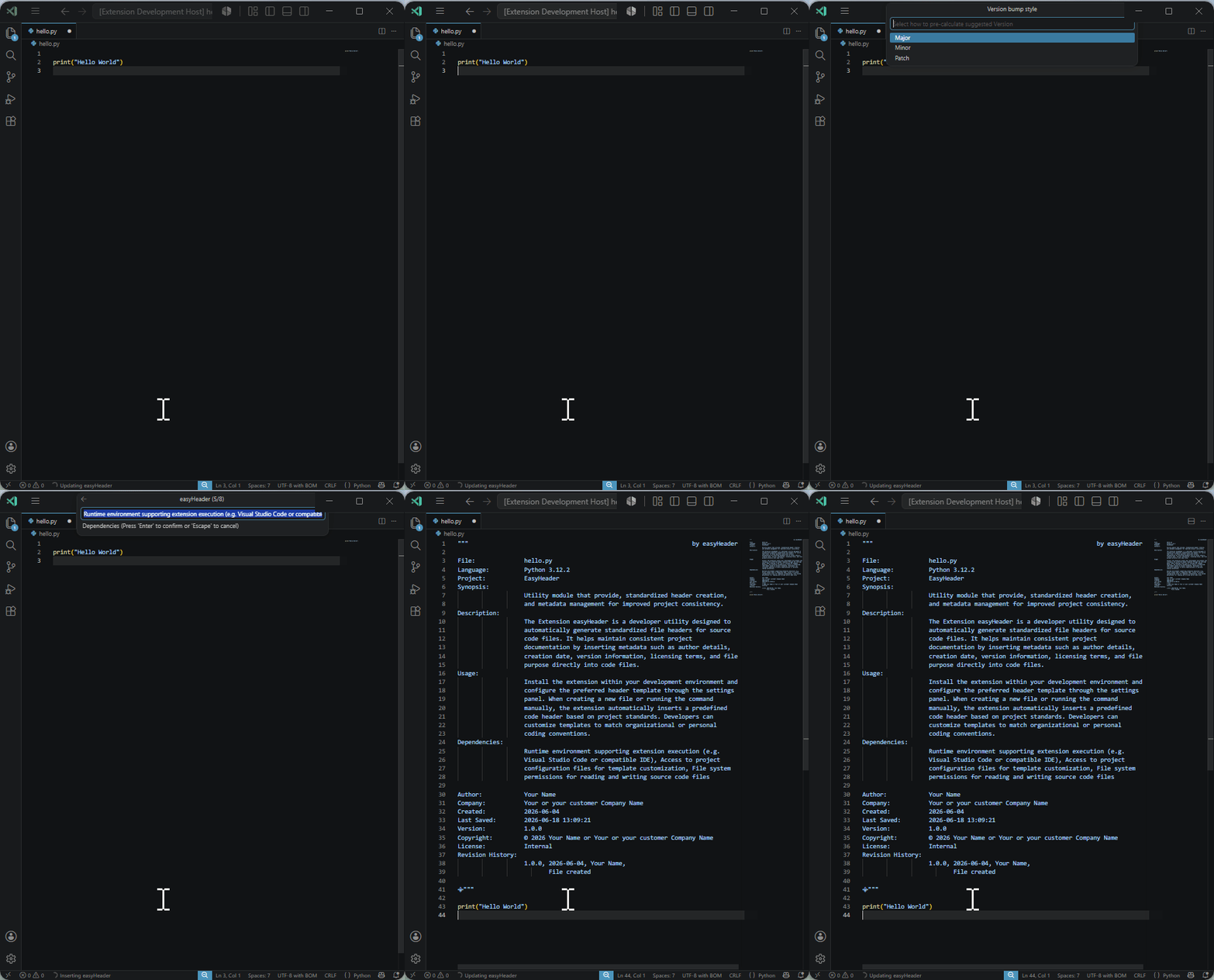
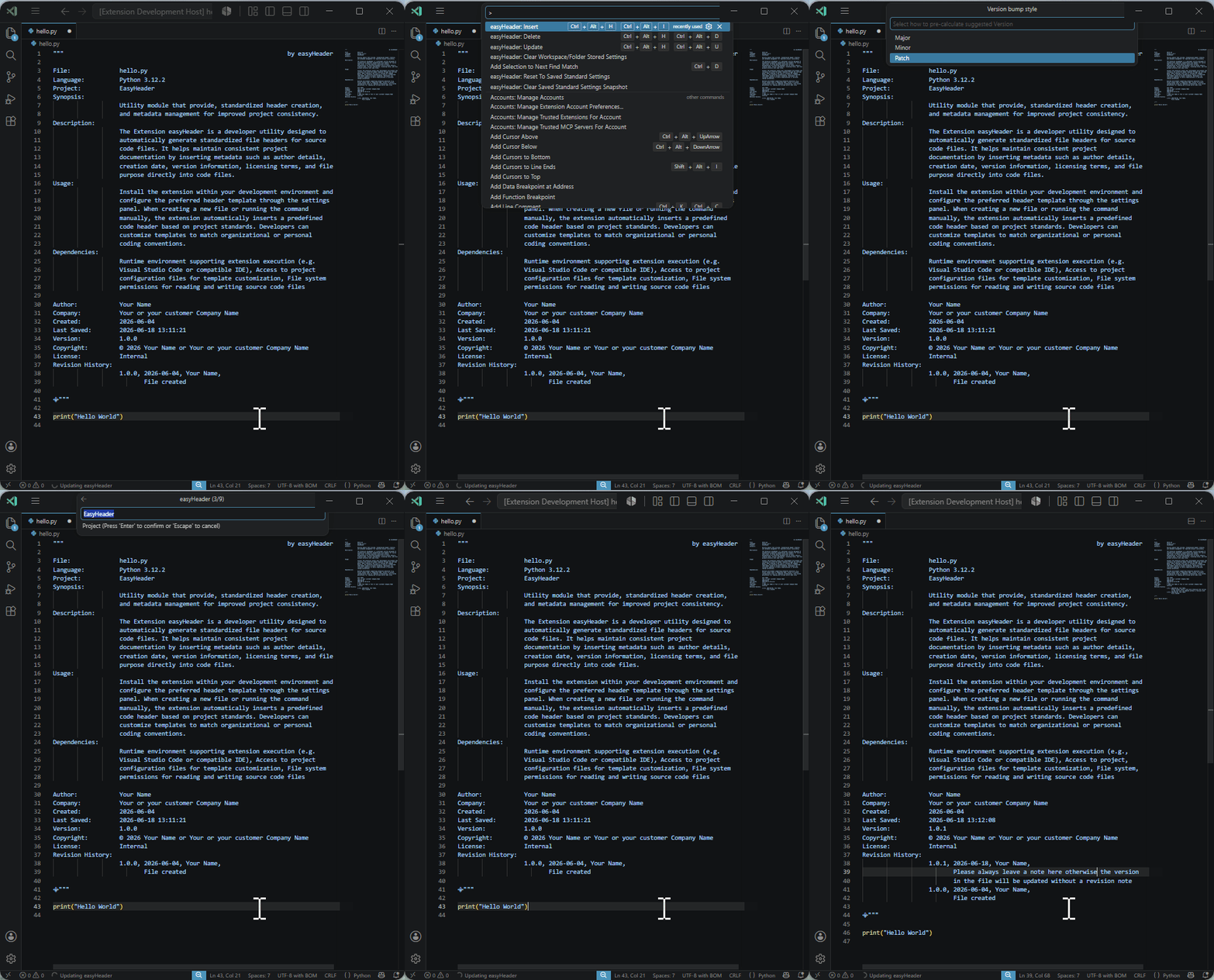
Table of Contents
- Table of Contents
- What It Does
- Commands
- Command Behavior
- Supported Comment Styles
- Settings
- PowerShell Get-Help
- Support easyHeader
- License Agreement
What It Does
- Inserts a structured header at the top of a file.
- Updates existing easyHeader values and sections.
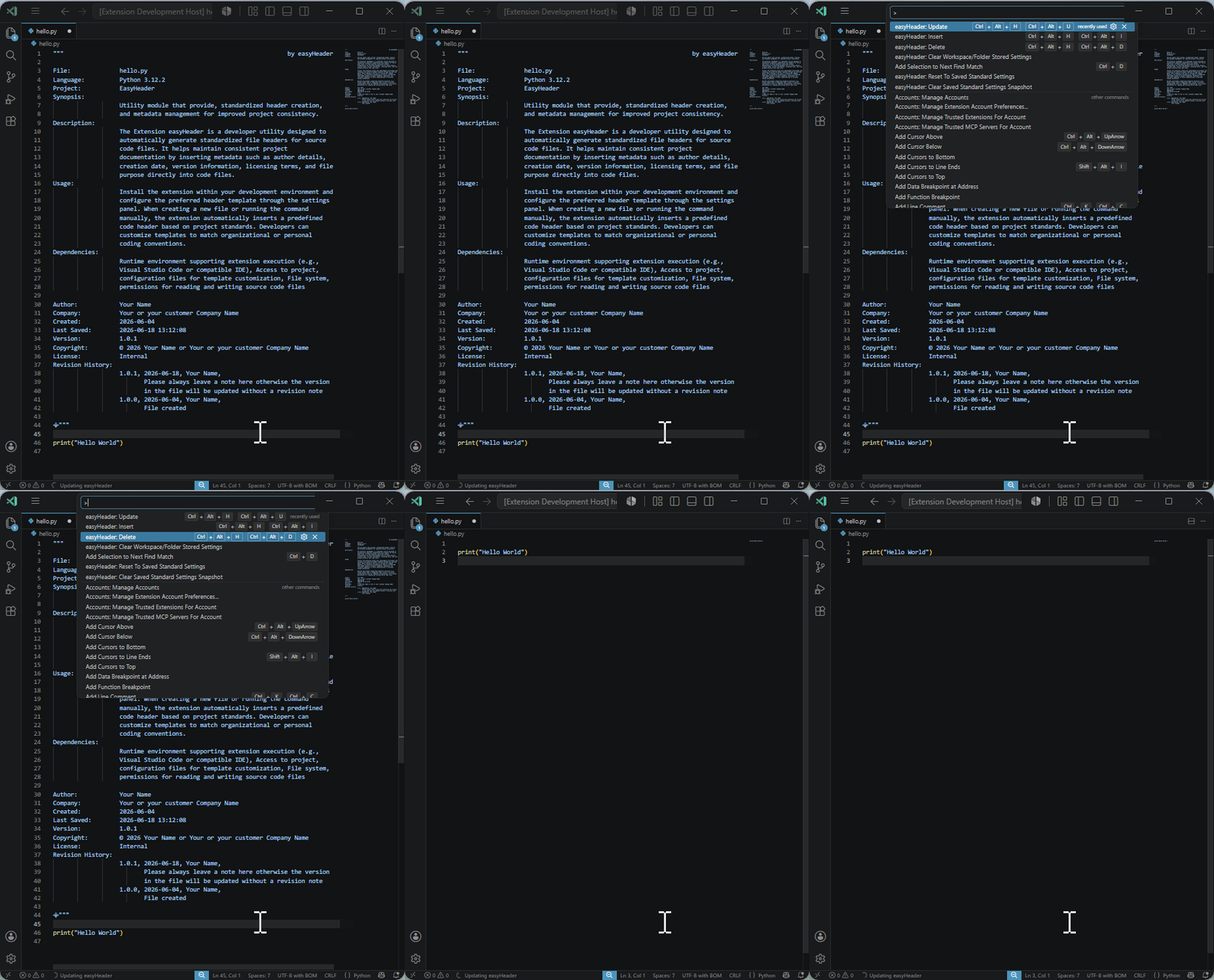
- Removes an existing easyHeader.
- Updates timestamp/version/revision fields during update flows.
- Supports prompt navigation while entering metadata.
- Uses file-type-aware comment syntax.
Commands
Use F1 and type "easyHeader"
easyHeader: InserteasyHeader: UpdateeasyHeader: DeleteeasyHeader: Apply Current Header To SettingseasyHeader: Save Current Settings As StandardeasyHeader: Reset To Saved Standard SettingseasyHeader: Clear Saved Standard Settings SnapshoteasyHeader: Clear Workspace/Folder Stored SettingseasyHeader: Re-run Legacy Settings MigrationeasyHeader: Prompt BackeasyHeader: Prompt Forward
Command Behavior
- easyHeader runs header Insert/Update only when you invoke commands (
easyHeader: InsertoreasyHeader: Update).
Insert
- Creates a new header in the active file.
- Prompt sequence depends on enabled insert settings.
- If revision history is enabled, the first entry is created automatically as
File created. - Press
Escto cancel.
Update
- Updates fields/sections in an existing header.
- Prompt sequence depends on enabled settings and existing sections.
- If revision history is enabled,
Revision noteis prompted first. - If header titles do not match current settings, easyHeader asks whether to keep current layout or change to settings.
Keep current layoutuses the titles currently visible in the header as the active layout for update.- Choosing
Keep current layoutdoes not persist setting changes; it applies only to the current update run. - Choosing
Change to settingsaligns the header with your current settings for that update run. - Press
Escto cancel.
Usually kept
- Manual text edits in section bodies such as
Synopsis,Description,Usage, andDependencies(these values are used as prompt defaults and can be kept). - Existing
Authorvalue is preserved when already present in the header. - Existing
Createdvalue is preserved when already present in the header.
Overwritten/recalculated by update
Fileis refreshed from the current file name.Languageis refreshed from detected file language (for Python files, the detected runtime version is included when available, for examplePython 3.12.3; for PowerShell files, the detected PowerShell runtime version is included when available, for examplePowerShell 7.5.1orPowerShell 5.1.22621.1).Projectis determined based on the following priority:- If
easyHeader.projectDefaultValueis configured (non-empty), that value is used. - Otherwise, if a project file (
.csproj,.vbproj,.fsproj,.vcxproj,.wixproj,.sqlproj) is found in the file's directory tree, the project name from that file is used. - Otherwise, the folder containing the file is used as the project name.
- If
Companyis refreshed fromeasyHeader.companyDefaultValuewhen Company is enabled.Last Savedis always updated to current timestamp when enabled.Versionis recalculated when versioning is enabled.Revision Historyis normalized and capped byeasyHeader.maxRevisionEntrieswhen enabled.- Header formatting is normalized (alignment, wrapping, and section layout rules).
Layout impact from settings
- If
preserveDisabledSectionsOnUpdateisfalse, disabled titles can be removed on update. - If header titles do not match settings, your
Keep current layoutorChange to settingschoice controls whether missing/extra titles are preserved or aligned to settings for that run.
Delete
- Removes the easyHeader from the active file.
- If none is found, an info message is shown.
Apply Current Header To Settings
- Reads the easyHeader in the active file and uses it as a template for settings.
- Updates user settings with the current header layout checkboxes (which header titles are enabled/disabled).
- Updates
Companydefault value from the current header. - Does not change other default text values.
- Useful when you want your current file header layout to become the company baseline for coworkers.
- Automatically stores a backup of your current easyHeader User settings the first time this is used.
Save Current Settings As Standard
- Saves the current easyHeader User settings as your standard baseline.
- Use this to explicitly update the saved standard profile at any time.
Reset To Saved Standard Settings
- Restores easyHeader User settings from the saved standard profile.
- Useful if
Apply Current Header To Settingswas used and you want to roll back to your standard settings.
Clear Saved Standard Settings Snapshot
- Deletes the saved standard snapshot from easyHeader extension storage.
- Useful if you want to replace old baseline data and start with a fresh standard snapshot.
Clear Workspace/Folder Stored Settings
- Removes easyHeader settings overrides stored at Workspace and Workspace Folder scope.
- Leaves User settings unchanged.
- Useful when title visibility/order behaves unexpectedly because workspace-level overrides are stale.
Where Settings Are Stored
- Workspace scope storage location:
- In a single-folder workspace:
.vscode/settings.jsonin that folder. - In a multi-root workspace: the
.code-workspacefile under top-levelsettings. - Workspace Folder scope storage location:
.vscode/settings.jsoninside each individual workspace folder. Apply Current Header To Settingswrites into VS Code settings.Apply Current Header To Settingstarget scope is selected in this order: Workspace Folder if the key already exists there, otherwise Workspace if it exists there, otherwise User if it exists there, otherwise Workspace.Save Current Settings As Standardstores a snapshot in extension storage (global state), not insettings.json.Reset To Saved Standard Settingsfirst clears Workspace and Workspace Folder easyHeader overrides, then restores easyHeader values to User scope from the saved snapshot so the restored values become effective.Clear Workspace/Folder Stored Settingsdeletes easyHeader values only from Workspace and Workspace Folder scopes.
Supported Comment Styles
Comment style selection uses file extension first, then language fallback.
Note: .json is intentionally unsupported and shows a warning.
Block Comment Mappings used
| File types | Start | End |
|---|---|---|
.cshtml, .razor |
@* or <!-- (matches existing top style) |
*@ or --> |
.ps1, .psm1, .psd1 |
<# |
#> |
.html, .hta, .htm, .xhtml, .xml, .wsf, .svg, .xaml, .md, .markdown, .svelte, .vue |
<!-- |
--> |
.jsonc, .json5, .js, .mjs, .cjs, .ts, .mts, .cts, .jsx, .tsx, .java, .cs, .cpp, .cxx, .cc, .c, .h, .hpp, .hh, .go, .swift, .rs, .dart, .kt, .kts, .php, .scala, .groovy, .css, .scss, .less |
/* |
*/ |
Line/Language Defaults
| Language/File family | Comment style |
|---|---|
| Python | Triple quote block comment (""") |
.vbs, .vbe, .wsc |
' |
.bat, .cmd |
:: |
.asm, .a51, .s51, .nasm, .masm, .s, .inc |
; |
.sql, .lua, .pas, .pp, .lpr, .dpr, .adb, .ads, .ada |
-- |
.r, .toml, .ini, .cfg, .conf, shell/yaml/ruby/perl families |
# |
Settings
Settings Features and How They Work
- Scope priority: easyHeader reads values in this order: Workspace Folder, Workspace, User, then extension defaults.
- Title checkboxes: each
easyHeader.insert...setting controls whether that title is included when creating or restoring content. - Prompt behavior: Update prompts for enabled titles, and also for some titles already present in old headers to help migration.
- Value defaults:
projectDefaultValue,synopsisDefaultValue,usageDefaultValue,descriptionDefaultValue,dependenciesDefaultValue,licenseDefaultValue, andcompanyDefaultValueare used when no explicit value is provided. - Version behavior:
versionDefaultValueis used as baseline andversionBumpStylecontrols how suggested versions are incremented during update. - Revision history behavior:
insertRevisionHistoryenables the section andmaxRevisionEntriescontrols how many entries are kept. - Disabled section handling:
preserveDisabledSectionsOnUpdatedecides whether disabled titles are kept in existing headers (true) or removed (false) during update. - Compact formatting:
compactHeaderreduces spacing and indentation for denser header output. - Copilot prefill behavior:
copilotUpdatePowerShellDotSectionsrefreshes PowerShell Get-Help dot sections from code,copilotUpdateHeaderSectionsFromCodepre-fills Synopsis/Description/Usage/Dependencies for supported languages, andconfirmCopilotDotSectionUpdatecontrols whether those Copilot-driven updates require confirmation. - PowerShell Get-Help target mode:
powerShellGetHelpTargetcontrols where.PARAMETERnames are sourced for PowerShell files:script,function, orauto. - Standard profile command
Apply Current Header To Settings: copies current header layout checkboxes + Company value into settings. - Standard profile command
Save Current Settings As Standard: stores a User-scope baseline snapshot. - Standard profile command
Reset To Saved Standard Settings: restores that saved User-scope baseline. - Standard profile command
Clear Workspace/Folder Stored Settings: removes easyHeader overrides only from Workspace and Workspace Folder scopes.
Short How-To
- Set your defaults and enabled titles in VS Code settings (
easyHeader.*). - Run
easyHeader: Insertin a new file to create your baseline header. - If your team header should become the shared layout, run
easyHeader: Apply Current Header To Settings. - Run
easyHeader: Save Current Settings As Standardto store your personal baseline. - If updates start behaving unexpectedly, run
easyHeader: Clear Workspace/Folder Stored Settingsand update again. - If needed, run
easyHeader: Reset To Saved Standard Settingsto return to your saved baseline.
How To Reset Everything To Your User Standard
- Run
easyHeader: Save Current Settings As Standardonce when your User settings are exactly how you want them. - Any time you want to reset back to Preferences/User settings, run
easyHeader: Clear Workspace/Folder Stored Settings. - Then run
easyHeader: Reset To Saved Standard Settings. - If no standard has been saved yet, set your preferred
easyHeader.*values in Preferences, runeasyHeader: Save Current Settings As Standard, and then run reset.
Settings Reference
| Setting | Type | Default | Description |
|---|---|---|---|
easyHeader.companyDefaultValue |
string | Apply your standard in Settings |
Default company value. |
easyHeader.authorDefaultValue |
string | `` | Default author. Uses current OS user when empty. |
easyHeader.projectDefaultValue |
string | `` | Default project value. |
easyHeader.synopsisDefaultValue |
string | `` | Default synopsis value. |
easyHeader.usageDefaultValue |
string | `` | Default usage value. |
easyHeader.descriptionDefaultValue |
string | `` | Default description value. |
easyHeader.dependenciesDefaultValue |
string[] | [] |
Default dependencies list. |
easyHeader.versionDefaultValue |
string | 0.0.1 |
Default version value. |
easyHeader.versionBumpStyle |
string | minor |
Version increment style: major, minor, patch. |
easyHeader.copyrightDefaultValue |
string | `` | Default text appended after automatic © <current year> in Copyright. |
easyHeader.licenseDefaultValue |
string | `` | Default license value. |
easyHeader.maxRevisionEntries |
number | 2 |
Max number of revision notes kept. |
easyHeader.copilotUpdatePowerShellDotSections |
boolean | true |
Refresh PowerShell Get-Help dot sections from code before formatting. |
easyHeader.copilotUpdateHeaderSectionsFromCode |
boolean | true |
Prefill Synopsis, Description, Usage, and Dependencies from code for supported languages. |
easyHeader.confirmCopilotDotSectionUpdate |
boolean | true |
Ask for confirmation before using Copilot to prefill header sections from code. |
easyHeader.insertCompany |
boolean | true |
Include Company field. |
easyHeader.insertFile |
boolean | true |
Include File field. |
easyHeader.insertLanguage |
boolean | true |
Include Language field. |
easyHeader.insertProject |
boolean | true |
Include Project section. |
easyHeader.insertSynopsis |
boolean | true |
Include Synopsis section. |
easyHeader.insertUsage |
boolean | true |
Include Usage section. |
easyHeader.insertDescription |
boolean | true |
Include Description section. |
easyHeader.insertDependencies |
boolean | true |
Include Dependencies section. |
easyHeader.insertAuthor |
boolean | true |
Include Author field. |
easyHeader.insertCreated |
boolean | true |
Include Created field. |
easyHeader.insertLastSaved |
boolean | true |
Include Last Saved field. |
easyHeader.insertVersion |
boolean | true |
Include Version field. |
easyHeader.insertCopyright |
boolean | true |
Include Copyright field. |
easyHeader.insertLicense |
boolean | true |
Include License field. |
easyHeader.insertRevisionHistory |
boolean | true |
Include Revision History section. |
easyHeader.preserveDisabledSectionsOnUpdate |
boolean | false |
Keep disabled sections in existing headers when updating. |
easyHeader.compactHeader |
boolean | false |
Use compact formatting layout. |
easyHeader.powerShellGetHelpTarget |
string | auto |
Source for PowerShell Get-Help .PARAMETER sections: script, function, or auto. |
PowerShell Get-Help
PowerShell Get-HelpWhen you are working in a PowerShell file (.ps1, .psm1, or .psd1), easyHeader maps header sections to the comment-based help format that PowerShell's built-in Get-Help cmdlet can read.
How It Works
Synopsis→.SYNOPSISDescription→.DESCRIPTIONUsage→.EXAMPLEAuthor,Version,Company,File,Language,License,Dependencies, andRevision Historyare grouped inside.NOTES- Each detected script or function parameter produces a
.PARAMETER <Name>section. - The
powerShellGetHelpTargetsetting controls whether parameters are sourced from aparam()block at the script level (script), inside the first function (function), or detected automatically (auto).
After running easyHeader: Insert on a .ps1 file, running Get-Help .\MyScript.ps1 -Full in a PowerShell session will display the structured help content.
Sample Header Output
<#
.SYNOPSIS
    Backs up user profile folders to a network share.

.DESCRIPTION
    Copies Documents, Desktop, and Downloads from the current user profile
    to \\fileserver\backups\<username> using robocopy with logging.

.PARAMETER Destination
    UNC path to the backup target folder.

.PARAMETER LogPath
    Path to write the robocopy log file. Defaults to %TEMP%\backup.log.

.EXAMPLE
    .\Backup-UserProfile.ps1 -Destination \\fileserver\backups\jdoe

.NOTES
    Company  : Pelam Engineering AB
    Author   : Jane Doe
    Version  : 1.0.0
    Created  : 2026-06-26
    File     : Backup-UserProfile.ps1
    Language : PowerShell

    Revision History:
              2026-06-26  1.0.0  Jane Doe
              File created
#>
Using Get-Help
# Display full help for a script
Get-Help .\Backup-UserProfile.ps1 -Full

# Display only the synopsis
Get-Help .\Backup-UserProfile.ps1

# Display examples only
Get-Help .\Backup-UserProfile.ps1 -Examples
If Get-Help Does Not Show the Help Content
If Get-Help returns nothing, shows only auto-generated parameter info, or says help is not available, work through the following steps.
0. HelpNotFoundException — file not found at the given path
The most common cause of this exact error:
Get-Help : Get-Help could not find <path> in a help file in this session.
FullyQualifiedErrorId : HelpNotFound
is simply a wrong path. PowerShell cannot locate the script at the path you provided.
-
Make sure you are in the correct working directory, or use a path relative to where you are:
# Navigate to the script folder first Set-Location "C:\Users\Me\MyProject" Get-Help .\MyScript.ps1 -Full -
Alternatively pass the correct absolute path:
Get-Help "C:\Users\Me\MyProject\MyScript.ps1" -Full -
Confirm the file exists before calling
Get-Help:Test-Path "C:\Users\Me\MyProject\MyScript.ps1" # Must return True
1. Execution Policy blocking the script
PowerShell may refuse to run or parse scripts if the execution policy is too restrictive.
# Check current policy
Get-ExecutionPolicy

# Allow local scripts (recommended for development machines)
Set-ExecutionPolicy -ExecutionPolicy RemoteSigned -Scope CurrentUser
2. Script is not dot-sourced or imported
Get-Help can read comment-based help directly from a .ps1 file path without running it — but the path must be correct. Always pass the file path explicitly:
Get-Help .\MyScript.ps1 -Full
If the help is inside a function (not at the top of the script), dot-source the file first so the function is loaded into the session, then call Get-Help on the function name:
. .\MyScript.ps1
Get-Help MyFunctionName -Full
3. Updateable Help is out of date (cmdlet help — not relevant for scripts)
For built-in cmdlets, run the following once as Administrator to download current help files:
Update-Help -Force
This does not affect comment-based help in your own scripts, but it can resolve Get-Help returning "no help available" for built-in commands.
4. Comment block placement and closing marker
The <# ... #> block must appear before the param() block (for scripts) or directly inside the function body (for functions), with no blank lines between the closing #> and param( or function keyword. easyHeader places the block correctly when using Insert.
The closing #> must be the last thing on its line. Text appearing after #> on the same line is fine, but text appearing on the same line as #> before it (for example some text #>) still closes the block — PowerShell stops reading the comment at that point. If the block does not close where expected, check that nothing comes after the intended #> that would re-open or extend the comment.
5. Verify the help is readable
# Quick check — should return your .SYNOPSIS text
(Get-Help .\MyScript.ps1).Synopsis
If this returns a value, Get-Help is working correctly and the full output is available with -Full.
Support easyHeader
If you find easyHeader usfull, consider supporting ongoing maintenance. Donate via PayPal
License Agreement
Copyright (c) 2026 Pelam Engineering AB
PreForm@™ EULA________________________________________
PreForm@™ END-USER LICENSE AGREEMENT (EULA)
PreForm@™ – Visual Studio Code Extension IMPORTANT: By installing or using this software, you agree to the terms below. If you do not agree, do not install or use the software.
1. LICENSE GRANT Pelam Engineering AB grants you a non-exclusive, non-transferable, limited license to install and use the PreForm@™ extension with Visual Studio Code. This license allows: • Installation and use on any number of devices • Use for personal, internal business, or commercial development purposes
2. RESTRICTIONS You may not: • Reverse engineer, decompile, or disassemble the software, except where permitted by applicable law • Use the software in violation of any applicable laws or regulations • Use the software to create, distribute, or support malicious or harmful activities • Remove or alter any copyright or proprietary notices
3. EXTENSION USAGE This software is designed to operate as an extension for Visual Studio Code. Use of the software must comply with the terms that govern your use of Visual Studio Code.
4. DATA AND PRIVACY The software may process technical or usage-related data necessary for functionality, support, or improvement of the product. Pelam Engineering AB does not intentionally collect personally identifiable information unless explicitly stated. Users are responsible for complying with applicable data protection laws when using the software.
5. INTELLECTUAL PROPERTY
The software is licensed, not sold. Pelam Engineering AB retains all rights, title, and interest in the software.
6. UPDATES
This agreement applies to updates, enhancements, or new versions of the software unless separate terms are provided.
7. TERMINATION
This license terminates automatically if you violate these terms. Upon termination, you must stop using and delete all copies of the software.
8. WARRANTY DISCLAIMER
The software is provided “AS IS”, without warranties of any kind, either express or implied, including fitness for a particular purpose.
9. LIMITATION OF LIABILITY
To the maximum extent permitted by applicable law, Pelam Engineering AB shall not be liable for any indirect, incidental, or consequential damages arising from the use or inability to use the software.
10. GOVERNING LAW
This agreement is governed by the laws of Sweden.
11. ENTIRE AGREEMENT
This agreement constitutes the entire agreement between you and Pelam Engineering AB regarding the software.