Toggle the visibility of files and folders excluded by your workspace settings, right from the Explorer view.
Features
Show or hide excluded files and folders
Click the eye icon in the Explorer title bar to instantly show or hide the items normally hidden by your files.exclude setting.
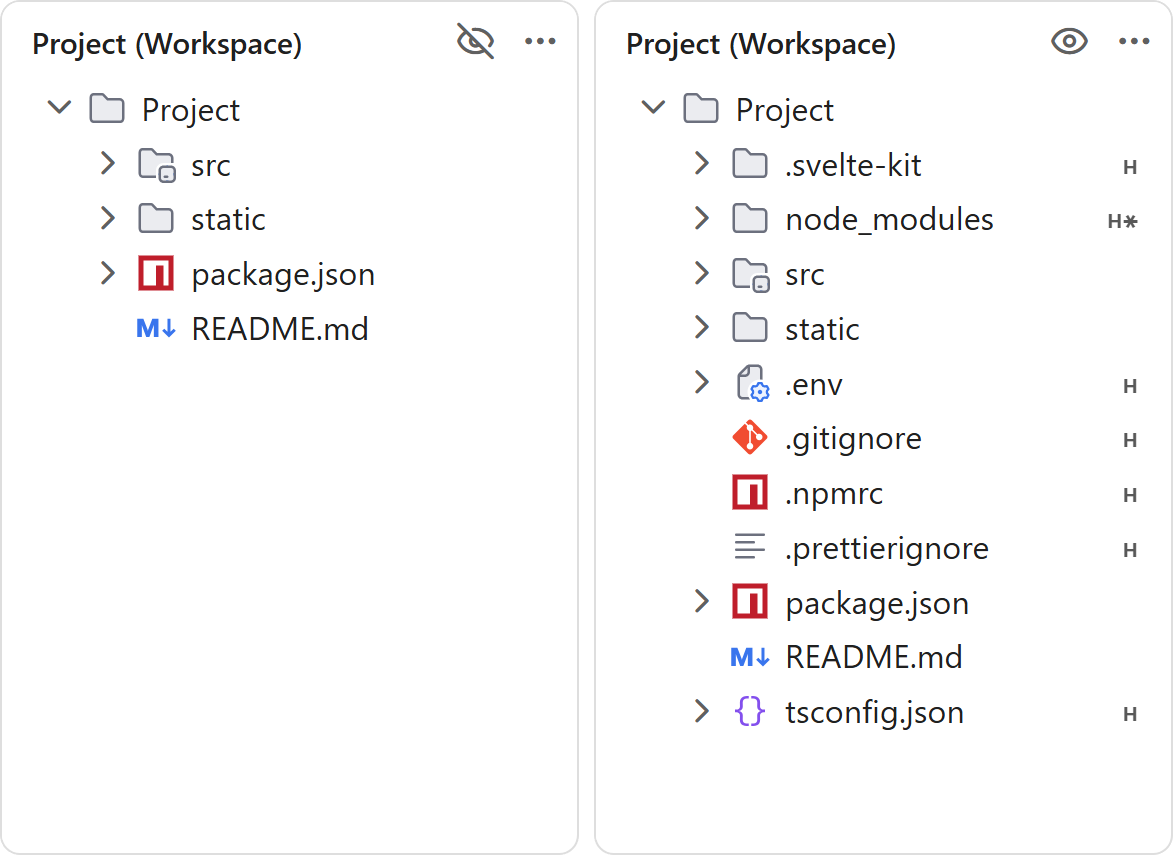
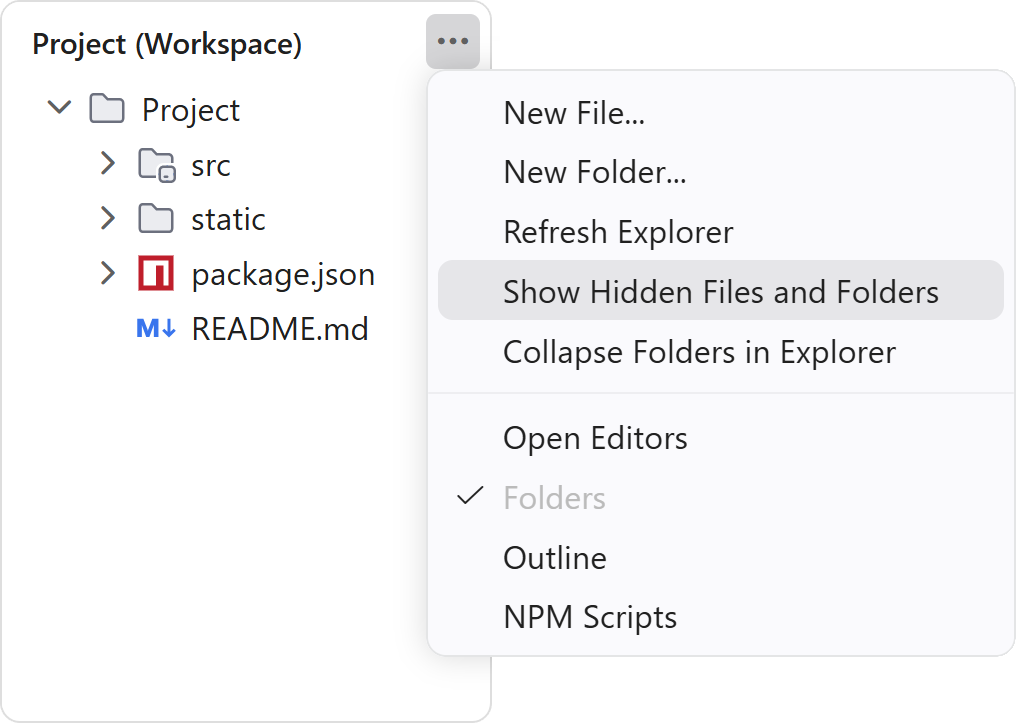
The same action is also available from the Explorer view's More Actions (...) menu, so it still works even when the title bar icon isn't visible.
Badges for hidden items
When hidden items are shown, a badge is added to help you spot them at a glance:
- •h - the item is explicitly excluded
- h - the item is excluded by a matching pattern (e.g.
node_modules,.git)
Badges can be turned off with the visibilityInExplorer.badges setting.
Colors for hidden items
When hidden items are shown, they are also faded to help you spot them. This can be deactivated with the visibilityInExplorer.colors setting.
Hide or unhide files and folders from the context menu
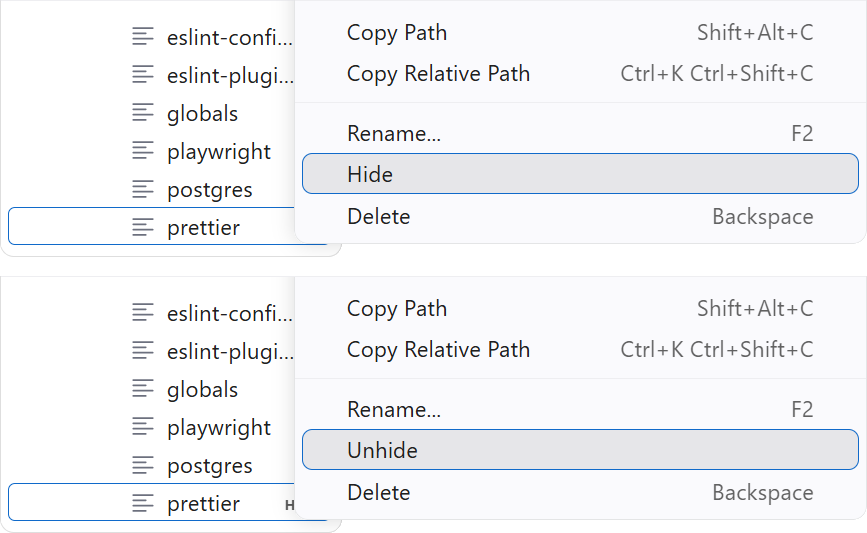
Right-click any item in the Explorer and use Hide / Unhide to add or remove it from files.exclude without leaving the Explorer. Unhide is disabled for items hidden by a matching regular expression rule.
Extension Settings
| Setting | Description |
|---|---|
visibilityInExplorer.badges |
Add badges to hidden files and folders in the Explorer view. |
visibilityInExplorer.colors |
Use colors to indicate hidden items in the Explorer view. |