Local code snippet manager for VS Code.
Save, search, tag, and insert code snippets directly from your sidebar. All data lives locally in SQLite — no accounts, no cloud, fully offline.
Preview
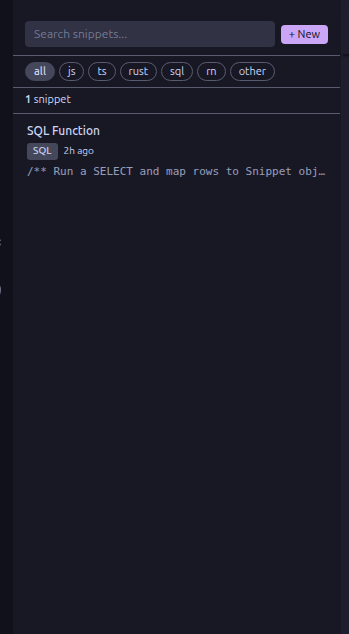
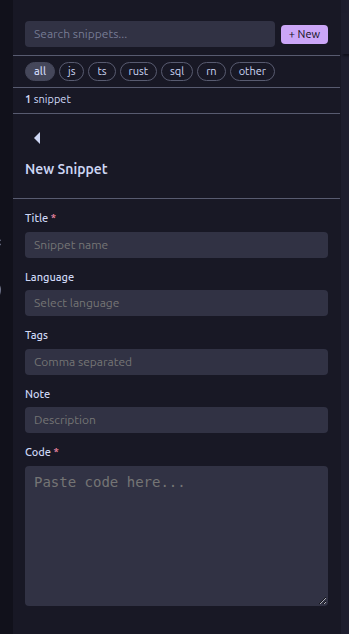
Features
- Save snippets — Store code patterns with title, language, tags, and notes
- Search — Find snippets by title, tags, language, or notes
- Tag filtering — Quick-filter by language category (JS, TS, Rust, SQL, RN, etc.)
- Insert at cursor — Drop a snippet into your editor with one click
- Copy to clipboard — One-click copy
- Language dropdown — Searchable list of 49 languages with keyboard navigation
- Native VS Code UI — Adapts to your theme (dark, light, or high contrast)
- Local storage — SQLite database stored on your machine, nothing leaves your disk
Getting Started
- Install CoderSnippet from the VS Code Marketplace
- Click the CoderSnippet icon in the Activity Bar
- Hit + New to save your first snippet
Usage
Add a Snippet
Click + New in the sidebar toolbar. Fill in:
| Field | Required | Description |
|---|---|---|
| Title | Yes | Name of the snippet |
| Language | No | Pick from the searchable dropdown |
| Tags | No | Comma-separated tags for filtering |
| Note | No | Short description or context |
| Code | Yes | The actual code to save |
Search & Filter
- Type in the search bar to filter across all fields
- Click a tag pill (All, JS, TS, Rust, SQL, RN, Other) to narrow results
Snippet Actions
- Insert — Inserts the snippet at your current cursor position
- Copy — Copies the code to your clipboard
- Edit — Opens the snippet in the edit form
- Delete — Two-click confirmation (no accidental deletions)
Data Storage
All snippets are stored in a local SQLite database at:
| OS | Path |
|---|---|
| Linux | ~/.config/Code/User/globalStorage/okendi.codesnippet/codesnippet.db |
| macOS | ~/Library/Application Support/Code/User/globalStorage/okendi.codesnippet/codesnippet.db |
| Windows | %APPDATA%\Code\User\globalStorage\okendi.codesnippet\codesnippet.db |
Requirements
- VS Code 1.80.0 or later