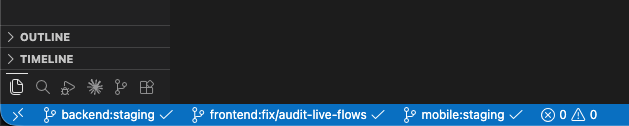
See the branch and sync status of every Git repository in your workspace at once — right in the status bar.
Why
VS Code shows the branch of a single "active" repository. In a workspace with a backend, a frontend and a mobile app, that means you can only see one branch at a time — and checking another one forces you to switch the active repository first.
This extension adds one status bar item per repository. Each one shows its own branch, its own dirty state, and its own ahead/behind counters. Clicking an item opens a menu scoped to that repository only. The active repository never changes.
⑂ backend:staging 2↑ ⑂ frontend:fix/audit-flows* 3↓ ⑂ mobile:staging ☁
| Indicator | Meaning |
|---|---|
3↓ |
3 remote commits you have not pulled yet |
2↑ |
2 local commits ready to push |
* |
uncommitted changes in the working tree |
☁ |
branch has no upstream — never published |
| (nothing) | in sync |
Clicking an item
- Single click opens the repository menu (after a short pause — it waits to see if a second click is coming).
- Double click runs Sync right away: pull + push, or Publish branch when the branch has no upstream. No menu, no extra step.
Set multiRepoBranches.doubleClickAction to "none" if you prefer the menu to
open immediately on every click.
The menu is scoped to that single repository:
- Sync / Pull / Push — shown only when there is something to do, with the commit count
- Publish branch — replaces Sync when the branch has no upstream
- Fetch — this repository, or all of them at once
- Branch list — local branches, plus remote-only branches that create a local tracking branch on checkout
- Create new branch
Keeping the status bar compact
Long branch names and workspaces with many repositories can easily overflow the status bar. Two settings keep it under control:
maxBranchLength(default30) truncates long branch names with…. The full name is always available in the tooltip.maxVisibleRepos(default0= show all) caps how many repository items are shown. The rest collapse into a single⑂ +Nitem with aggregated ahead/behind/dirty counters — hover it to see each hidden repository's branch and sync state.
⑂ backend:staging 2↑ ⑂ frontend:fix/audit-fl…* ⑂ +4 3↓
You never need to touch the settings for this — it is all driven from the status bar itself:
- Click the
+Nitem to open the hidden repositories, or to show one more, show one fewer, show all, or choose exactly how many items stay visible. - Every repository menu also has a "How many repositories to show..." entry, so you can shrink the list even when nothing is collapsed yet.
- The same picker is available from the command palette as Repo Branches: Choose how many repositories to show.
Your choice is saved per workspace, so each project keeps its own layout.
Important: ahead/behind needs a fetch
Git only learns about new remote commits after a fetch. Without one, the ↓ counter stays at zero even when the remote has moved on. Enable VS Code's built-in autofetch:
"git.autofetch": true,
"git.autofetchPeriod": 180
Alternatively, set multiRepoBranches.autoFetchMinutes to run fetches on your own interval, or run the Repo Branches: Fetch all repositories command manually.
Settings
All settings are prefixed with multiRepoBranches.
| Setting | Default | Description |
|---|---|---|
format |
$(git-branch) {repo}:{branch}{dirty}{sync} |
Item text. Placeholders: {repo}, {branch}, {dirty}, {sync} |
doubleClickAction |
sync |
sync runs pull+push (or publish) on double click; none opens the menu on every click |
maxBranchLength |
30 |
Truncate branch names longer than this with …, 0 disables |
maxVisibleRepos |
0 |
Show at most N items; the rest collapse into a +N item, 0 shows all |
syncStyle |
arrows |
arrows (3↓ 2↑) or icons ($(arrow-down)3) |
inSyncIndicator |
"" |
Shown when in sync. Try " $(check)" for an explicit confirmation |
noUpstreamIndicator |
" $(cloud-upload)" |
Shown when the branch was never published |
dirtyIndicator |
"*" |
Shown when there are uncommitted changes |
showSyncStatus |
true |
Fill {sync} at all |
highlightWhenBehind |
false |
Highlight the item when there is something to pull |
highlightWhenAhead |
false |
Highlight the item when there is something to push |
autoFetchMinutes |
0 |
Own fetch interval, 0 disables |
alignment |
left |
Which side of the status bar |
order |
[] |
Preferred order, e.g. ["backend", "frontend", "mobile"] |
ignore |
[] |
Repository folder names to hide |
A compact setup for narrow screens:
"multiRepoBranches.format": "{repo}·{branch}{dirty}{sync}",
"multiRepoBranches.order": ["backend", "frontend", "mobile"]
Commands
| Command | Description |
|---|---|
Repo Branches: Open repository menu |
Pick a repository, then act on it — good for a keybinding |
Repo Branches: Choose how many repositories to show |
Pick how many items stay in the status bar; the rest collapse into +N |
Repo Branches: Fetch all repositories |
Fetch every repository in the workspace |
Repo Branches: Refresh status bar |
Force a redraw |
Requirements
- VS Code 1.75 or newer
- The built-in Git extension enabled
- One or more Git repositories in the workspace, either as a multi-root workspace or as sibling folders under a parent folder
This extension does not detect branches inside a single monorepo — it lists repositories, and a monorepo is one repository. For parallel branches of the same repository, use Git worktrees; each worktree is discovered as its own entry.
Tips
To avoid duplicated information, right-click the status bar and uncheck Source Control to hide the built-in single-repository branch indicator.
Contributing
Issues and pull requests are welcome at github.com/mattosvmp/multi-repo-branches.
To work on the extension locally:
npm install
npm run lint     # ESLint
npm test         # unit tests (node:test)
npm run package  # builds the .vsix
Releases are automated: pushing a v* tag runs lint + tests and publishes to
the Marketplace via GitHub Actions.
License
MIT