Native content linting for VS Code — the Markup AI Style Agent checks your documents as you write, underlines issues inline, and fixes them with one click. Includes a findings panel and batch folder checking.
Prerequisites
To use Markup AI Lint, you need a Markup AI account. Once the extension is installed, sign in from the status bar or the Command Palette to start checking your content.
This extension isn't a stand-alone authoring tool — it works only with the Markup AI platform. To procure the Markup AI solution, please visit markup.ai/pricing.
Features
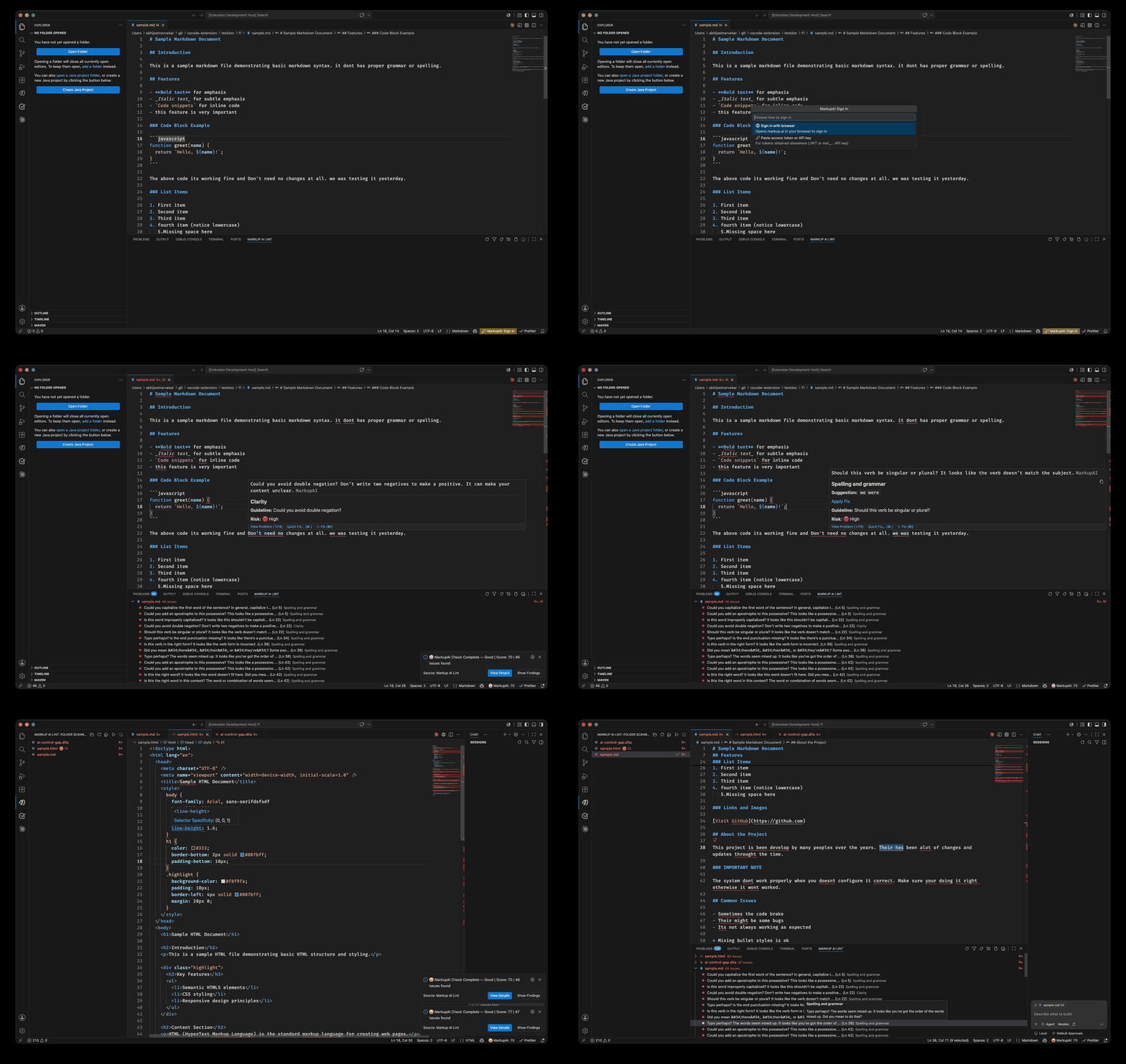
- Inline diagnostics — issues are underlined in the editor with high / medium / low risk levels
- One-click fixes — hover an issue for the explanation and apply the suggestion, or use the quick-fix lightbulb (Ctrl+. / Cmd+.)
- Status bar summary — risk summary (or quality score, when enabled) for the current document
- Folder checking — check many files at once and review results in a tree view
- Style guide picker — use your organization default or select any style guide you have access to
Getting Started
1. Install the Extension
Install from the VS Code Marketplace.
2. Sign In
Click the Markup AI Lint: Sign in prompt in the status bar, or run Markup AI Lint: Sign In from the Command Palette, and complete the sign-in in your browser.
3. Start Writing
Open a supported document (Markdown, HTML, DITA/XML, plain text) — it's checked automatically, and you can re-check any time with Markup AI Lint: Check Content.
All commands are listed under the Markup AI Lint category in the Command Palette, and all settings under "Markup AI Lint" in the Settings editor.
Requirements
- VS Code latest version
- A Markup AI account — see Prerequisites
Support
For issues, feature requests, or questions, please visit the Markup AI documentation or contact support.