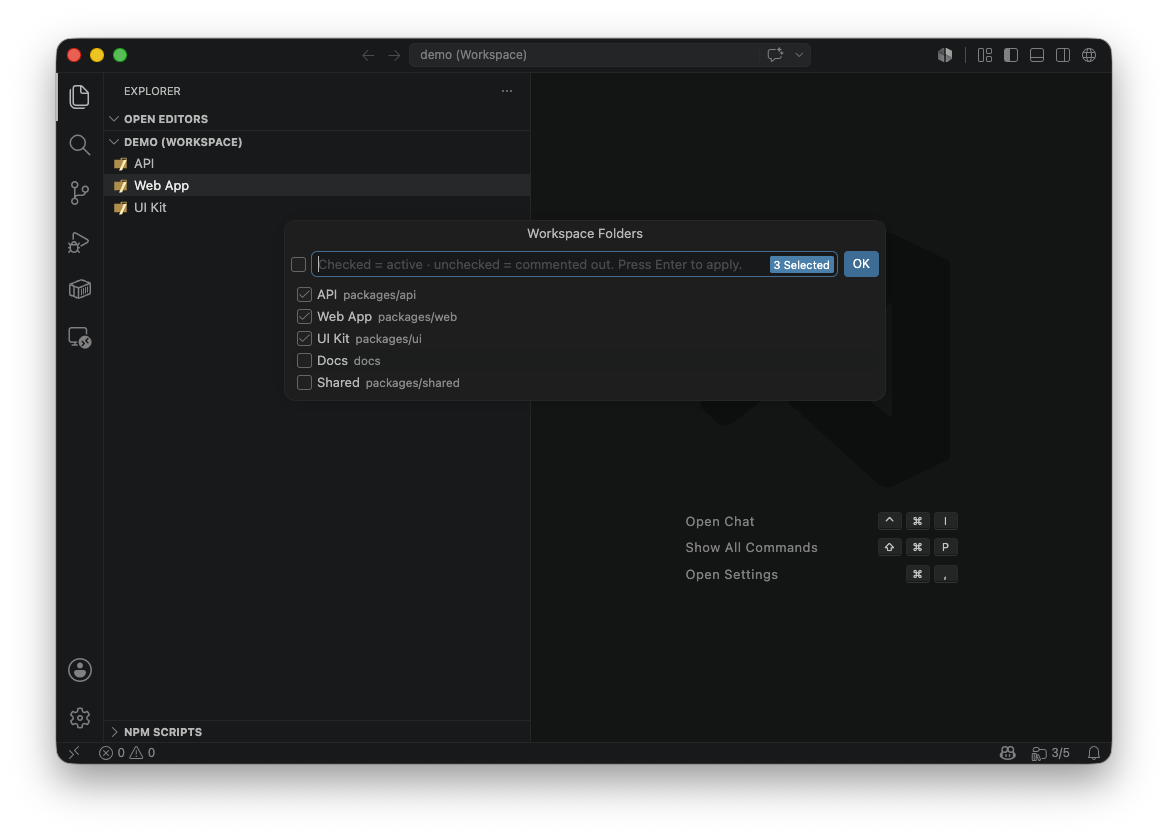
Manage the folders in your multi-root workspace from a single status-bar button.
Workspace Maestro adds a status-bar control that lists every folder in your
.code-workspace file and lets you enable or disable each one from a checklist.
Disabling a folder comments it out in place instead of deleting it, so you can
bring it back at any time without re-typing paths or fixing JSON by hand.
It is built for monorepos and large multi-root setups where you frequently focus on a subset of folders without permanently removing the rest.
Overview
A typical .code-workspace file mixes folders you are actively working on with
folders you want to keep on hand but out of the way. Editing that list manually
means locating the right { "path": "..." } block, commenting or deleting it,
and keeping the surrounding commas valid.
Workspace Maestro replaces that workflow with a checklist:
- Checked — the folder is an active entry in the
foldersarray. - Unchecked — the folder object is commented out, exactly as you would write it by hand.
Toggling a folder changes only the relevant lines. Your settings, tasks,
launch, blank lines, and indentation are preserved.
Features
- Single checklist for every folder. Active and commented-out folders are listed together, in their original file order.
- One-click toggling. Open the checklist from the status bar, check or uncheck folders, and apply the changes with a single keystroke.
- Non-destructive disabling. Disabled folders are commented out rather than removed, so paths and names are never lost.
- Formatting preserved. Toggling adds or removes
//markers only; everything else in the file stays byte-for-byte identical. - Valid JSON, automatically. Commas between active folders are inserted or removed as needed.
- Resilient to native edits. When VS Code rewrites the workspace file (for example, via File → Add Folder to Workspace) and strips comments, Workspace Maestro restores your previously disabled folders automatically.
- Instant reload. VS Code re-reads the workspace folders as soon as the file is saved.
- Keyboard friendly. Open the checklist with
Ctrl+K F(Cmd+K Fon macOS).
Getting started
- Open a saved multi-root workspace (a
.code-workspacefile). - Click the folder button in the status bar, or press
Ctrl+K F/Cmd+K F. - Check the folders you want active, uncheck the ones you want disabled, and press Enter.
The status-bar button shows the number of active folders out of the total, for
example 3/5.

How toggling works
Unchecking a folder such as packages/api turns this:
{
	"path": "packages/api"
},
into this:
// {
// 	"path": "packages/api"
// },
Re-checking the folder restores it exactly. When you toggle folders from the checklist, the rest of the file — including blank lines and indentation — is left untouched.
Settings
| Setting | Default | Description |
|---|---|---|
workspaceMaestro.statusBarAlignment |
right |
Side of the status bar where the button appears (left or right). Reload the window after changing. |
Requirements
- Visual Studio Code 1.80.0 or later.
- A saved
.code-workspacefile (a multi-root workspace). With a single open folder or an unsaved workspace, the extension shows a hint instead of the checklist.
How disabled folders are remembered
Disabled folders live as commented-out entries inside your .code-workspace
file, so they travel with the workspace and remain under version control.
VS Code's own commands (such as adding or removing a folder) rewrite the
workspace file and remove comments. To prevent disabled folders from being lost
in that case, Workspace Maestro keeps a private snapshot in VS Code's workspace
storage and re-inserts the missing entries after VS Code finishes its edit. This
snapshot is local to your machine and is not committed to the repository; the
.code-workspace file remains the source of truth.
Frequently asked questions
Why a Quick Pick instead of a custom popup? VS Code does not provide a public API for rendering a custom panel anchored to the status bar. Workspace Maestro uses a native multi-select Quick Pick, which opens as an overlay when you click the status-bar button.
Does it work with a single-folder project?
No. The extension manages the folders array of a multi-root workspace and
requires a saved .code-workspace file.
Will it reformat my workspace file? No. Only the lines of toggled folders change, plus comma fixes required to keep the JSON valid.
Contributing
git clone https://github.com/marcin-zajac/workspace-maestro.git
cd workspace-maestro
npm install

npm run compile   # build (or: npm run watch)
npm test          # run the logic tests
Press F5 in VS Code to launch an Extension Development Host with the extension
loaded.
Bug reports and feature requests are welcome on the issue tracker.
Release notes
0.2.3
- Refreshed the extension icon.
- Repository hygiene: ignore
.DS_Store, drop a stale packaged.vsixfrom the working tree.
0.2.2
- Fix severe lag caused by a save/reload feedback loop on the workspace file.
- Debounce workspace events and reliably ignore the extension's own edits.
0.2.1
- Fix extension activation and status bar not appearing after workspace restore.
- Prevent save/restore loop when the workspace file is updated internally.
0.2.0
- Disabled folders restored automatically after VS Code rewrites the workspace file (add/remove folder, reformat).
- Workspace state persistence for folder order and disabled-folder metadata.
0.1.0
- Status-bar checklist of all workspace folders, active and commented-out.
- Enable or disable folders by commenting and uncommenting them in place.
- Formatting and indentation preserved; commas fixed automatically.
- Configurable status-bar alignment and a keyboard shortcut.
License
Released under the MIT License.