Edit your knoon.ai website locally in VS Code, preview changes in your browser, then save or publish them back to Knoon.
What is Knoon.ai?
Knoon.ai lets you vibe code a website with agents in a chat box or start a workflow for free, using HTML and the Liquid framework.
What You Can Do
- Open a Knoon.ai website as local source files in VS Code.
- Preview the website locally before publishing.
- Save changes back to Knoon.ai.
- Save and publish when you are ready to update the live site.
- Vibe code with website agents in a chat box or start a workflow for free.
- Use Codex with
AGENTS.mdinstructions to customize how agents edit your website. - Resolve sync conflicts if the remote site changed while you were editing.
- Configure allowed tools and the primary chat box used by your site.
Requirements
- Visual Studio Code 1.95.0 or newer.
- A Knoon.ai account with access to at least one website.
- A trusted local workspace. Knoon.ai writes site files to your workspace so VS Code Workspace Trust must be enabled.
Step-by-Step Guide
1. Install Knoon.ai
Install Knoon from the VS Code Marketplace, then reload VS Code if prompted.
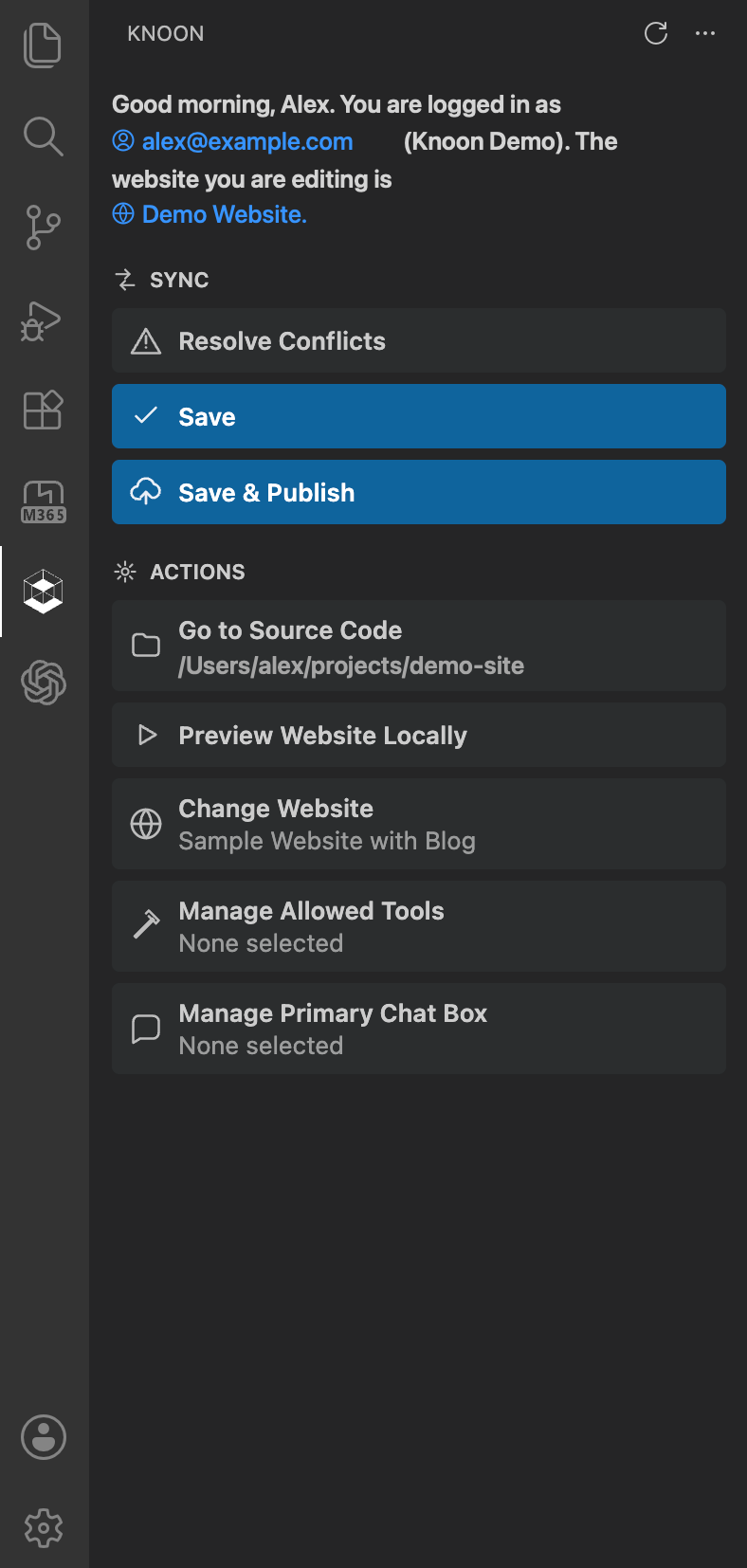
After installation, the Knoon icon appears in the VS Code Activity Bar.
2. Open a Workspace Folder
Open the folder where you want Knoon to place your website source files.
By default, site files are stored in a workspace folder named:
siteSource
You can change this folder in VS Code settings with knoon.sourceFolder.
3. Sign In
Open the Knoon sidebar from the Activity Bar, then choose Sign In.
VS Code opens your browser so you can complete the Knoon.ai login flow. After login, return to VS Code.
4. Open a Website
In the Knoon sidebar, choose Open Site or run Knoon: Open Site from the Command Palette.
Select the organization and website you want to edit. Knoon downloads the website source into your workspace.
5. Preview Locally
Choose Preview Website Locally or run Knoon: Start Preview.
Knoon starts a local preview server and opens the website in your browser. Keep this preview open while you edit files in VS Code.
6. Edit Your Site
Edit the files in your configured source folder, usually siteSource.
Save files normally in VS Code. Use the local preview to confirm that pages, content, and styles look right before sending changes back to Knoon.ai.
7. Customize Codex with AGENTS.md
Knoon includes site editing instructions for Codex in siteSource/AGENTS.md.
To customize how Codex works on your website, add your own AGENTS.md file to the root of your VS Code workspace. Use it for project-specific preferences, design rules, content guidelines, and instructions that should apply whenever agents edit your site.
The generated siteSource/AGENTS.md file may be replaced by the extension, so put your personal or project-level customizations in the root AGENTS.md file instead.
8. Save Changes to Knoon.ai
Choose Save in the Knoon sidebar or run Knoon: Save.
This syncs your local changes to Knoon.ai without publishing the live website.
9. Publish the Website
When you are ready to update the live site, choose Save & Publish or run Knoon: Save & Publish.
Knoon asks for confirmation before publishing.
10. Resolve Conflicts
If Knoon detects that the remote website changed while you were editing locally, choose Resolve Conflicts.
Review the conflict details, decide which changes to keep, then save again.
11. Switch Websites
To work on another website, choose Change Website in the Knoon sidebar or run Knoon: Open Site again.
Knoon updates the local source folder for the selected site.
Useful Commands
Open the Command Palette with Cmd+Shift+P on macOS or Ctrl+Shift+P on Windows and Linux, then search for:
Knoon: Sign In
Knoon: Open Site
Knoon: Sync
Knoon: Start Preview
Knoon: Save
Knoon: Save & Publish
Knoon: Resolve Conflicts
Knoon: Manage Allowed Tools
Knoon: Manage Primary Chat Box
Knoon: Sign Out
Troubleshooting
If the Knoon sidebar does not appear, reload VS Code and confirm that the extension is enabled.
If commands ask you to sign in, run Knoon: Sign In again and complete the browser login flow.
If preview shows a missing page, confirm your website files are inside the configured source folder.
If save or publish is blocked by conflicts, run Knoon: Resolve Conflicts before trying again.
Support
Visit knoon.ai to learn more about Knoon.
For help, visit support.knoon.ai.