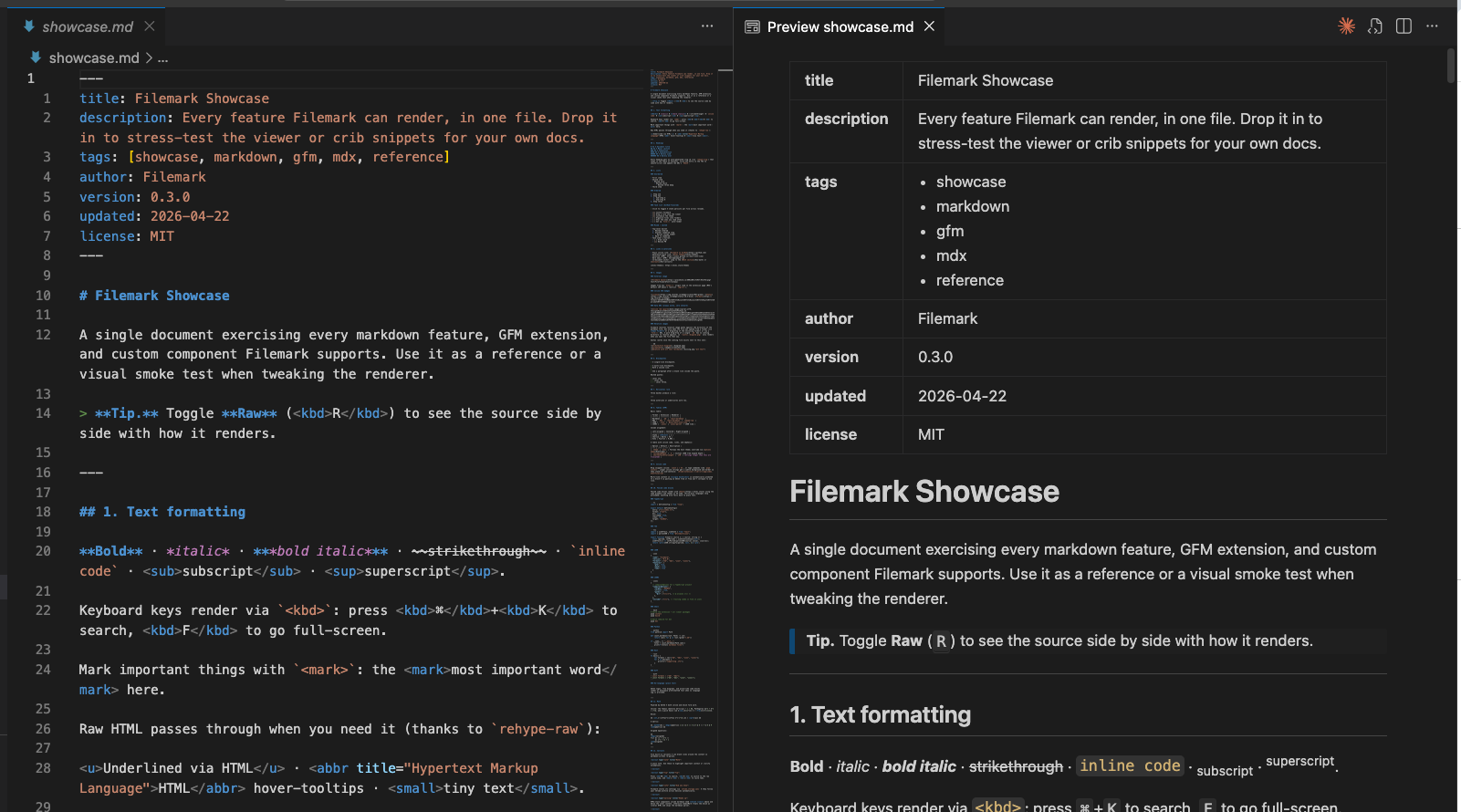
Rich Markdown preview inside VS Code, powered by filemark — the same renderer as the Chrome extension and web playground (callouts, charts, kanban, tasks, mermaid, math, and more). Your text editor stays the native raw view; a filemark Preview opens beside it, and the two scroll together.
The preview reuses the host-agnostic @filemark/* packages unchanged — this extension is only the VS Code host shell (a webview plus ViewerProps adapters for storage, assets, and navigation).
Features
- Live preview — the rendered view updates as you type (debounced), while the raw text editor stays native.
- Open to the side — split raw + preview so they're visible at once (
Cmd/Ctrl+Alt+V, or the split icon in the editor title).Cmd/Ctrl+Shift+Vopens it in the same pane instead. - Two-way scroll sync — scroll the editor and the preview follows; scroll the preview and the editor follows. Line-anchored (via source-line stamps), so it tracks the block you're actually on.
- Double-click to jump — double-click any block in the preview to move the editor's cursor to that block's source line.
- Remembers your place — the preview restores its scroll position per file when you reopen it.
- Zoom —
Cmd/Ctrl+/-/0, or the zoom controls in the preview toolbar (persists across files). - GitHub preview mode — flip the preview between the full filemark render and a GitHub-flavored approximation ("how it looks pushed to GitHub") via the toolbar toggle or Filemark: Toggle GitHub Preview. Scroll sync and jump-to-source work in both modes.
- Interactive tasks — click a task checkbox in the preview and it edits the source file (
- [ ]↔- [x]). - Open in browser — open the current file as
file://…in Chrome (where the filemark Chrome extension renders it) via the globe icon or Filemark: Open in Browser. - Workspace task tree — a Filemark view in the activity bar listing every task across the workspace's Markdown files, grouped by file; click a task to jump to it. Refreshes as files change.
- Native editor integration (on the raw
.md): Outline / breadcrumbs / Go-to-Symbol from headings, section + fence + frontmatter folding,[[wikilink]]navigation, and a status-bar reading-time / word-count / task-progress readout. - Find in preview —
Cmd/Ctrl+Fsearches the rendered content. - Appearance — theme, font family, font size, line height, content width, and custom CSS, all via VS Code settings (below), applied live.
Commands
| Command | Default keybinding | What it does |
|---|---|---|
| Filemark: Open Preview | Cmd/Ctrl+Shift+V |
Open the preview in the same pane (tab). |
| Filemark: Open Preview to the Side | Cmd/Ctrl+Alt+V |
Open the preview split beside the editor. |
| Filemark: Toggle GitHub Preview | — | Switch all previews between Filemark and GitHub render. |
| Filemark: Open in Browser | — | Open the current .md as file://… in Chrome. |
| Filemark: Refresh Tasks | — | Rescan the workspace for the task tree (also in the view's title bar). |
Settings
| Setting | Default | Description |
|---|---|---|
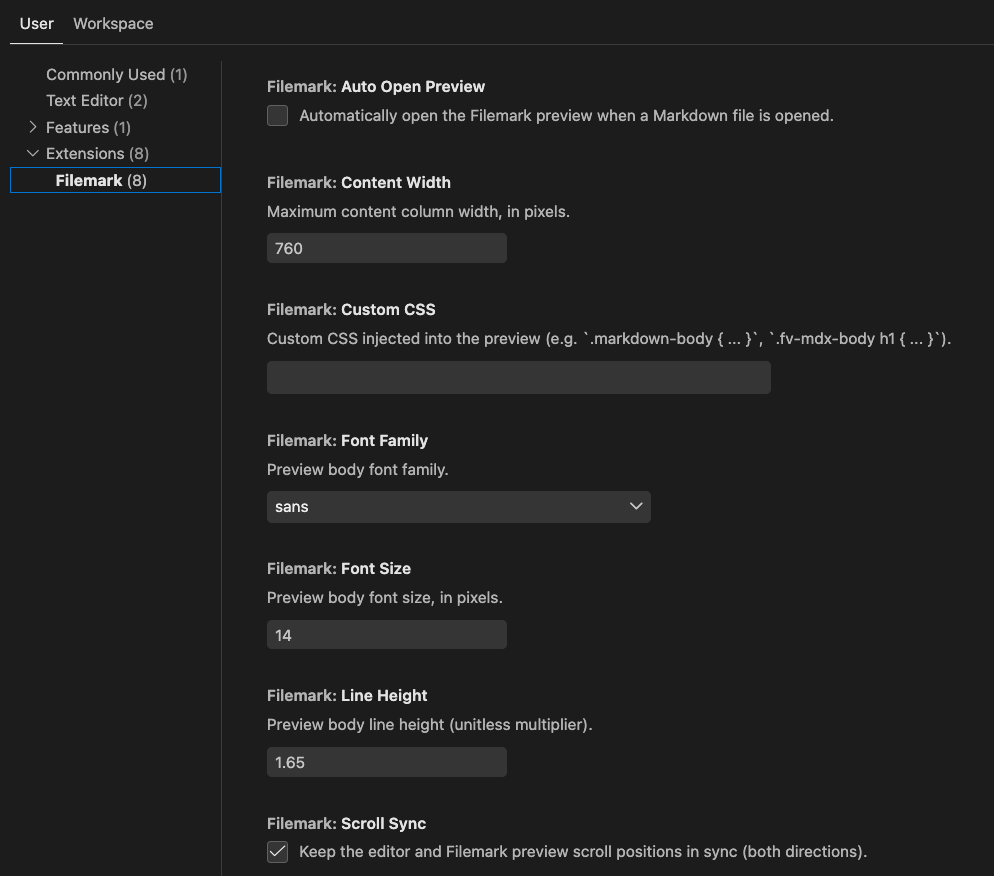
filemark.autoOpenPreview |
false |
Open the preview automatically when a Markdown file opens. |
filemark.scrollSync |
true |
Keep editor and preview scroll positions in sync (both directions). |
filemark.theme |
auto |
Preview theme: auto (follows VS Code), light, dark, sepia. |
filemark.fontFamily |
sans |
Preview body font: sans, serif, mono. |
filemark.fontSize |
14 |
Preview body font size (px). |
filemark.lineHeight |
1.65 |
Preview body line height. |
filemark.contentWidth |
760 |
Max content column width (px). |
filemark.customCss |
"" |
Custom CSS injected into the preview. |
Screenshots
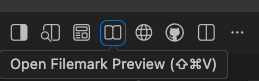
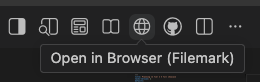
Open the preview from the editor title bar — Open Filemark Preview (⇧⌘V) or Open Preview to the Side, and Open in Browser to hand the file to Chrome:
All appearance and behavior is configurable in Settings (filemark.*):
Development
Quick start (the workspace package is named filemark):
pnpm install
pnpm --filter filemark build     # host (esbuild) + webview (vite) → dist/
pnpm --filter filemark dev       # watch both; then Cmd/Ctrl+R in the dev host to apply
pnpm --filter filemark test      # unit tests
Open apps/vscode in VS Code → Run and Debug → "Run Filemark Extension" (F5) to launch an Extension Development Host.
Full setup, the fast-iteration loop, the code map, and conventions are in CONTRIBUTING.md.
How it works
A thin host shell over the shared @filemark/* renderer packages: the raw text editor stays native, and the preview is a separate webview panel. Host (Node) and webview (browser) are two runtimes that talk over a typed postMessage protocol; the heavy render libraries are code-split and load on demand. The full design — the host/webview boundary, the message protocol, scroll-sync internals, and task write-back — is in docs/ARCHITECTURE.md.
Documentation
- CONTRIBUTING.md — dev setup, iteration loop, code layout, testing, conventions.
- docs/ARCHITECTURE.md — how the extension is built and the invariants to preserve.
- PUBLISHING.md — packaging + releasing to the VS Code Marketplace and Open VSX.
- CHANGELOG.md — release history.
Status
Feature-complete for Markdown; first release is 0.1.0. Additional file formats (JSON/CSV/schema) are intentionally out of scope for now.
Links
- Website: https://khanakia.com/apps/filemark/
- Source: https://github.com/thesatellite-ai/filemark
- Open VSX (Cursor / VSCodium / Windsurf): https://open-vsx.org/extension/khanakia/filemark
- VS Code Marketplace: https://marketplace.visualstudio.com/items?itemName=khanakia.khanakia-filemark
Part of Filemark — the same renderer powers the Chrome extension and the web playground.