English · Русский
Syntax highlighting and on-the-fly linting for 1C:Element sources (.xbsl), powered by the
xbsl linter.
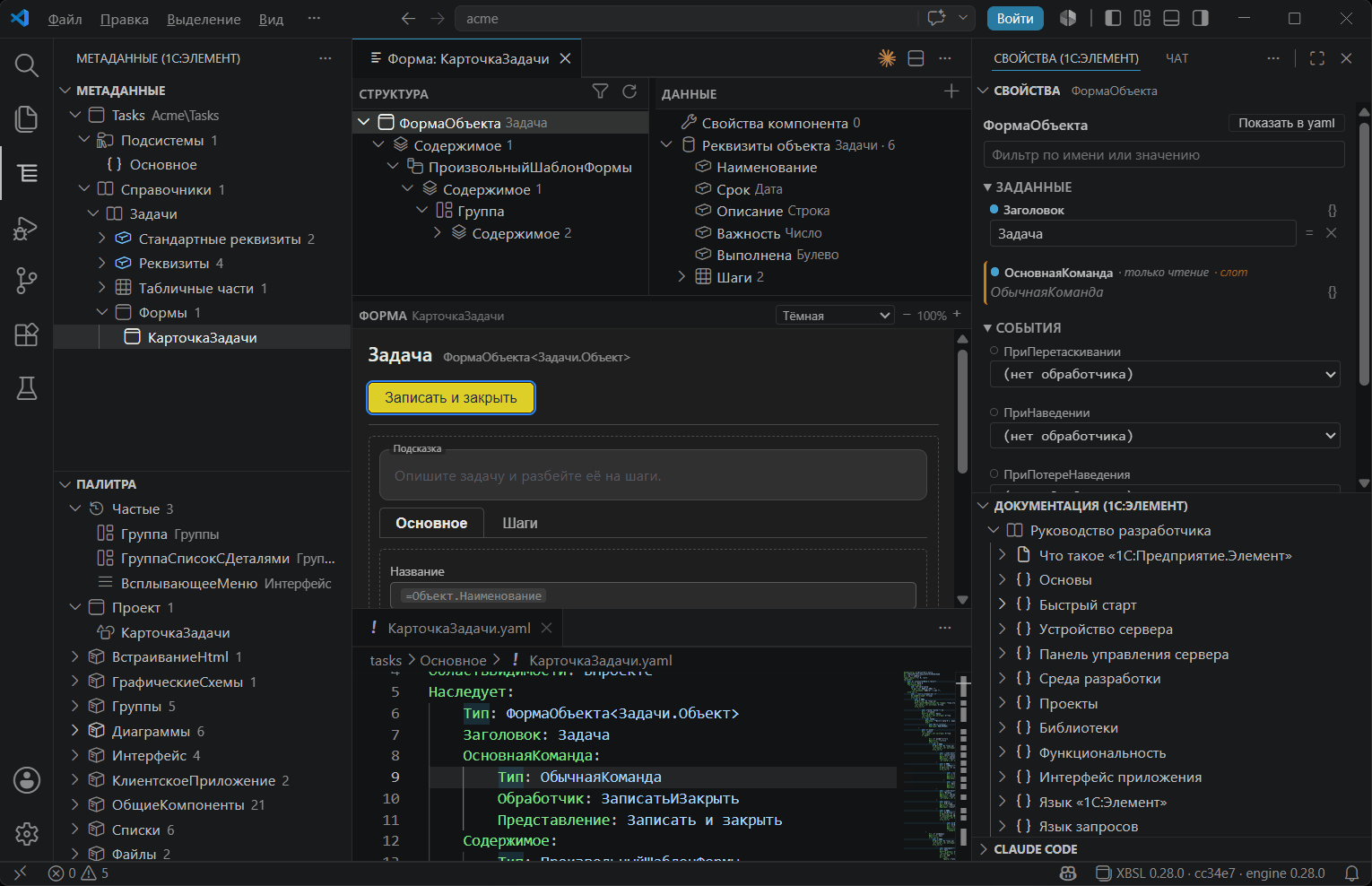
Want to try everything on a toy project? Open the
demo/folder of the repository – a tiny 1C:Element app with a form and a handful of deliberate findings.
How it works
The extension is a thin client of the xbsl engine: in the
default LSP mode every feature – diagnostics, navigation, the docs panel
and the metadata scaffolding – talks to one long-living xbsl-lsp server; without the server
the same checks and scaffolding run through the CLI:
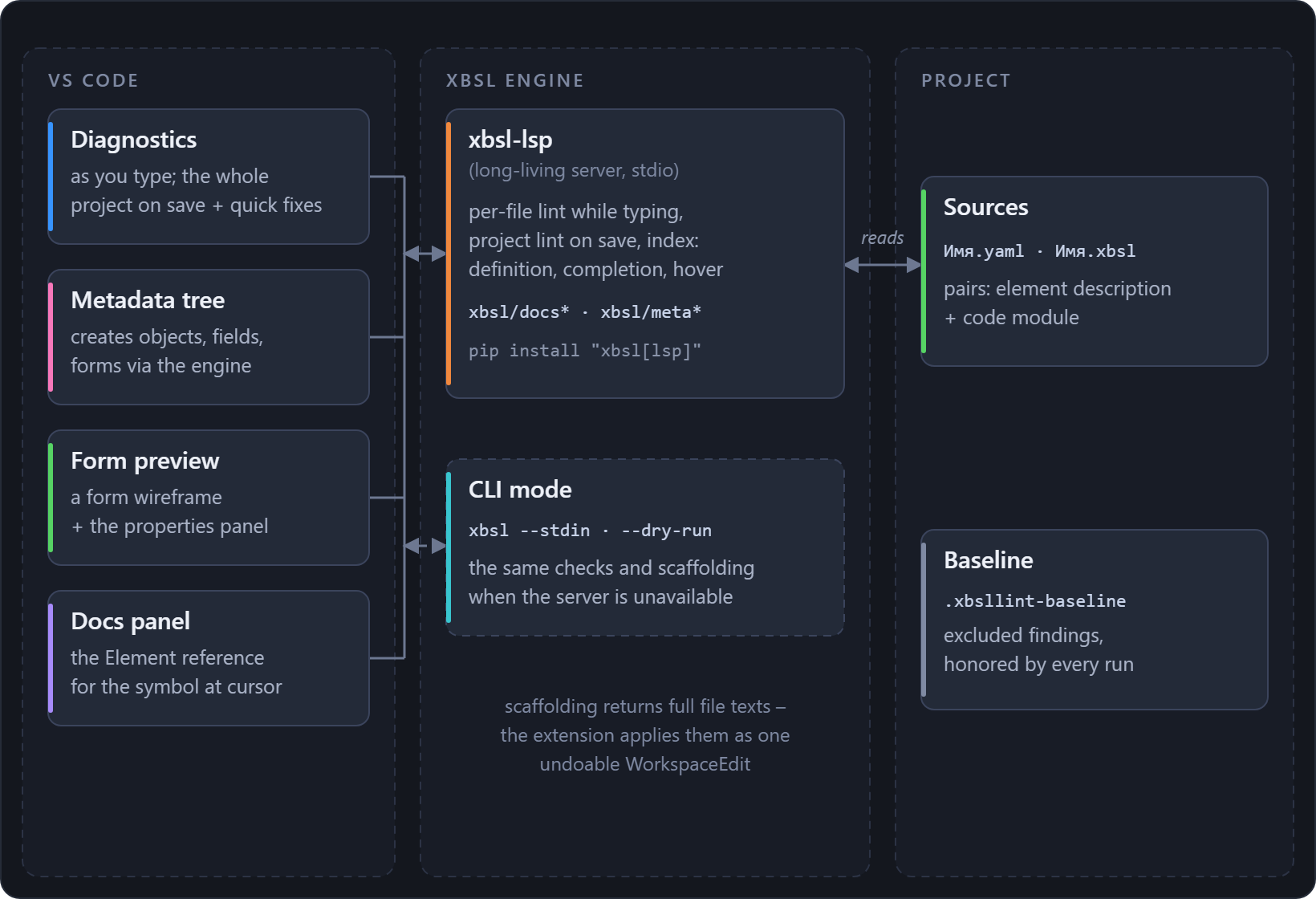
In the CLI mode two producers feed one diagnostic collection, and the split is by buffer state:
- While you type (dirty buffer) the extension runs
xbsl --stdin --filename <name> --format jsonon the live text – per-file rules only, fast, debounced. Its result replaces the diagnostics of that buffer only. - When you save any
.xbsl/.yamlfile, the extension runsxbsl <workspace folder> --format jsonin the background (debounced, at most one run at a time; a save during a run cancels the now-stale run and starts over). The result covers per-file and project-scope rules, so it replaces the diagnostics of every file in the folder – except buffers that are dirty again by then: those stay with their live--stdindiagnostics until the next save.
This way there are no duplicates and no rule is lost: a clean file always shows the full
workspace-run picture, a file being edited shows the instant per-file picture, and each save
reconciles the two. Both runs speak the same {diagnostics, summary} JSON contract that the
linter's MCP server exposes.
A workspace run that fails or exceeds xbsl.workspaceLintTimeout is reported to the XBSL
output channel only – no popups on every save.
Features
- Syntax highlighting for
.xbsl: keywords (both Russian and English forms), declarations, operators,@-decorators, numbers, comments, and strings with%name/${...}interpolation. - Live diagnostics as you type (debounced) and on save – brackets/blocks balance, unused
locals, typography, code-style conventions, and everything else the linter reports. Squiggles
carry the rule id (e.g.
code/brackets) and severity. - Workspace diagnostics – saving any
.xbsl/.yamlfile runs the linter over the whole workspace folder in the background, so project-scope rules (code/unknown-type,yaml/unknown-type,Iduniqueness) show up right in the editor, across all files. Controlled byxbsl.workspaceLint(on by default). - Whole-project check – the command XBSL: check the whole project runs the same workspace-wide check on demand.
- Go to definition, find all references and completion across the project – answered by the language server over its project index. See Navigation and completion.
- Quick Fix for mechanical findings – a lightbulb on a fixable diagnostic (trailing
whitespace, typography characters) applies the exact edit the linter reports; a fix all
source action (
source.fixAll.xbsl) fixes the whole file and can run on save viaeditor.codeActionsOnSave. Needsxbsl≥ 0.7.1. See Quick Fix. - Deploy to the stand – the XBSL: deploy the project (elemctl) command (and a cloud
button in the title bar of the metadata tree) runs
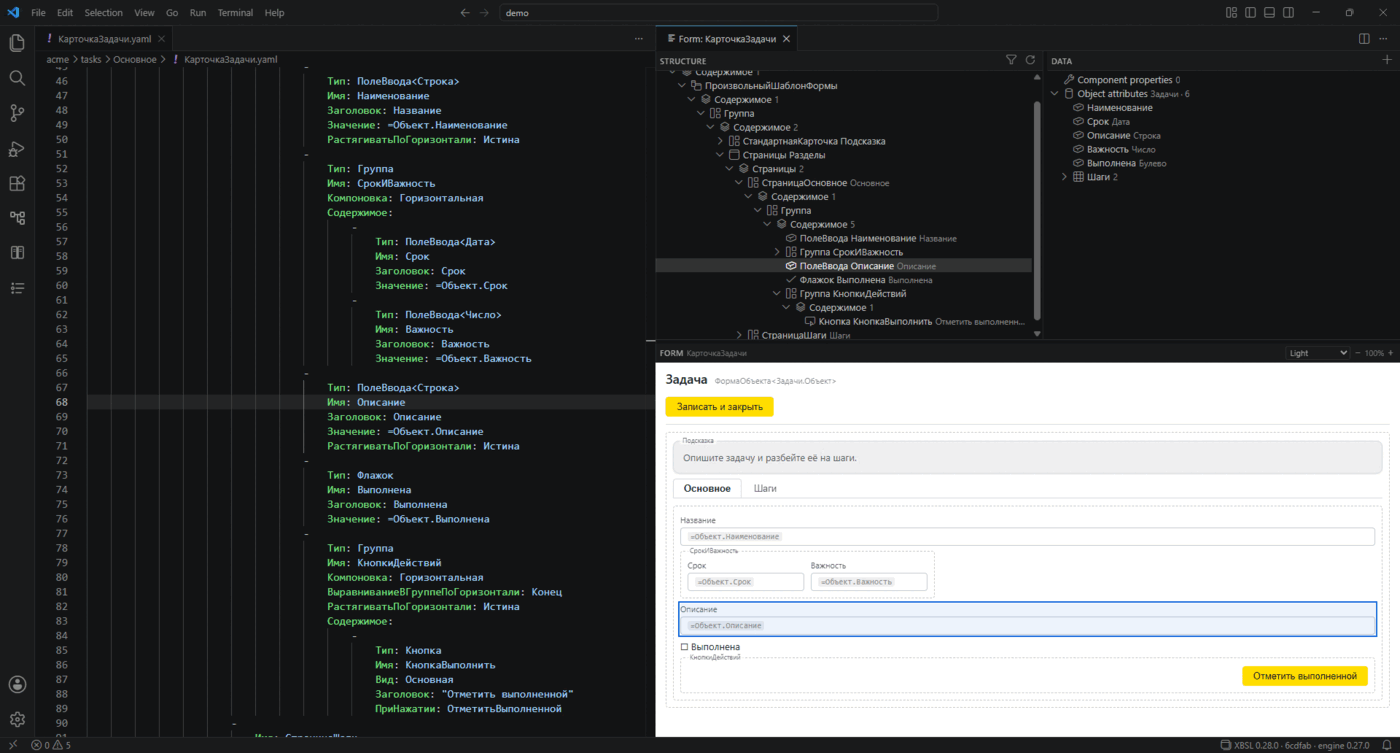
elemctl deployin a terminal task: build from sources → upload → apply → restart → verification that the apply actually took effect. See Deploy. - Form designer – a panel of three areas: the structure tree on the left, the form's data on the right, the form frame under them. It follows the active editor and updates as you type; the selection is linked across the areas, the yaml cursor and the properties panel. The component palette sits next to the metadata tree while the panel is open. See Form designer.
- Metadata explorer – a tree of the project objects in the primary side bar, grouped by
ElementKind, with subtrees (Attributes,Dimensions,Forms, enumValues...), an editable properties panel, creation of objects/fields/subsystems and filtering by subsystem. See Metadata explorer. - Documentation – a view in the secondary side bar: the 1C:Element reference the way the docs site shows it – a "Contents" tree (the developer and administrator guides, the type and query-language references), full-text search, and a page view with images and a link to the primary source. Right-click a type or variable to open its documentation. See Documentation.
Panel layout. The extension declares two view containers, and the layout of the screenshot
above comes out of the box: 1C:Element • Project (the metadata tree and the palette) sits in the
primary side bar on the left, 1C:Element • Inspector (properties and documentation) in the
secondary side bar on the right, next to Chat. Nothing is nailed down: drag a container icon between the bars to rearrange, and
View: Reset View Locations restores the default. The secondary side bar toggles with
Ctrl+Alt+B (View > Appearance > Secondary Side Bar).
.yaml element descriptions keep their built-in YAML highlighting.
Requirements
The extension is a thin client over the xbsl CLI – it does not bundle a checker. You need:
- Python 3.10+ and the linter:
pip install xbsl. If the linter is missing, the extension offers to install it right from the error message. - Element language data – generated once from your 1C:Element distribution, see step 1 of the linter README. Without it most rules cannot run; the extension surfaces the linter's error once.
By default the extension calls xbsl from PATH. Point it elsewhere with
xbsl.linter.command (an executable) or xbsl.linter.pythonPath (an interpreter – the linter is
then invoked as <python> -m xbsl).
New project
The XBSL: new 1C:Element project command (xbsl.project.new) creates a project from
scratch. The wizard asks four things – the project name, the vendor, the project kind
(application or library) and the folder – then scaffolds it through the same engine that
serves the other metadata operations and opens the generated Проект.yaml.
The vendor is remembered between runs: for one developer it is usually the same. If the project lands outside the open folder, the extension offers to open it – a fresh project is rarely part of the current window.
Structural search across forms
The XBSL: structural form search command (xbsl.forms.search) searches by structure, not
by text: you give a component type and, optionally, key=value predicates on its properties.
The extension collects the project's forms (unsaved buffers included), sends them to the
engine and lists the matches – picking one moves the cursor to the component's line in its
yaml.
This is what you want when the question sounds like "where do we have input fields with such a property": plain text search does not find that, because in yaml the property and the component type sit on different lines.
Needs the LSP mode: the matching is done by the engine, which is not running in CLI mode.
Navigation and completion
Navigation comes from the engine: the language server keeps the project index and answers definition, references, completion and hover. The extension adds no second implementation of its own – whatever the engine knows (the return types of project methods, the members of platform types) navigation knows with it. Without the LSP mode there is no navigation: the CLI has no process to ask.
Go to definition (F12 / Ctrl+Click), in .xbsl and .yaml:
- a project object name (bare, or the root of a dotted chain) → its
.yaml; <Object>.<LocalType>→ the type declaration;<Object>.<TabularPart>→ the section in the object's yaml;<Enum>.<Value>→ the value line;<Module>.<Method>(including manager modules named after the object), and a bare method name inside its own module → the method;Components.<Name>→ the component node in the current form's yaml;Components.<Name>.<Method>→ the method of that module;- in yaml, the value of
Handler: <Name>→ the handler in the paired.xbsl.
Find all references (Shift+F12, or Go to References / Find All References in the context menu), for methods, objects and interface components – every usage, from the same index:
- a method → its calls inside the module,
<Module>.<Method>andComponents.<Module>.<Method>calls, and theHandler: <Name>keys that name it in yaml; - an object → every place it is the root of a dotted chain;
- a component → its
Components.<Name>uses in the form's module.
Deeper chains that would need type inference are out of scope, as they are for go-to-definition.
A note on names. 1C:Element is bilingual all the way down: keywords, literals, stdlib types and the metadata vocabulary each carry a Russian and an English spelling, and this README uses the English one (
var,new,Query{},Array<String>,True). Sources may be written either way, and the extension reads both - the English key of a metadata property is what the platform's own metamodel declares for it. The metadata names used below:
Name What it is Attributes·Dimensions·Resources·TabularPartsthe field sections of an object Id·Name·Type·Handlerthe yaml keys an element carries Reference·Objectthe reference and the object of a type family Componentsthe components collection of a form Multiline·Layout·HorizontalStretch·VerticalStretch·Pagesthe properties of a component
Completion (triggered by . and :):
- after
<Object>.– the type family (Reference,Object, ...),TabularParts, local types and manager-module methods; for an enum – its values; - after
Components.– the components of the current form; afterComponents.<Name>.– the methods of that module; - in yaml, after
Type:– project object names (the object kind is shown as the detail).
Type-aware completion – in LSP mode only. The parsing runs over tokens, so keywords are understood in both of the spellings the language has, the English one and the Russian:
- inside
Query{ ... }, after a table – its fields: the standard fields of the kind, itsAttributesandTabularParts. Aliases resolve too:FROM Product AS P→P.gives the same fields; - after the loop variable of a query result (
for Row in Result→Row.) – the columns of the selection (theSELECT ... ASaliases; a plain field is named by its last segment); - after a variable of a known type (
var List = new Array<String>()→List.) – the members of that type. The type comes from the annotation, fromnew, from a literal (val Key = ""is aString) or from a call - both through a module (Module.Method()) and with no qualifier at all, which is a call of a method of THIS module. Method parameters count as well; - after a value of a project type - its fields and methods: a structure declared in a module, a
type described in metadata, an interface component (for a form: its
Properties, the methods of its module and the members of the platform type inInherits); - inside
new Type(- the names of what the type carries: the completion writes theName =for you; - after an stdlib type or global (
AccessContext.) – its members. Properties and methods are listed apart: a method carries its own icon and is inserted with parentheses.
A chain is walked to its end rather than one level deep: Parsed.File!.Read(). answers with the
members of the result - a non-null operator does not break the chain. A loop variable takes its
element out of the written type of the collection (Array<Catalog.Card> → Catalog.Card),
including when the collection came from a call.
The members of stdlib types come from the Element data (the --data-dir root), everything else
from the project index. A name in scope beats a type of the same name: once a variable List is
declared, List. is about its type, not about the List component. Requires xbsl >= 0.10.0.
Known limits: outside LSP mode the index knows declarations, not types (no completion after
variables). A type is not inferred where there is nothing to infer it from: a generic platform
method whose result is set by a type argument; an expression built of operations ("a" + X is an
operation, not a literal); a name the platform catalogue does not carry. The members of platform
types are offered in their Russian spelling even in an English project - the catalogue has no
English pair for them. There is no rename. When the context is ambiguous the providers return
nothing rather than guessing.
Quick Fix
Findings the linter can repair mechanically carry a fix; the extension turns it into a Quick Fix:
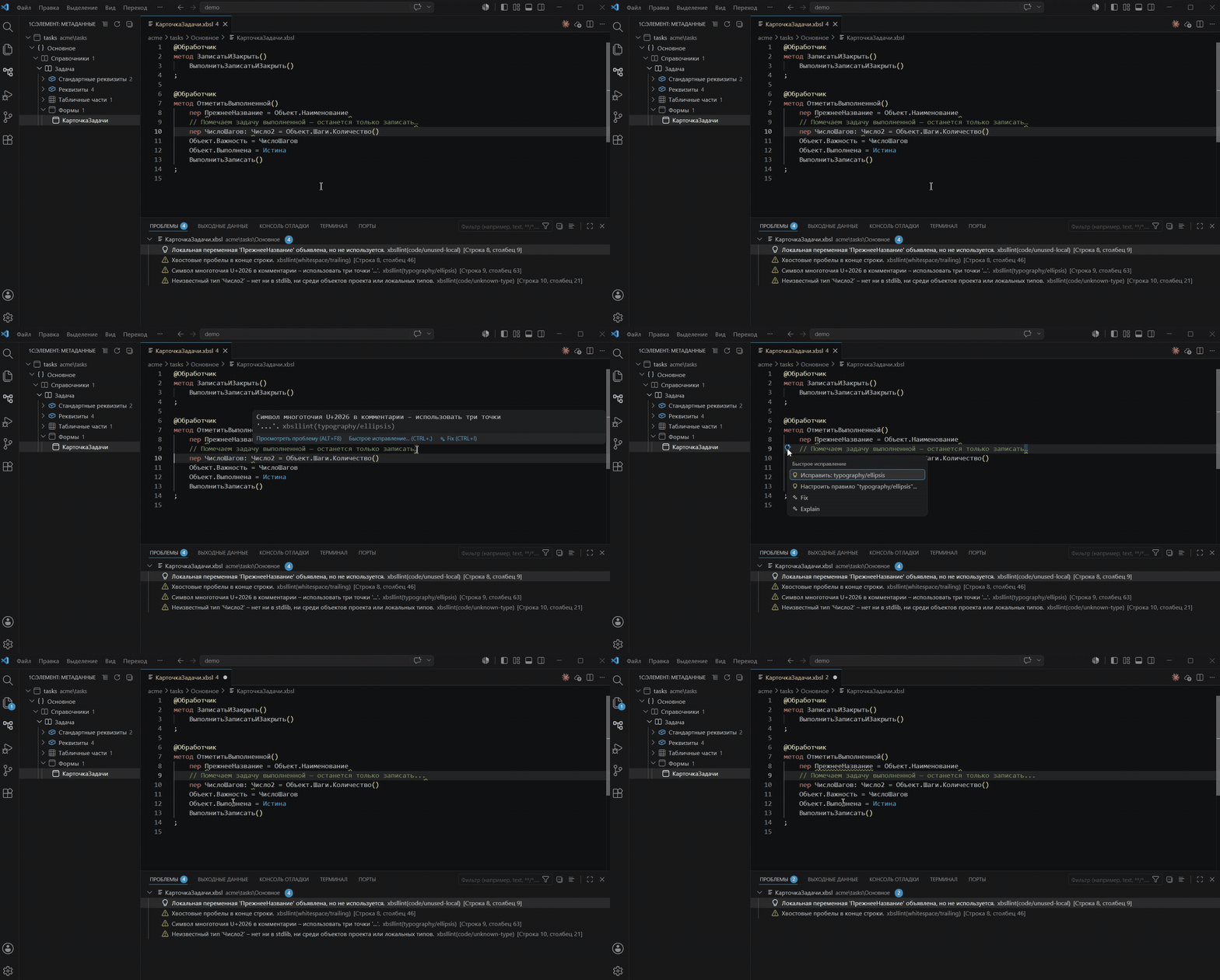
-
A lightbulb on the diagnostic (
Ctrl+.) – Fix:<rule>– applies the exact edit: trailing whitespace removed, em dash → en dash,…→..., curly quotes → straight. -
A fix-all source action – Fix all (xbsl) – repairs every fixable finding in the file in one edit. Run it on save by adding to your settings:
"editor.codeActionsOnSave": { "source.fixAll.xbsl": "explicit" }
Fixes need a linter that emits them in its JSON (xbsl ≥ 0.7.1). Only unambiguous edits are
offered, and only against the exact text they were computed on – a version-stamped snapshot guards
against applying an offset to text that changed since the last lint. Whole-file fixes (mixed
newlines) are left to xbsl --fix on the command line.
Settings
| Setting | Default | Meaning |
|---|---|---|
xbsl.linter.run |
onType |
When to lint: onType (debounced) / onSave / off. |
xbsl.linter.command |
xbsl |
Linter executable (PATH or absolute path). |
xbsl.linter.pythonPath |
– | Python interpreter; when set, runs <python> -m xbsl. |
xbsl.linter.dataDir |
– | Element data root (folder with index.json); empty = auto-resolved. |
xbsl.linter.lang |
auto | Diagnostic language: (auto) / ru / en. |
xbsl.rules |
{} |
The one rules table. The key is a rule (code/brackets), a group (style), a tier letter (A) or *; the value is off or a level. Priority: rule → group → tier → *. A level on a rule key turns on a rule that is off by default, on a group or a tier it only recolours; {"*": "off"} means "only the ones listed here". See Rules. |
xbsl.linter.debounce |
300 |
Delay (ms) before linting while typing. |
xbsl.projectRoot |
– | Sources root for project-wide runs and the navigation index, relative to the workspace folder (or absolute). Empty – the whole folder. Set it when the repository holds examples or copies next to the project: otherwise project-scope rules (Id uniqueness etc.) cross-fire between directories. |
xbsl.baseline |
– | Baseline file with the excluded findings, relative to the workspace folder (or absolute). Empty – .xbsllint-baseline in the workspace folder when it exists. See Excluding a finding. |
xbsl.workspaceLint |
true |
Full workspace run on every save of a .xbsl/.yaml file. |
xbsl.workspaceLintTimeout |
60000 |
Kill a workspace run after this many ms (0 – no limit). |
xbsl.checkForUpdates |
true |
Ask Open VSX once a day whether a newer extension is published: the extension is installed from a vsix while the editor asks the Marketplace, so nothing else notices a version left behind. The check only lights up the status bar; the Check for a newer extension command works regardless of it. |
xbsl.deploy.* |
– | The deploy settings – the elemctl binary, the .env, the target application. See Deploy; the elemctl path and the application id are shared with debugging. |
xbsl.debug.* |
– | Debugging: the platform adapter directory, the Java launcher, opening the debuggee on start. See Debugging. |
Rules: levels and disabling
The old settings (xbsl.groups.*, linter.select / .enable / .ignore) are still read by the
code but no longer shown in the forms; the XBSL: move the rule settings into one table command
moves them into the table in one go.
The table does not have to be edited by hand: the XBSL: rules command opens a panel - every
rule of the engine listed by group, each with its own level or "by default", a search by name, a
"changed only" filter and a reset button. The scope is chosen explicitly (the user or the
workspace settings), and the panel writes into xbsl.rules and nowhere else.
By group – in the Settings UI. The Rule groups section (search for xbsl.groups in
the Settings editor, or browse Extensions → XBSL) has a dropdown per finding type – code,
yaml descriptions, style, typography, whitespace, encoding, structure, forms, queries,
naming, project, security: keep the
group's own rule levels, report all its findings at one level (error / warning / info /
hint), or turn the group off entirely – off does not just hide the findings, it excludes
the rules from the run.
Per rule – from the finding. Every finding carries a "Configure rule..." action in
its lightbulb (Ctrl+.): disable the rule or override its level without leaving the line;
the check reruns right away. The choices land in the xbsl.rules setting – a map from a
rule id (whitespace/trailing) or a whole group (style) to a level or off. An exact id
beats its group, and any xbsl.rules key beats the group dropdowns. Works in both the CLI
and the LSP mode.
A rule group added by an engine plugin has no dropdown of its own – the dropdowns list the
engine's built-in groups. Configure such a group through xbsl.rules by its name
({"conventions": "off"}), or through the "Configure rule..." action on any of its
findings – both treat a plugin group exactly like a built-in one.
Excluding a finding (the baseline)
Disabling a rule silences it everywhere; sometimes a single finding must stay unfixed – the
code is right on purpose. For that, every finding carries an "Exclude this finding (to the
baseline): <rule>" action in its lightbulb (Ctrl+.): type the reason, and the finding's
identity (file + rule + message) is recorded in the baseline file together with it. Only that
one finding is excluded – the rule keeps checking every other file and name (to silence a
whole rule, use "Configure rule..." instead). The finding disappears from the editor, and a
CI gate over the same file (xbsl ... --baseline) stops reporting it too.
The file is .xbsllint-baseline in the workspace folder (created on the first exclusion),
or wherever xbsl.baseline points. The reason stays next to the frozen finding, and
xbsl --write-baseline keeps it on a rewrite:
"app/Notes.yaml": {
 "naming/number": {
  "The name 'Notes' is singular – ...": { "count": 1, "reason": "a historical name" }
 }
}
In the LSP mode the suppression runs on the server and needs the engine 0.15.0 or newer;
the CLI mode works with any engine that has --baseline. The identity includes the message
text, so the baseline is bound to the output language – write and check it under the same
xbsl.linter.lang.
LSP mode (default)
The extension runs everything through a long-living xbsl-lsp server instead of spawning
the CLI per event: the Element language data and the project index stay resident, so
as-you-type diagnostics respond in milliseconds, hover appears (a card for a project
object, method or form component), and so does
type-aware completion. Definition, project-wide diagnostics on
save and quick fixes work as before, just faster. Requires the linter installed with the
[lsp] extra (pip install "xbsl[lsp]"); the server is found as xbsl-lsp on
PATH, via xbsl.linter.pythonPath (run as a module), or by the explicit
xbsl.lsp.command.
Without the server the extension quietly keeps working in the former CLI mode (details go to
the XBSL output channel, and the status bar shows the mode actually in use). To switch the
server off entirely, set "xbsl.lsp.enabled": false; changing the setting needs a window
reload.
Code templates
The XBSL: code templates command (xbsl.templates.manage) opens the management panel –
an analog of the Options – Templates dialog in 1C:EDT: the list on the left, the editor on
the right, buttons to add, edit, delete, import and export.
A set has two parts. Built-in templates ship with the tool; your own live in
.xbsl-templates.json at the workspace root – the xbsl.templates.file setting moves that
file elsewhere. Your set extends the built-in one, and a template with the same name replaces
the built-in one: that is how you adjust the default behaviour without breaking anything.
The file format is the one 1C:EDT exports, so a set travels between the IDE and the editor both ways:
- XBSL: import code templates (
xbsl.templates.import) – merge an EDT export into your file; - XBSL: export code templates (
xbsl.templates.export) – write the set out in that same format.
The panel writes nothing on its own: both reading and writing go through xbsl templates, the
same machinery the console command uses. So the set is identical in both extension modes, and
from a shell you can work with it by the same means (xbsl templates list / export / import).
Template completion while typing works in LSP mode. In CLI mode the panel and the file exchange are available, but there is no completion from templates.
Code palette
The command XBSL: code palette (xbsl.choosePalette) recolors XBSL syntax with one of
the popular palettes: the 1C:Element web IDE style (red keywords, blue strings), One Dark,
Monokai, Dracula, GitHub Dark – or resets back to the active editor theme. The choice is
applied via editor.tokenColorCustomizations rules addressing only *.xbsl scopes, so the
global theme and other languages stay untouched; the extension manages only its own rules
(prefixed xbsl-palette) and preserves any customizations of yours.
Form designer
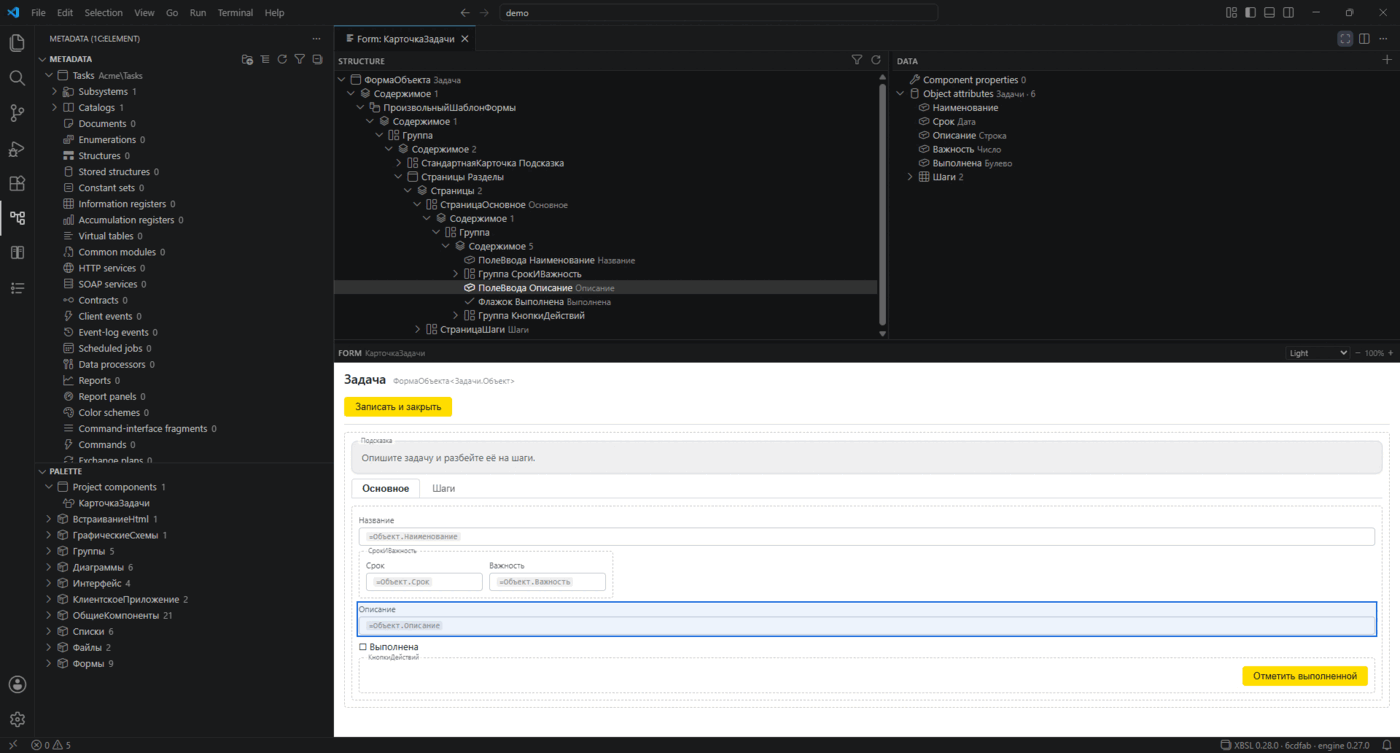
The command XBSL: form designer (xbsl.previewForm, also a button in the editor title of form
yamls – files whose ElementKind is InterfaceComponent) opens the form panel. A form depends on
its own properties, so its structure and its data are edited where the form is shown: the structure
tree on the left, the data on the right, the form frame under them, with draggable splitters
between (their position is remembered).
A panel per form. A second form opens its own tab next to the first; each panel keeps its own
tree, selection and expansion memory. A panel and its yaml travel as a pair: picking a tab on one
side brings the other forward, and closing the panel closes the form's yaml (an unsaved one is
left alone). The keyboard works inside the panel: the arrows walk the tree, plus Alt+Up/
Alt+Down, F2, Delete, Ctrl+C/Ctrl+V and Ctrl+Z/Ctrl+Y.
Structure – the tree of slots and components with an icon per kind and linter badges. The
context menu and the keys: Alt+Up/Alt+Down move a component, F2 renames, Delete removes,
Ctrl+C/Ctrl+V carry a yaml fragment, plus wrapping into a container, duplicating, focusing on a
subtree and the named-only filter. A node drags onto another node: a container takes it inside, a
leaf places it after itself.
Data – the component's own Properties: and the attributes of the owner object. A double click
or a drag of a record onto a structure node creates an input component with its binding already in
place (Boolean -> a checkbox, otherwise an input with Value: =...).
The form frame renders from the yaml: nested vertical/horizontal groups, labels, input fields
with captions and =bindings, buttons (the primary one filled), checkboxes, tables with their real
columns, switchable tabs (Pages), cards, image and HTML-container placeholders, and the form's
command bar. Unknown and custom component types render as labeled boxes with their content inside,
so nothing disappears. The area header has a zoom (−/+, the wheel over the control and
Ctrl+wheel over the frame) and a theme picker: light (the platform web client look, the
default), dark, or the editor theme – the choice is remembered.
The selection is shared by the three areas. A click on a frame block and a cursor move in the
yaml expand whatever collapsed groups stand in the way, land on the node in the structure and fill
the "Properties" panel; the selected node keeps the full selection color wherever the focus is.
The way back is the same: a click on a structure node puts the cursor on its yaml, a double click
moves the focus there too, and Ctrl+click on a frame block jumps to its yaml.
The component palette sits next to the metadata tree and appears while the form panel is open. A double click on a palette component inserts it into the selected structure node. Dragging from the palette into the panel is impossible - the platform does not carry a drag from its own tree into a webview, which is why insertion is click-driven.
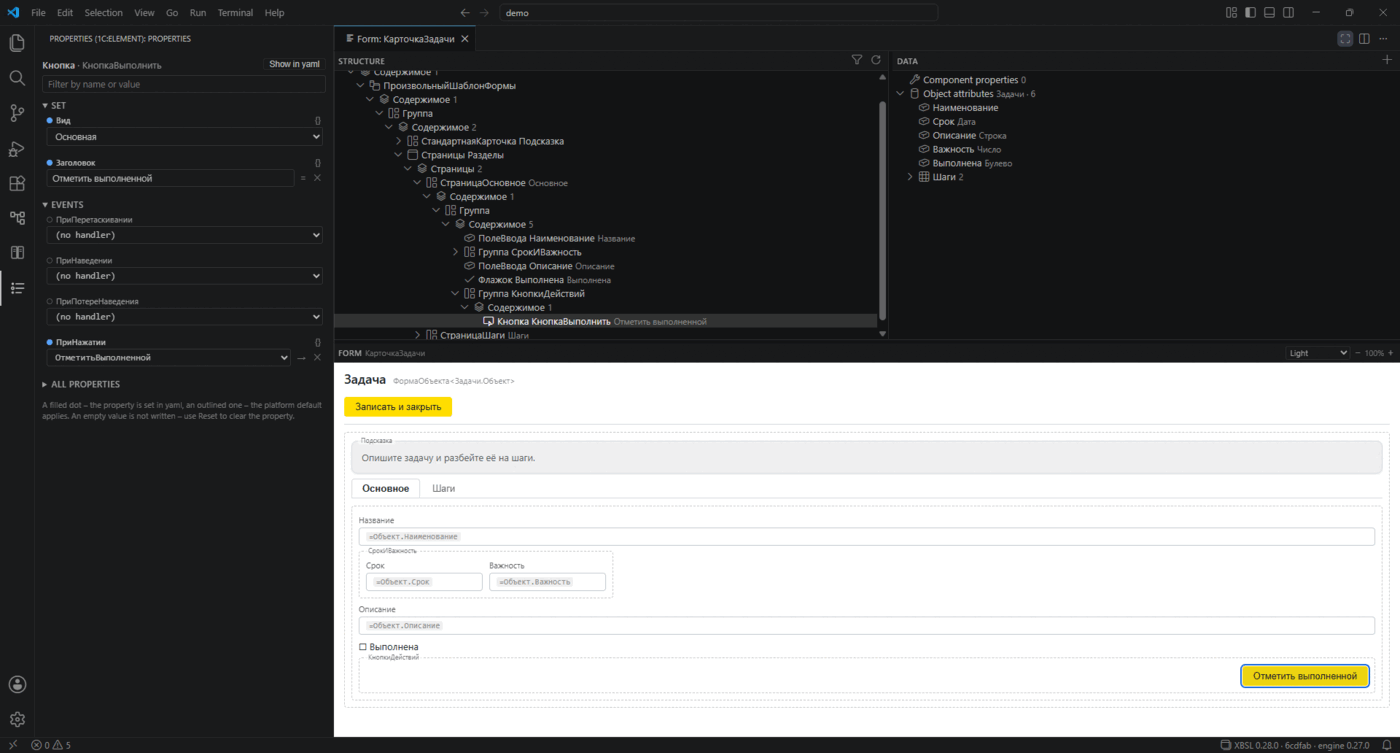
Properties panel. A click on an element selects it and opens a separate Properties
panel (its own tab – drag it below or aside, wherever suits), like the platform web editor:
enums as dropdowns (Layout, alignments, spacings, widths, button kinds), HorizontalStretch and
VerticalStretch as Auto / True / False toggles, everything else as text – the component's
standard set plus
every property present in the yaml (object values are shown read-only). Edits land in the
yaml document as precise text edits, so the regular undo works; an empty value / (auto)
removes the property. Selecting an element and every edit also position the yaml editor on
the affected line (without stealing focus); Ctrl+click or the Show in yaml button jumps
into the editor – handy for navigating large forms.
Typed value editors. A color property opens a native color picker plus swatches of the
colors already used in the form and your recent picks – one click reuses a shade. Any
single-line value carries a literal/binding toggle: press = to bind the property to data,
and in binding mode an autocomplete offers the bindings already used in the form and the
attributes of the form's owner object (=Object.Name); the abc button switches
back to a literal.
It is a layout skeleton, not the platform's rendering: composition, nesting and captions are faithful, exact sizes and styles are not (explicit label colors and font sizes are applied).
Block presets. In the structure area, Save as block preset on a component stores its whole subtree under a name (kept across forms and sessions); Insert block preset (in the palette title bar or a node's menu) drops a saved preset into the current selection – a named, persistent version of copy/paste for the layouts you rebuild often. Manage block presets prunes the list.
Mass edit. Select several components in the structure area and Edit selected together sets (or clears) one property on all of them at once – pick a key from the ones they already use or type a new one, then a value; empty clears it. Handy for aligning widths, toggling visibility, or rebinding a group of fields in one step.
Metadata explorer
The collapse button in the tree title (Collapse to the metadata kinds) stops at the first
level: the list of kinds stays visible while the expanded categories fold. The rest - new project,
grouping, refresh, hiding empty categories - lives in the ... menu of the same title bar.
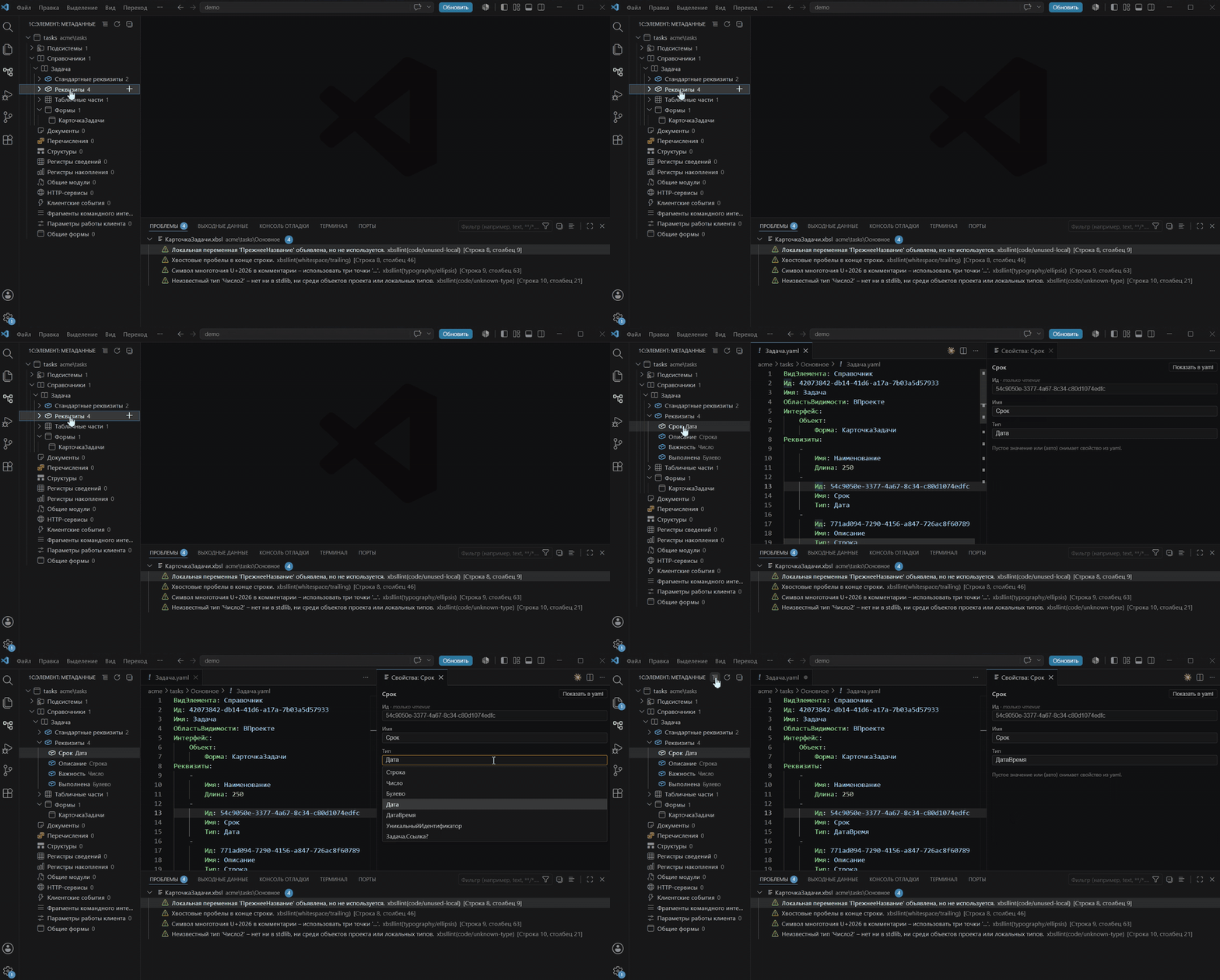
A dedicated 1C:Element icon in the Activity Bar opens a tree of the project metadata – like the platform designer, but inside VS Code.
Experimental. The metadata explorer is an experimental feature – expect bugs and rough edges.
The tree. The root is the project descriptor, with Vendor\Name in grey; its context menu opens
the application module. Below are a Subsystems branch and categories by ElementKind:
Catalogs, Documents, Information/Accumulation registers, Enumerations, Common modules, HTTP services,
Structures, Client events and so on – each with its own icon. The .yaml + .xbsl pair of an object
is one row; an object/list form is nested under its owner, forms with no owner go to a Common
forms section.
Object subtrees. A catalog/document expands into Attributes, Tabular sections, Forms;
a register into Dimensions, Resources, Attributes; an enumeration into Values; a
structure into Fields; client-work parameters into Parameters; an HTTP service into URL
templates with their methods; localized strings into Localization - a node per language of
the section (Localization/<language>/<Name>.yaml), a click opens the translated text.
Clicks. An object or a field opens the properties panel on the right (a field's Type is a
combo of primitives, reference types (<Object>.Reference?) and the project enumerations, and still
accepts a typed-in value); a common module opens its .xbsl; a form opens the preview. The context
menu adds Properties, open description / module.
Properties panel (the same one the form designer uses). Scalar properties are edited in place:
dropdowns for VisibilityScope and Environment, a True / False toggle, text for the rest.
Id and ElementKind are read-only; collections (Attributes and the like) are edited in the tree.
Edits are surgical (undo works); save the file (Ctrl+S) to refresh the tree.
The All properties section shows what the file does not set yet - not only for the object
itself but for an item of any of its collections: an attribute, a dimension, a resource, a
structure field, an attribute of a tabular part, a value of an enumeration, a parameter. The
metamodel names the item class itself, and where a collection holds items of different classes it
picks one by the name: the built-in Code, Name and Owner of a catalog are classes of their
own, so their property sets differ too.
Composite (nested) properties – ContentHorizontalAlign { ... }, say – are shown but not
editable: edit those in the yaml.
Creating objects. A category root has an Add <class> action: it asks a name and a
subsystem (folder), writes a minimal valid yaml (a fresh Id; a paired .xbsl for module kinds)
and opens it. Classes are shown even when the project has none of them yet. Every class the engine
can scaffold is there:
| Classes | |
|---|---|
| Data | catalog, document, enumeration, information register, accumulation register, virtual table, constant set, structure, stored structure, exchange plan |
| Code and services | common module, HTTP service, SOAP service, service contract, type contract, entity contract, data processor, scheduled job, event-log event |
| Interface | common form, command-interface fragment, usual command, navigation command, switchable command, command with a component, client event, client-work parameters, report color scheme |
| Rights and settings | access key, privilege on an action, privilege on an element, settings storage, self-registration parameter, localized strings |
In the subtree groups a "+" adds an attribute / dimension / resource / value / parameter /
field / tabular section (and an attribute of a tabular section); a catalog/document has Add object
form: the engine generates a form populated from the object's Attributes (optionally a list form
with columns too) and registers it in the owner's Interface.
The templates and yaml edits are computed by the engine (xbsl 0.16+): the same operations are
available to agents through its meta_* MCP tools and to any editor through the xbsl/meta* LSP
requests or the CLI subcommands – the tree only gathers parameters and applies the returned
changes (regular undo works).
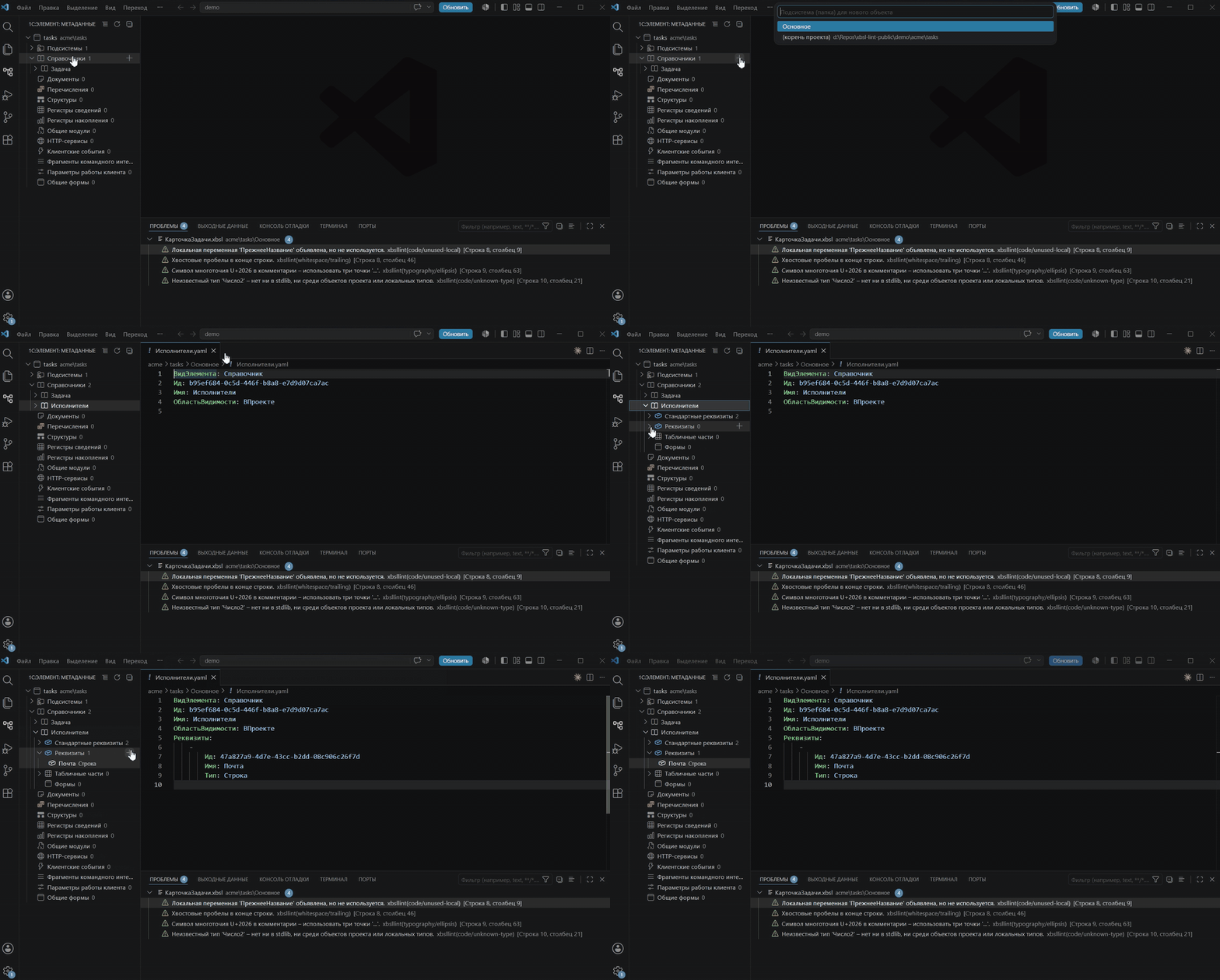
Subsystems. A Subsystems branch lists the subsystem folders (a click opens the subsystem file); Add subsystem creates a folder with a subsystem file. The project root has Filter by subsystem (multi-select) and Clear filter; the active filter is shown in grey.
Git status. Object, form, subsystem and project rows carry the file's SCM decoration (color and badge) like the Explorer, while keeping their kind icon.
Deletion. Right-click an object – Delete object (with confirmation; removes the object files, undoable; references are left as is – the linter flags dangling ones).
A created object is a scaffold in files – it does not deploy on its own; a broken one only surfaces on the next deploy (elemctl catches the rollback) and never corrupts your working files.
Example: a demo app from the tree, deployed to 1cmycloud.com
The tree can assemble a working app from scratch (the yaml is produced by the same templates the tree uses):
- Open a folder with a project file – the project root appears in the tree.
- Subsystems → "+" → Add subsystem →
Main. - Catalogs → "+" → Add catalog →
Products(subsystemMain); the same forCategories. - Under
Products→ Attributes → "+" → Add attribute →Price,SKU. - Enumerations → Add enumeration →
ProductStatus; in Values →InStock,OnOrder. - Deploy:
elemctl deploy --app-id <app> --project-dir <project folder> --output <tmp>(create the app first:elemctl apps ensure <app> --latest-build --wait).
The deploy report on 1cmycloud.com (ok: true only on an actual apply):
built archive <project> 1.0-N.xasm (version 1.0-N)
build uploaded, apply started, waiting for the app to stabilize...
app is Running, verifying the actual applied version...
verification passed: the build is applied
{
  "uri": "https://<app-host>.1cmycloud.com/applications/<app>",
  "status": "Running",
  "applied-version": "1.0-N",
  "applied": true,
  "uri-status": 200,
  "problems": [],
  "ok": true
}
applied: true and ok: true mean the build actually took effect – the Products / Categories
catalogs and the ProductStatus enumeration built by the tree are then available in the standard UI
(the demo needs no OIDC/login).
Documentation
A container of its own – Documentation (1C:Element) in the Activity Bar – shows the platform reference the way the docs site does, but built from your own distribution: it matches the platform version you use and works offline.
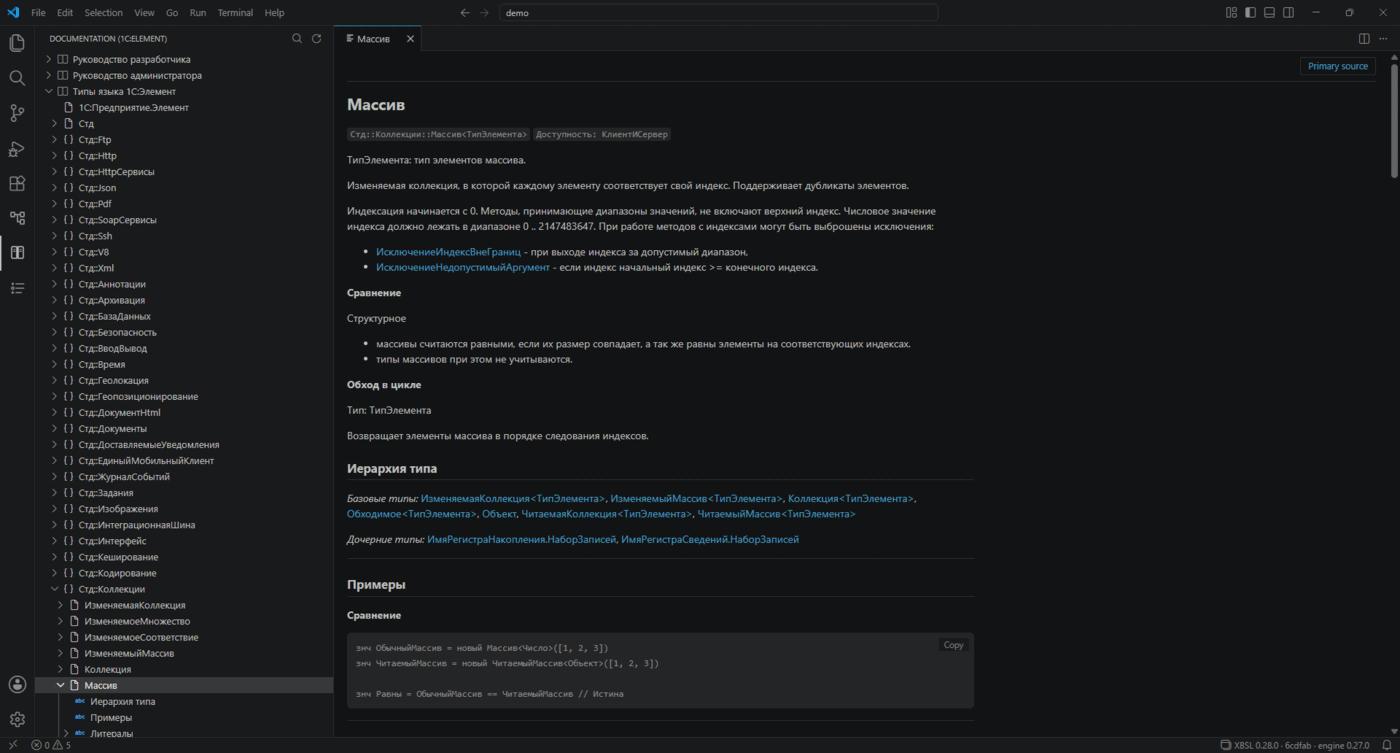
The reference shipped with the platform distribution exists in Russian only, so the pages and the contents tree stay Russian whatever the editor language is.
The tree. A curated "Contents" that mirrors the site: the developer and administrator guides,
the type reference (Std::Collections → Array → ...) and the query language. It is built from the
distribution's own sidebar, so the structure matches the site. Clicking a node opens the page.
Search. The search button in the view title (command XBSL: search the documentation) runs a full-text search over the whole reference and guide; pick a hit to open it.
The page. Opens as an editor tab beside the current one and does not steal the focus: the cleaned article with code (samples carry a Copy button), tables and images, plus a Primary source link to the same page on the docs site. A page's sections are nested under its tree node, internal links navigate within the same tab, and opening a page reveals it in the Contents tree.
Documentation for the symbol. Right-click a type or variable in an .xbsl file – XBSL:
documentation for the symbol – to open its page. For a type its reference page opens directly; for a
method or an ambiguous name a pick-list of candidates is shown, ranked by the receiver before the dot
(so Job.Setup prefers the scheduled-job pages, not a guide topic).
Where the other entry points lead. Hovering a name in an .xbsl shows the type description and
a Documentation link; in the form designer the Open documentation action sits on a palette
item (a short description also rides in its tooltip). Both open the page in this same panel –
reading up on an unfamiliar component costs no trip out of the editor.
F12 falls back to the page. Go to Definition is answered from the project index, so a member of the platform has no source to jump to – there the key opens the documentation page instead of reporting a miss. A real definition always wins, and when there is neither, VS Code reports it as usual.
The data comes from the linter's LSP server, so it needs LSP mode and the
documentation database built from your distribution (xbsl ≥ 0.12.0, see
the linter README).
In the regular (CLI) mode the view reports that the documentation is available in LSP mode.
Deploy
The command XBSL: deploy the project (elemctl) (xbsl.deploy, also a cloud button in the
title bar of the metadata tree – a deploy takes the whole project, not the open file) runs
elemctl deploy – build, upload, apply and verification
that the apply actually took effect – as a terminal task, after a confirmation dialog with
the exact command line. On a failed apply the platform silently rolls the application back
while still reporting Running; elemctl does not trust that status and exits non-zero.
The working directory is the workspace folder: elemctl reads the connection and the target
from its .env (ELEMENT_BASE_URL, ELEMENT_CLIENT_ID/SECRET, ELEMENT_APP_ID,
ELEMENT_PROJECT_ID). A set xbsl.projectRoot is passed as --project-dir; a missing
elemctl is offered for installation right from the error message.
| Setting | Default | Meaning |
|---|---|---|
xbsl.deploy.elemctlPath |
elemctl |
The elemctl executable – used by the deploy command and by debugging. |
xbsl.deploy.envFile |
– | A .env with the connection and the target, passed as --env-file (relative to the workspace folder or absolute); handy in a git worktree whose .env lives in the main checkout. Used by debugging too - it takes the stand from here unless the launch configuration sets envFile. |
xbsl.deploy.appId |
– | Target application (--app-id); empty – ELEMENT_APP_ID from the environment / .env. When it is not set anywhere, the deploy offers the applications elemctl apps list can see – pick one by name, the id is what gets saved. |
xbsl.deploy.extraArgs |
– | Extra elemctl deploy arguments, space-separated. |
Debugging
Debug 1C:Element applications in regular VS Code: breakpoints, a call stack that chains
client and server frames, variable values, stepping – without the Theia-based web IDE. The
extension is thin here too: it starts the platform's own debug adapter (Java, the DAP
protocol) and gets the session coordinates through elemctl (Console API /actions/debug).
A session id generated on the client ties the adapter and the debuggee together through the
platform's debug server.
Until version 0.57 this was a separate extension, XBSL Debug (
keyfire.xbsl-debug). It is now part of this one: deploy and debugging address the same application with the same elemctl, and asking for those twice was the only thing the split achieved. Settings made for the old extension (xbslDebug.*) are still read, so an existing setup keeps working.
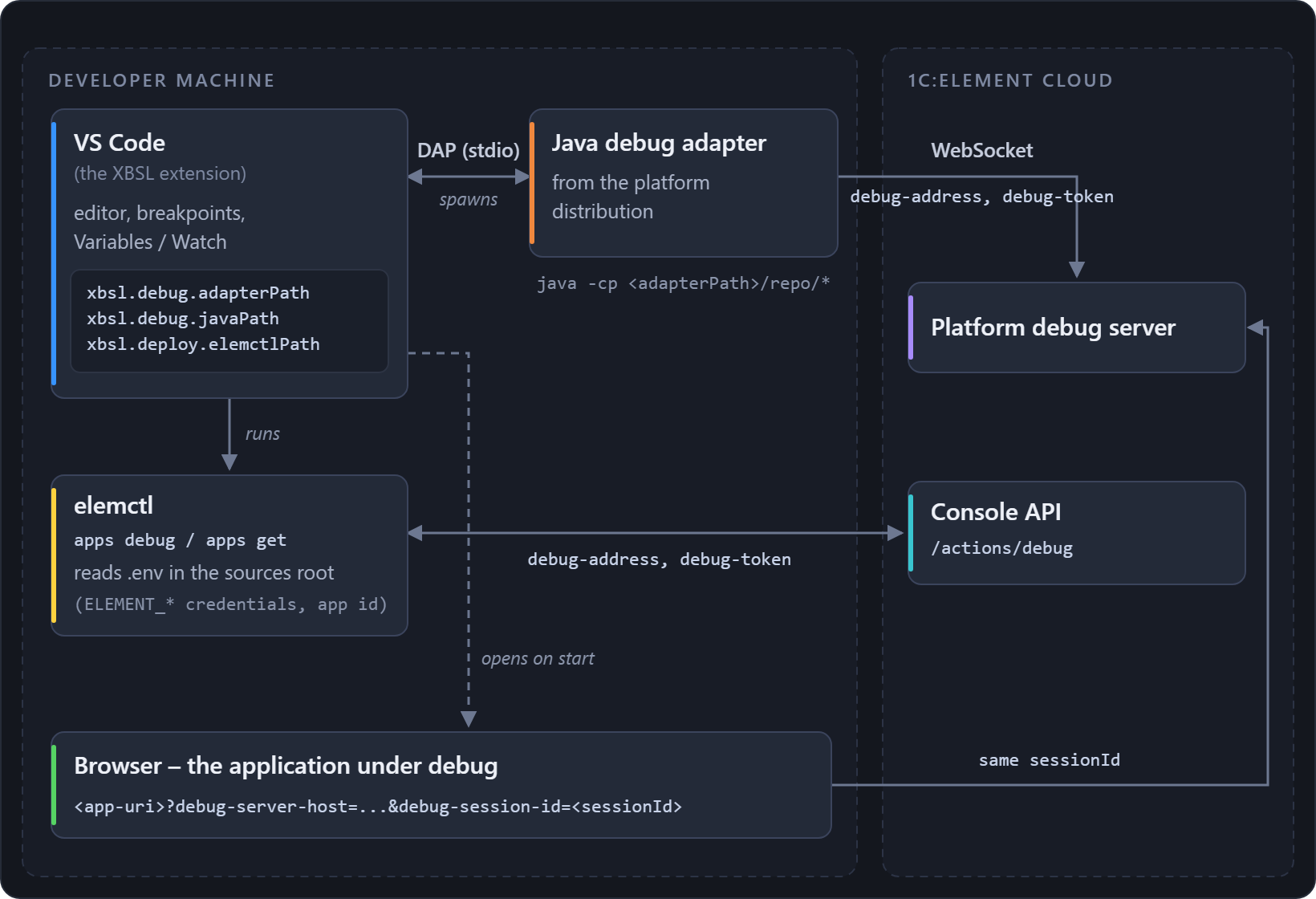
Getting started. Run XBSL: Set up 1C:Element debugging (xbsl.debug.setup) from the
Command Palette – the wizard checks Java, the adapter directory and elemctl, fixes what it
can on the spot and offers to create launch.json. Then open the folder with the sources,
put a breakpoint in an .xbsl file and press F5: the application opens in the browser
with the debug parameters and execution stops on your breakpoint.
What is needed:
- JDK 17+ (21 works too) –
java -version. - elemctl >= 0.5 (the
apps debuganddebug-adaptercommands) with a configured.envin the sources root. Missing elemctl is offered for installation from the error message and from the wizard. - The platform debug adapter. Take it from your own 1C:Element distribution
(
.../@1c-appengine-plugin/bin/debugger– a directory with areposubfolder full of the adapter's jars) and setxbsl.debug.adapterPath. The adapter is proprietary 1C code and is not bundled here. - Debugging enabled on the application server – cloud stands usually have it already.
| Setting | Default | Meaning |
|---|---|---|
xbsl.debug.adapterPath |
– | The platform debug adapter directory from your distribution – a folder with a repo subfolder holding the jars. |
xbsl.debug.javaPath |
java |
The Java 17+ launcher. |
xbsl.debug.openApplicationOnStart |
true |
Open the debuggee in the browser when the session starts, with the debug parameters. |
xbsl.debug.applicationUrl |
– | Where to open the debuggee. Empty – the uri of the application card, which is its address inside the platform; set this when the application answers on a domain of its own. The applicationUrl attribute of launch.json overrides it. |
The elemctl binary and the application id are shared with deploy (xbsl.deploy.elemctlPath,
xbsl.deploy.appId), and the Console API credentials live in the .env of the sources root,
not in a setting – elemctl reads them itself. launch.json is optional; its attributes are
appId, envFile, authMode and workspace.
How breakpoints bind. The debug server identifies a module by its path relative to the
sources root, shaped <Vendor>/<Name>/<path inside the project>.xbsl with forward slashes.
The sources must therefore lie in a <Vendor>/<Name>/ directory matching Проект.yaml, and
the workspace must point at the directory containing it – the extension detects that root
from the open folder itself, so opening the repository root or a subfolder both work.
A platform bug worked around here. Expanding a structure in the Variables tree on a client
frame used to hang the debuggee and drop the session: a DAP variables request WITHOUT the
filter field – exactly what the VS Code Variables view sends for small values – crashes the
application's JS runtime, while a filtered request works fine. The extension rewrites every
filterless request into filtered ones (named + indexed, counts taken from the parent's
answer) and merges the results, so the value tree expands normally on both client and server
frames. This is unconditional and has no setting: switching it off buys nothing but a broken
session.
Commands
- XBSL: new 1C:Element project (
xbsl.project.new) – the project wizard (see above). - XBSL: check the whole project (
xbsl.lintProject) – lint the whole workspace. - XBSL: structural form search (
xbsl.forms.search) – find components by type and properties (see above). - XBSL: restart the linter (
xbsl.restartLinter) – clear and re-lint open files. - XBSL: code palette (
xbsl.choosePalette) – pick a syntax palette for XBSL (see above). - XBSL: code templates (
xbsl.templates.manage), import (xbsl.templates.import) and export (xbsl.templates.export) – the template set and exchange with an EDT export (see above). - Metadata explorer commands (
xbsl.metadata.*) are invoked from the tree and its context menus: properties, add object / field / subsystem, add object form, filter by subsystem, delete object, refresh. See Metadata explorer. - XBSL: deploy the project (elemctl) (
xbsl.deploy) – deploy to the stand (see above). - XBSL: form designer (
xbsl.previewForm) – the panel of the active form yaml (see above). - XBSL: search the documentation (
xbsl.docs.search) and documentation for the symbol (xbsl.docs.showForSymbol) – the Documentation view (see above).
The full list
Every command of the extension. Generated from package.json – do not edit by hand.
Project-wide
| Command | Id | Invoked from |
|---|---|---|
| XBSL: check the whole project | xbsl.lintProject |
Command Palette |
| XBSL: new 1C:Element project | xbsl.project.new |
Command Palette |
| XBSL: search forms by structure | xbsl.forms.search |
Command Palette |
| XBSL: restart the linter | xbsl.restartLinter |
Command Palette |
| XBSL: code palette | xbsl.choosePalette |
Command Palette |
| XBSL: deploy the project (elemctl) | xbsl.deploy |
Command Palette |
| Check for a newer extension | xbsl.checkForUpdate |
Command Palette |
| XBSL: form designer | xbsl.previewForm |
Command Palette |
| XBSL: go to definition, or to its documentation | xbsl.goToDefinition |
Command Palette |
Code templates
| Command | Id | Invoked from |
|---|---|---|
| XBSL: code templates | xbsl.templates.manage |
Command Palette |
| XBSL: import code templates | xbsl.templates.import |
Command Palette |
| XBSL: export code templates | xbsl.templates.export |
Command Palette |
Metadata tree: creating objects
| Command | Id | Invoked from |
|---|---|---|
| Add catalog | xbsl.metadata.addObject.catalog |
Command Palette |
| Add document | xbsl.metadata.addObject.document |
Command Palette |
| Add enumeration | xbsl.metadata.addObject.enumeration |
Command Palette |
| Add information register | xbsl.metadata.addObject.inforegister |
Command Palette |
| Add accumulation register | xbsl.metadata.addObject.accumregister |
Command Palette |
| Add common module | xbsl.metadata.addObject.commonmodule |
Command Palette |
| Add HTTP service | xbsl.metadata.addObject.httpservice |
Command Palette |
| Add client-work parameters | xbsl.metadata.addObject.clientparams |
Command Palette |
| Add structure | xbsl.metadata.addObject.structure |
Command Palette |
| Add client event | xbsl.metadata.addObject.clientevent |
Command Palette |
| Add command-interface fragment | xbsl.metadata.addObject.cmdfragment |
Command Palette |
| Add common form | xbsl.metadata.addObject.commonform |
Command Palette |
| Add stored structure | xbsl.metadata.addObject.storedstructure |
Command Palette |
| Add constant set | xbsl.metadata.addObject.constantsset |
Command Palette |
| Add virtual table | xbsl.metadata.addObject.virtualtable |
Command Palette |
| Add SOAP service | xbsl.metadata.addObject.soapservice |
Command Palette |
| Add service contract | xbsl.metadata.addObject.servicecontract |
Command Palette |
| Add type contract | xbsl.metadata.addObject.typecontract |
Command Palette |
| Add entity contract | xbsl.metadata.addObject.entitycontract |
Command Palette |
| Add event-log event | xbsl.metadata.addObject.logevent |
Command Palette |
| Add scheduled job | xbsl.metadata.addObject.scheduledjob |
Command Palette |
| Add data processor | xbsl.metadata.addObject.processing |
Command Palette |
| Add report color scheme | xbsl.metadata.addObject.colorscheme |
Command Palette |
| Add usual command | xbsl.metadata.addObject.usualcommand |
Command Palette |
| Add navigation command | xbsl.metadata.addObject.navcommand |
Command Palette |
| Add switchable command | xbsl.metadata.addObject.switchcommand |
Command Palette |
| Add command with a component | xbsl.metadata.addObject.componentcommand |
Command Palette |
| Add exchange plan | xbsl.metadata.addObject.exchangeplan |
Command Palette |
| Add access key | xbsl.metadata.addObject.accesskey |
Command Palette |
| Add privilege on an action | xbsl.metadata.addObject.actionright |
Command Palette |
| Add privilege on an element | xbsl.metadata.addObject.elementright |
Command Palette |
| Add settings storage | xbsl.metadata.addObject.settingsstorage |
Command Palette |
| Add self-registration parameter | xbsl.metadata.addObject.regparam |
Command Palette |
| Add localized strings | xbsl.metadata.addObject.locstrings |
Command Palette |
Metadata tree: the rest
| Command | Id | Invoked from |
|---|---|---|
| Collapse to the metadata kinds | xbsl.metadata.collapse |
Command Palette |
| XBSL: refresh the metadata tree | xbsl.metadata.refresh |
Command Palette |
| Open description (yaml) | xbsl.metadata.openYaml |
Command Palette |
| Open query (xbql) | xbsl.metadata.openQuery |
Command Palette |
| Open module (xbsl) | xbsl.metadata.openModule |
Command Palette |
| Open object module (.Object.xbsl) | xbsl.metadata.openObjectModule |
Command Palette |
| Open in the form designer | xbsl.metadata.previewForm |
Command Palette |
| Open application module (Project.xbsl) | xbsl.metadata.openAppModule |
Command Palette |
| Properties | xbsl.metadata.props |
Command Palette |
| Add attribute | xbsl.metadata.addAttribute |
Command Palette |
| Add dimension | xbsl.metadata.addDimension |
Command Palette |
| Add resource | xbsl.metadata.addResource |
Command Palette |
| Add value | xbsl.metadata.addEnumValue |
Command Palette |
| Add parameter | xbsl.metadata.addClientParam |
Command Palette |
| Add field | xbsl.metadata.addStructField |
Command Palette |
| Add tabular section | xbsl.metadata.addTabular |
Command Palette |
| Add attribute to tabular section | xbsl.metadata.addTabularAttr |
Command Palette |
| Add a URL template | xbsl.metadata.addRoute |
Command Palette |
| Add an HTTP method | xbsl.metadata.addRouteMethod |
Command Palette |
| Add form | xbsl.metadata.addObjectForm |
Command Palette |
| Delete object | xbsl.metadata.deleteObject |
Command Palette |
| Add object... | xbsl.metadata.addObjectPick |
Command Palette |
| Add localization (translation) | xbsl.metadata.addLocalization |
Command Palette |
| Add subsystem | xbsl.metadata.addSubsystem |
Command Palette |
| Filter by subsystem | xbsl.metadata.filterBySubsystem |
Command Palette |
| Clear subsystem filter | xbsl.metadata.clearFilter |
Command Palette |
| XBSL: tree grouping (by class / by subsystem) | xbsl.metadata.groupMode |
Command Palette |
| Hide empty categories | xbsl.metadata.hideEmptyCategories |
Command Palette |
| Show empty categories | xbsl.metadata.showEmptyCategories |
Command Palette |
Form designer
| Command | Id | Invoked from |
|---|---|---|
| XBSL: refresh the form structure | xbsl.formStructure.refresh |
Command Palette |
| Go to yaml | xbsl.formStructure.openInEditor |
Command Palette |
| Move up | xbsl.formStructure.moveUp |
Command Palette |
| Move down | xbsl.formStructure.moveDown |
Command Palette |
| Delete component | xbsl.formStructure.delete |
Command Palette |
| Rename component | xbsl.formStructure.rename |
Command Palette |
| Duplicate | xbsl.formStructure.duplicate |
Command Palette |
| Wrap in a container | xbsl.formStructure.wrap |
Command Palette |
| Unwrap container | xbsl.formStructure.unwrap |
Command Palette |
| Copy yaml fragment | xbsl.formStructure.copyYaml |
Command Palette |
| Focus on this subtree | xbsl.formStructure.focusSubtree |
Command Palette |
| Show the whole form | xbsl.formStructure.resetFocus |
Command Palette |
| Show only named components | xbsl.formStructure.filterNamed |
Command Palette |
| Show all components | xbsl.formStructure.filterAll |
Command Palette |
| XBSL: refresh the component palette | xbsl.formPalette.refresh |
Command Palette |
| Activate the palette component | xbsl.formPalette.activate |
panel / context menu |
| Insert into the form | xbsl.formPalette.insert |
Command Palette |
| Add to favorites | xbsl.formPalette.addFavorite |
Command Palette |
| Remove from favorites | xbsl.formPalette.removeFavorite |
Command Palette |
| Open documentation | xbsl.formPalette.openDocs |
Command Palette |
| Paste yaml from the clipboard | xbsl.formStructure.pasteYaml |
Command Palette |
| Save as block preset | xbsl.formStructure.savePreset |
Command Palette |
| Insert block preset... | xbsl.formStructure.insertPreset |
Command Palette |
| Manage block presets... | xbsl.formStructure.managePresets |
Command Palette |
| Edit selected together... | xbsl.formStructure.editSelected |
Command Palette |
| XBSL: refresh the data panel | xbsl.formData.refresh |
Command Palette |
| Insert into the form | xbsl.formData.insert |
Command Palette |
| Add property | xbsl.formData.addProperty |
Command Palette |
| Rename property | xbsl.formData.renameProperty |
Command Palette |
| Change property type | xbsl.formData.retypeProperty |
Command Palette |
| Remove property | xbsl.formData.removeProperty |
Command Palette |
Documentation
| Command | Id | Invoked from |
|---|---|---|
| XBSL: search the documentation | xbsl.docs.search |
Command Palette |
| XBSL: documentation for the symbol | xbsl.docs.showForSymbol |
Command Palette |
| XBSL: refresh the documentation tree | xbsl.docs.refresh |
Command Palette |
| XBSL: open a documentation page | xbsl.docs.open |
panel / context menu |
Feedback and bugs
The extension is under active development, and bugs and rough edges are expected – the metadata explorer and the form designer especially. Please report anything that looks wrong, ideally with the steps to reproduce and the extension/engine versions from the status bar, in the project's GitHub issues:
https://github.com/keyfire/xbsl/issues
VS Code also offers Report Issue on the extension's page (from the manifest's bugs link).
Development
npm install
npm run compile          # esbuild bundle -> dist/extension.js
npm run check            # tsc type-check
npm test                 # unit tests of the pure cores (plain Node, no runner)
npm run package          # build the .vsix (via @vscode/vsce)
Press F5 in VS Code to launch an Extension Development Host with the extension loaded.
License
MIT – see the repository.