Seamlessly decrypt, edit, and re-encrypt SOPS files inside VS Code and Cursor.
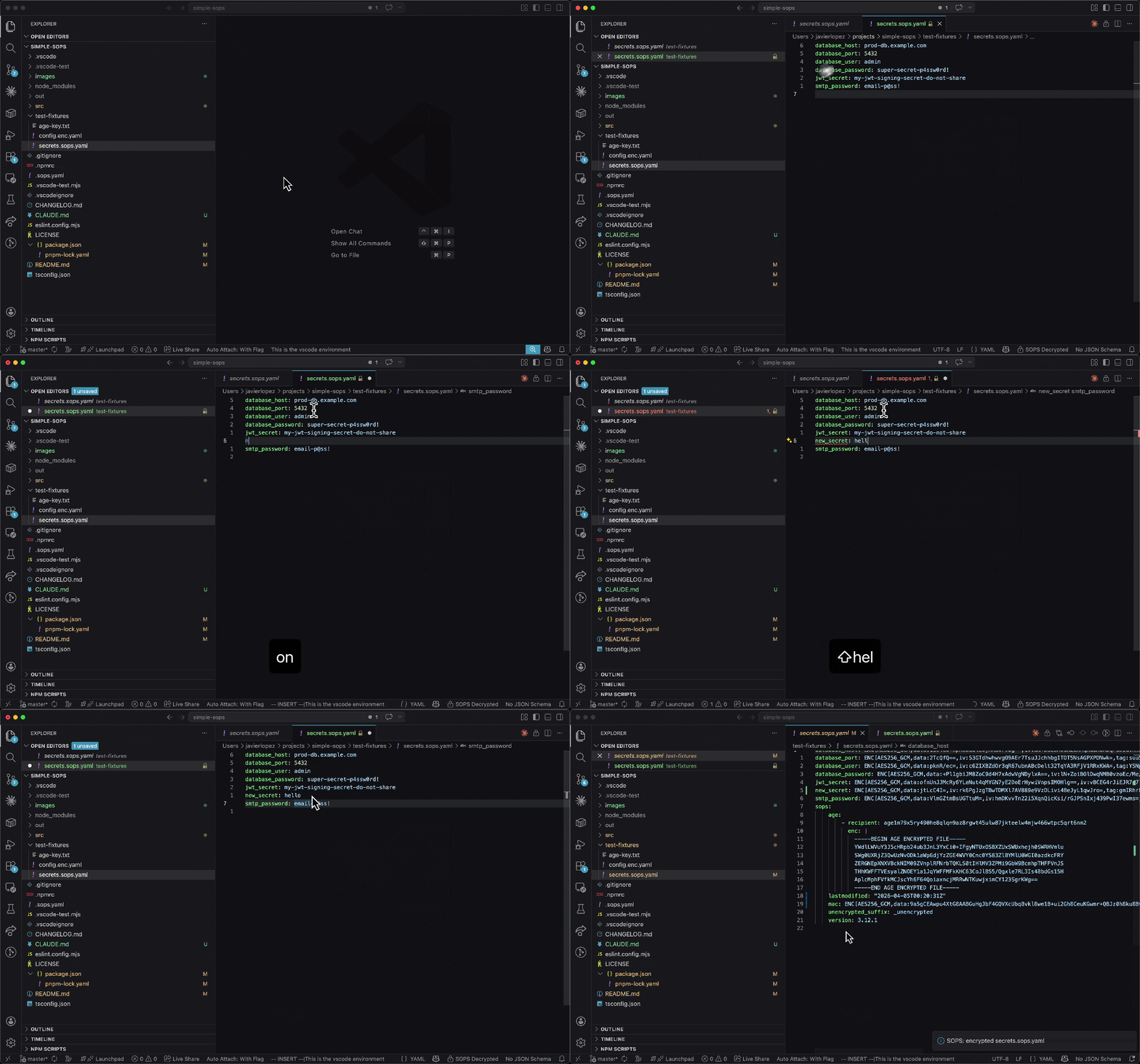
Features
- Auto-detect SOPS encrypted files (
*.sops.*and*.enc.{yaml,yml,json}) - Decrypt and open in a virtual
sops://editor - plaintext never touches disk - Save to re-encrypt - just press
Ctrl+S/Cmd+S, encryption is handled transparently - Stale write detection - warns if the file changed on disk while you were editing
- Configurable behavior - auto-open, prompt, or manual decrypt
- Context menu and title bar - right-click any SOPS file to decrypt
Requirements
- SOPS must be installed and available on your
PATH - A configured encryption backend (age, AWS KMS, GCP KMS, Azure Key Vault, PGP)
Extension Settings
| Setting | Default | Description |
|---|---|---|
sops.action |
auto-open |
What to do when a SOPS file is opened: auto-open, prompt, or do-nothing |
sops.encryptedFileTab |
close |
Close or keep the encrypted tab after opening the decrypted view |
sops.showDecryptButton |
true |
Show a decrypt button in the editor title bar |
sops.env |
{} |
Environment variables passed to SOPS (e.g. SOPS_AGE_KEY_FILE). Relative paths are resolved from the workspace root. |
Commands
| Command | Description |
|---|---|
SOPS: Decrypt and Open |
Decrypt the selected file and open the plaintext view |
SOPS: Show Output Log |
Show the extension's output log |
How It Works
- When you open an encrypted file, the extension detects it as SOPS-encrypted
- It runs
sops decryptto get the plaintext and shows it in a virtualsops://editor - When you save, it uses the
EDITORtrick (sops edit) to re-encrypt - all key management is delegated to SOPS - The decrypted content only exists in memory, never written to disk
License
MIT