A VS Code extension that adds a Task Explorer view to the activity bar. It lists the tasks discovered via the VS Code Tasks API, grouped by source:
- Workspace — tasks defined in
.vscode/tasks.json - npm, typescript, etc. — auto-detected task sources
Features
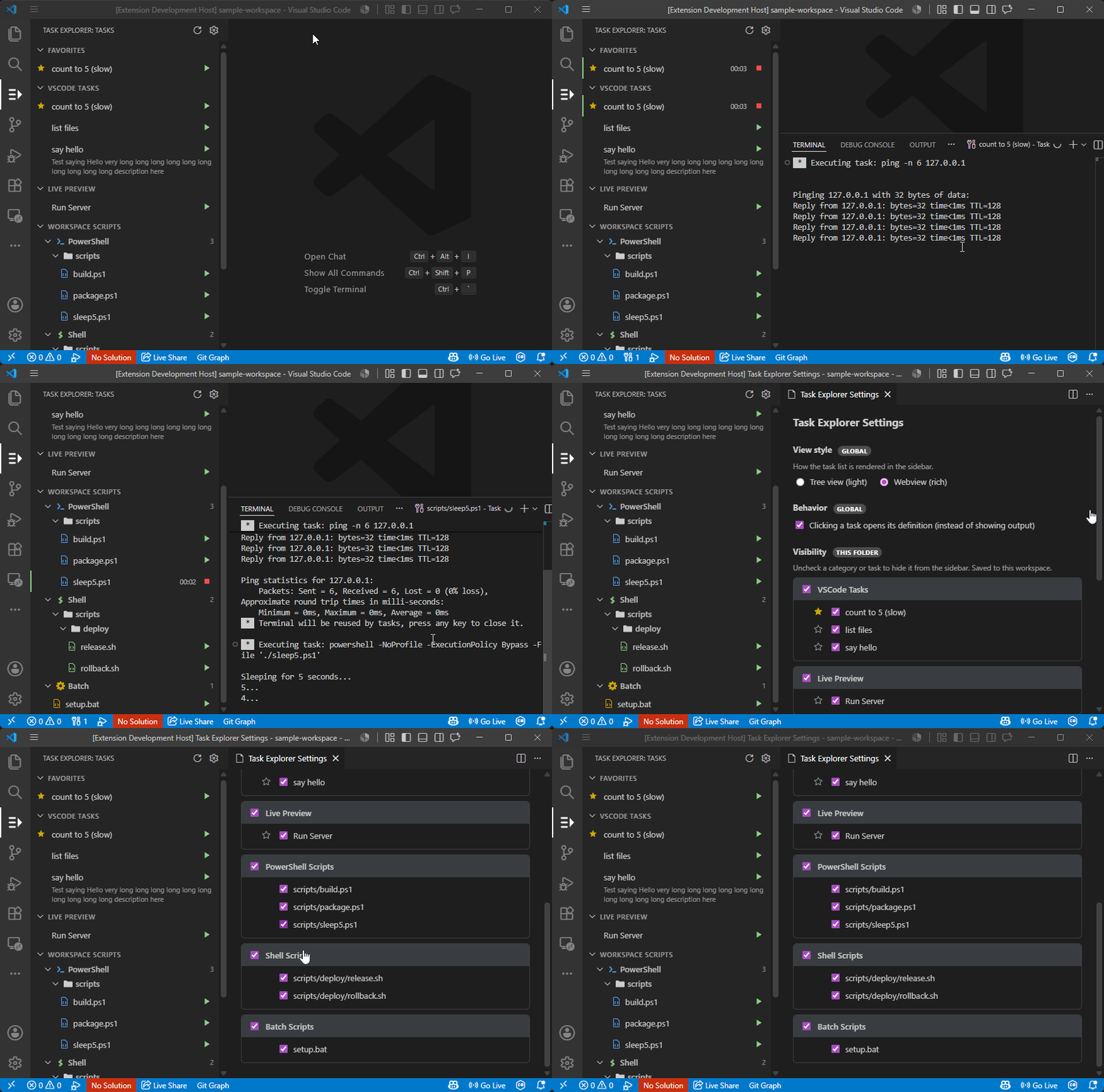
Run & monitor
- Inline Run icon on every task.
- While a task runs: the row shows ticking elapsed time, the Run icon becomes a Stop icon, and (in the tree view) a Show Output icon appears.
- Show Output reveals the task's integrated terminal; Stop terminates it.
- Rows auto-revert when a task finishes.
- Click a task to jump to its definition in
tasks.json/package.json(on by default — toggle in settings).
Two view styles
Switch in the settings page or via taskExplorer.viewStyle:
- Tree (default) — native, lightweight, single-line items.
- Webview — richer: two-line items (title + wrapping detail), right-aligned elapsed runtime, colored run/stop buttons, and collapsible/indented groups.
Favorites
- A Favorites section pinned to the top of both views.
- Add/remove via tree right-click, the star in the settings page, or the hover star on each webview row.
Workspace Scripts
A Workspace Scripts category (sibling to the task sources) scans the workspace for script files and groups them by type, each with a distinct colored icon:
-
PowerShell (
.ps1,.psm1,.psd1) -
Shell (
.sh,.bash,.zsh,.ksh) -
Batch (
.bat,.cmd) -
Scripts appear as a nested folder tree matching their location on disk.
-
Run / Stop any script inline — it runs with the right interpreter in an integrated terminal, with ticking elapsed time in both views.
-
Click a script to open it in the editor.
-
The list auto-refreshes as scripts are added or removed.
-
In the settings page, show/hide a whole script type (e.g. hide Shell scripts on Windows where they can't run natively) or individual scripts.
-
Disable entirely with
taskExplorer.showWorkspaceScripts.
Settings page
Open from the gear icon in the view title bar:
- Switch view style (global).
- Toggle click-to-open-definition (global).
- Show/hide each category and each task (saved per workspace folder).
- Star tasks as favorites.
Settings reference
| Setting | Scope | Default | Description |
|---|---|---|---|
taskExplorer.viewStyle |
global | tree |
tree or webview rendering. |
taskExplorer.openDefinitionOnClick |
global | true |
Click a task to open its definition instead of its output. |
taskExplorer.showWorkspaceScripts |
folder | true |
Scan the workspace for script files and list them under Workspace Scripts. |
taskExplorer.hiddenCategories |
folder | [] |
Categories (and script types) hidden from the sidebar. |
taskExplorer.hiddenTasks |
folder | [] |
Tasks hidden from the sidebar. |
taskExplorer.favorites |
folder | [] |
Favorited tasks. |
Visibility and favorites are managed through the settings page rather than edited by hand.
Develop
npm install
npm run compile        # builds SCSS then TypeScript
npm run watch          # tsc watch
npm run watch:css      # sass watch (run alongside watch)
Press F5 to launch the Extension Development Host.
Webview assets live in media/ as *.html, *.scss (compiled to *.css), and *.js;
TypeScript injects them via a shared template loader (src/webviewHtml.ts).
Test
npm test
Runs @vscode/test-cli integration tests in a real VS Code instance against this
folder's .vscode/tasks.json. Tests live in src/test/.
Project layout
src/extension.ts— activation, command registration, task lifecycle, jump-to-definition.src/taskProvider.ts— treeTreeDataProvider, nodes, running-state tracking.src/scriptScanner.ts— workspace script discovery, categorization, and run tasks.src/webviewProvider.ts— webview sidebar view.src/settingsPanel.ts— settings webview panel.src/config.ts— settings accessors (view style, visibility, favorites).src/webviewHtml.ts— webview HTML template loader.media/— webview HTML / SCSS / JS assets.
Package
npm run package        # produces a .vsix via @vscode/vsce
npm run publish        # publishes to the Marketplace