
A visual design environment for modeling and generating multi-tier, multi-platform, multi-database, and multi-paradigm web applications — right inside VS Code.
Overview
DASE turns VS Code into a visual software-modeling workbench. The current phase ships the
ORM Designer: an interactive canvas for building Entity-Relationship models stored as .dsorm
files. Design your schema visually, validate it in real time, exchange it with DBML, and drive the
whole thing with AI — through GitHub Copilot and any external Model Context Protocol (MCP) client.
Features
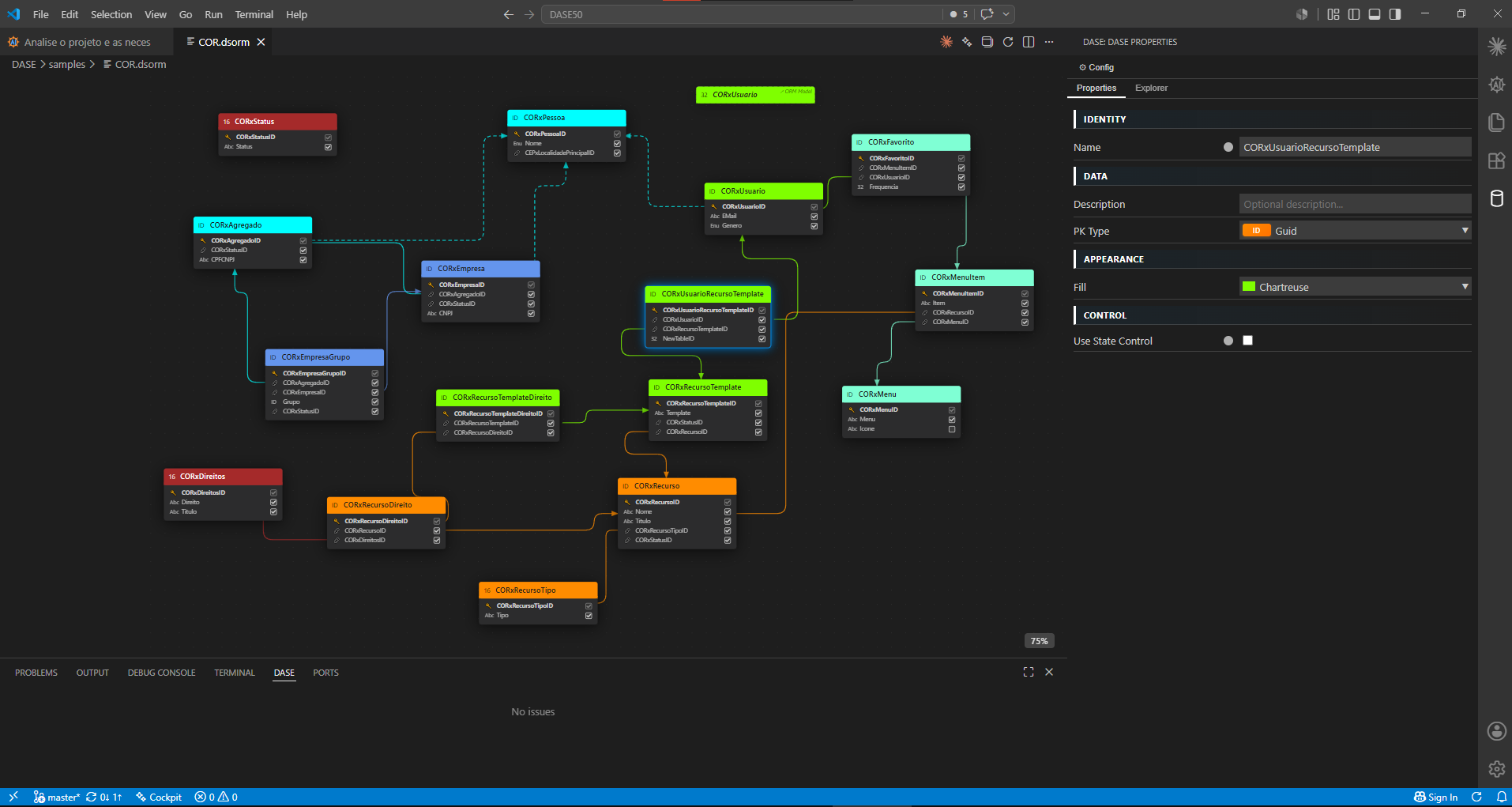
🎨 Visual ORM Designer
- Drag-and-drop tables, fields, and foreign-key references on an infinite SVG canvas
- Automatic FK routing with clean orthogonal, rounded connectors
- Color-coded tables and functional grouping for large schemas
- Marquee multi-select, group drag, and one-click Align Lines
- Zoom, pan, search, and a detachable designer window
🧩 Properties & Issues panels
- Live Properties editor (identity, data type, PK type, appearance, control) that reacts to selection
- Issues panel with real-time validation — duplicate names, missing primary keys, dangling FKs, empty tables
🔁 DBML interoperability
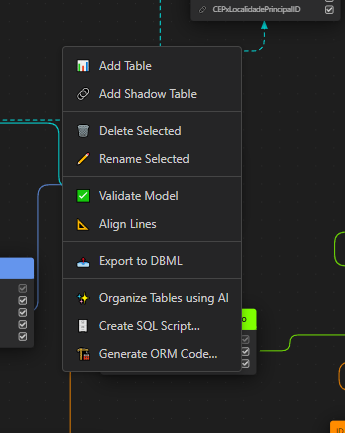
- Export any model to DBML
- Import existing DBML into a fully laid-out
.dsorm
💾 Transparent persistence
- Models are plain XML (
.dsorm) — diff-friendly and version-control-ready
AI Integration
DASE has AI woven into the modeling loop at three levels:
1. @dase Chat Participant
Ask questions and run commands directly in Copilot Chat:
@dase /model              Overview of the current ORM model
@dase /table Customer     Details of a specific table
@dase /validate           Run validation and list errors/warnings
@dase /export             Export the model to DBML
@dase /types              List available data types
@dase /help               Usage help
Plain-language questions work too — "How should I model a many-to-many between Product and Category?"
2. Copilot Agent Mode Tools
When Copilot is in Agent Mode, it can invoke DASE tools to read and modify the model directly:
dase_add_table, dase_add_field, dase_add_reference, dase_move_table, dase_set_color,
dase_update_property, dase_organize_layout, and more. Just describe what you want:
"Create a Customer table with Name, Email and BirthDate, then add an FK from Order to Customer."
3. AI Table Organization
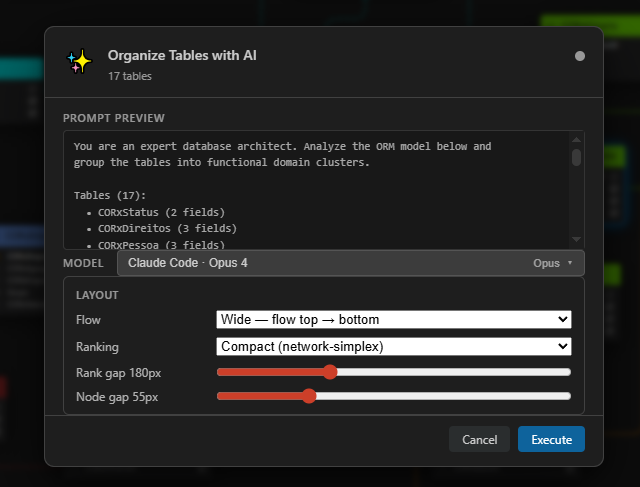
DASE: Organize Tables using AI analyzes table names, fields, and FK relationships to infer functional
domain clusters, repositions everything into readable groups, and color-codes each group. Pick your model,
tune the layout, preview the prompt — and Revert in one click if you don't like the result.
Model Context Protocol (MCP) — standard, client-agnostic AI
Beyond Copilot, any MCP-speaking client (Claude Code, Cursor, Cline, Claude Desktop, custom agents) can drive the live designer over the open Model Context Protocol — 42 tools covering the full DASE surface (read, write, and command triggers), thin wrappers over the same engine the built-in AI uses.
The MCP integration is a separate product: DASE-MCP
(@tootega/dase-mcp). This extension contains no MCP code at all — it only exposes a
loopback agent bridge (plain JSON over HTTP) that the standalone DASE-MCP server connects
to. DASE never loads, installs, or configures an MCP server.
Claude Code (recommended): install the plugin — it finds the right VS Code window automatically (multi-window safe) and reconnects after restarts:
/plugin marketplace add HermesSilva/DASE-MCP
/plugin install dase-mcp
Other MCP clients: run the same standalone server over stdio
(npx @tootega/dase-mcp / the bundled dase-mcp.cjs); it discovers the bridge endpoint
written to bridge-endpoint.json in the extension's global storage.
The bridge: enabled by default (dase.agentBridge.enabled), loopback only, on an
OS-assigned free port (dase.agentBridge.port = 0), with an Origin allowlist
(anti DNS-rebind). Turn the setting off to close the entry point entirely.
A sample of the exposed tools:
dase_get_model,dase_list_tables,dase_get_table,dase_validate,dase_export_dbml,dase_add_table,dase_add_field,dase_add_reference,dase_move_table,dase_set_color,dase_update_property,dase_apply_organization, and more. Full API reference: DASE-MCP/docs.
Quick Start
- Create a new file with the
.dsormextension (or open an existing one) - The ORM Designer opens automatically
- Right-click the canvas to add tables, fields, and references
- Watch the Issues panel for validation, tweak in Properties
- Save to persist — or ask
@dase/ your MCP client to build it for you
Requirements
- VS Code 1.99.0 or newer
- (optional) GitHub Copilot for the
@dasechat participant and Agent Mode tools - (optional) Any MCP client for the standard-protocol integration
Documentation
For full documentation, development guides, and contribution instructions, see the main repository README.
License
MIT License — see LICENSE for details.
Built entirely through AI-driven development.