PyTree is a Visual Studio Code extension that renders interactive class inheritance trees for Python projects. For every class in the hierarchy it shows typed attributes and method signatures, highlights overridden members and abstract elements, and gives reference to all definitions — giving you an instant, accurate and interactive picture of any object model without leaving your editor.
Requirements
- Python extension (for language support)
- Pylance (recommended) — PyTree uses VSCode's Language Server API (
DocumentSymbolProviderandDefinitionProvider) to extract class structure and follow base class definitions across files. Pylance provides the richest symbol data, including inferred attribute types.
No additional configuration is needed. The extension activates automatically when you open a Python file.
Features
Simple Tree
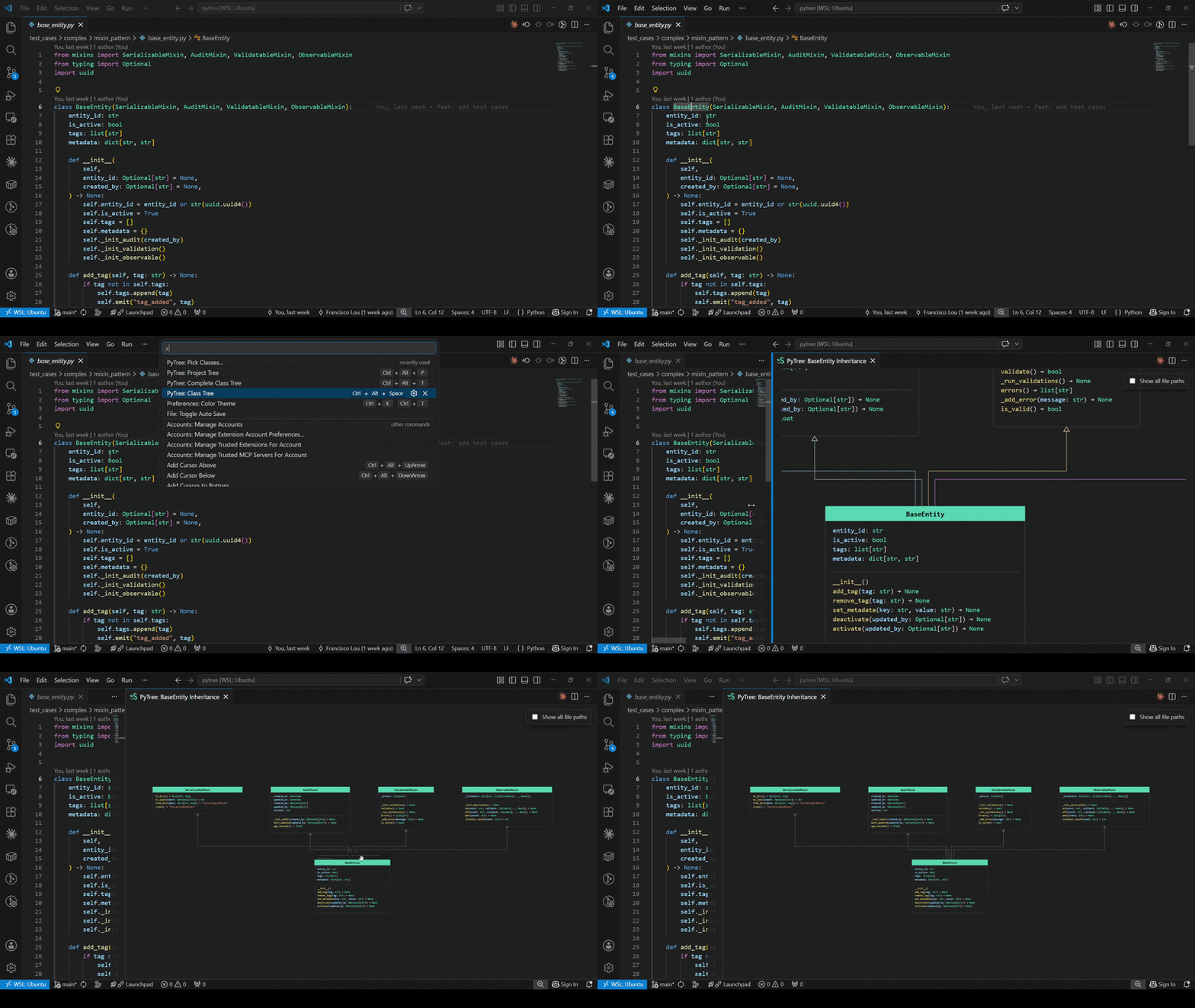
Open a tree focused on the class under your cursor, showing all ancestor layers above it.
Trigger: Ctrl + Alt + Space · Command Palette: PyTree: Ancestors Tree · Hover link
Complete Tree
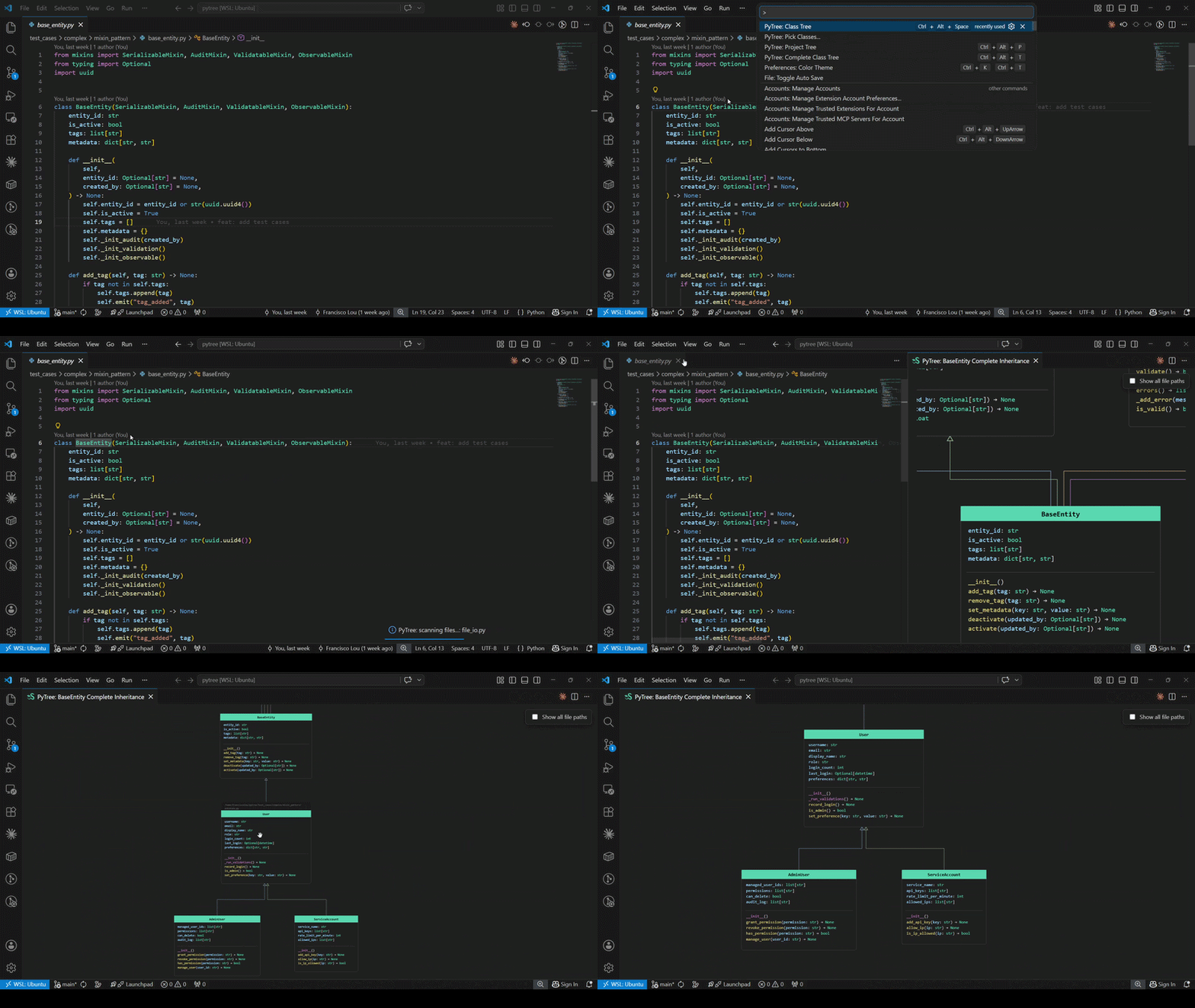
Same as the Simple Tree, but also shows every subclass and renders descendant layers below the focus class.
Trigger: Ctrl + Alt + T · Command Palette: PyTree: Complete Class Tree · Hover link
Project Tree
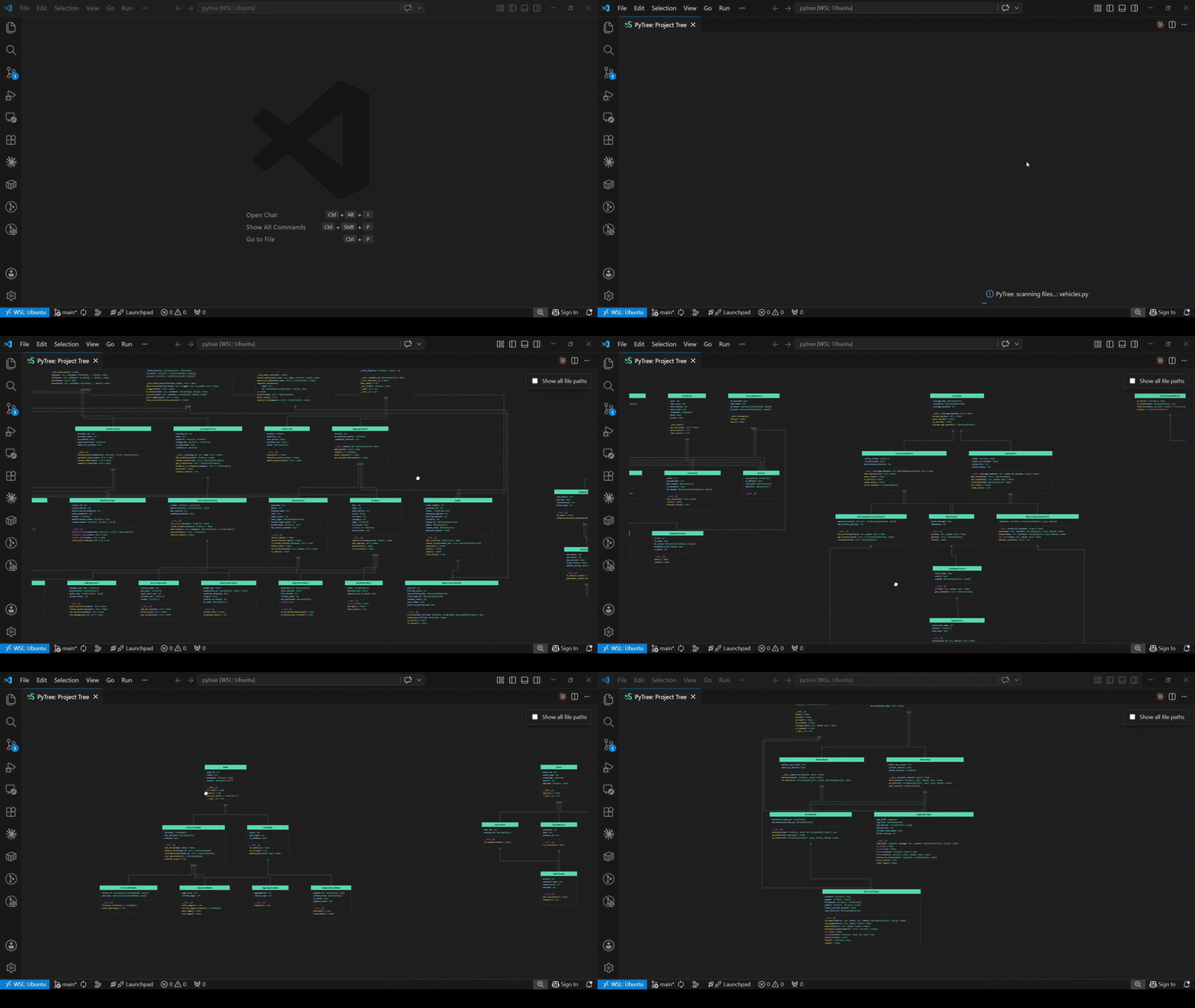
Renders all Python classes in the workspace at once, grouped by their connected inheritance component and laid out in a grid. Useful for getting an overview of the full object model of a project.
Trigger: Ctrl + Alt + P · Command Palette: PyTree: Project Tree
Pick Classes
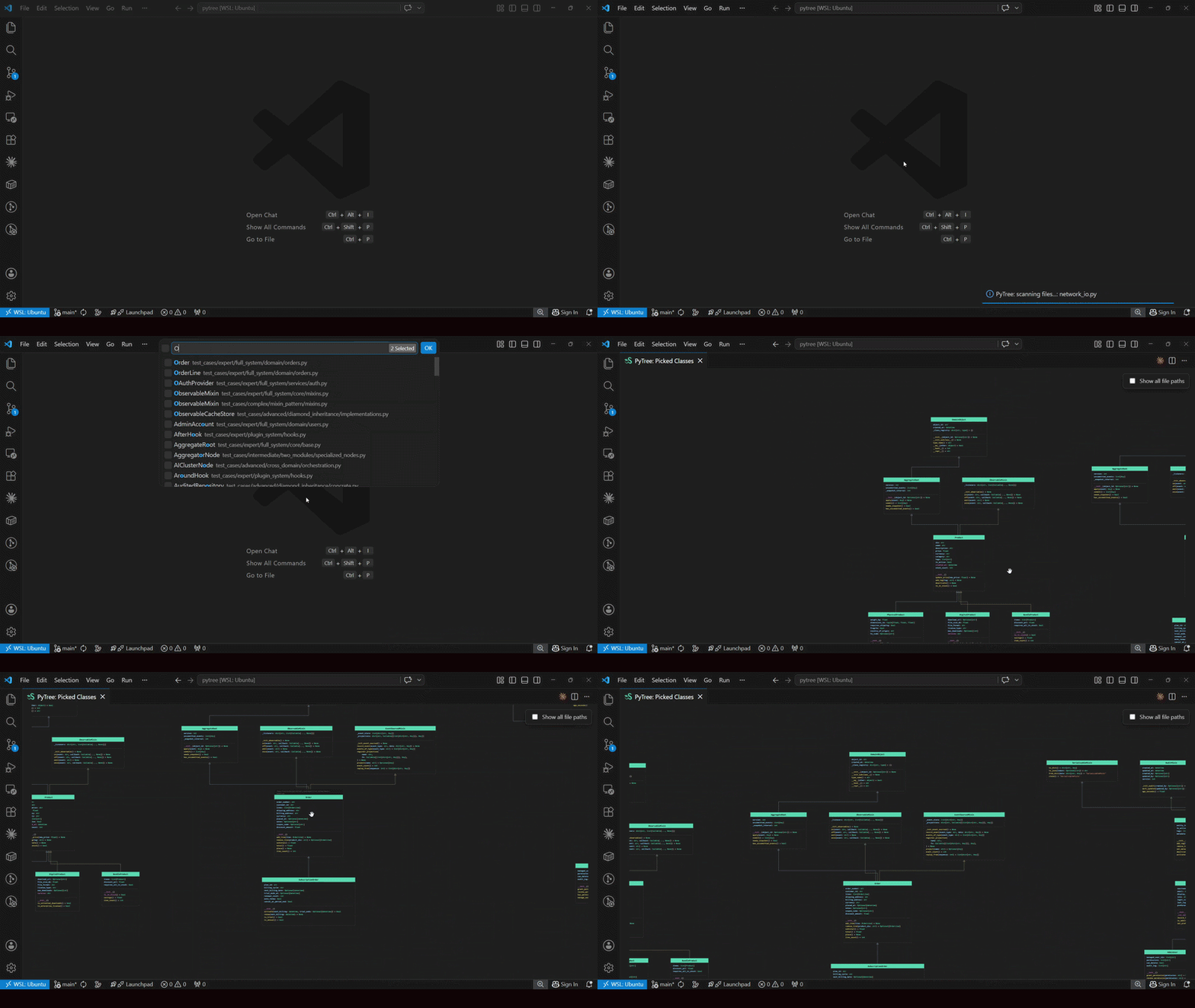
Lets you hand-pick one or more classes from a searchable list and render them side by side in a single view. You choose the tree type (Simple or Complete) upfront, then select any number of classes from a multi-select quick-pick.
Trigger: Command Palette: PyTree: Pick Classes...
Pick Paths
Renders a project-tree-style view restricted to the classes defined in the files or folders you pick. You choose the tree type (Simple or Complete) upfront, then select any number of files and/or folders from a multi-select quick-pick. The classes defined within the selection are kept, and their full inheritance is brought in — superclasses (and, for Complete, descendants) are shown even when they live in modules outside the selection.
Trigger: Command Palette: PyTree: Pick Paths...
All Except
The inverse of Pick Paths: renders a project-tree view of the workspace excluding the files or folders you pick. Useful for skipping test directories, generated code, or vendored libraries. You choose the tree type (Simple or Complete) upfront, then select any number of files and/or folders to exclude. Classes inside excluded paths are never rendered, even when they would otherwise be pulled in as ancestors or descendants of included classes.
Trigger: Command Palette: PyTree: All Except...
Create
An interactive board for designing classes visually and generating Python source files from the diagram. Instead of reading an existing object model, you draw one: 'lay out classes, connect inheritance, group them into modules, and PyTree writes the .py files for you.
Trigger: Command Palette: PyTree: Create
The toolbar exposes five drawing tools plus two actions:
| Tool | Shortcut | What it does |
|---|---|---|
| Cursor | V |
Drag boxes around, click a header to toggle the class abstract, double-click the name to rename it |
| Box | B |
Click anywhere on the canvas to drop a new class box |
| Edge | E |
Click the child class, then the parent class, to connect them with an inheritance edge |
| Module | M |
Drag a rectangle around one or more classes to group them into a module (each module becomes a file) |
| Erase | X |
Click a box or an edge to delete it |
| Arrange | — | Auto-layouts the whole board using the same layering engine as the tree views |
| Create | — | Generates the Python files from the current board |
Inside each box you can add attributes, properties, and methods with their types and default values, and mark methods as abstract, static, or class methods. The box renders them with the same colors and (abc) markers used everywhere else in PyTree. The canvas is an infinite surface: pan by dragging (also doable with scroll button), zoom with the scroll wheel.
When you click Create, each module becomes a .py file: classes are emitted in dependency order (a base always precedes its subclasses), cross-module inheritance produces the relative import statements, and abstract elements get their ABC/abstractmethod scaffolding. If a target file already exists, PyTree asks before overwriting.
Change Inheritance (Drag & Drop)
In any tree view, click and drag an inheritance arrow off its current parent and drop it onto a different class to rewrite the inheritance directly in the source file. A confirmation dialog is always shown before the change is applied. If the new parent introduces attribute or method conflicts with the child, those conflicts are listed upfront so you can decide whether to proceed; otherwise a plain confirmation prompt asks you to verify the change. Cycles (where the new parent is already a descendant of the child) are blocked.
Trigger: Drag an inheritance arrow onto a different class
Export
Any tree view can be saved to a local file using the Export button in the top-right toolbar. Clicking it opens a small dropdown with SVG and HTML format options.
Show All File Paths
A checkbox in the webview header toggles file-path labels on every class box. By default, paths are hidden and only appear on hover; enabling the checkbox keeps them permanently visible — handy when navigating a large workspace with classes spread across many files.
Hover Integration
Hovering over any class name in a Python file shows a small card with clickable links — Show Ancestors Tree and Show Complete Tree — that open the corresponding view for that class without moving your cursor to the Command Palette.
Colors and Symbols
Every class box uses color and symbols consistently across all tree views.
| Color / Symbol | Meaning |
|---|---|
| Green header background | Conventional (concrete) class |
| Yellow-green header background | Abstract class (metaclass=ABCMeta or inherits ABC) |
| Blue text | Attribute or property name |
| Yellow text | Method name |
(abc) prefix before a method |
Abstract method (@abstractmethod) |
| Pink / purple text | Attribute, property, or method overridden from a parent class |
Each class box groups members into labelled sections in order: Attributes, Properties (for @property members), then a divider, followed by Class Methods, Static Methods, and Methods. Only the sections that have members are rendered.
Webview Interaction
Every tree view is fully interactive:
| Action | How |
|---|---|
| Pan | Click and drag |
| Zoom | Scroll wheel |
| Find | Ctrl+F / Cmd+F — searches class names, methods, atributes, any text |
| Navigate matches | Enter / Shift+Enter, or the Next / Prev buttons |
| Jump to source | Click any class name, attribute, or method — opens the file at the definition line |
| Center view on class | Click an inheritance arrow — the tip recenters on the subclass, the body on the superclass |
| Change inheritance | Drag an inheritance arrow onto a different class — confirms before rewriting |
| Export | Click the Export button (top-right) → choose SVG or HTML → save dialog |
Pan position, zoom level, and the file-paths checkbox state are persisted per webview session.
Commands & Shortcuts
| Command | Title | Shortcut |
|---|---|---|
pytree.showAncestorsTree |
PyTree: Ancestors Tree | Ctrl+Alt+Space |
pytree.showCompleteClassTree |
PyTree: Complete Class Tree | Ctrl+Alt+T |
pytree.showProjectTree |
PyTree: Project Tree | Ctrl+Alt+P |
pytree.pickClasses |
PyTree: Pick Classes... | — |
pytree.pickPaths |
PyTree: Pick Paths... | — |
pytree.allExcept |
PyTree: All Except... | — |
pytree.create |
PyTree: Create | — |
Limitations
Only annotated class-level attributes are shown. PyTree collects attributes declared with a type annotation at class body level (name: Type or name: Type = value). Attributes assigned only inside methods (self.x = 42 in __init__, for example) without a corresponding class-level annotation are not displayed at all.
To have an attribute appear in the tree, declare it at class level:
# Not shown — assignment only, no class-level annotation:
class MyClass:
    def __init__(self):
        self.value = 42

# Shown — class-level annotation present:
class MyClass:
    value: int

    def __init__(self):
        self.value = 42
This is intentional: it encourages explicit, typed class design and keeps the tree uncluttered.
@property members appear in the Properties section, not Methods. Properties are rendered as name → ReturnType to reflect their attribute-like access semantics. Setter and deleter overloads (@x.setter, @x.deleter) are not shown separately.
Non-Python base classes are shown by name only. If a base class is not resolvable within the workspace (e.g. a third-party library class), PyTree displays the name without expanding its members.