JetBrains-style Welcome Screen for VS Code — replaces the default Get Started tab with a project dashboard inspired by IntelliJ IDEA / GoLand / WebStorm.






Screenshots
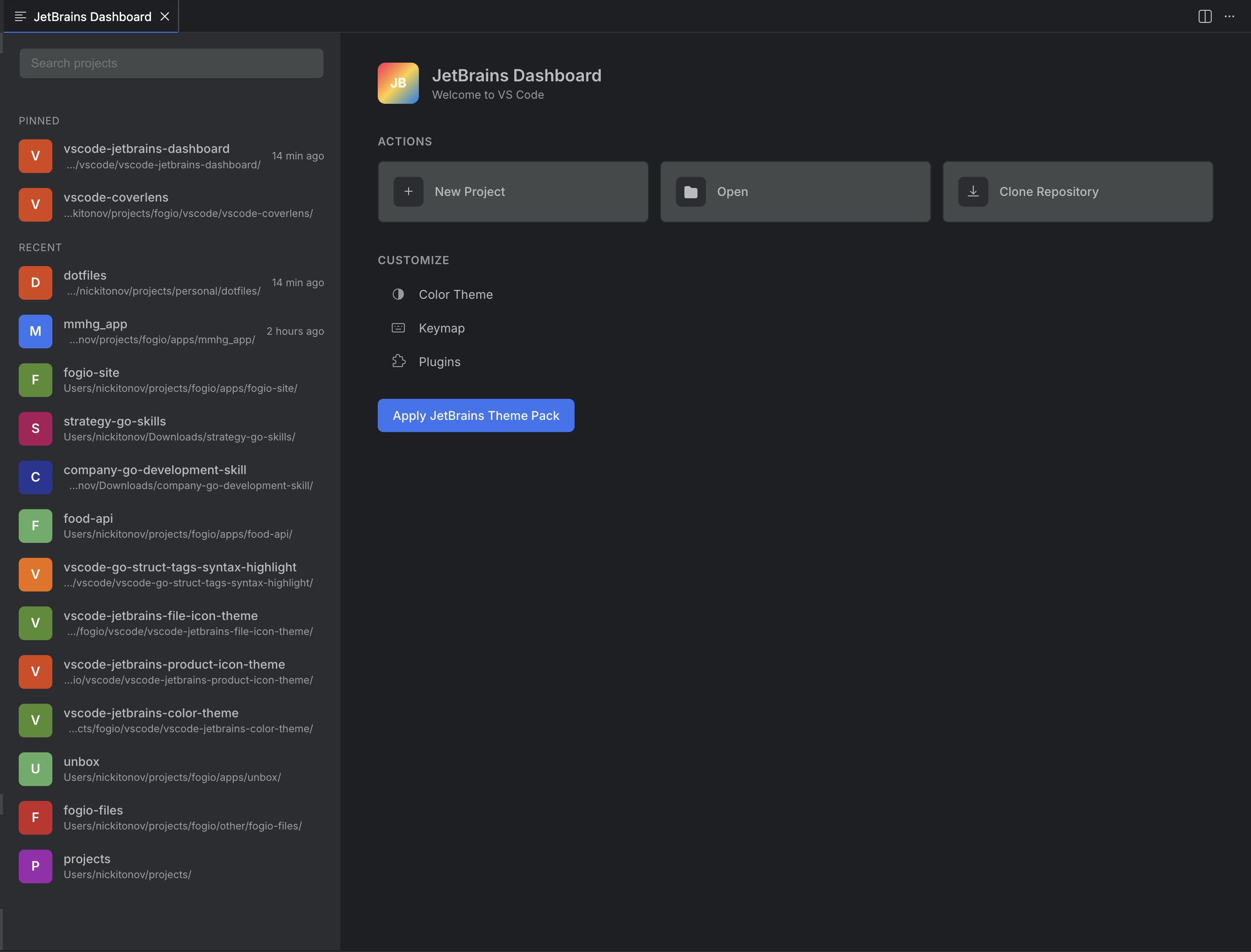
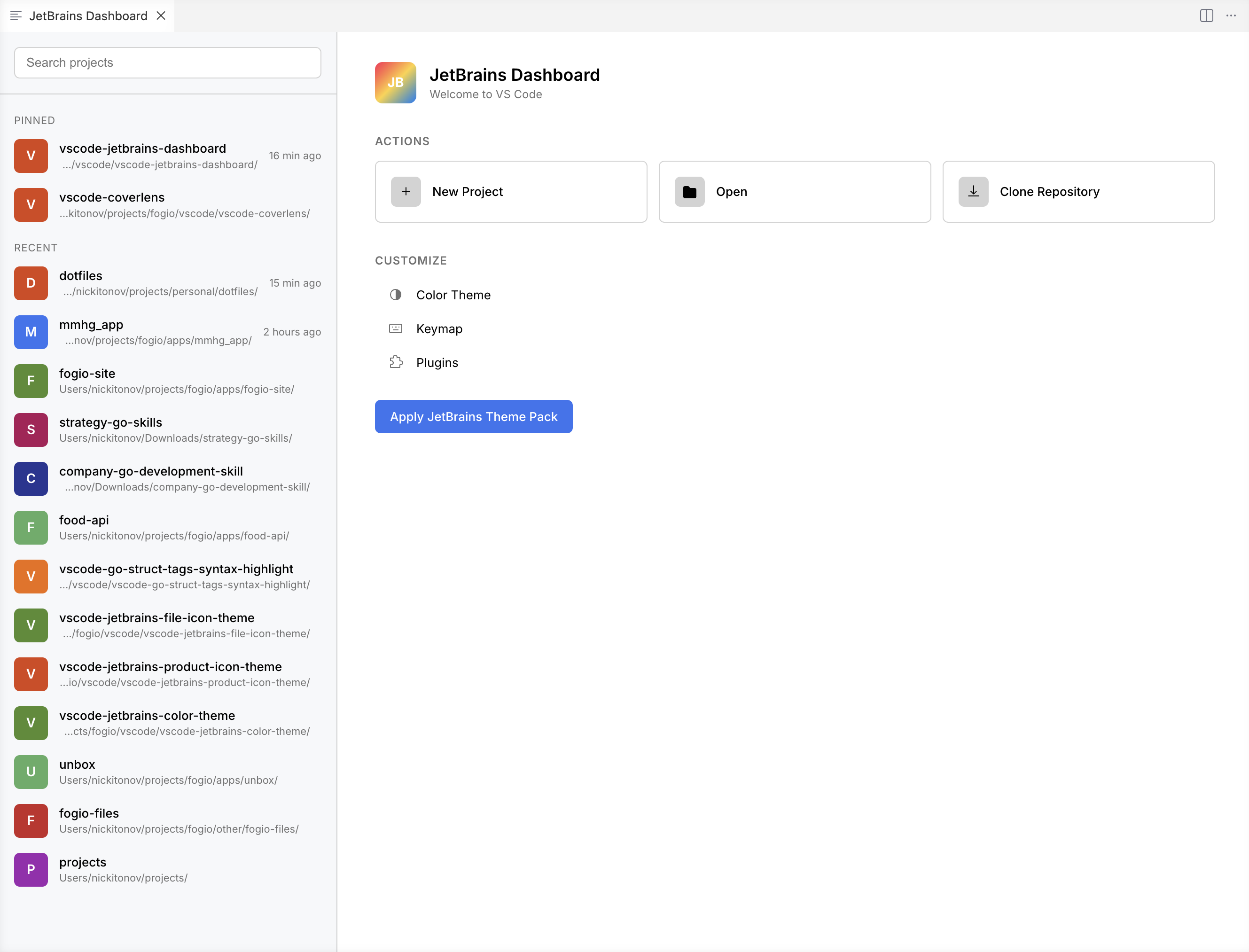
Dashboard
Project list with pinned projects, search, quick actions, and theme customization — adapts to any VS Code color theme.
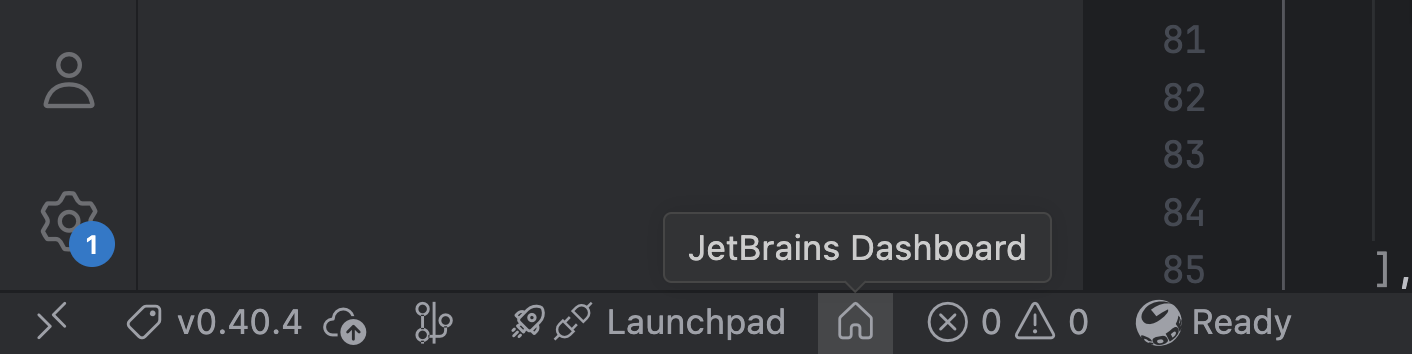
Status Bar
Click the $(home) icon in the status bar to open the dashboard at any time.
Features
- Project list — recent projects sorted by last opened, with hash-colored avatars (like JetBrains)
- Pin projects — pinned projects stick to the top with a visual divider
- Search — filter projects by name or path
- Quick actions — New Project, Open, Clone Repository
- Customize — Color Theme, Keymap, Plugins
- One-click theme pack — install and activate
fogio.jetbrains-color-theme,fogio.jetbrains-file-icon-theme,fogio.jetbrains-product-icon-themetogether - Status bar button —
$(home)icon in status bar, one click to open dashboard - Startup auto-open — shows automatically when no folder is open (configurable)
- Show on empty — optionally reopen dashboard when all editor tabs are closed (like JetBrains)
- Theme-aware — adapts to any VS Code color theme via CSS variables
Part of the JetBrains-for-VS-Code suite:
| Extension | Description |
|---|---|
| JetBrains New UI Color Theme | Editor and UI colors |
| JetBrains New UI File Icon Theme | File and folder icons |
| JetBrains New UI Product Icon Theme | Activity bar and UI icons |
| JetBrains Dashboard (this extension) | Welcome screen and project manager |
Getting Started
- Install from the Marketplace
- Open VS Code without a folder — the dashboard appears automatically
- Or press
Cmd+Shift+P→JetBrains Dashboard: Open
Disable the default Welcome tab
To prevent VS Code's built-in Welcome tab from appearing alongside the dashboard, add this to your settings.json:
"workbench.startupEditor": "none"
Or use the Apply JetBrains Theme Pack button in the dashboard — it sets this automatically.
Project List
Each project shows:
- Avatar — first letter in a colored circle, color derived from project name hash (same algorithm as JetBrains)
- Name — folder name
- Path — full path, truncated from the left
- Relative time — "2 hours ago", "Yesterday", "3 days ago"
Hover actions:
- Open in new window
- Pin / Unpin
- Remove from list
Keyboard:
Enter— open project (holdCmd/Ctrlfor new window)Delete/Backspace— remove from list
Projects that no longer exist on disk are shown as struck-through. Clicking shows a prompt to remove.
Commands
| Command | Description |
|---|---|
| JetBrains Dashboard: Open | Open the dashboard panel |
| JetBrains Dashboard: Pin Project | Toggle pin via QuickPick |
| JetBrains Dashboard: Add Project to List | Add a folder to the manual project list |
| JetBrains Dashboard: Clear Project History | Wipe all project metadata |
Settings
| Setting | Default | Description |
|---|---|---|
fogioDashboard.showOnStartup |
true |
Show dashboard on startup when no folder is open |
fogioDashboard.showWhenNoEditors |
false |
Show dashboard automatically when all editor tabs are closed |
fogioDashboard.projectsSource |
"recentlyOpened" |
Source: "recentlyOpened", "manual", or "both" |
fogioDashboard.maxProjects |
25 |
Maximum number of projects to display |
Build
npm install
npm run build      # production bundle
npm run watch      # dev mode with auto-rebuild
Press F5 in VS Code to launch the Extension Development Host.
License
MIT