A lightning-fast, distraction-free mind map editor built directly into VS Code. Edit beautiful tree-structured diagrams with an intuitive visual interface backed by a clean, portable text format.
Home page: https://swiftmap.pages.dev/
Features
- Visual Editor - Create and edit mind maps in an interactive graph editor
- Text-Based Format - Store your mind maps in plain
.swiftmapfiles for version control - Instant Sync - Switch between visual and text editor seamlessly
- Status & Priority - Mark nodes with status (in progress, blocked, done, rejected) and priority levels
- Tags - Organize with tags (question, task, idea)
- Undo/Redo - Full undo/redo support with keyboard shortcuts
- Export - Export your mind maps as PNG images
- Auto Layout - Automatic hierarchical layout - just focus on content
- Keyboard Friendly - Quick keyboard shortcuts for power users
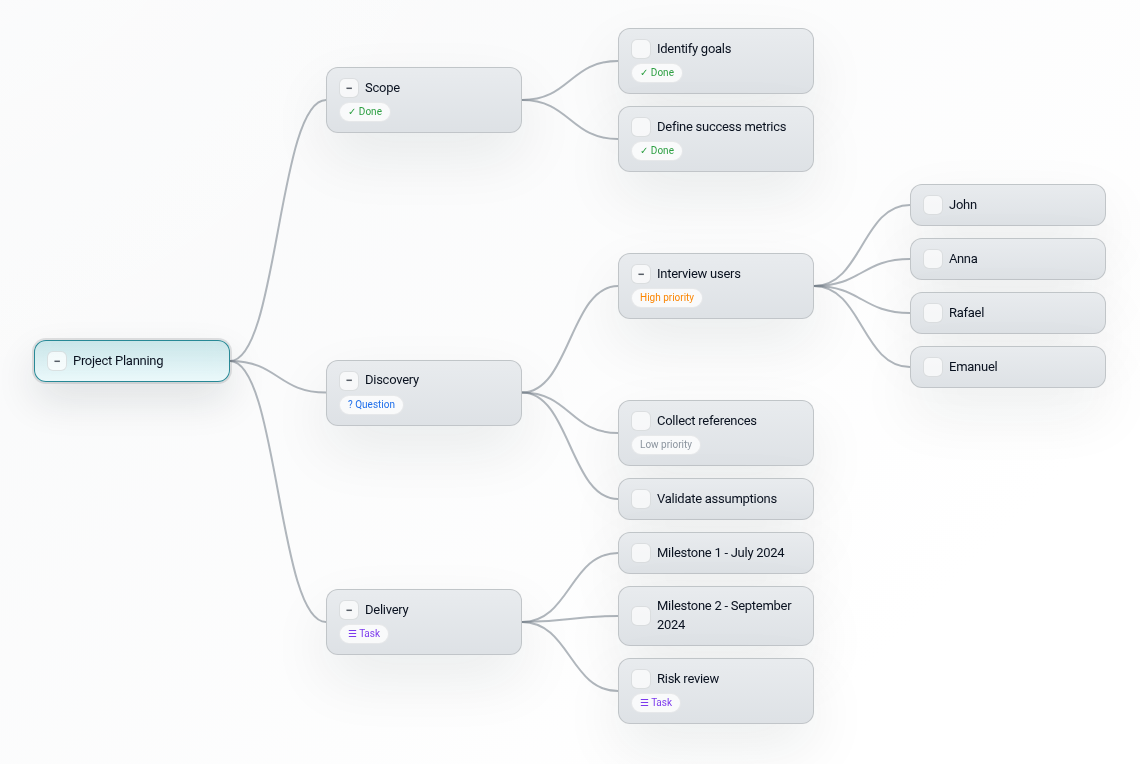
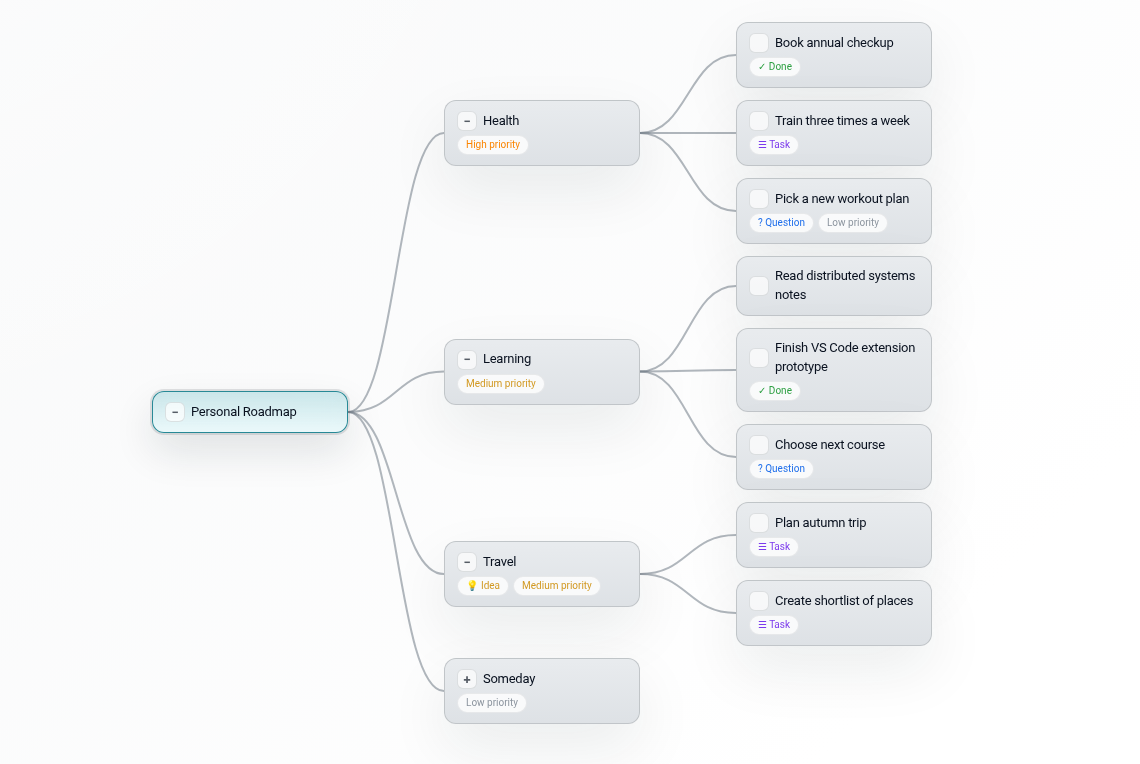
Example Visualizations
Project Planning
Personal Roadmap
Getting Started
Create a New Mind Map
- Open VS Code command palette (
Ctrl+Shift+P/Cmd+Shift+P) - Type "SwiftMap: New Mind Map"
- Start organizing your thoughts
Open Existing Files
Simply open any .swiftmap file - it automatically opens in the visual editor.
Switch Between Views
- Visual Editor → Source: Click the "Open Source" icon in the editor title bar
- Source → Visual Editor: Click the "Open Visual Editor" icon in the editor title bar
Status & Priority Management
- Status: In Progress, Blocked, Done, Rejected
- Priority: Low, Medium, High
- Tags: Question, Task, Idea
Or use the right-click context menu for easy access to all options.
Use Cases
- Project Planning - Break down projects into hierarchical tasks
- Personal Roadmaps - Plan your learning and career goals
- Brainstorming - Capture and organize ideas visually
- Documentation - Create structured outlines for documentation
- Decision Trees - Map out decision processes and workflows
File Format
SwiftMap uses a simple, text-based format that's easy to version control and share. The format is fully documented - see the project repository for details.
Tips & Tricks
- Multi-select: Hold
Ctrl(orCmdon Mac) and click nodes to select multiple nodes - Drag & Drop: Drag selected nodes onto another node to move them
- Right-click Menu: Get quick access to all node operations via context menu
- Zoom: Use scroll wheel or pinch gestures to zoom in/out
- Pan: Click and drag the canvas to move around
Learn More
License
GPL-3.0