Run C# notebooks in VS Code on ClrKernel — no Python, no Jupyter. C# is the core, and cells can also be SQL, DAX, PowerShell, HTTP, or Mermaid in the same notebook, sharing one session.
Files matching *.nb.md open as notebooks: fenced ```csharp blocks are code
cells (```sql, ```dax, ```powershell, etc. select the other
languages), everything else is markdown. The same file is a readable document on
GitHub and runs headlessly in any ClrKernel session via #!import — one file,
three lives.
Features
- Real C# with REPL state — variables, classes, and usings persist across cells, powered by Roslyn scripting (the same engine as the ClrKernel Jupyter kernel).
- IntelliSense that knows your session — completion, hover, and signature
help from a built-in language server (no C# Dev Kit needed). Completions
reflect the live session: variables from cells you've run, types from
#r "nuget:"packages, and your imports. - NuGet packages in cells —
#r "nuget: PackageName, Version", plus custom feeds via#i "nuget:<feed-url>". - HTTP request cells — set a cell's language to HTTP (or use a
```httpfence) to make requests in the VS Code REST Client.httpsyntax: variables, system variables ({{$guid}},{{$timestamp}}),###-separated requests, and chaining ({{login.response.body.$.token}}). Responses render as rich cards — status, timing, collapsible headers, highlighted JSON. - SQL cells — set a cell's language to SQL (or use a
```sqlfence) to run T-SQL against Microsoft SQL Server, with T-SQL highlighting, live syntax checking, and completion. Connections are named and secret-free: click the connection button by the cell's language picker to add one through a guided prompt (server, database, auth, encryption) — the password goes to your OS credential store, never the notebook. Results render in the interactive grid (below), and a#!sql-connect --name analyticsalso hands C# cells a variableanalyticsto query with. - Interactive results grid — SQL results and C# query/
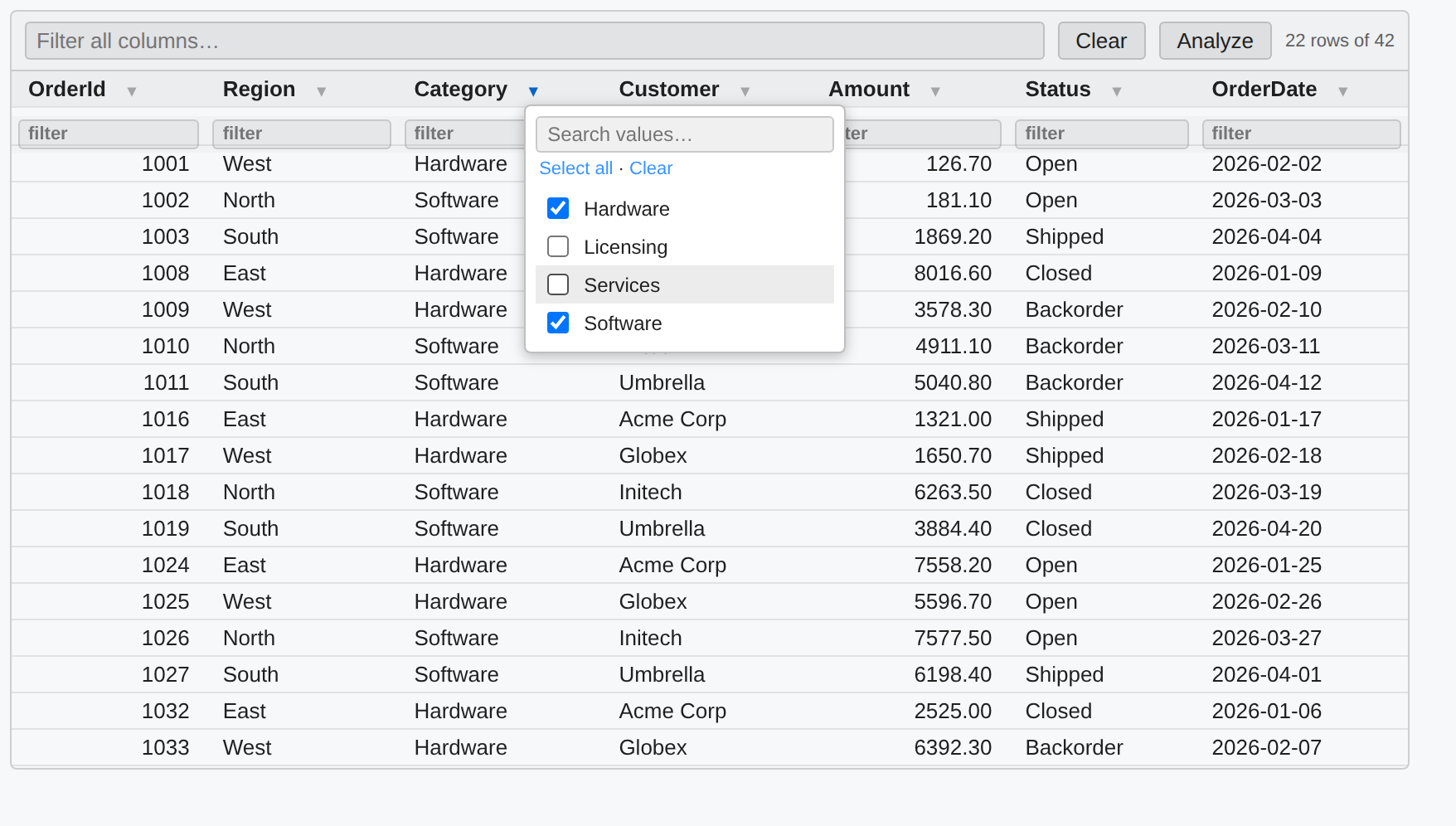
DisplayTable()output render as a sortable grid with a global filter, a per-column filter row, a per-column value picker (▾ funnel: search + checkboxes of distinct values), a one-click Clear, and an Analyze panel of per-column stats. All filters combine. - Query databases from C# — an ergonomic
SqlAPI (Sql.Connection(...) .Query(sql).Results()) returns rows that both render as the grid and enumerate as dynamic or typed objects; plus bulk-copy, MERGE, and transactions. Opt-in provider packages (ClrKernel.Data.Oracle,ClrKernel.Data.Odbc) give the same experience against Oracle and ODBC sources. - DAX & Analysis Services — set a cell to DAX (or a
```daxfence) to query SSAS / Azure AS / Fabric semantic models, with a cube connection button (add / edit cube). From C# theSsasandFabrichelpers query with DAX, read model metadata, process partitions, and bulk-load Fabric Warehouse tables. - Shared libraries —
#!import "lib.dib"/#!libwith--registerprefixes and run-once semantics; imports.dib,.ipynb,.md, and.csxfiles. - Live output —
Console.WriteLinestreams as it happens; displays created withDisplayAsupdate in place (progress, timers, tables). - Mermaid diagram cells — set a cell's language to Mermaid (or use a
```mermaidfence) to render flowcharts, sequence diagrams, and more. They render fully offline (the library is embedded — no CDN), follow the editor theme, and can also be produced from C# withsource.DisplayMermaid(). - PowerShell cells — set a cell's language to PowerShell (or use a
```powershellfence) to run PowerShell in a persistent in-process runspace, with state shared across cells and native IntelliSense — completion, hover, and signature help (cmdlets, parameters, paths, and session variables). No separate PowerShell install required. - Executable markdown — notebooks that render as plain markdown everywhere else and diff cleanly in pull requests.
Quick start
-
Install the .NET SDK (8.0 or later).
-
Install this extension.
-
Run a cell. The first time, if
ClrKernelisn't found the extension offers to install it for you (dotnet tool install --global ClrKernel). Prefer to do it yourself? Run that command in a terminal ahead of time. -
Create a notebook — either run ClrKernel: New Markdown Notebook from the Command Palette (or File → New File… → Markdown Notebook), or make a file ending in
.nb.md:# My first ClrKernel notebook ```csharp Console.WriteLine("Hello from ClrKernel"); ``` -
Run the cell with the ClrKernel C# controller.
.nb.md files open as notebooks automatically. If one opens as plain text
instead (a pre-existing editor association can win), right-click it →
Reopen Editor With… → ClrKernel Markdown Notebook, or add
"workbench.editorAssociations": { "*.nb.md": "clrkernel-markdown" } to your
settings.
Querying data
The quickest way to run SQL is the guided connection button — no directive syntax to memorize:
-
Add a cell and set its language to SQL (the cell's language picker, bottom right of the cell), or type
```sqlin a.nb.mdfile. -
Click the connection button next to the language picker. Choose Add connection…, then follow the prompts: name, server, database, authentication (SQL login, Windows Integrated, or Microsoft Entra), and encryption. For a local or on-prem server with a self-signed certificate, pick "Encrypt, trust the server certificate." A SQL-login password is saved to your OS credential store (Keychain / Credential Manager / libsecret) — never written to the notebook.
-
Write a query and run the cell:
SELECT TOP 100 * FROM dbo.Orders ORDER BY OrderDate DESC;
Results appear in the interactive grid: click a header to sort, type in the top box to filter everything, type in a column's own box or open its ▾ picker to filter that column (all filters combine), Clear resets them, and Analyze shows per-column stats. The connection button's dropdown also lists Edit connection… and lets you pick which connection a cell targets.

Filter any column on its own — type in its box, or open its ▾ picker to check specific values. Every filter combines, and the row count updates live:
Behind the button, the connection is just a #!sql-connect cell — you can also
write it by hand, and when the name is a valid identifier it's available to C#
cells as a variable of that name:
#!sql-connect --name analytics --server sql-warehouse --database reports --auth integrated --default
analytics.Query("select * from dbo.Orders where Total > @t", new { t = 1000 }).Results()
DAX cells work the same way with a cube connection button (Add / Edit cube),
targeting SSAS, Azure Analysis Services, or a Fabric / Power BI semantic model.
For the full data story — the fluent Sql API, other providers (Oracle, ODBC),
ETL (bulk copy / MERGE / pipelines), Analysis Services, and Fabric Warehouse
writes — see the ClrKernel README
and the samples/ folder (Sql.nb.md, SqlQuery.nb.md, Dax.nb.md, and more).
Settings
| Setting | Default | Description |
|---|---|---|
clrkernel.server.command |
clrkernel |
Command that launches the server. The default works when the ClrKernel global dotnet tool is installed. |
clrkernel.server.args |
["lsp"] |
Arguments for the command. For a dev build, set command to dotnet and args to ["<path>/ClrKernel.dll", "lsp"]. |
The server's log (including anything it writes to stderr) is in the ClrKernel output channel (View → Output).
How it works
The extension spawns clrkernel lsp — a Language Server over stdio — and talks
to it with a single connection that carries both cell execution and the language
features (completion, hover, signature help). Because execution and IntelliSense
share one process and one ClrKernel.Core engine, completions reflect exactly
what you've run. One server runs per VS Code window; REPL state is shared across
notebooks in that window, like a Jupyter kernel session.
Requirements
- .NET runtime 8.0+ (newer majors work)
ClrKernelon PATH (dotnet tool) or configured via settings
Developing this extension
dotnet build src/ClrKernel/ClrKernel.csproj -c Release
cd editors/vscode
npm install
npm run compile
Open editors/vscode in VS Code and press F5 — the Extension Development Host
launches with samples/ open. Point the settings at your built ClrKernel.dll
(command dotnet, args [<path-to-dll>, "lsp"]).