Overview
The Cavisson Mutation Testing plugin for Visual Studio Code enables developers to measure the quality of their unit tests by injecting small bugs (mutations) into the code. This extension simplifies the setup and execution of mutation testing for .NET Core and JavaScript applications, automatically handling tool installation and uploading results to the Cavisson Dashboard.
Installation
- Open Visual Studio Code.
- Go to the Extensions view by clicking on the Extensions icon in the Activity Bar on the side of VS Code or by pressing Ctrl+Shift+X.
- Search for Cavisson Mutation Testing.
- Click Install on the extension titled Cavisson Mutation Testing.
Pre-Requisites
- OS Support: Windows or Linux.
For .NET Projects
- .NET SDK: Ensure .NET SDK (v6.0 or higher) is installed.
- Test Project: A unit test project (e.g., xUnit, NUnit, MSTest) must be present in the solution.
For JavaScript Projects
- Node.js: Node.js (v14+) and NPM must be installed.
- Testing Framework: The project should use a supported test runner (e.g., Jest).
- Build & Test Status: The project must be error-free. Ensure that
dotnet buildanddotnet testpass successfully (100% green) before running the extension.
For Cavisson Cloud Integration
- Cavisson Server URL: A valid Cavisson Dashboard Server URL is required to upload reports.
- Format:
http://<IP>:<PORT>orhttp://<DOMAIN>:<PORT> - Example (IP):
http://192.168.1.55:8080 - Example (Domain):
https://cavisson.com:443
- Format:
How to Generate and Configure the Cavisson Auth Token
To authenticate your session, you need to generate a valid CavToken from the Cavisson Unified Dashboard.
- Open User Profile: Log in to the Cavisson dashboard. In the top-right corner, click on the User Profile icon.
- Select Generate Token: Scroll down within the profile menu to find and select the Generate Token option.
- Set Token Duration: The "Generate Authentication Token" modal will appear.
- Enter the desired duration in the HH : MM format (Hours : Minutes).
- Tip: Set a longer duration (e.g.,
24:00for 24 hours) to avoid frequent re-authentication.
- Generate the Token: Click the green Generate button.
- Copy the Token: Click the Copy button at the bottom right of the token text box.
- Important: This token is only valid for the duration specified in Step 3.
- Configure the Application: Paste this string into the Cavisson Auth Token input field during the configuration step.
Walkthrough: Setting Up Your Workspace
Step 1: Open the Command Palette
- Windows / Linux: Press
Ctrl + Shift + P - Type "Cavisson Mutation" to see the available commands.
- Build Success Required: The project must compile and run existing unit tests successfully before mutation testing can begin.
Step 2: Configure Project
- Select: Cavisson Mutation Tester: Configure Project
- Select Technology: Choose .NET or JavaScript.
- Environment Check: The plugin checks for tools (e.g.,
dotnet-strykerorstryker-mutator) and installs them if missing. - Define Profile: Enter a name (e.g., "Core-Services").
- Set Target: Specify the source code files you want to mutate.
- .NET: Enter the Project/Namespace name (e.g.,
ApplicationCore or Billing.Service). - JavaScript: Enter the file path pattern (e.g.,
src/lib/**/*.js). - Note: Always target your application logic, not your unit test files.
- .NET: Enter the Project/Namespace name (e.g.,
- Cavisson Server Config:
- Cavisson Server URL: Enter your Cavisson Dashboard Server URL.
- Format:
http://<IP>:<PORT>orhttp://<DOMAIN>:<PORT> - Example (IP):
http://10.10.50.52:5300 - Example (Domain):
https://cavisson.com:443 - CavToken: Paste the token generated in the "How to Generate and Configure the CavToken" section above.
Step 3: Execute Mutation Tests
- Select: Cavisson Mutation Tester: Run and Upload Report
- Select Profile: A dropdown list will appear.
- Note: The recently created or used profile will automatically appear at the top of the list for easier selection.
- Execution: The extension will run the mutation tests in the background.
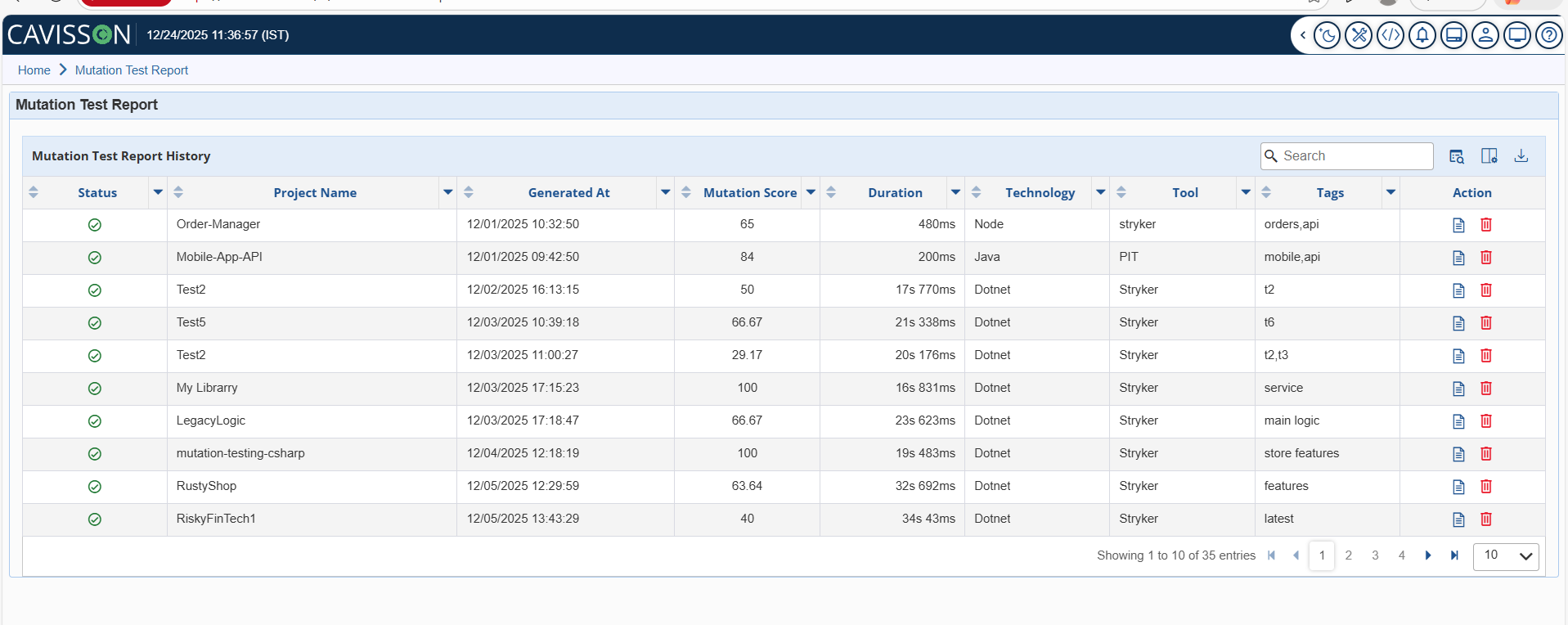
- Results: Once finished, the report is automatically uploaded to the server and opened in your default browser for immediate viewing.
Managing Profiles
How to Delete an Existing Profile
- Navigate to the
.vscodefolder in your project root. - Open the
settings.jsonfile. - Locate the
"cavisson.mutation.profiles"section. - Remove the specific JSON object block for the profile you wish to delete.
- Save the file.
Limitations
- Resource Intensive: Mutation testing involves running your test suite hundreds of times. This may cause high CPU usage during execution.
- Test Suite Dependencies: If your unit tests rely on external databases or live APIs that aren't mocked, results may be inconsistent.