


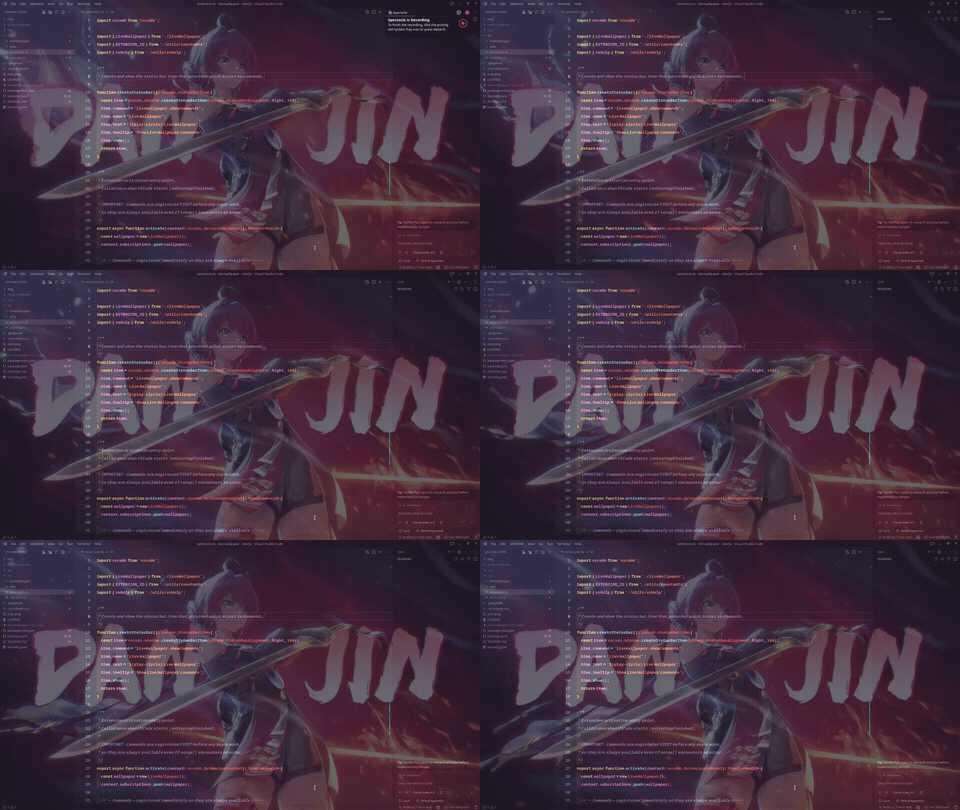
Bring your VSCode window to life by setting an MP4 video as your editor background wallpaper. Choose your favorite live wallpapers, loop them, adjust their opacity, and enjoy a more fun and enjoyable coding experience. Works seamlessly on Windows, macOS, and Linux!
📸 Preview
✨ Features
- 🎥 MP4 Video Backgrounds: Supports local MP4 video files (H.264 encoded).
- 🎛️ Adjustable Opacity: Modify opacity from
0.1to1.0— the value is scaled so1.0renders at 80% CSS opacity to always keep your UI readable. - 📐 Sizing Modes: Configure video rendering size (
cover,contain,fill, orauto). - 🔁 Continuous Loop: Toggle video looping on or off.
- 🐧 Cross-Platform Support: Fully compatible with VSCode installations on Linux, Windows, and macOS.
- 🧼 Clean Uninstall: Automatically restores VSCode's original files and clears all settings when disabling or uninstalling the extension.
🚀 Getting Started
1. Generate the Setup Template
Instead of manually typing the configuration, let the extension generate it for you:
-
Press
Ctrl + Shift + P(orCmd + Shift + Pon macOS) to open the Command Palette. -
Select
Live Wallpaper: Create Template Setup. -
This automatically adds the configuration block to your User
settings.jsonand opens it:"liveWallpaper": { "videoPath": "/absolute/path/to/your/wallpaper.mp4", "opacity": 0.1, "size": "cover", "enabled": true, "loop": true } -
Replace
/absolute/path/to/your/wallpaper.mp4with the actual path to your MP4 file and save.Example Path Formats:
Platform Example Linux / macOS /home/budi/Videos/wallpaper.mp4Windows C:/Users/budi/Videos/wallpaper.mp4file:// URL file:///home/budi/Videos/wallpaper.mp4
2. Apply and Reload
- Open the Command Palette (
Ctrl + Shift + P/Cmd + Shift + P). - Select
Live Wallpaper: Apply and Reload. - Note (Linux & macOS): Because VSCode installation files are protected, you may be prompted with an Admin/Sudo authorization dialog. Click Retry with Admin / Sudo and enter your password.
- VSCode will prompt you to reload the window. Click Reload to see your wallpaper.
🛠️ Configuration Settings
All settings live under the "liveWallpaper" object in your settings.json:
| Key | Type | Default | Description |
|---|---|---|---|
videoPath |
string |
"" |
Absolute file path or file:// URL to the MP4 (H.264) video. |
opacity |
number |
0.1 |
Opacity of the background video (0.1 – 1.0). Internally scaled so 1.0 = 80% CSS opacity. |
size |
string |
"cover" |
Sizing mode relative to the window: cover, contain, fill, or auto. |
enabled |
boolean |
true |
Toggle the video background on or off without removing it. |
loop |
boolean |
true |
Whether the video loops continuously. |
⌨️ Command Palette Actions
All commands are available via the Command Palette (Ctrl + Shift + P / Cmd + Shift + P) with the prefix "Live Wallpaper", or through the ▶ Live Wallpaper status bar item in the bottom-right corner:
| Command | Description |
|---|---|
| Create Template Setup | Generates the configuration block in your settings.json. |
| Apply and Reload | Applies current settings and patches the wallpaper. |
| Enable and Reload | Sets enabled: true, applies the patch, and reloads. |
| Disable and Reload | Removes the wallpaper and restores your VSCode interface. |
| Reset to Defaults | Clears all settings to defaults and removes the patch. |
| Uninstall Extension | Removes the patch, clears all settings, and uninstalls the extension. |
❓ FAQ & Troubleshooting
Why does VSCode say "Your installation is corrupt"?
Because this extension patches VSCode's core HTML file (workbench.html), VSCode detects a change in its installation integrity.
- Do not worry! This is completely safe and only changes the background styling.
- This extension automatically suppresses the default warning popup to keep your workflow clean.
What video formats are supported?
Only MP4 (H.264 codec) is supported. High-efficiency formats like H.265/HEVC or WebM may not render correctly due to VSCode's built-in Chromium rendering limitations.
How do I completely remove the extension?
Run Live Wallpaper: Uninstall Extension from the Command Palette. This will:
- Remove the patch from
workbench.html - Delete the
"liveWallpaper"block from yoursettings.json - Uninstall the extension from VSCode
What is the difference between "Apply and Reload" and "Enable and Reload"?
- Apply and Reload — Forces the patch to be re-applied with the latest settings (useful after a VSCode update resets
workbench.html). - Enable and Reload — Sets
enabled: trueand applies the patch; most useful after previously disabling the wallpaper.
🐛 Report Bugs & Issues
If you encounter any bugs, issues, or have feature requests, please open an issue on the GitHub Issues page.
📄 License
This extension is licensed under the MIT License.