A one-line edit to a Mermaid diagram can rearrange the whole picture. The text diff won't tell you that. This will.
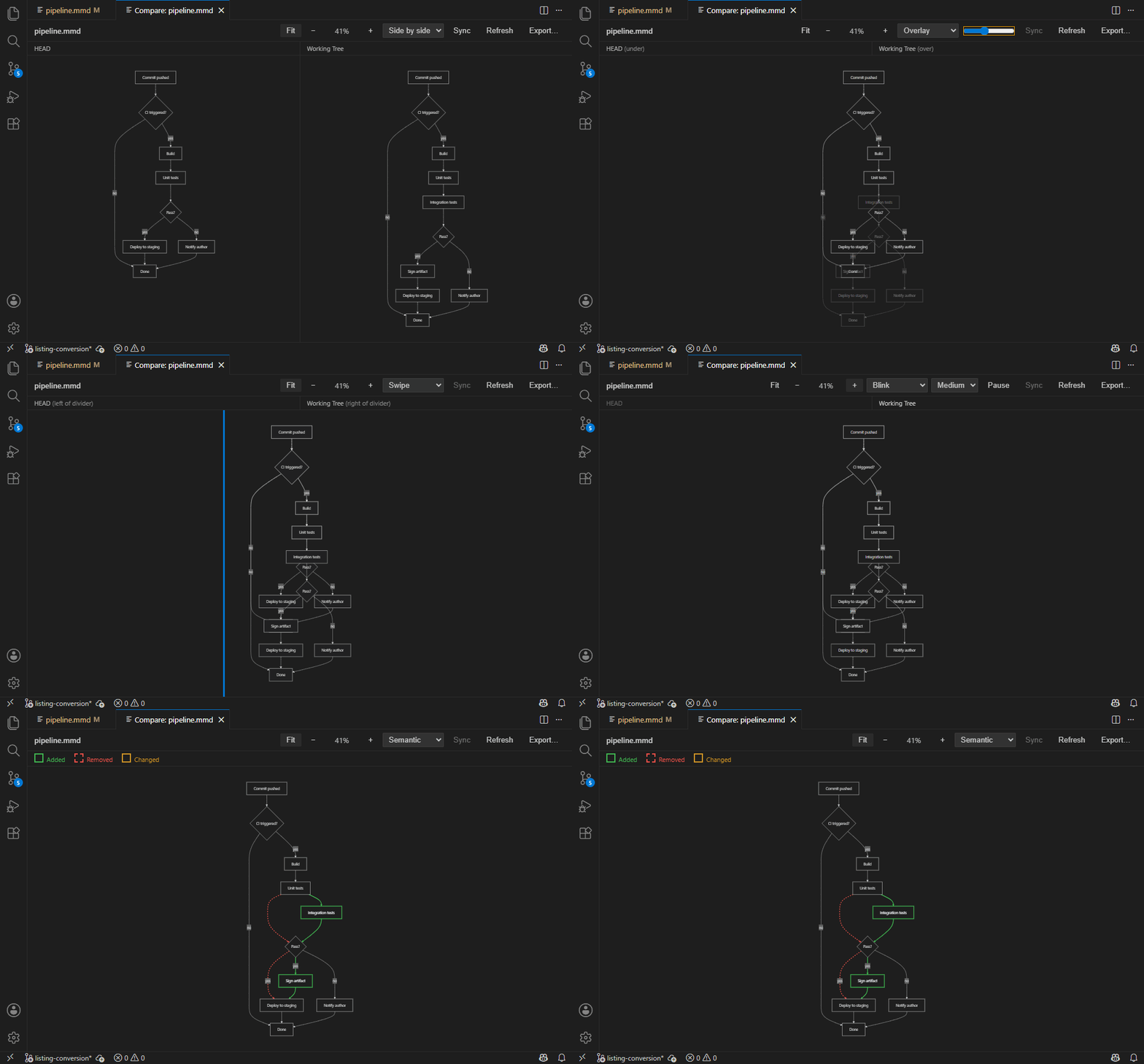
Compare a diagram against any git ref — or against another file — and see the rendered
difference: side by side, stacked and faded, split at a divider, blinked between, or merged into
one diagram with the changes marked on it. Works on .mmd files and on ```mermaid
blocks inside Markdown.
Install
- VS Code — search Advanced Mermaid in the Extensions view, or install from the Marketplace.
- VSCodium, Cursor, Gitpod, Windsurf — search there, or install from Open VSX.
Both carry the same build. Editors that cannot reach the Microsoft Marketplace are served from 2.0.0 onward.
Features
- Compare Diagram with HEAD — one click in the editor title bar to see the working-tree version next to the last committed version.
- Compare Diagram with Ref... — compare against any branch, tag, or commit.
- Compare Diagram Between Refs... — compare two refs against each other, with no working tree involved. Review a diagram change on a branch without checking it out. Both sides are picked from the repository's real branches and tags.
- Compare Diagram with File... — compare two different files, not two versions of one. Pick the other file from the workspace, or browse to anything on disk. Both panes follow your edits.
- Markdown support — compare
```mermaidblocks in.mdfiles. When a file holds several, pick which one from a list labelled by the heading above each. - Several comparisons at once — each pair of files, refs, and diagrams gets its own tab, so you can line two of them up. Re-running the same comparison brings its tab forward instead of opening a duplicate, and however many you have arranged come back after a window reload.
- SCM view integration — right-click a changed file in the Source Control panel.
- Overlay mode — stack the two renders and fade between them with a slider. A node that moved a few pixels is obvious superimposed and nearly invisible across a gap.
- Swipe mode — the same two layers with a draggable divider instead: old on the left of it, new on the right. Drag it, or focus it and use the arrow keys.
- Blink mode — alternate between the two in place. A node that shifted a few pixels becomes obvious motion. Three speeds, and a Pause for when you want to stop and look.
- Semantic mode — for flowcharts, sequence diagrams and class diagrams, one merged diagram instead of two: additions in green, removals in red, changes in amber carrying what they used to say. The change is marked rather than left for your eye to find.
- Export the comparison as SVG or PNG — both diagrams side by side, labelled, ready to paste into a pull request or an issue.
- Diagrams open fitted to their panes. Zoom with the wheel, the buttons, or
+/-/0. - Pan & zoom stay synced across both panes — or unlock them to inspect each side on its own.
- Live — the working-tree pane follows your edits as you type.
- Follows your VS Code light/dark theme.
- Mermaid is bundled — works fully offline.
Usage
- Open a
.mmd,.mermaid, or.mdfile inside a git repository. - Click the compare icon in the editor title bar, or run Mermaid Compare: Compare Diagram with HEAD from the command palette.
- In a Markdown file with more than one
```mermaidblock, choose which diagram to compare.
Diagrams in Markdown pair with the ref by position — the second block is compared against the second block as it was at that ref. Insert a diagram above another and the pairing shifts with it, which the pane labels make visible.
Editing live
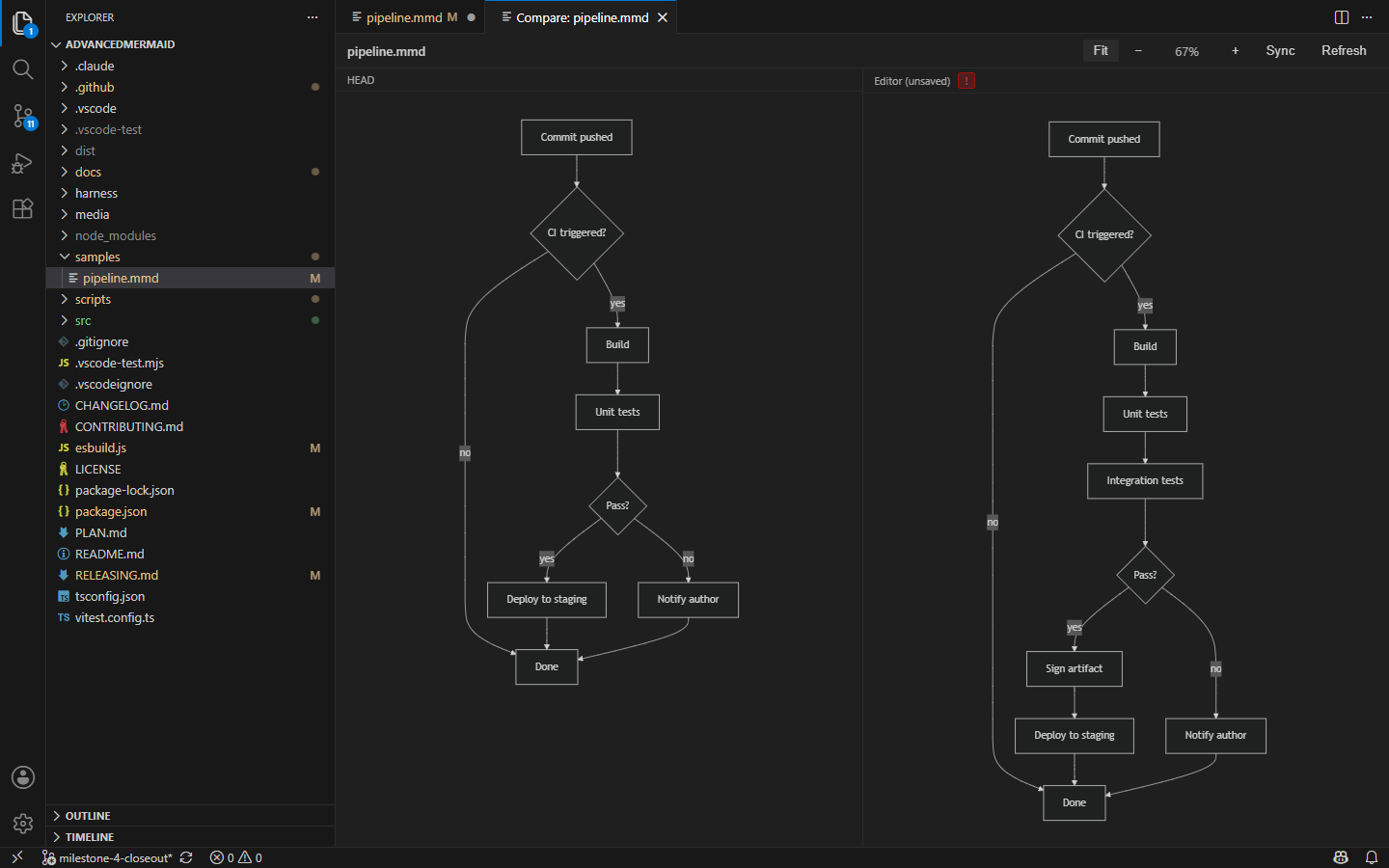
The working-tree pane follows your edits. Mermaid spends most of an edit in an invalid state, so a source that doesn't parse keeps the last good diagram on screen and raises a badge in the pane header instead of blanking the pane.
Comparing in place
The mode picker in the toolbar chooses how the two versions are shown.
Overlay stacks both renders in one canvas and the slider fades the upper (newer) one, so the
two versions can be flicked between in place — an onion skin. Swipe stacks them the same way
but splits at a draggable divider: the old version left of it, the new version right of it. The
divider takes the arrow keys once focused, Shift for bigger steps and Home/End for the edges.
Blink alternates between them instead, which is the one that catches small movements: a node that shifted a few pixels is hard to see faded and impossible to see across a gap, but obvious when it jumps. Three speeds, plus Pause to stop on the newer version. If your system asks for reduced motion, Blink starts paused and waits for you to press Resume.
All three modes register the layers at their top-left corners and share a single pan and zoom, so anything that moved shows up as movement rather than as two diagrams drifting apart.
Semantic diff
The other four modes show you two diagrams and leave the comparing to you. Semantic does the comparing: it reads both versions as a graph of nodes and edges, works out what was added, removed and changed, and draws one diagram with the answer marked on it — additions in green, removals dashed in red, and a reworded node in amber carrying the text it used to have:
Build image (was: Build)
Mermaid lays the merged diagram out, so it looks like your diagram rather than like a diff tool's idea of one. Colour is never the only signal — removals are dashed as well as red.
It reads flowcharts (flowchart and graph), sequence diagrams, and class diagrams.
A merged class diagram tints the classes that changed and says the rest in words, because that is
all mermaid allows there: a relationship carries its change in its label (fed by (changed)), and
a field or method says it in its own line — +String age [was +int age], +sleep() void [added].
A member keeps its identity through a retype, so changing a field's type reads as one change rather
than as a deletion and an addition.
A merged sequence diagram marks its changes differently again, because mermaid gives a message no
class to style: each
changed message, note or block is drawn inside a coloured band, added ones green, removed ones red,
reworded ones amber and carrying what they used to say. Participants are marked in their own label
— Customer (was: User), Bob (added) — since a band around a participant is the one thing
mermaid will not draw.
Point it at anything else, or at a diagram whose type changed between the two versions, and it shows both versions side by side instead, with a line saying why. That decision is re-made as you type, so turning a diagram back into a flowchart brings the merged view back without touching the picker.
Exporting
Export… writes the comparison as a single image. Pick a .svg or .png name in the save
dialog — the extension you choose decides the format.
What comes out is the comparison, not a screenshot: pan, zoom, Overlay, Swipe and Blink are ways of looking at two diagrams, so the export ignores them and lays both versions out side by side under their pane labels, at their natural size, on a background matching your theme.
Semantic is the exception, because it isn't a way of looking — the merged diagram is a comparison in its own right, one neither pane holds. Export from Semantic and you get that diagram, titled with both sides and carrying its own key, since the legend in the panel can't travel with the file. If Semantic has fallen back to showing both versions, so does the export.
Inspecting one side
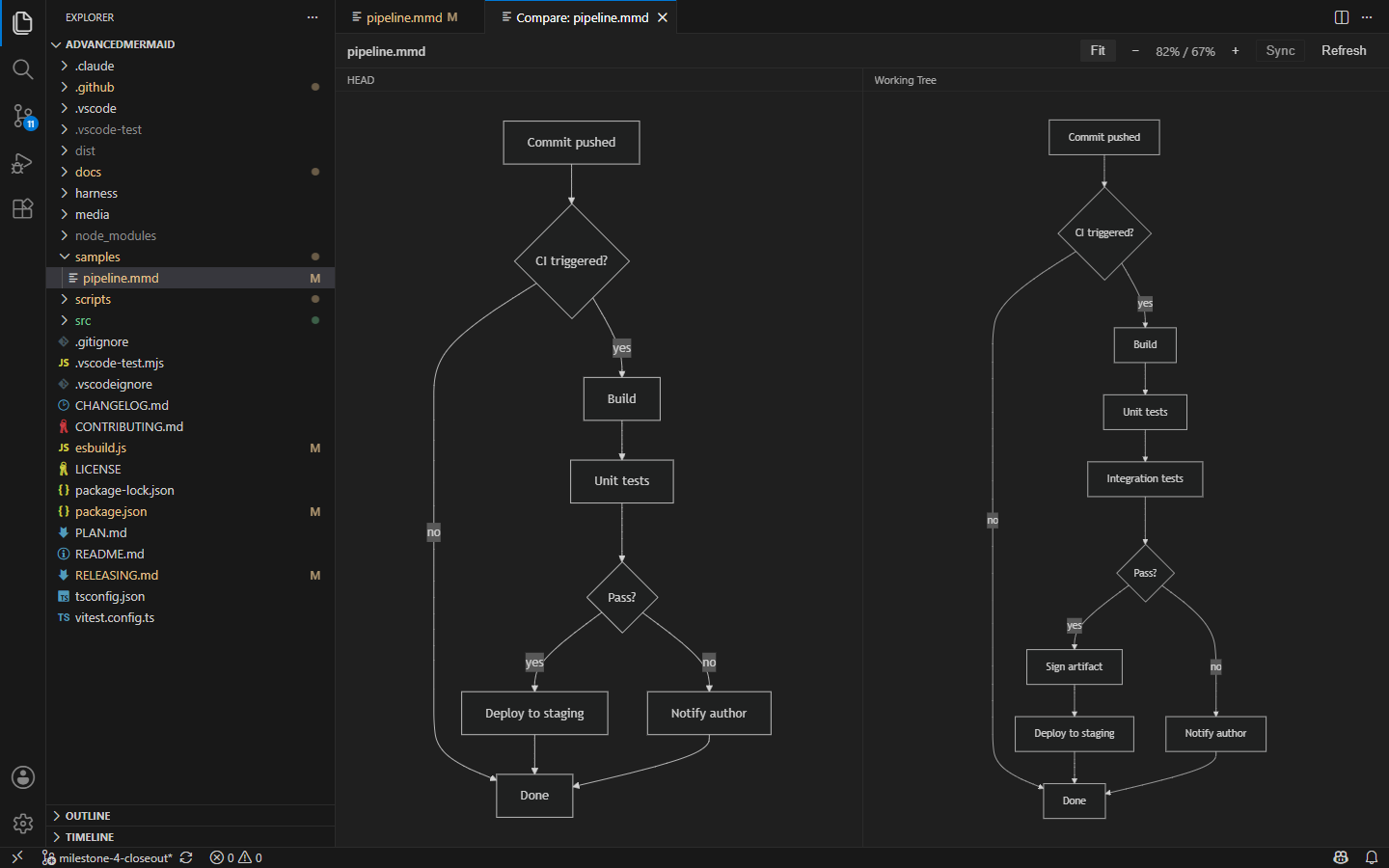
Both panes pan and zoom together by default. Turn Sync off to frame each side on its own.
Roadmap
- Visual overlay modes (onion-skin, swipe, blink) like image diff tools
- Semantic diff — parse both versions, diff the graph structure, and render one merged diagram with added/removed/changed elements highlighted. Stable layout, so the change jumps out.
- Compare a diagram in one file against a diagram in another
- Export comparison as image
- Semantic diff for
sequenceDiagramandclassDiagram - Semantic diff for further diagram types — state, ER and the rest, based on what people ask for
See PLAN.md for the full milestone-by-milestone plan.
Contributions toward any of these are very welcome — see CONTRIBUTING.md.
Development
npm install
npm run watch     # rebuild on change
Press F5 in VS Code to launch an Extension Development Host.
Other scripts: npm run typecheck, npm test (unit), npm run test:integration (in a real VS
Code), npm run verify:view (webview in Chromium), npm run build (production bundle).
To package a .vsix: npx @vscode/vsce package. Release process: RELEASING.md.